
How to Audit Active Directory Certificate Authority (ADCS) / Microsoft CA using the PKI Trust Auditor
This guide explains how to audit an Active Directory Certificate Authority using PKI Trust Auditor. You will learn the step-by-step process to perform a comprehensive audit efficiently.
To begin, You will need to have these steps performed: 1. Download the PKI Trust Auditor from securetron.net for Free. 2. User account that is a Domain Admin or an Enterprise Admin. For specific permissions refer to the documentation.
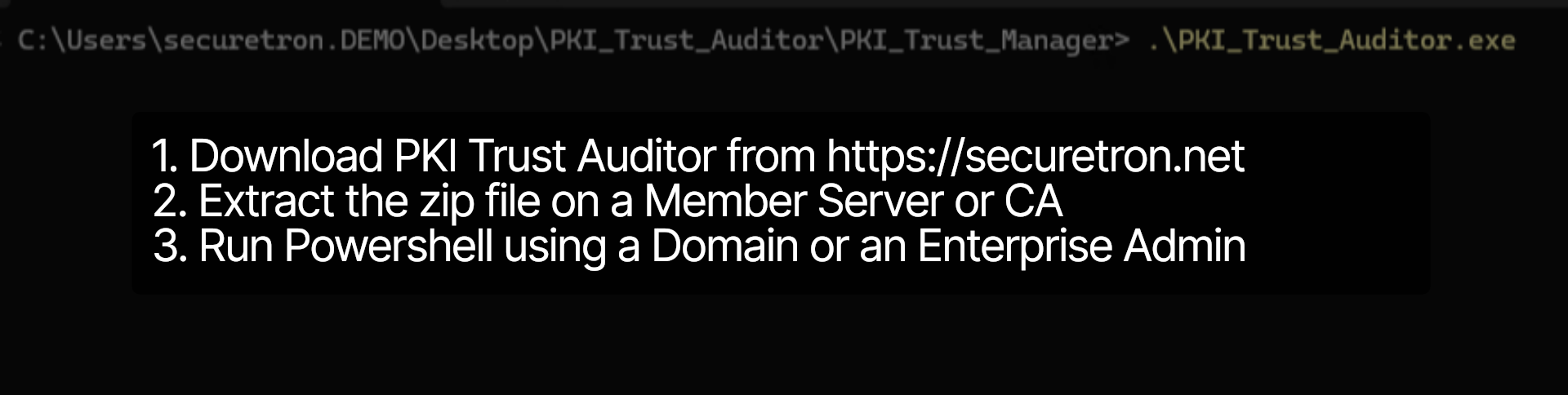
Within the helper folder – ensure that the two PowerShell scrips are unblocked so that the Auditing utility can run successfully without any issues.
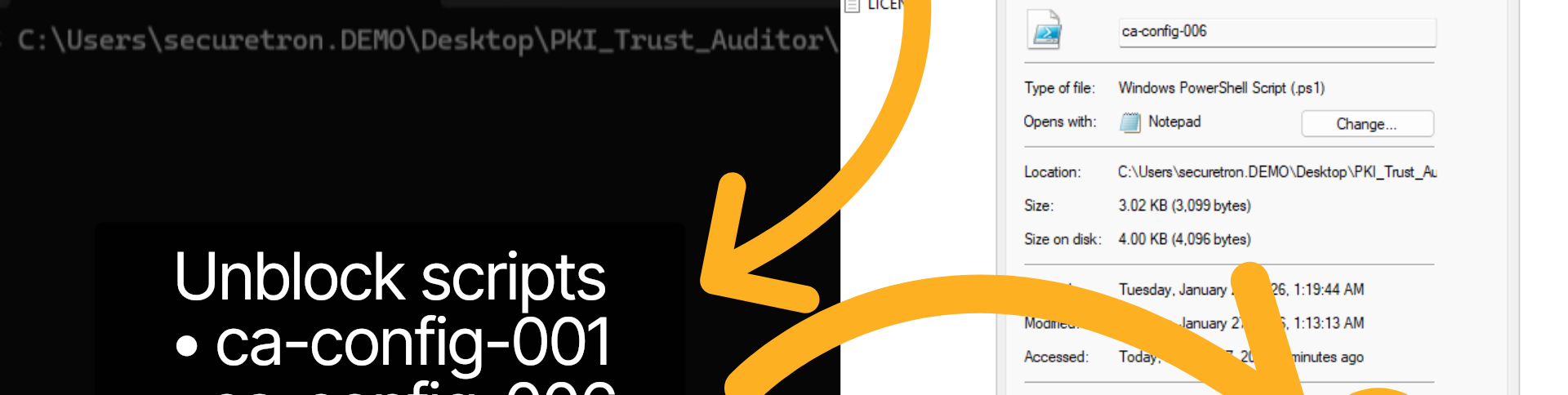
Now, let us run the PKI Trust Auditor utility using powershell with appropriate permissions
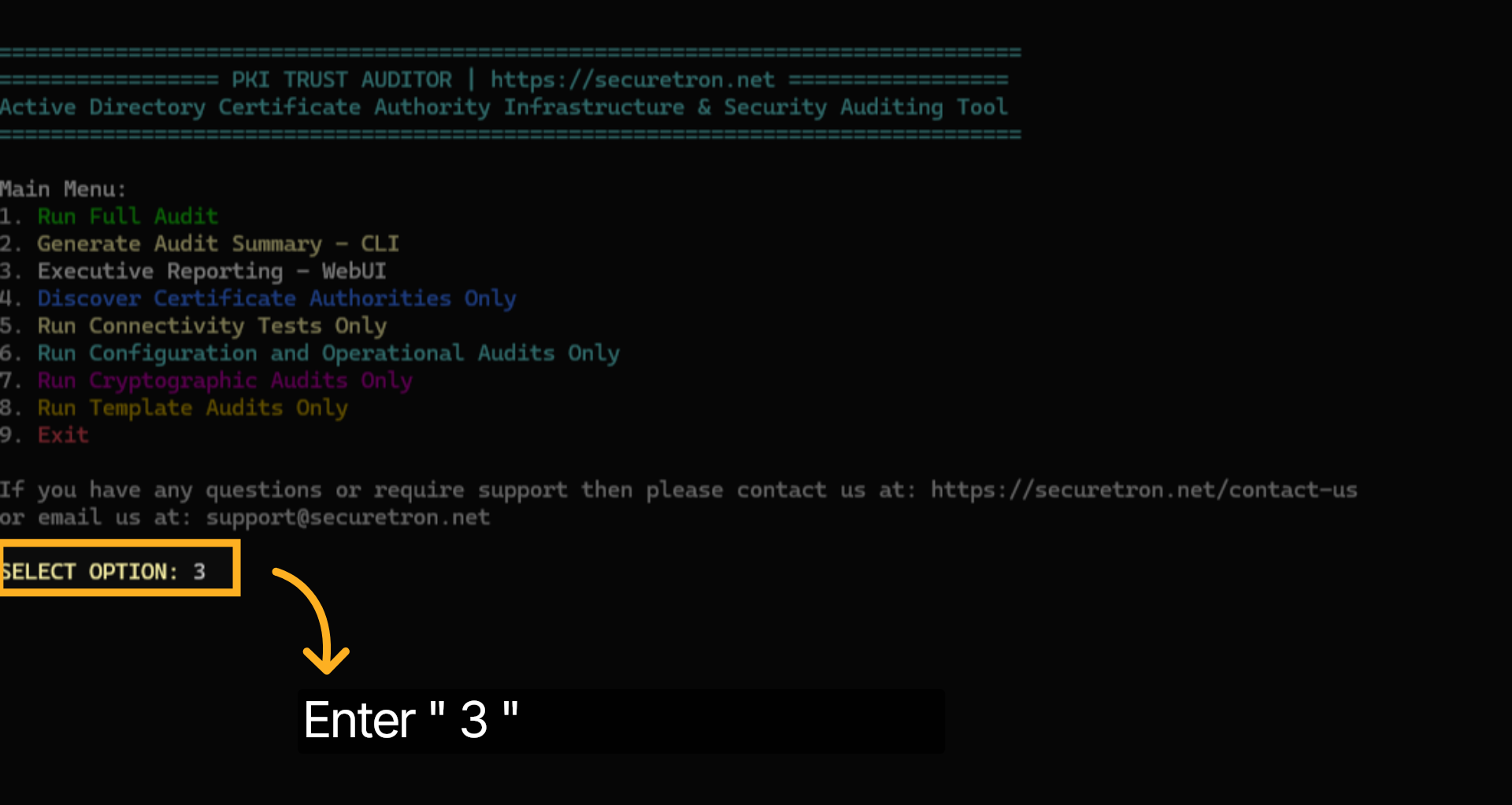
The Auditing utility will launch and provide an interactive menu with various options. Refer to the documentation for more information. We will be using Option 1 to run a full audit and option 3 to view the repor
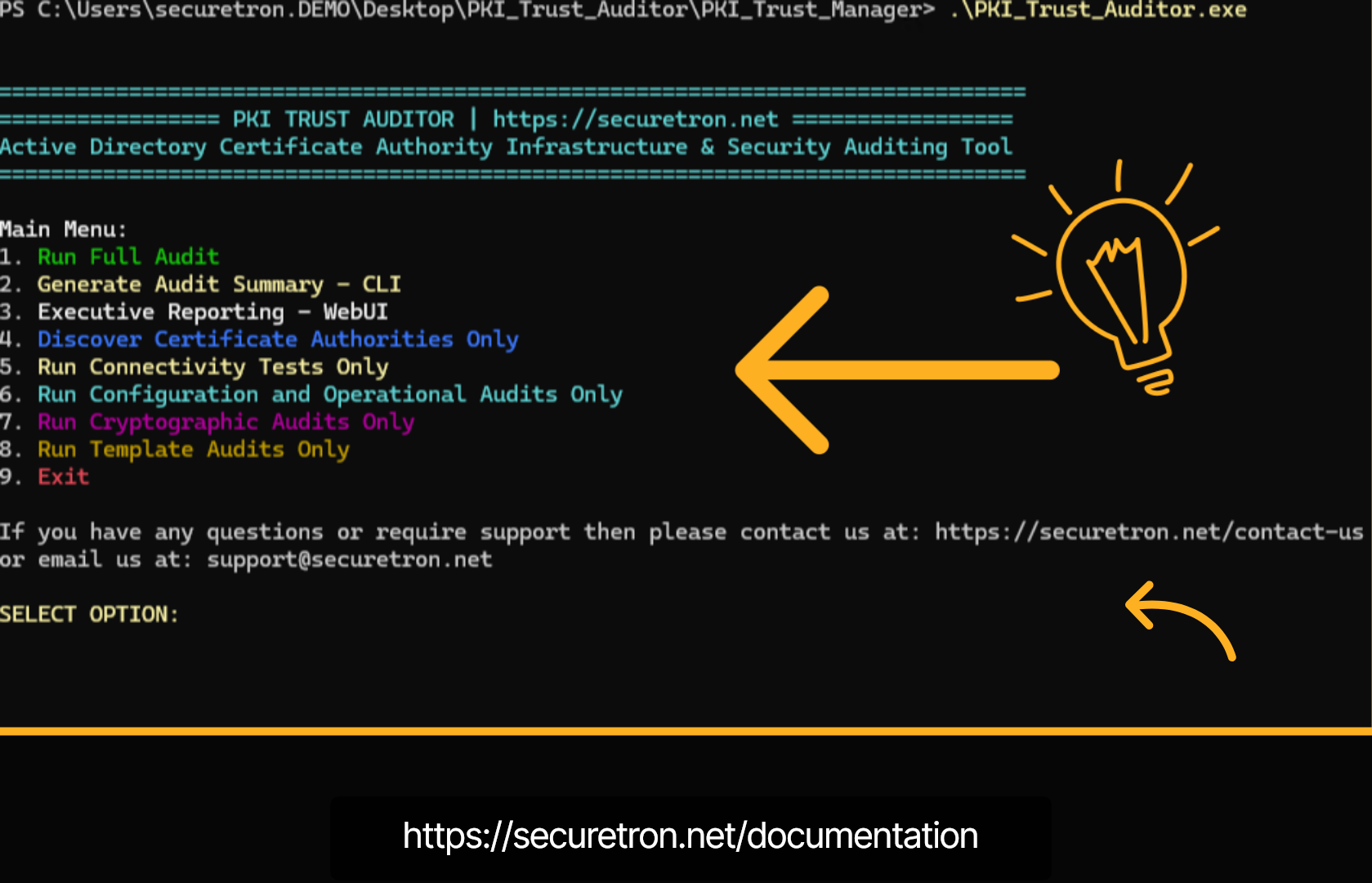
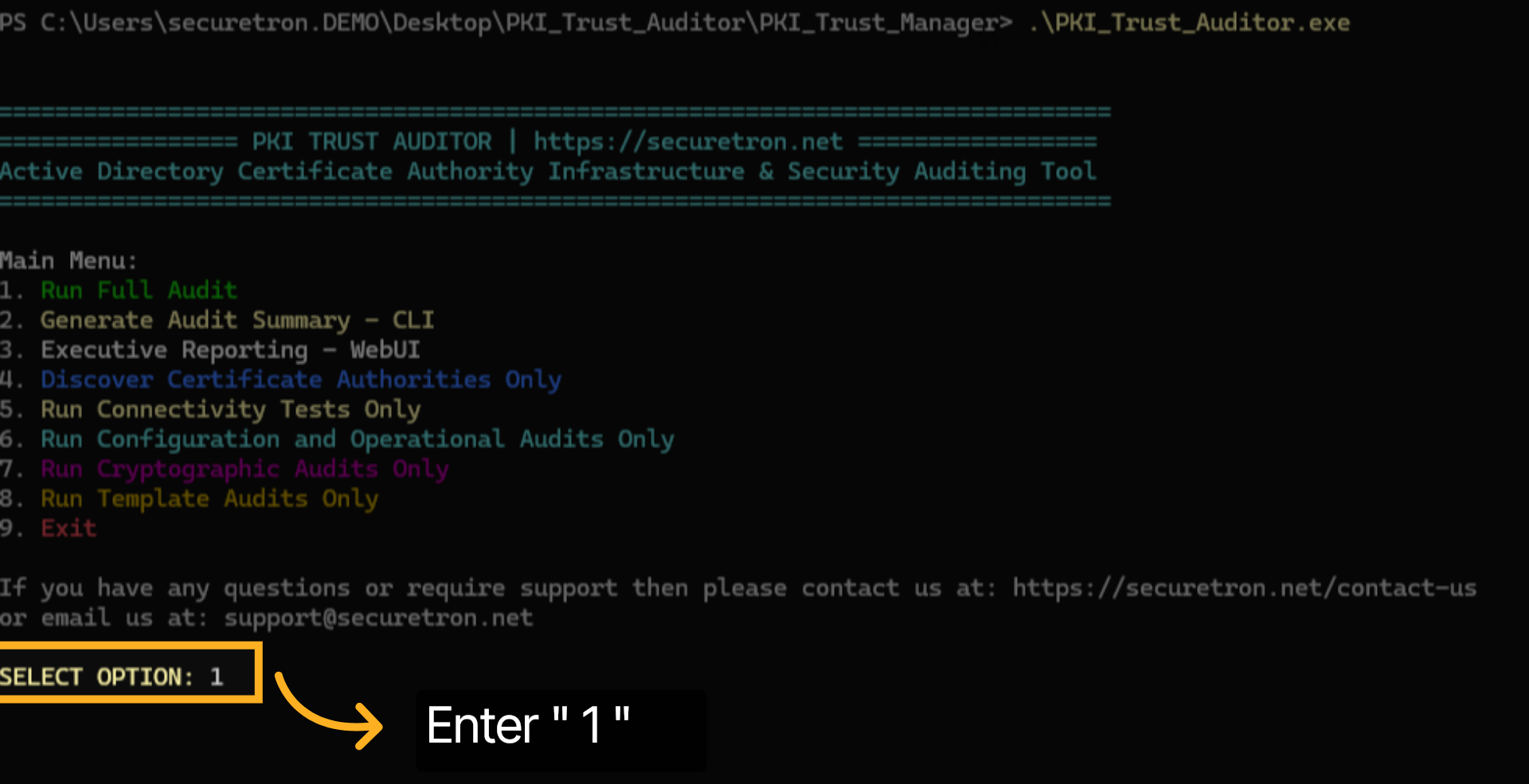
Let us proceed with option 1. Type the number 1 and hit enter
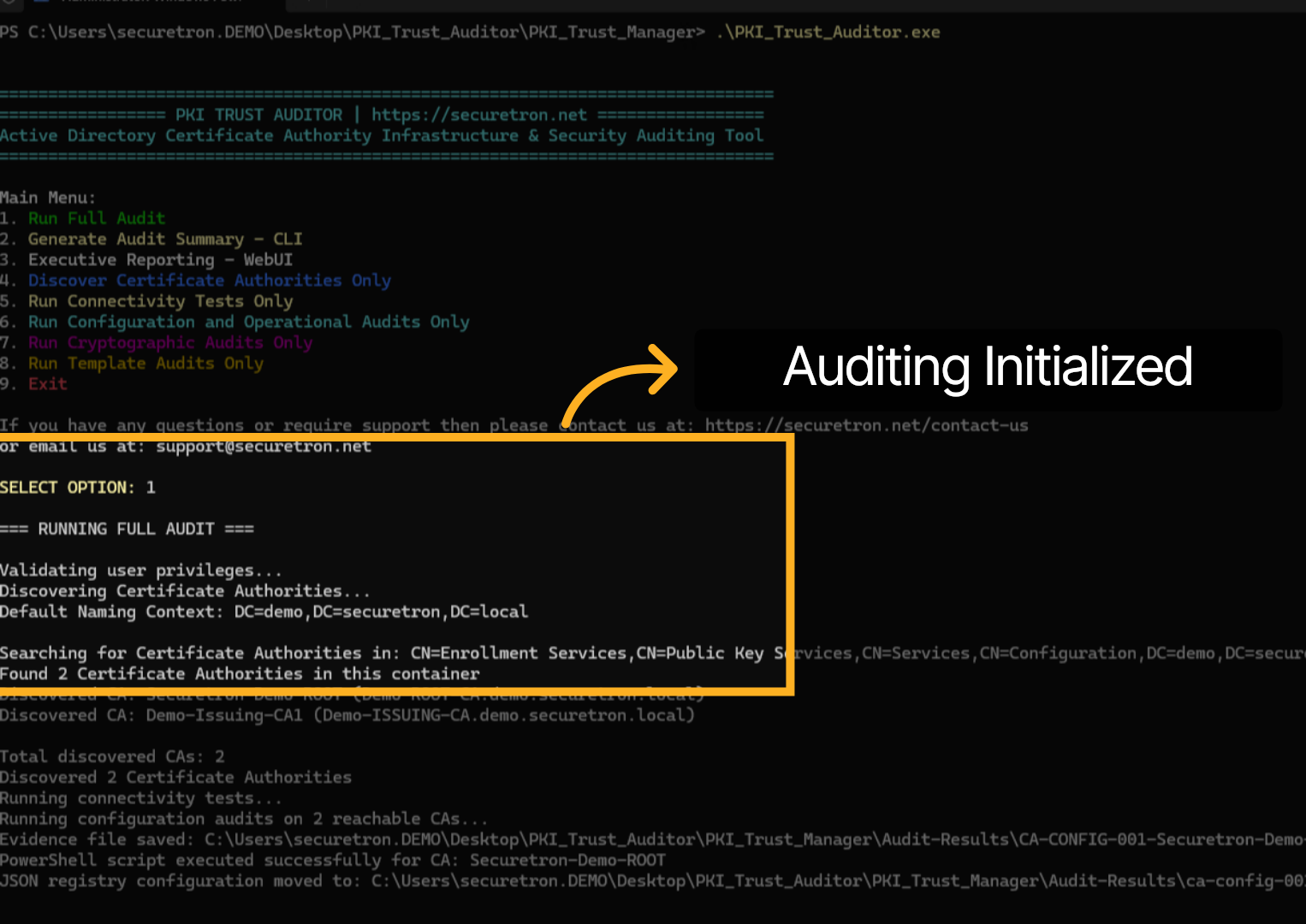
The Auditing will initialize and you should see the message stating the status as it progresses.
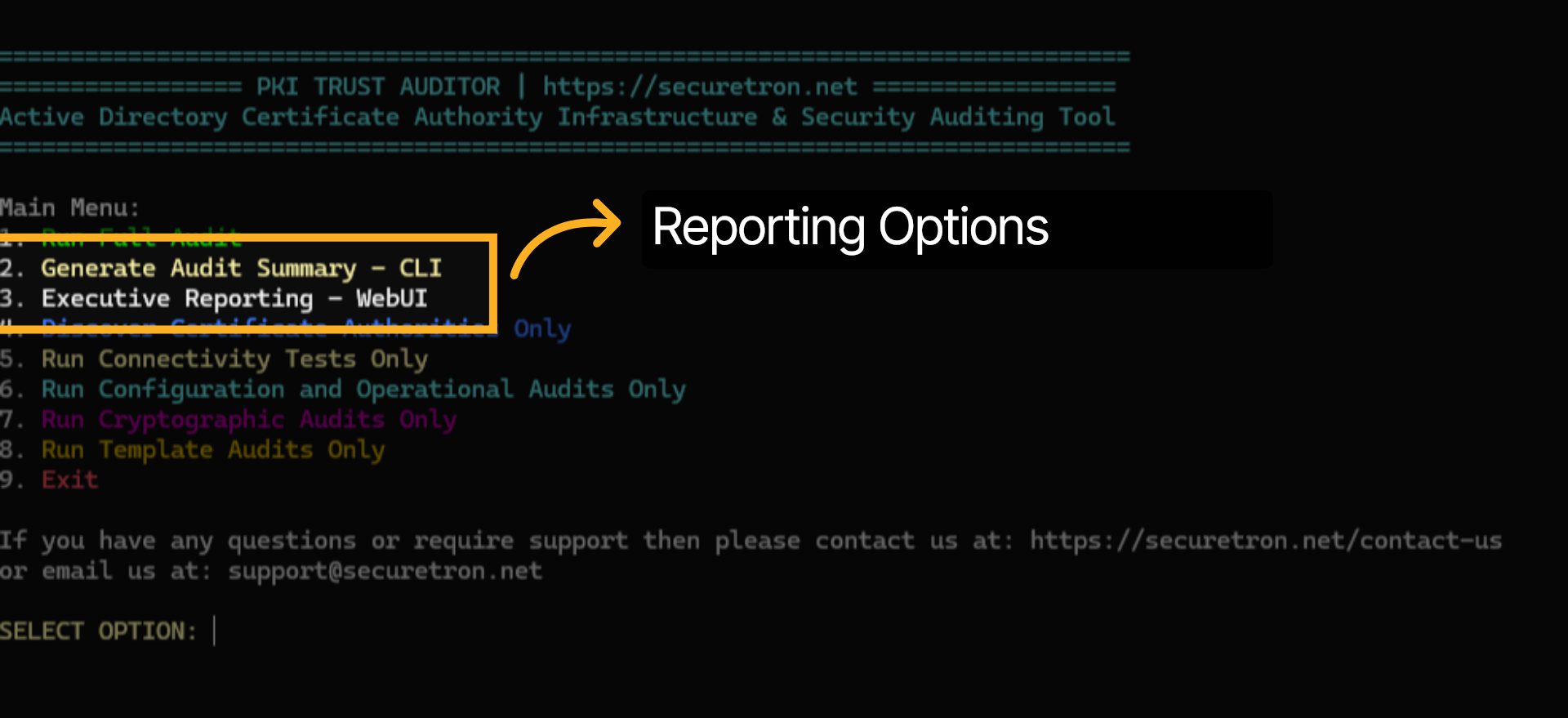
There are two options for viewing the Audit Results. Option 2 displays the results in PowerShell, which can be helpful for administrators to quickly determine if remediation has resolved a finding. In contrast, Option 3 offers a comprehensive WebUI report that can be shared with management, along with a detailed report for administrators.
Type the number 3 and hit enter. This will launch the graphical Web report in the browser
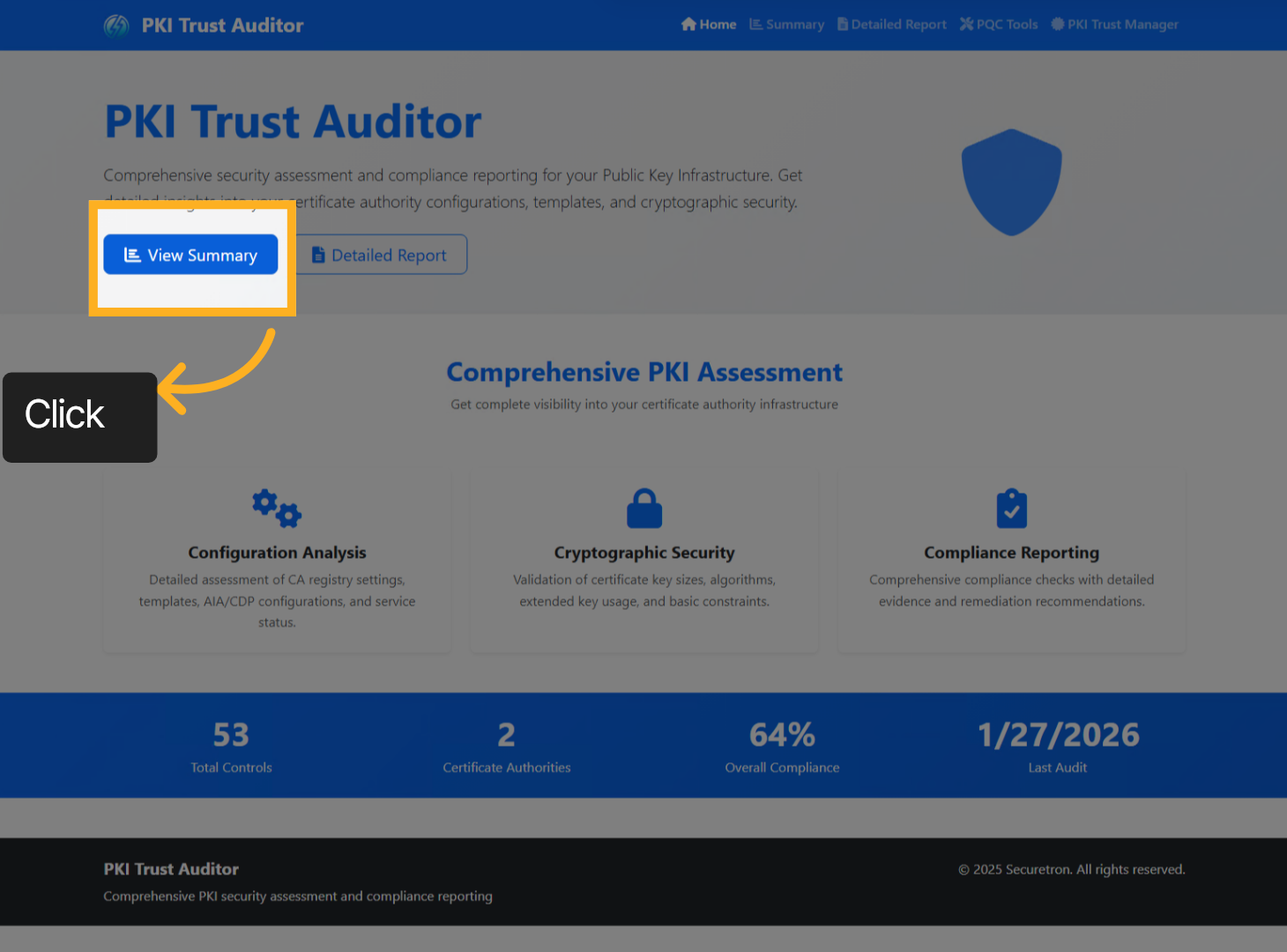
The PKI Trust Auditor will generate the graphical report in the browser, allowing the admin to review both the Summary and the Detailed Findings report.
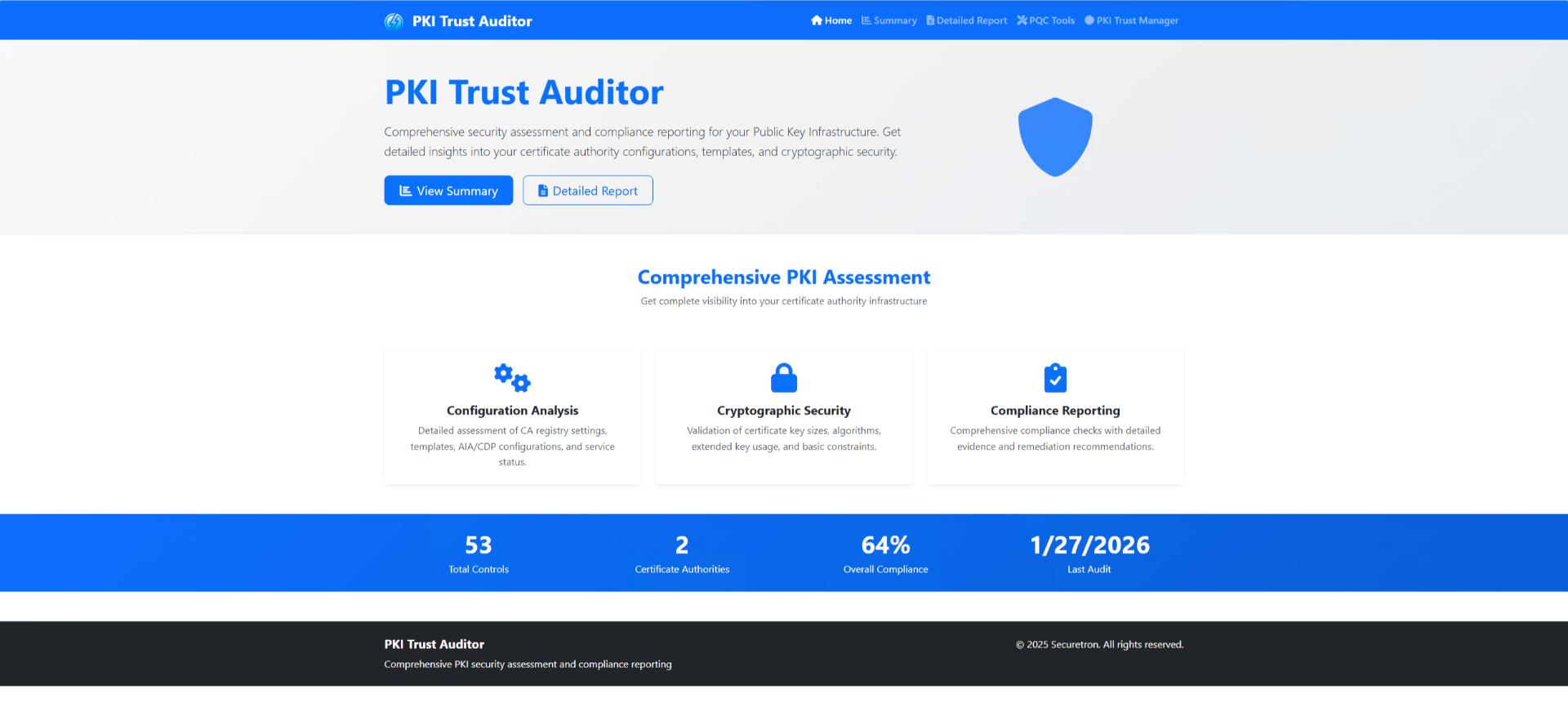
Proceed to the Summary of the report by clicking the “View Summary” button
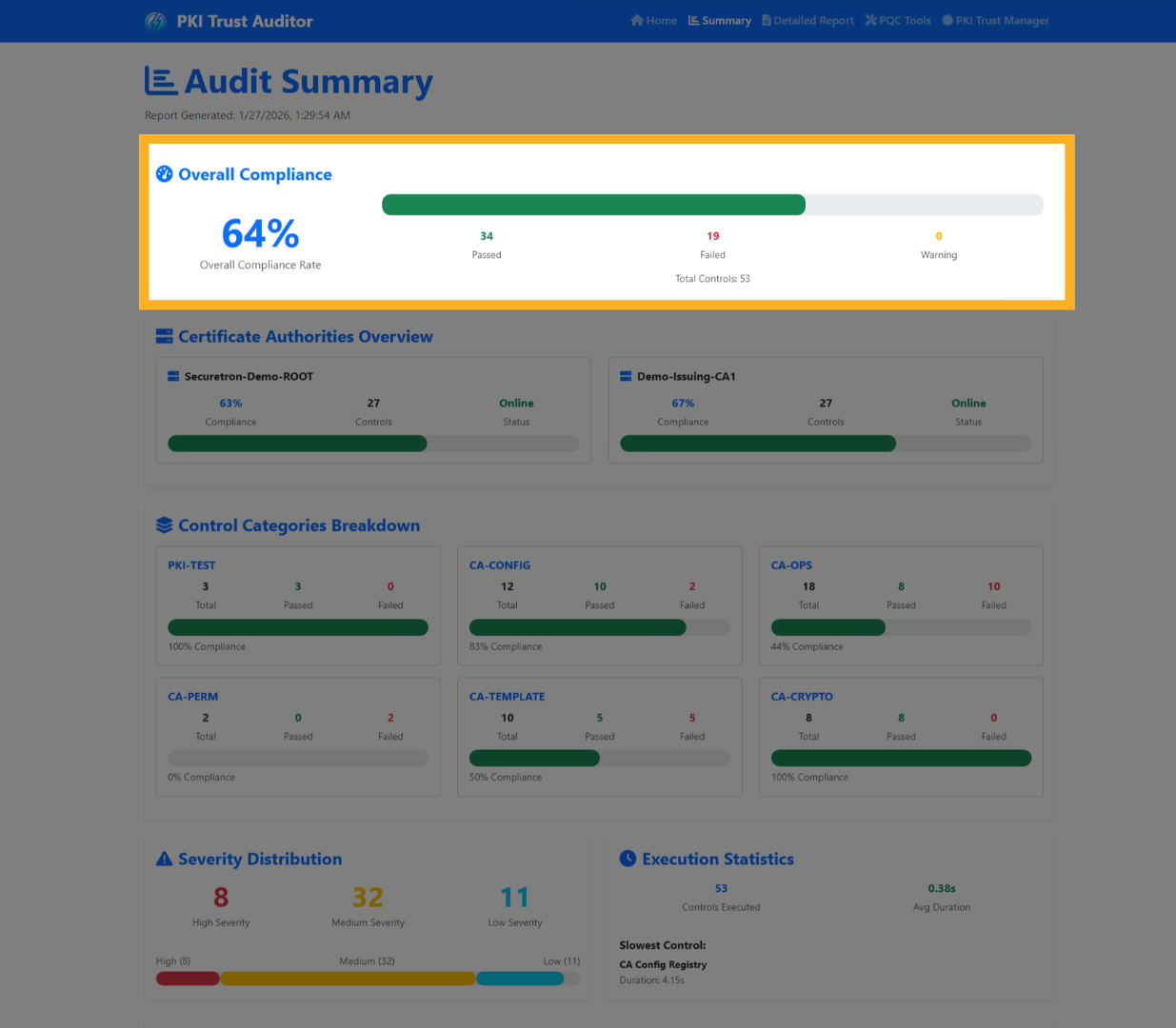
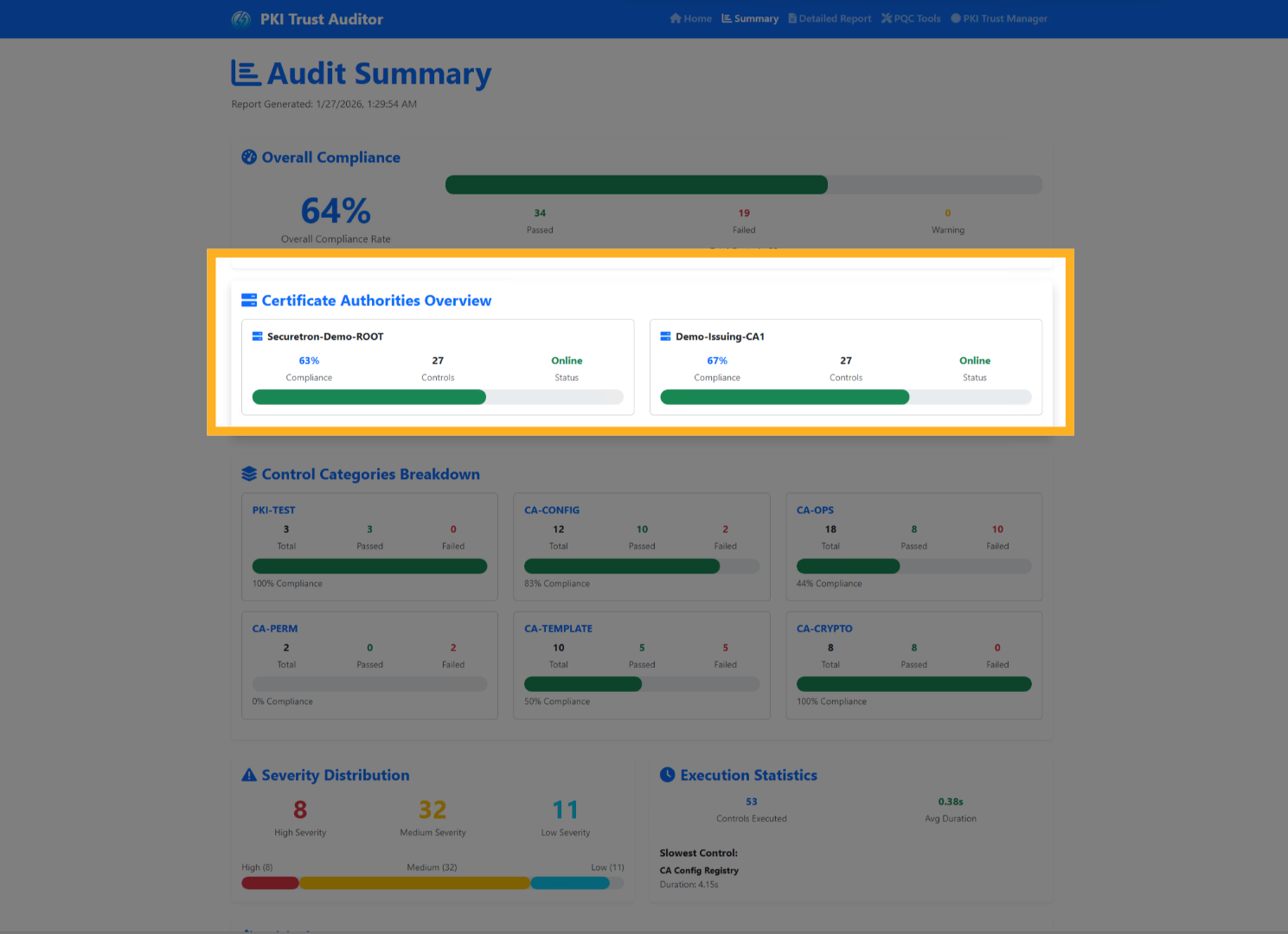
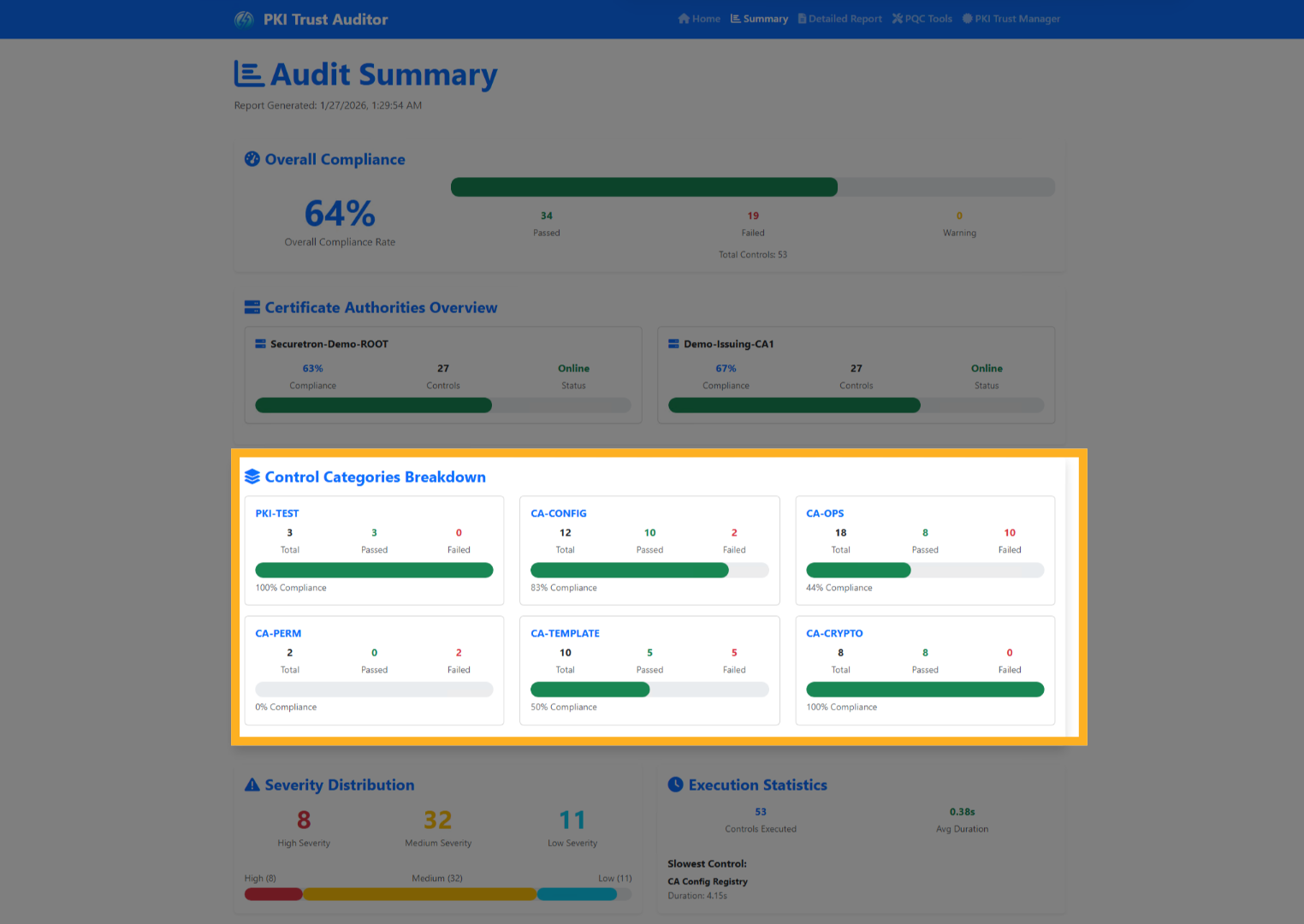
The audit summary page serves as a comprehensive overview of the findings, effectively organizing them into various distinct sections. This structured approach allows users to easily navigate through the information, ensuring that each key finding is highlighted and accessible.
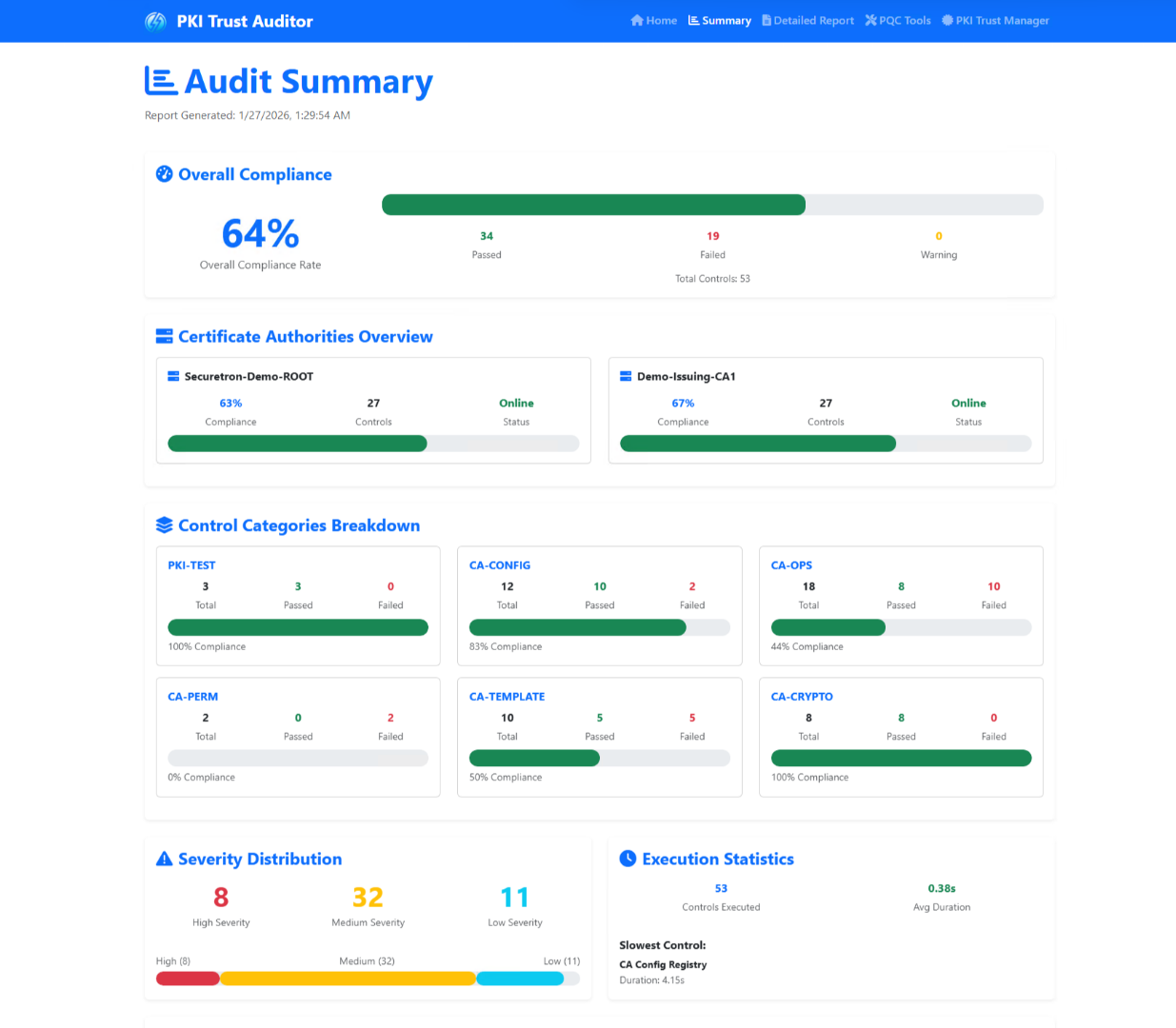
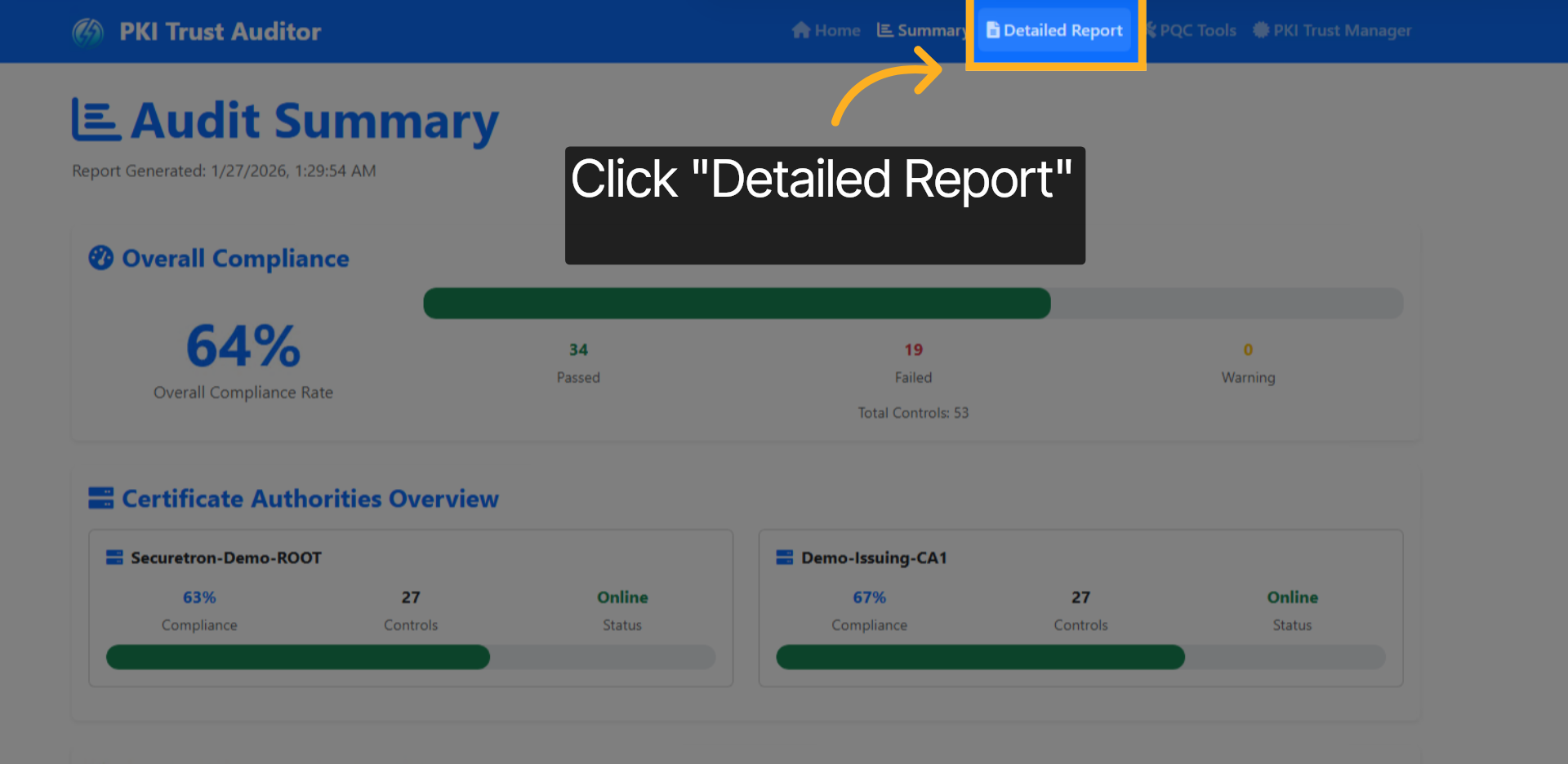
The compliance rate across the PKI Infrastructure.
The findings distributed across all the discovered and audited Certification Authorities
The summary of findings by categories
as well as amount of time taken to execute the controls across the infrastructure
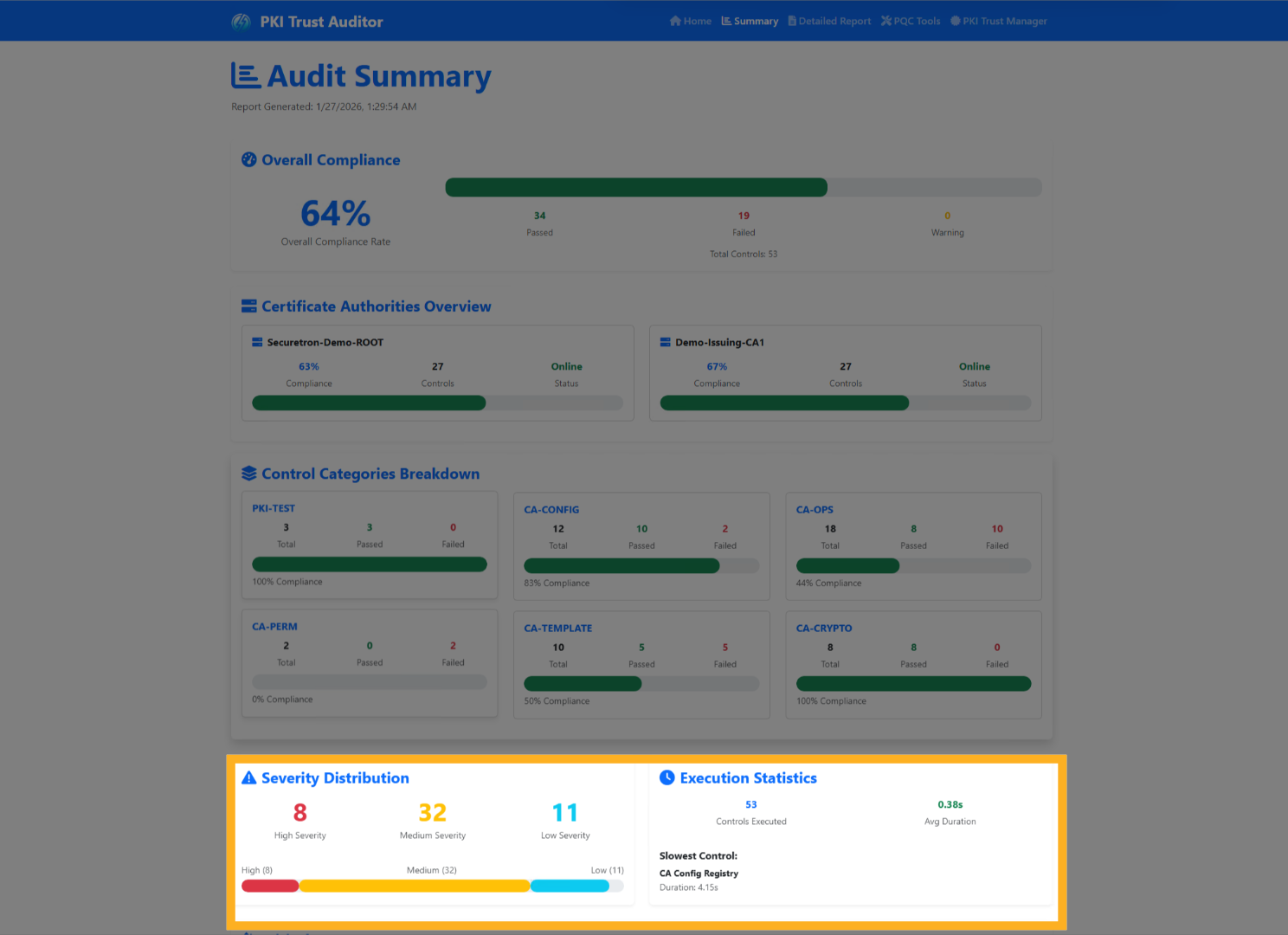
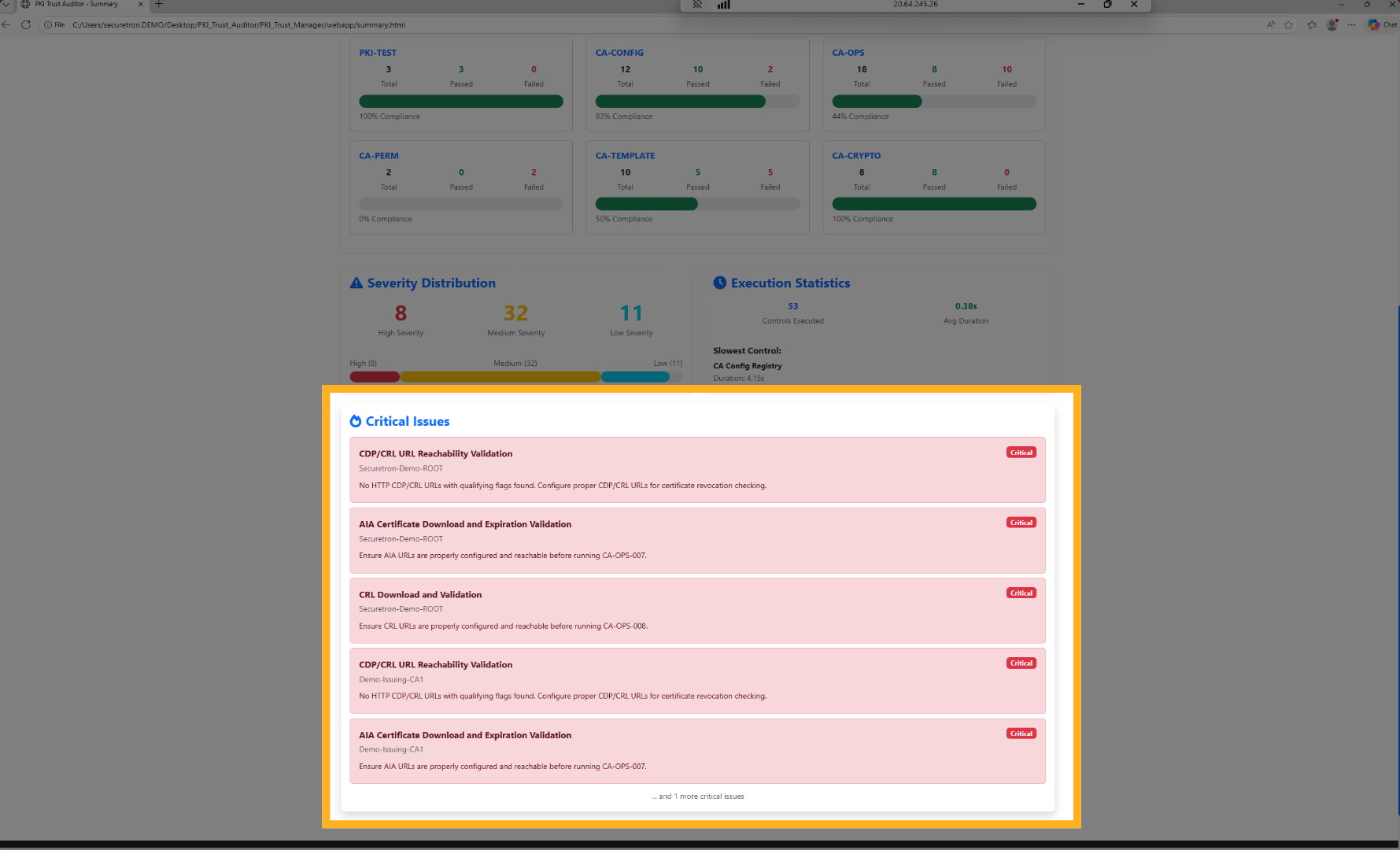
Finally, a section of critical issues identified, ensuring they receive the spotlight that they deserve.
Open the detailed report to analyze certificate authority audit findings comprehensively.
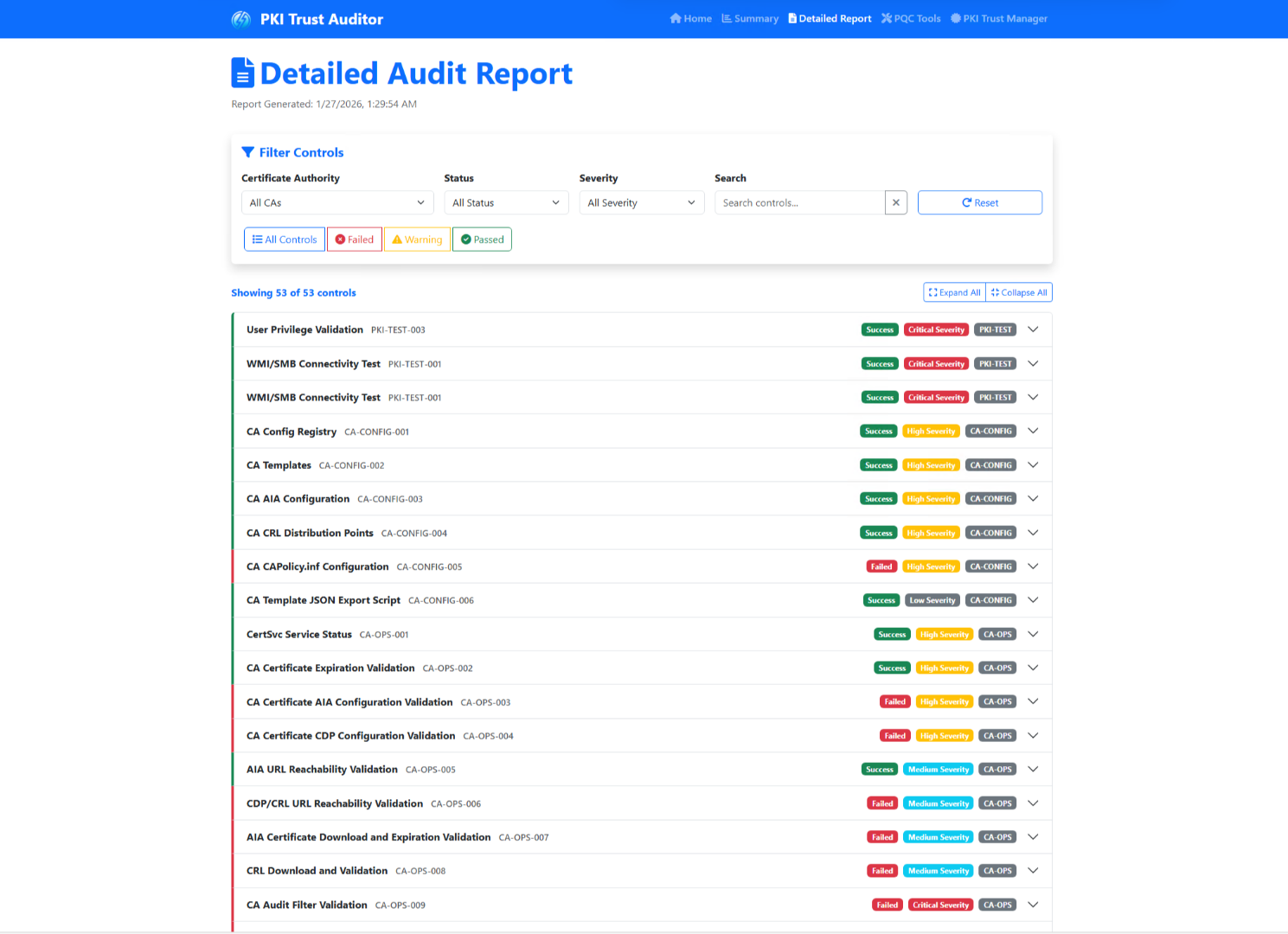
The audit details page presents information regarding the audit findings, including an option to filter them, review them in details and take an action.
let’s quickly review the Filters that can be applie
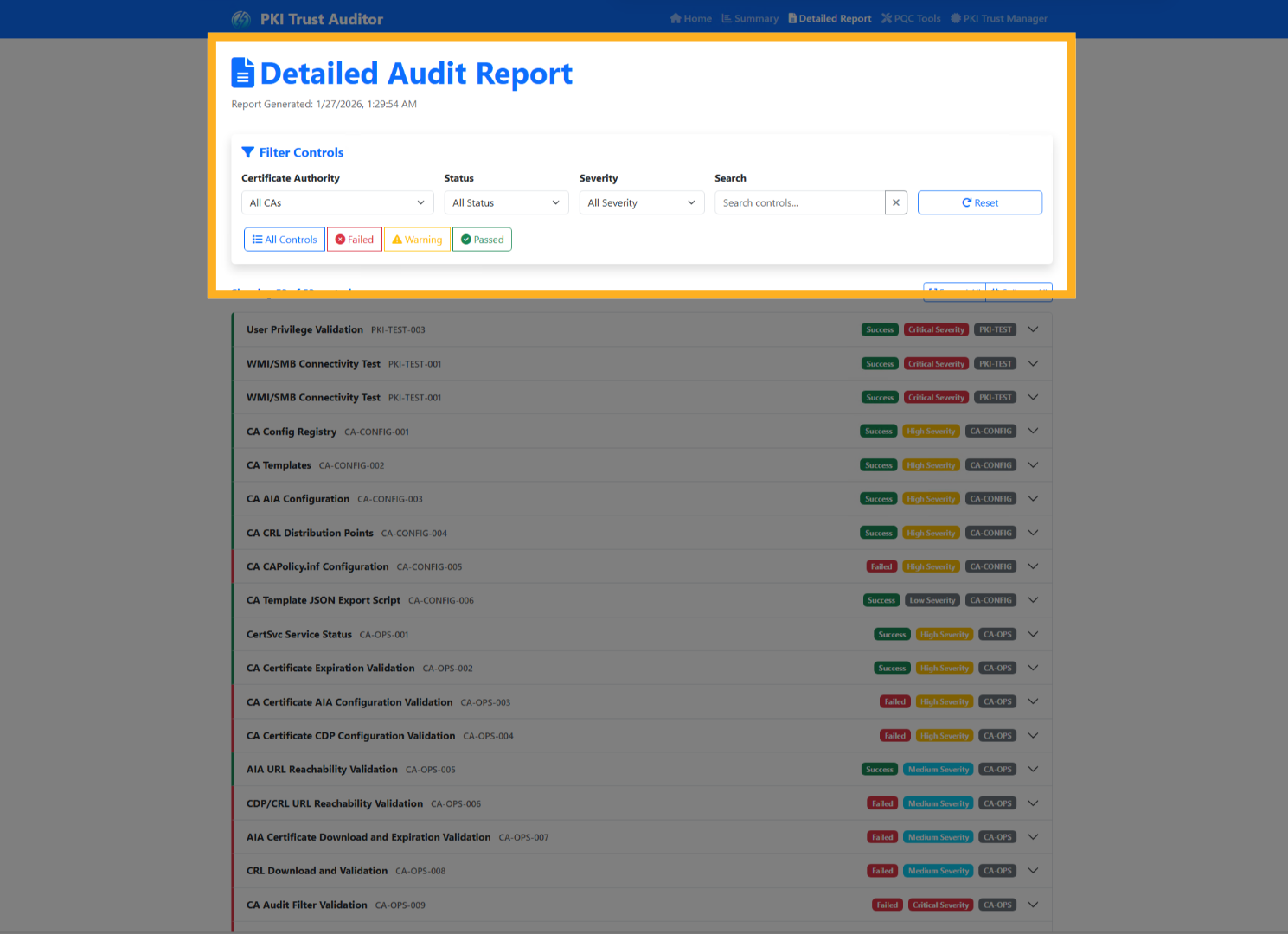
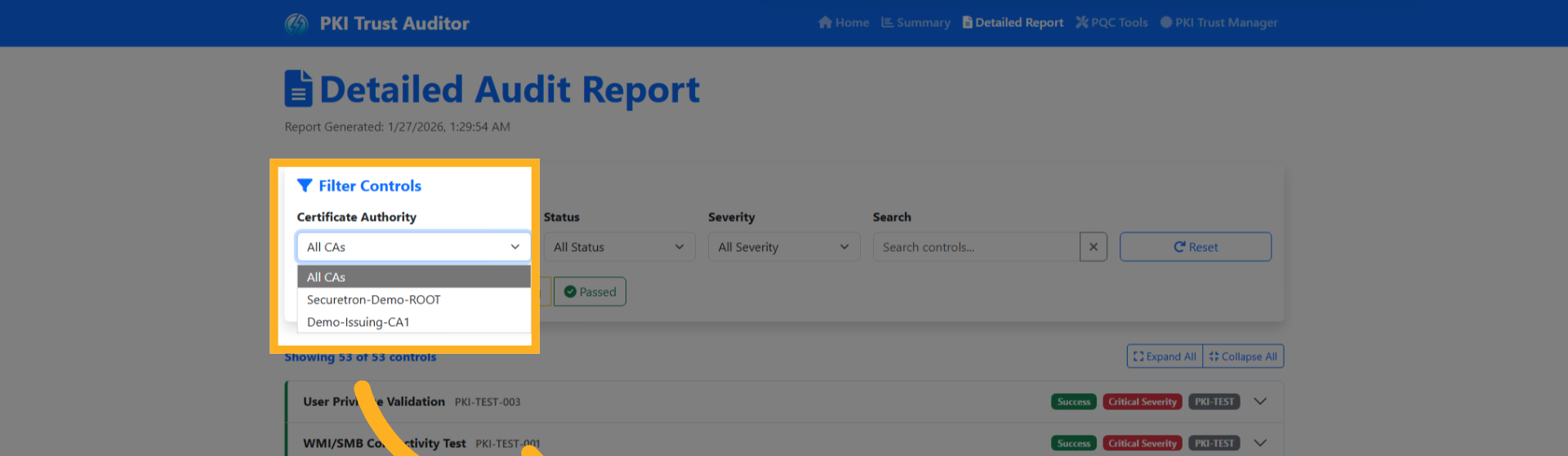
You may filter the findings by Certification Authority
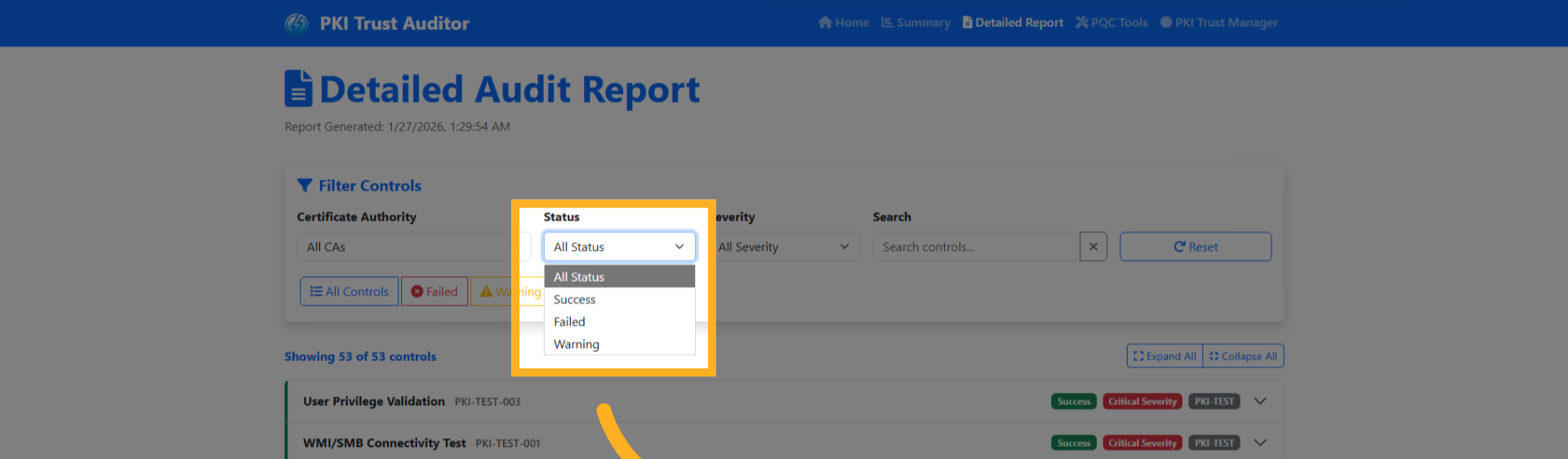
by Status of the gaps
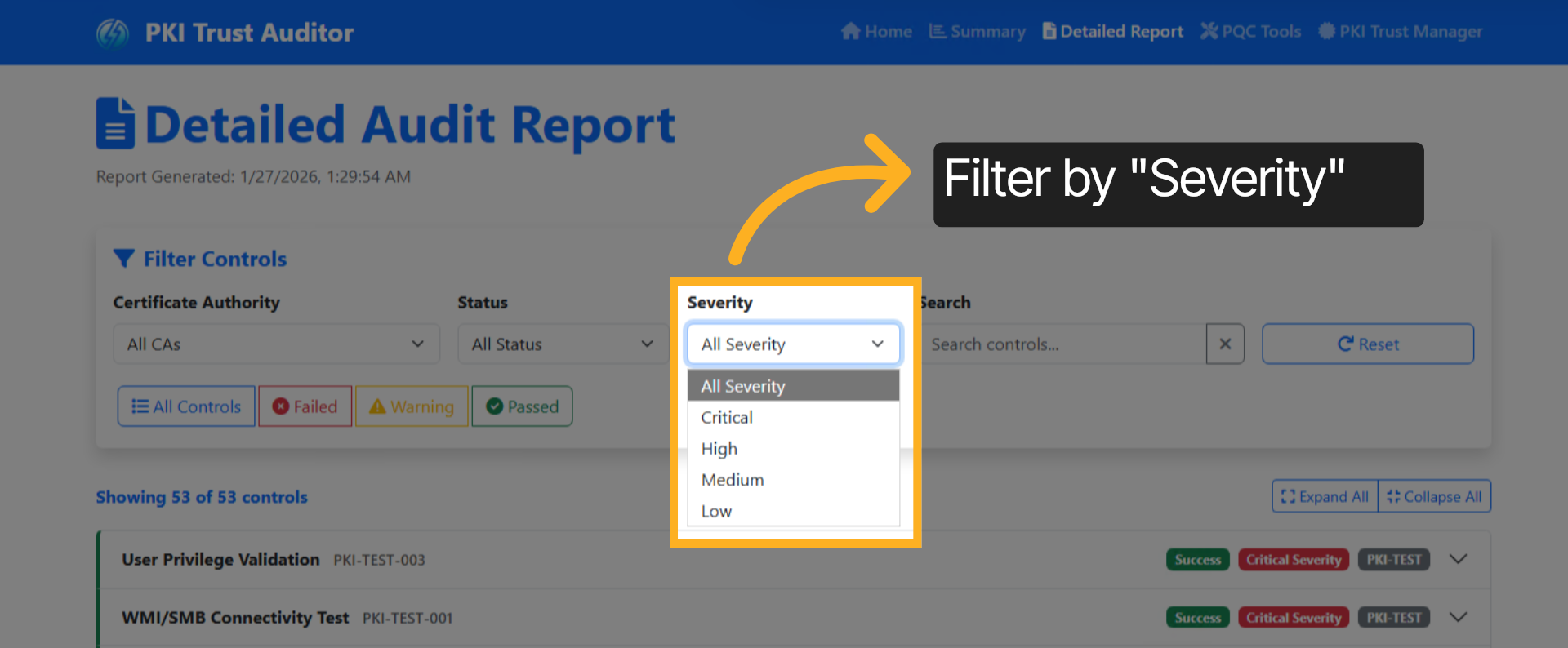
you may also filter by Severity
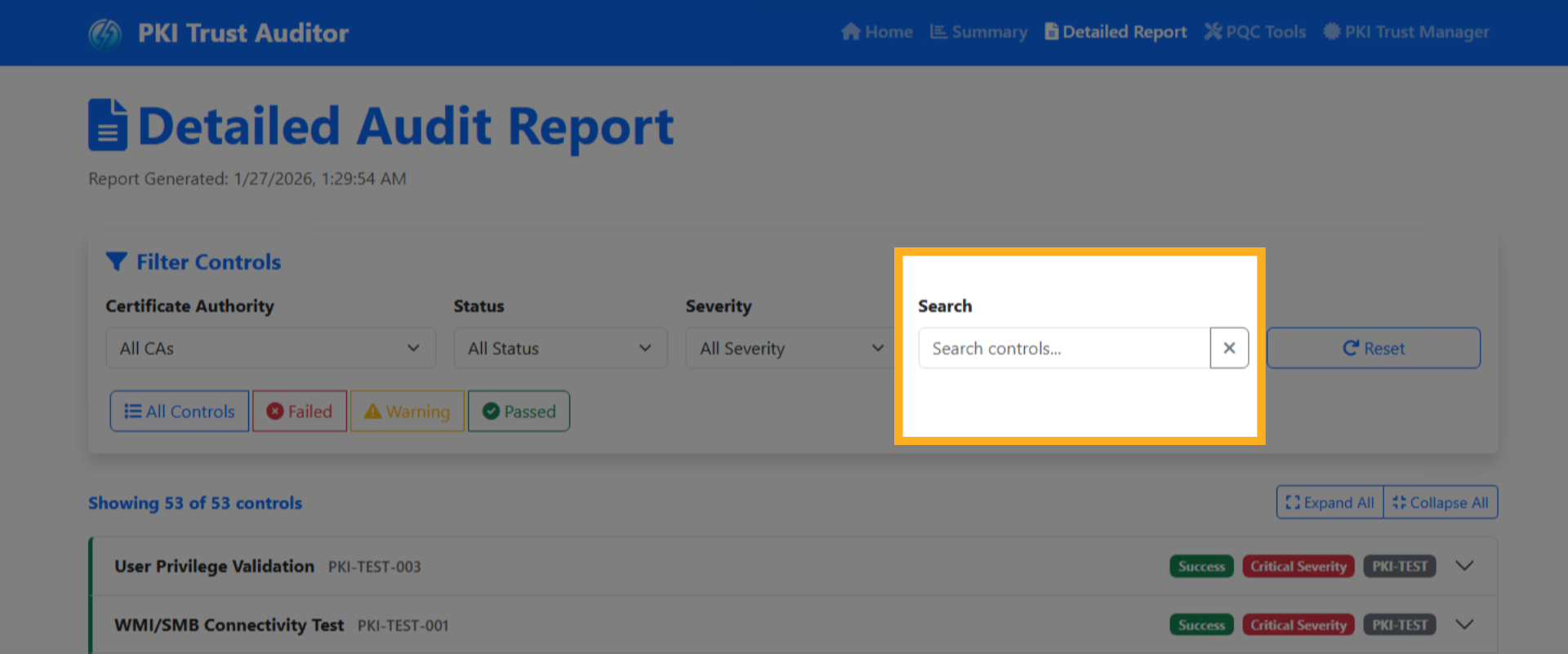
and finally search any of the findings by it name or Control ID
This report lists all audited controls, each tagged with its Status, Severity, and corresponding category.
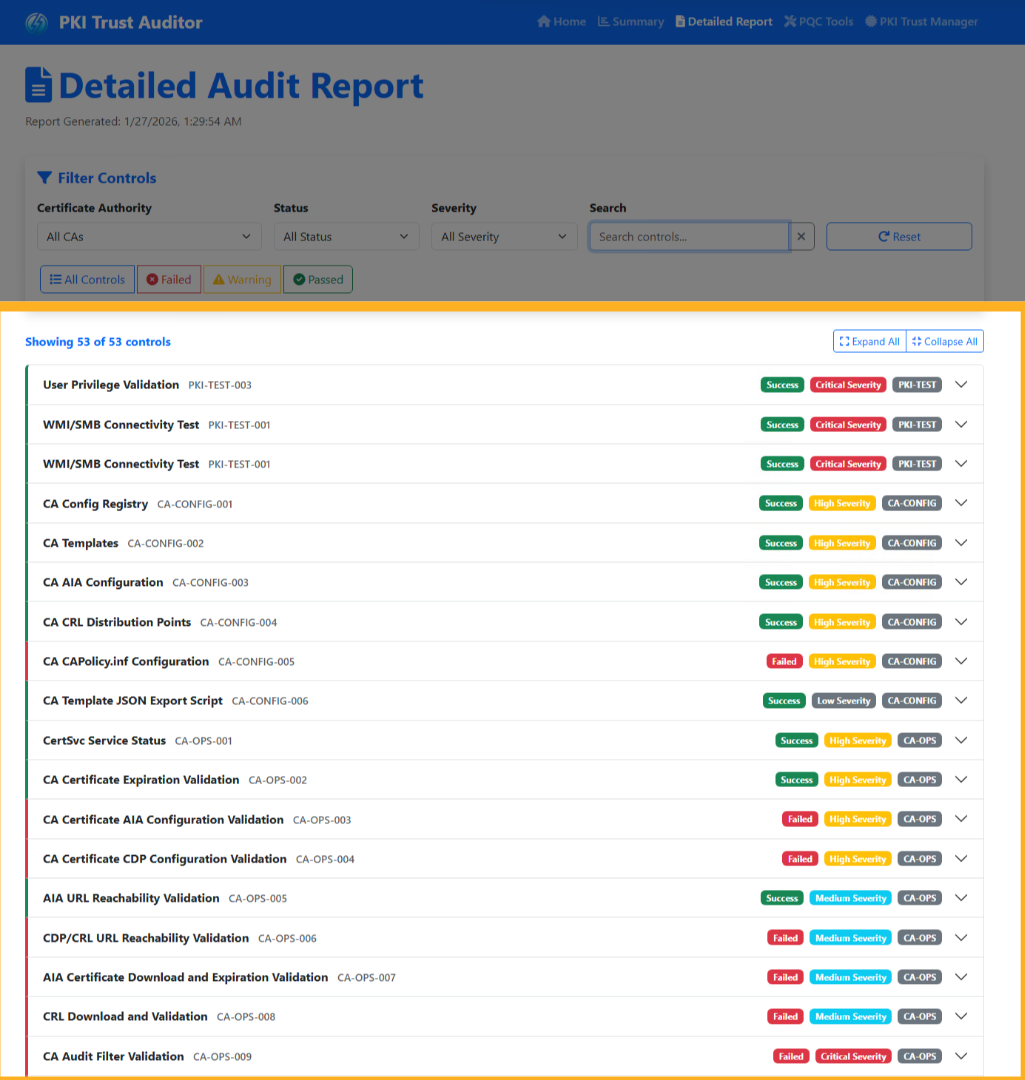
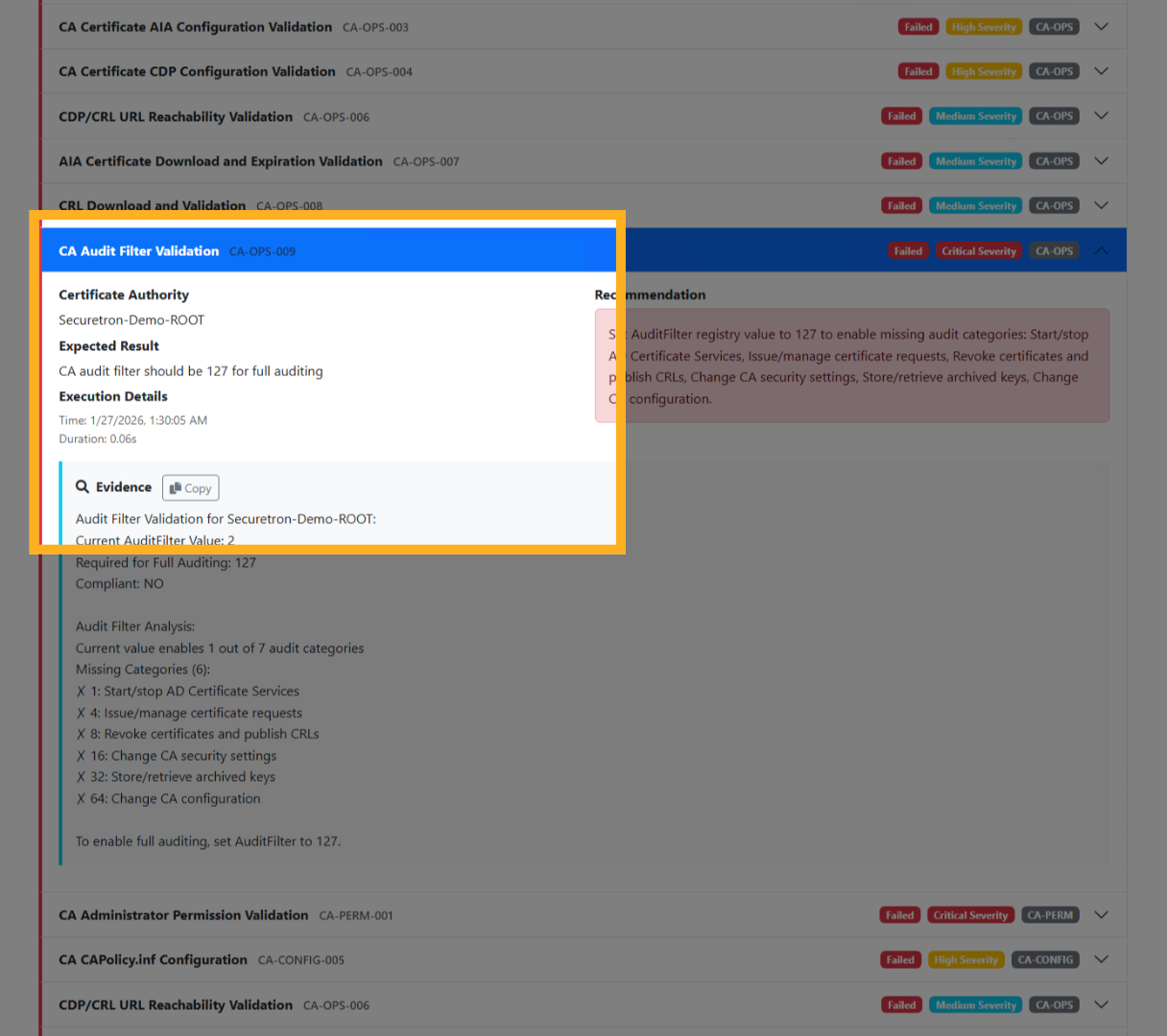
When you expand a control, you will see additional information, including the Certificate Authority where it was found, the expected result , and the timestamp of when it was discovered.
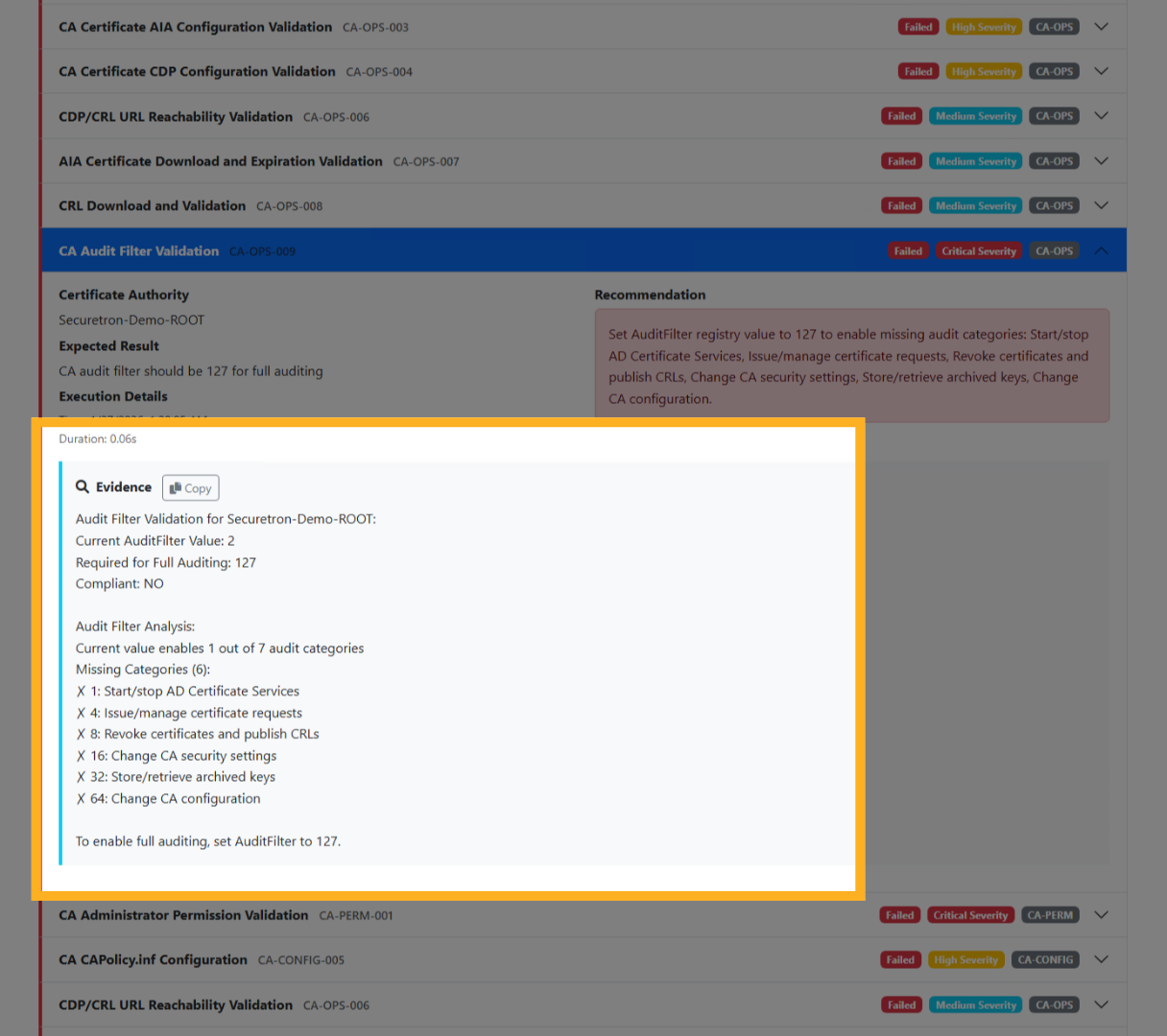
The evidence section offers comprehensive details regarding the findings, the requirements, the status of the control, and the configuration that illustrates how the control is set up.
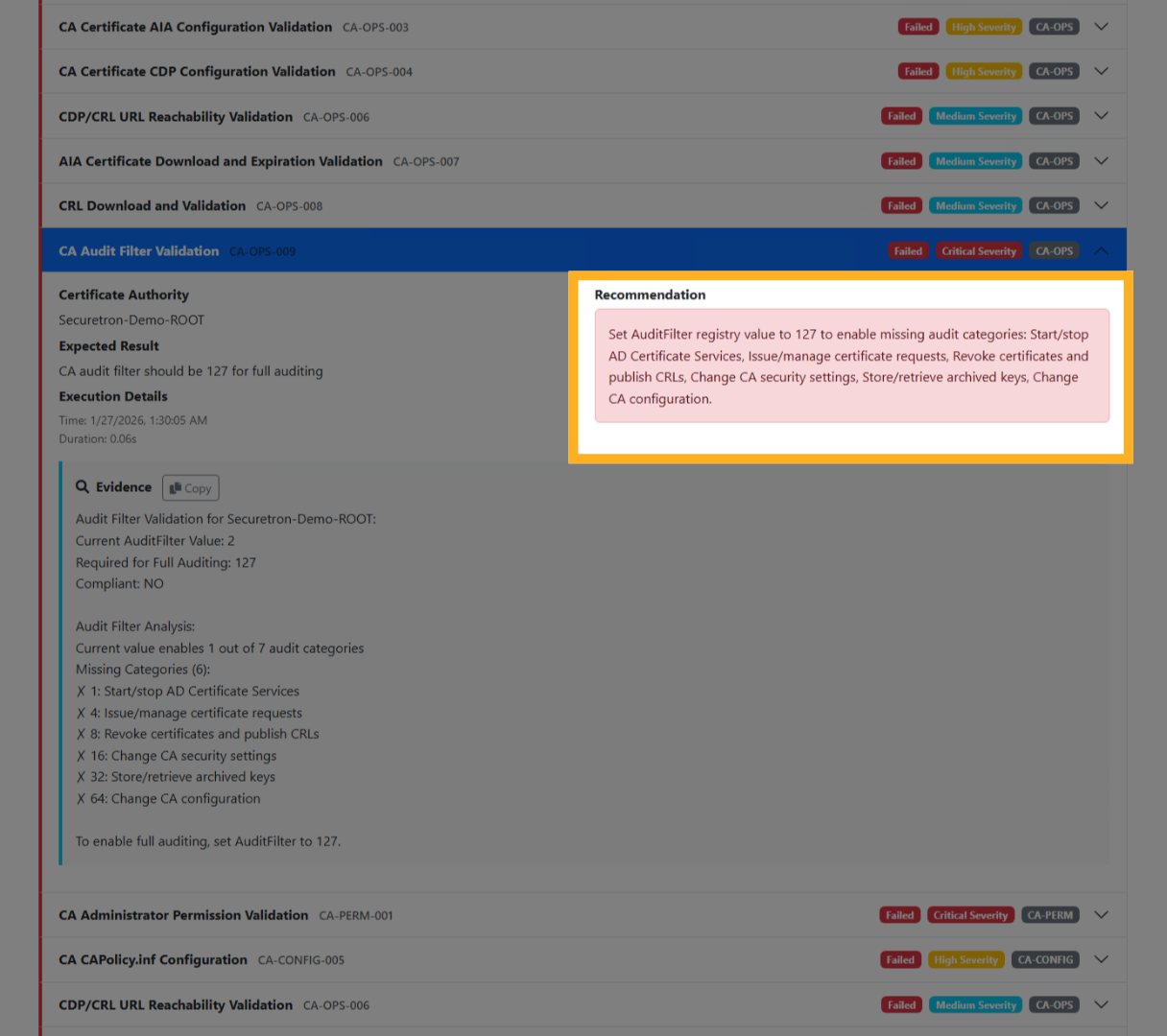
Finally, the Recommendation section offers comprehensive guidance on how to effectively remediate the finding identified in the previous analysis. This section is crucial as it outlines specific steps and best practices that can be implemented to address the issues raised, ensuring that all necessary actions are taken to mitigate any potential risks associated with the finding.
This detailed the step-by-step process to audit an Active Directory Certificate Authority using PKI Trust Auditor. Following these instructions ensures a thorough and efficient audit of certificate authorities within your environment. For more information, refer to related articles on PKI management and security auditing at our website or contact us now.