Enable SCEP API Interface on PKI Trust Manager

How to Enable SCEP Service in PKI Trust Manager
This tutorial guides you through enabling the SCEP Service within the PKI Trust Manager. The PKI Trust Manager SCEP service should be used instead of Microsoft Network Device Enrollment Service. You will learn how to navigate the interface and configure necessary certificate templates for successful setup.
Introduction
Let us begin at the ISSUING Certification Authority that has been previously integrated with PKI Trust Manager using the CA Proxy Gateway. We will Duplicate the "Enrollment Agent" and "CEP" Templates while granting the CA Proxy Gateway Service account Read and Enroll Permissions. In our demo the duplicated templates are named: SCEP-Sign and SCEP-ENC
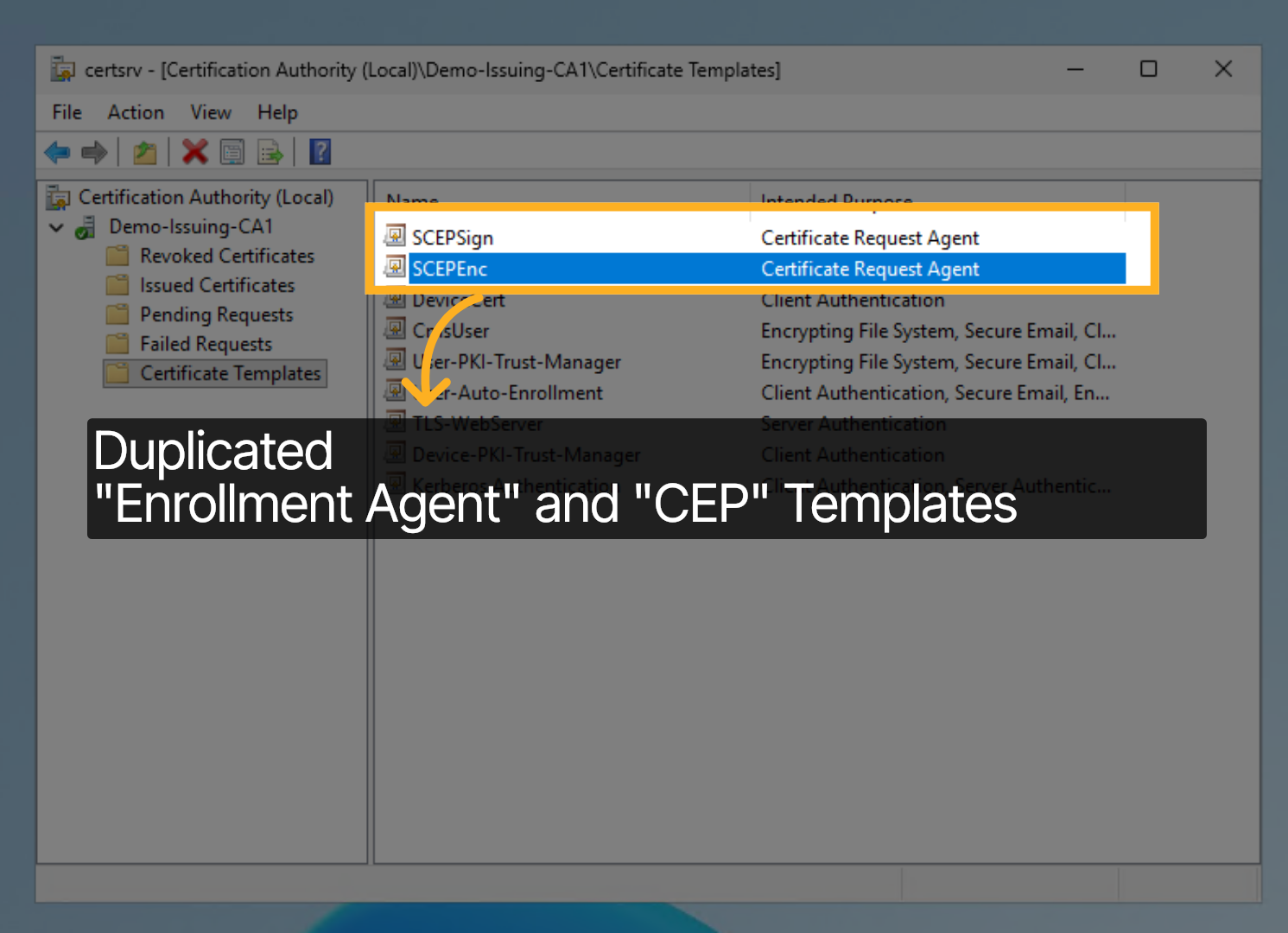
Manage Templates
Let us take a closer look. Right Click on Certificate Templates and then click on Manage.
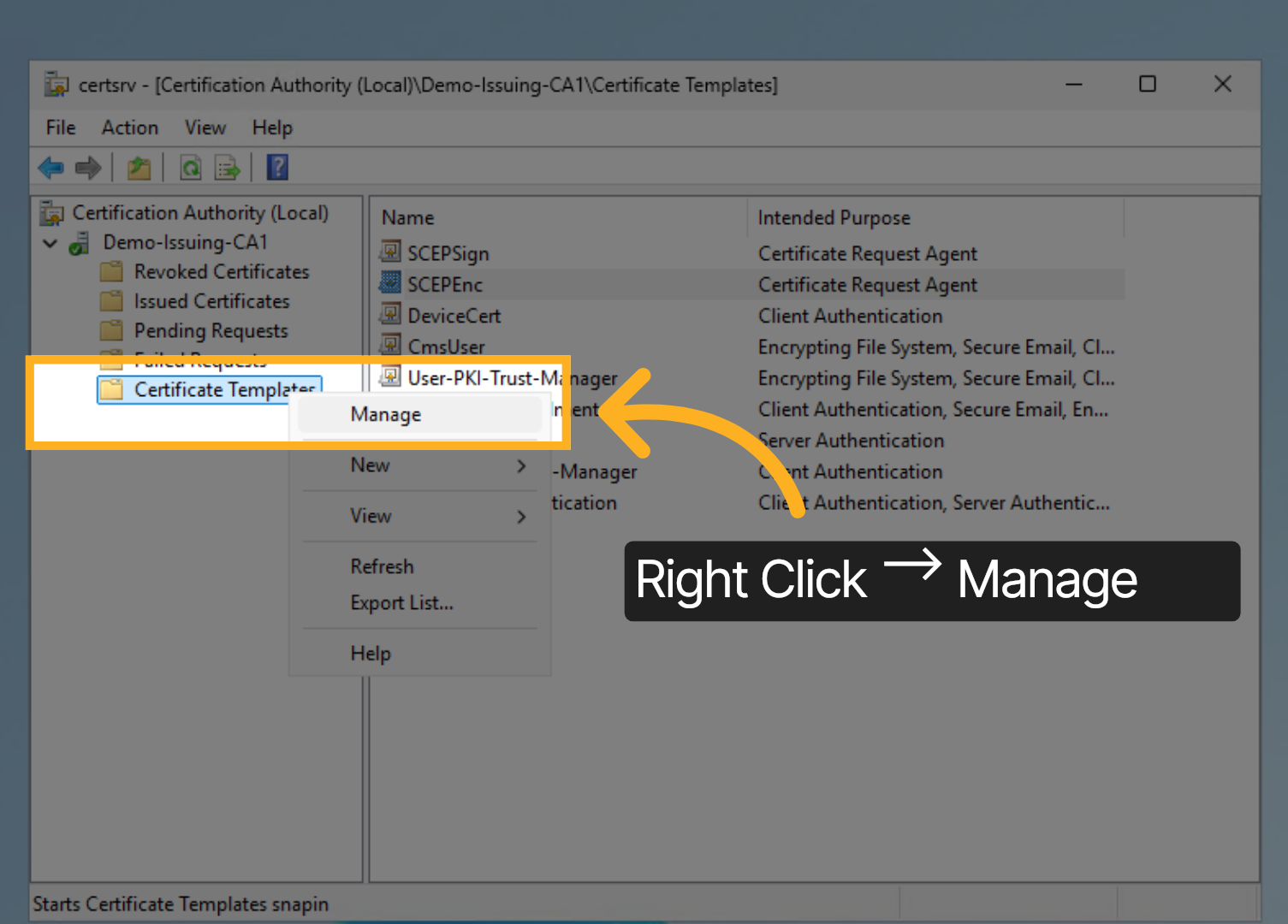
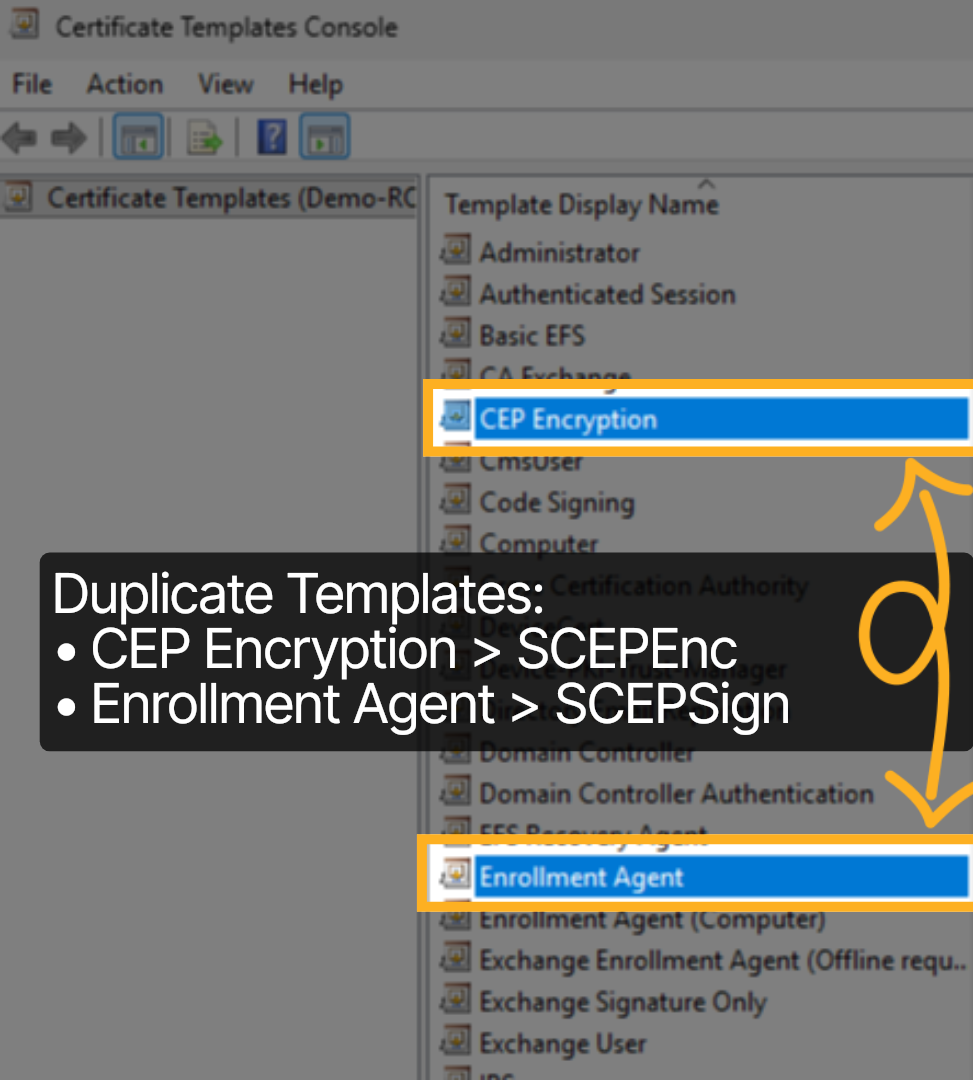
Duplicate Templates
Duplicate the CEP Encryption Template as well as the Enrollment Agent Template and name them SCEP-ENC and SCEP-Sign respectively
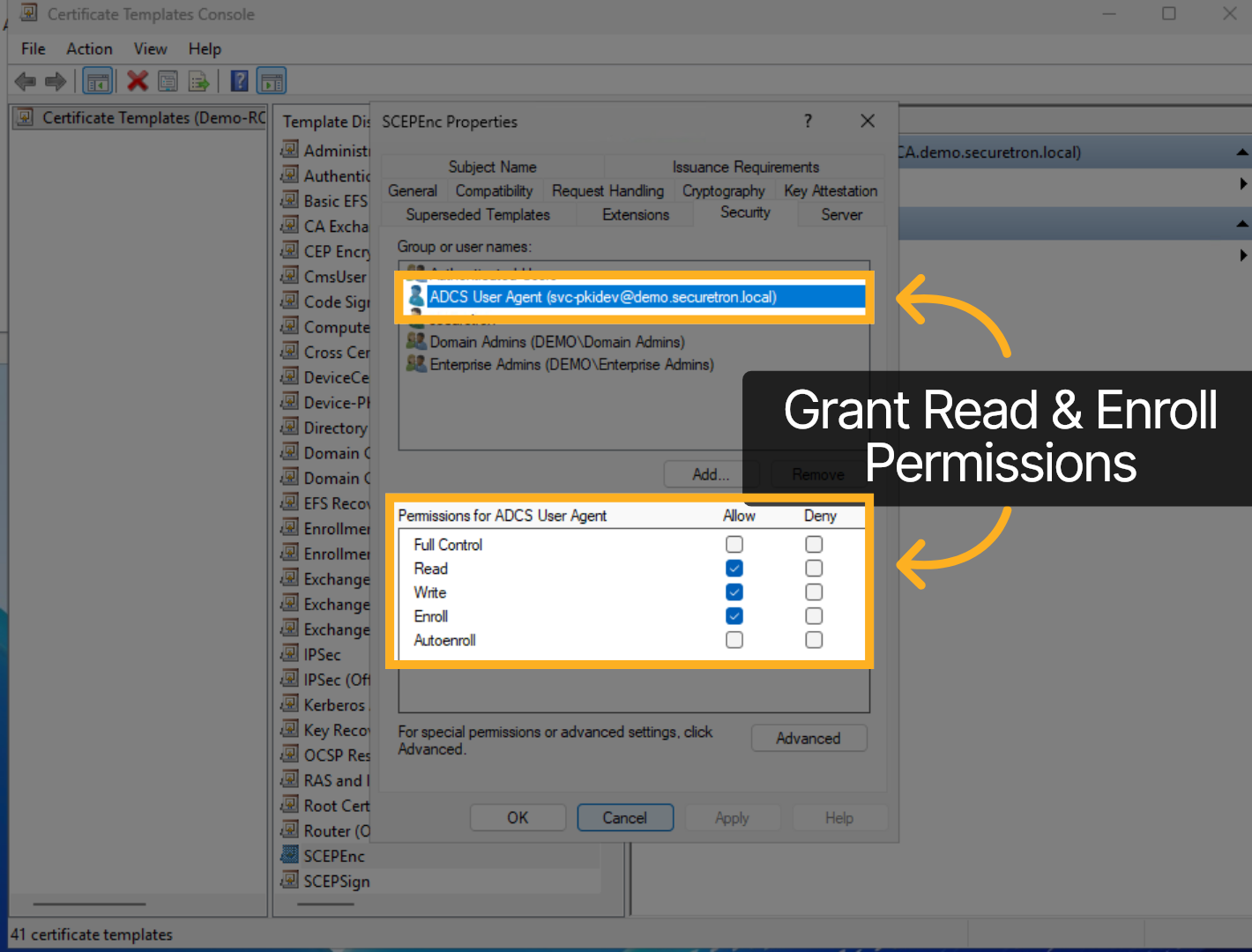
Certificate Template Permissions
Ensure that the both duplicated templates grant the PKI Trust Manager CA Proxy Gateway service account Read and Enroll Permissions.
Add Enrollment and CEP Templates to PKI Trust Manager
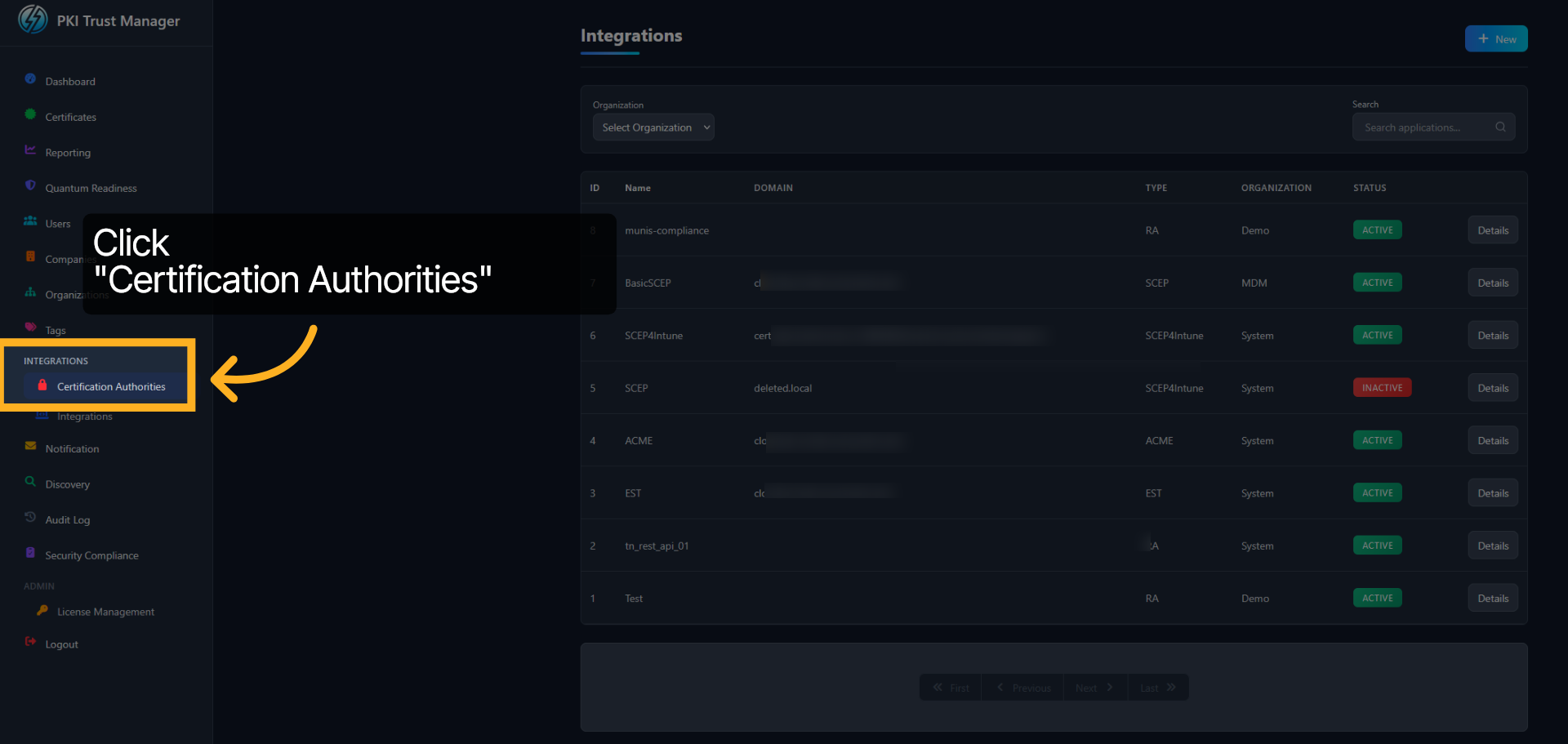
Now, over on the PKI Trust Manager Web Admin, Click on Certification Authorities.
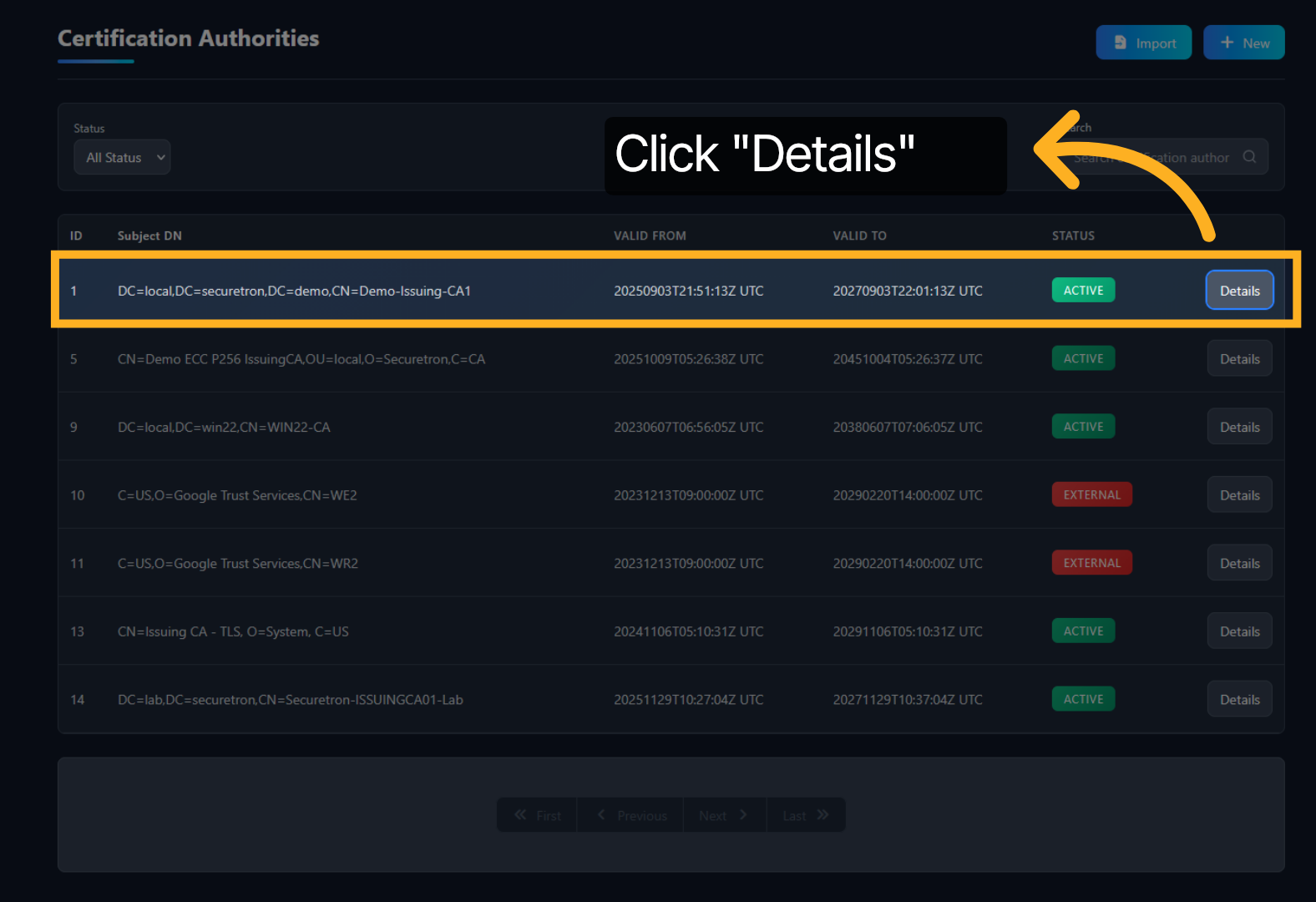
Certification Authorities Details
Click Details to access the Certification Authority which will be used for SCEP.
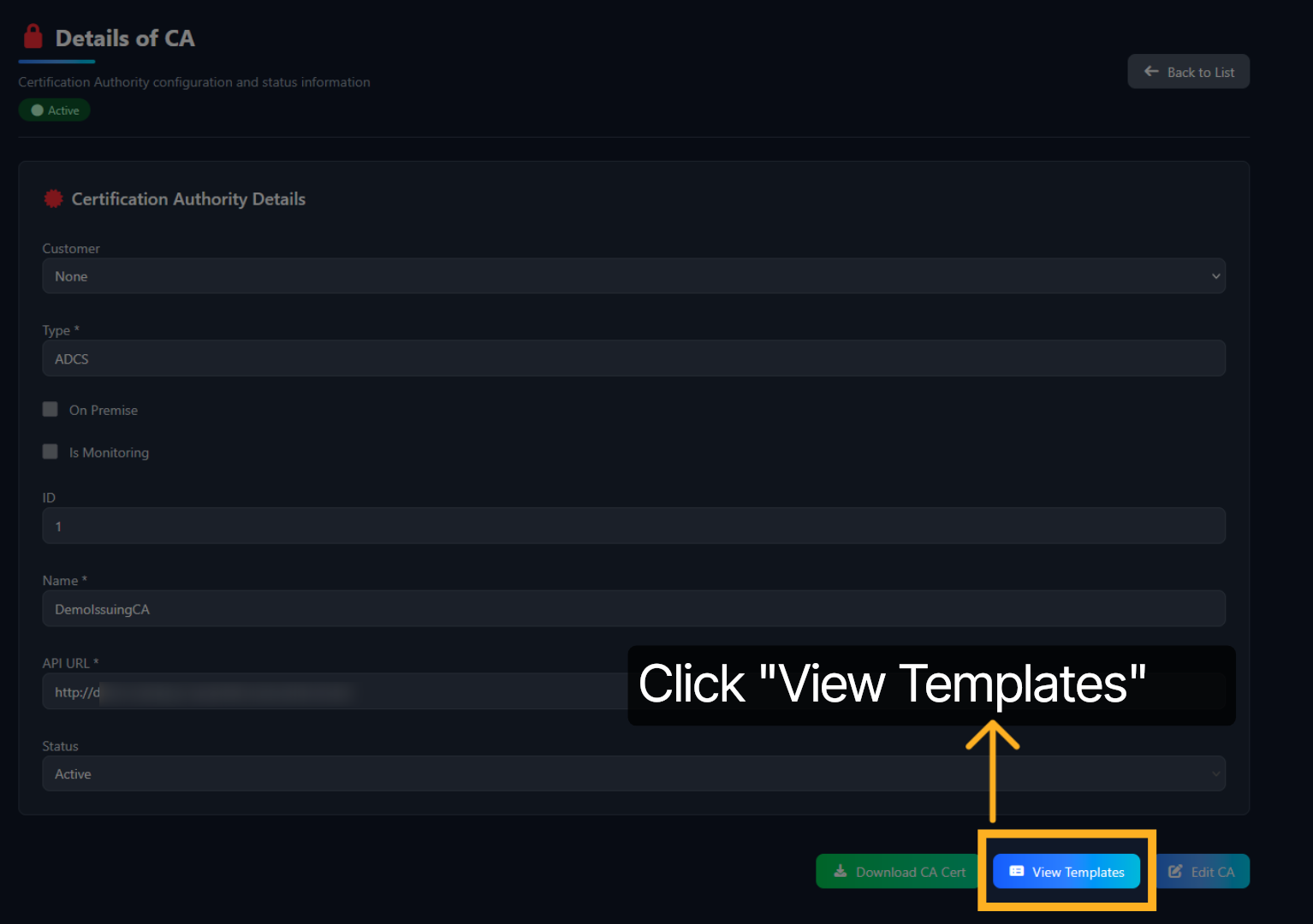
Access Certificate Templates
Click View Templates to see the available certificate templates for configuration.
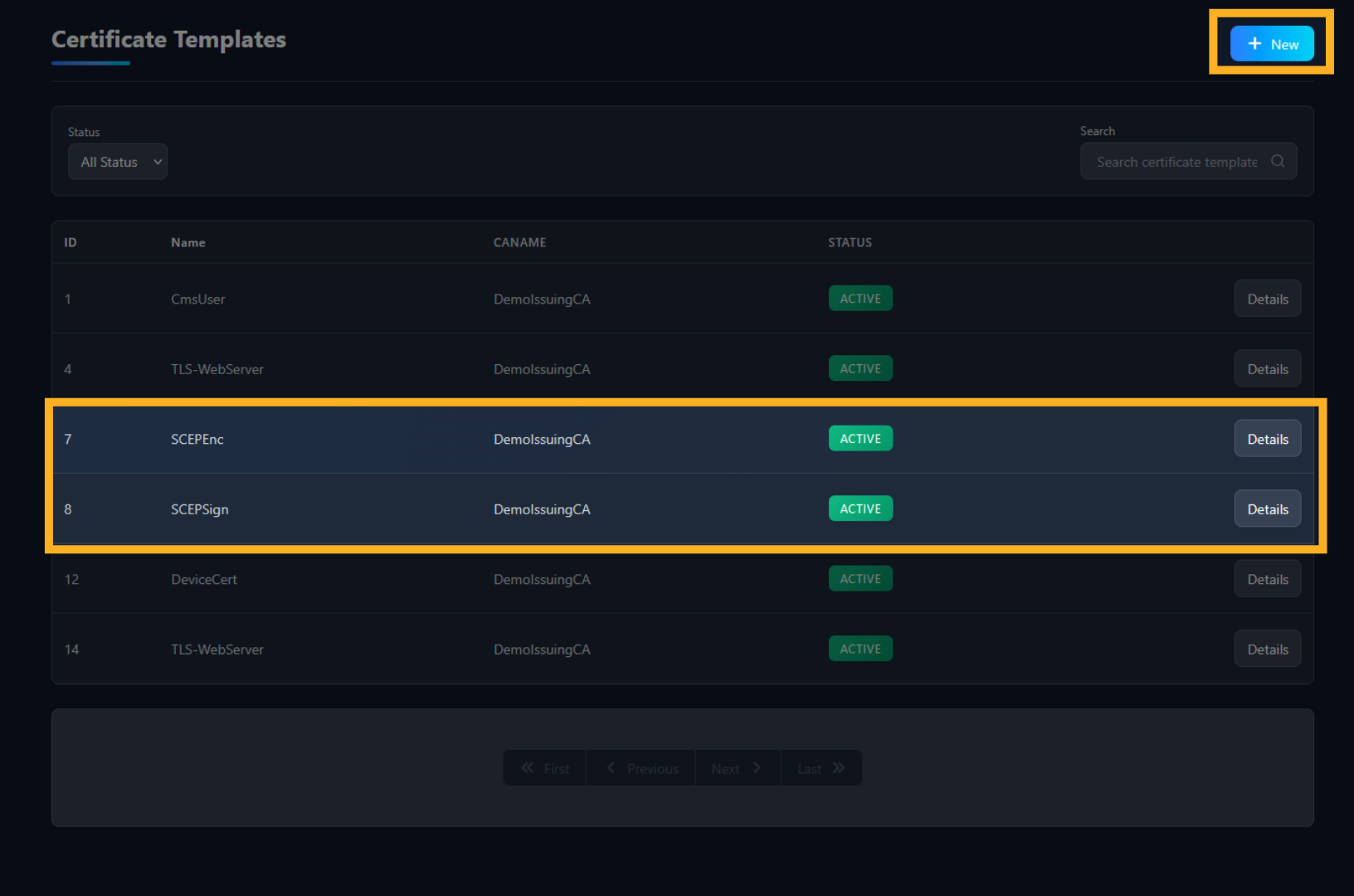
SCEP Templates
As seen here, We have already published the SCEP-ENC and SCEP-Sign templates on the PKI Trust Manager as well. Proceed by clicking on the "NEW" button on the top-right while we proceed to show the details of how the new template should be configured.
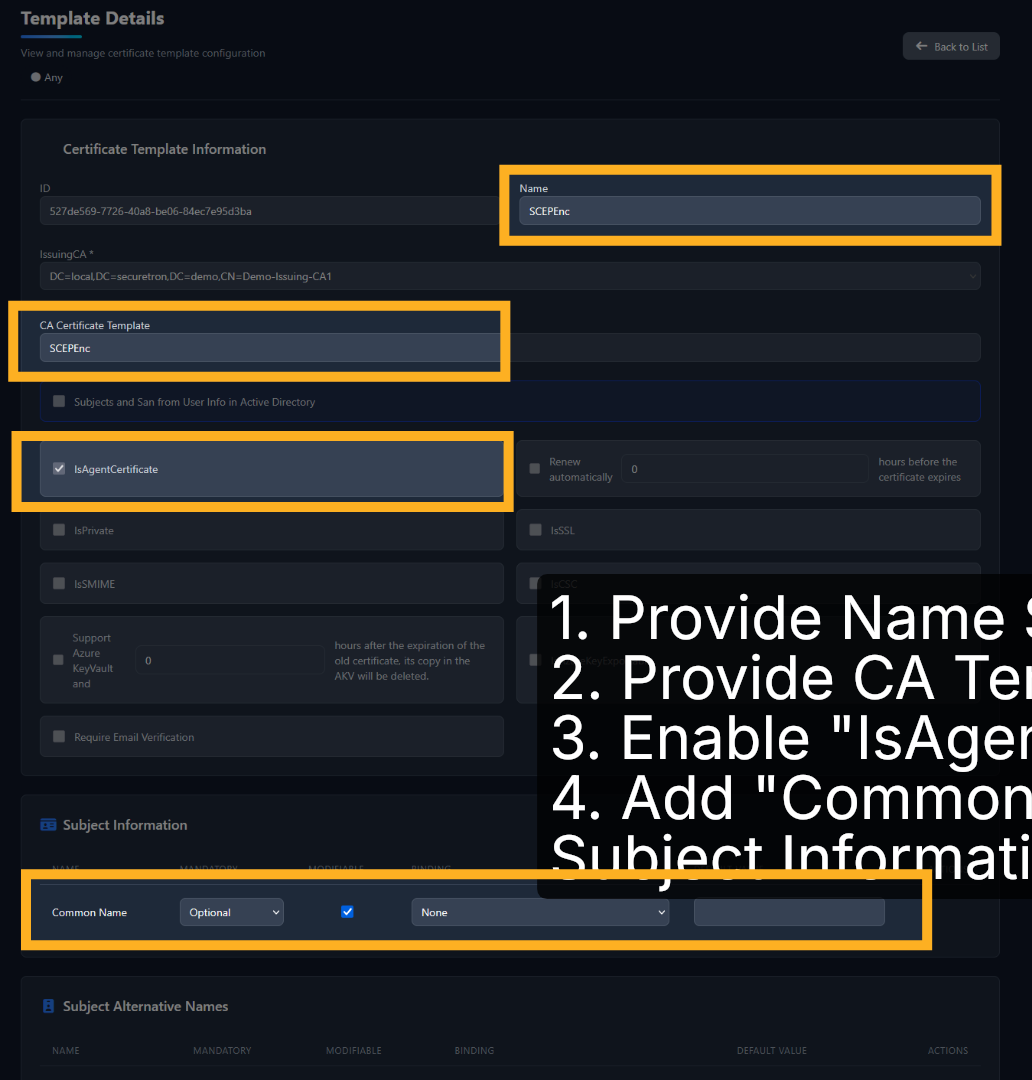
SCEPEnc Template Configuration
There are three things that need to be configured for SCEP-ENC. 1st is the name of the template that will be displayed on PKI Trust Manager 2nd is the name of the template that we configured on the Certification Authority called SCEP-ENC and 3rd is enabling is Agent Certificate as shown in the screen capture here. Save the template after entering these details.
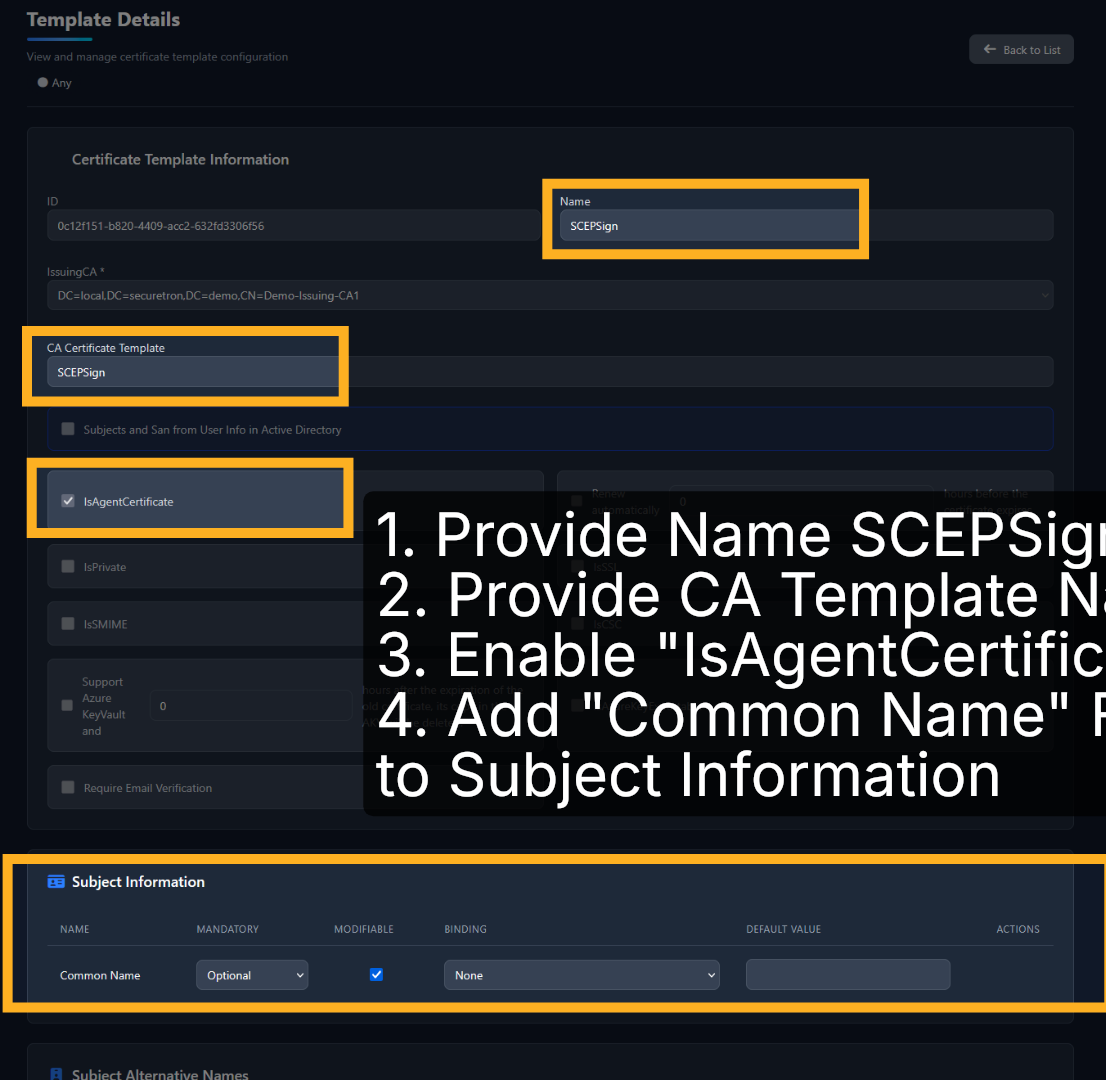
SCEPSign Template Configuration
For SCEP-Sign There are also three things that need to be configured. 1st is the name of the template that will be displayed on PKI Trust Manager 2nd is the name of the template that we configured on the Certification Authority called SCEP-Sign and 3rd is enabling is Agent Certificate as shown in the screen capture here.
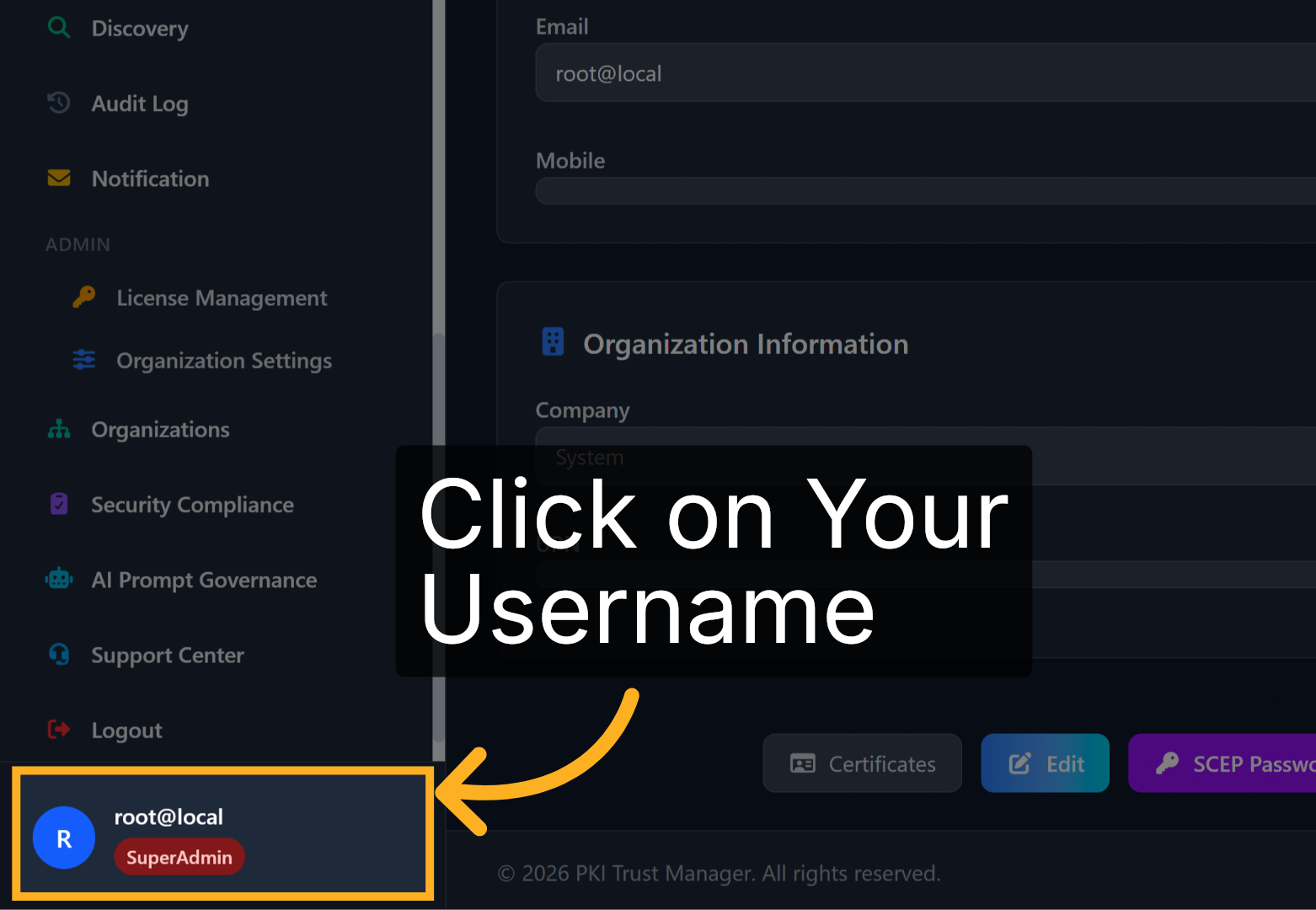
CEP and SIGNING Certificates - 01
Now, let's complete by issuing CEP and Signing Certificates to PKI Trust Manager. Click on your username at the bottom left of the screen.
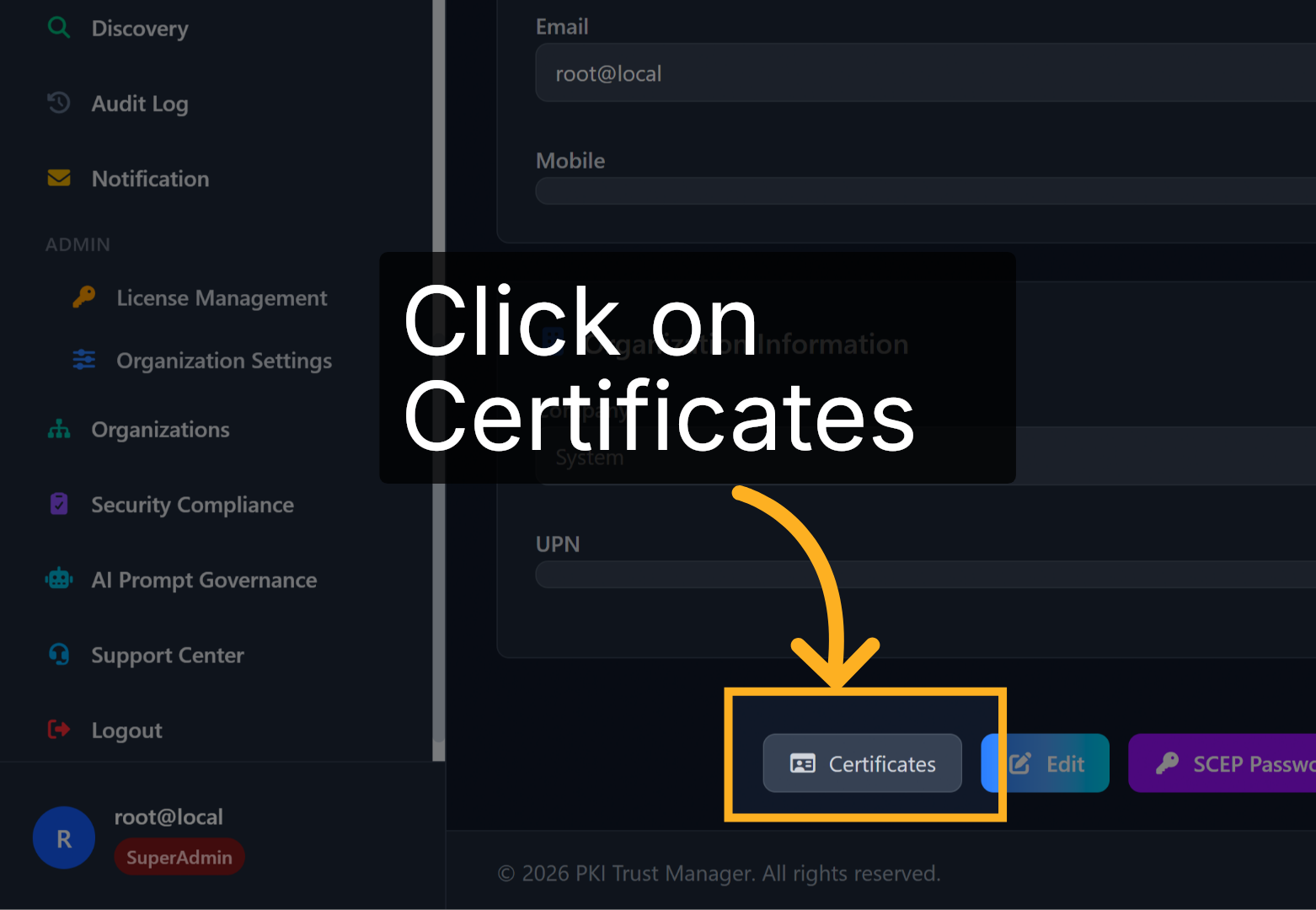
CEP and SIGNING Certificates - 02
Click on the Certificates button
CEP and SIGNING Certificate - 03
Click on the New button to request a new certificate
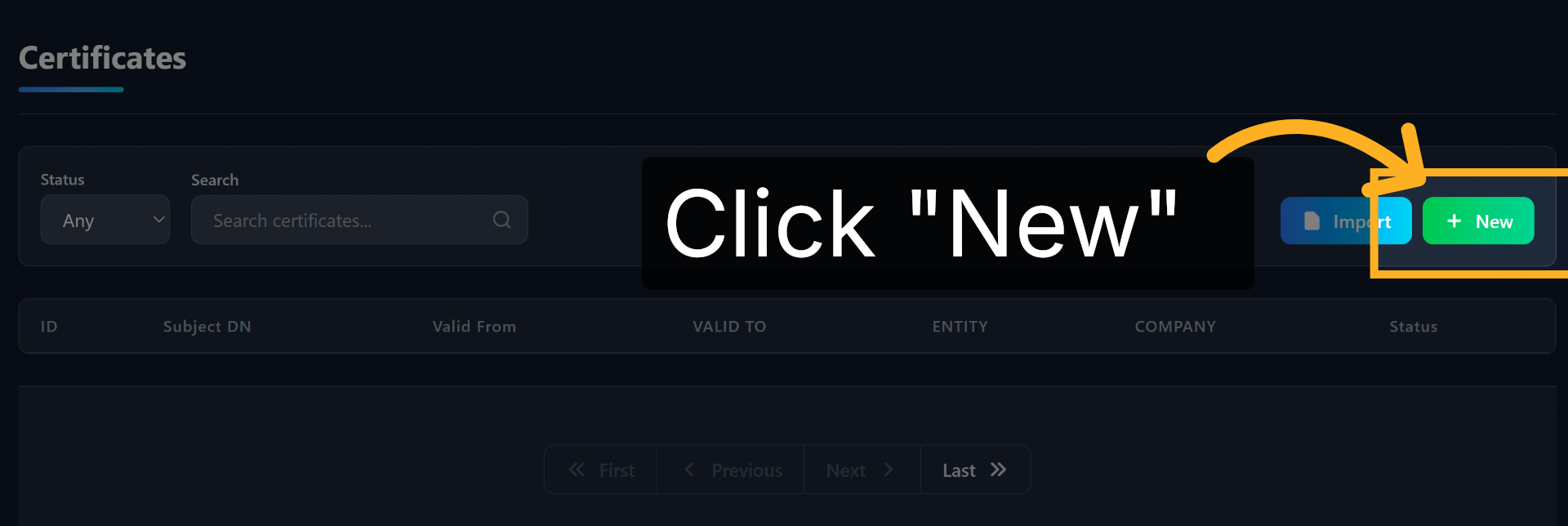
CEP and SIGNING Certificate - 04
Select CEP Encryption from the drop-down menu and then choose to generate CSR in the Server. Provide a common name and then submit request.
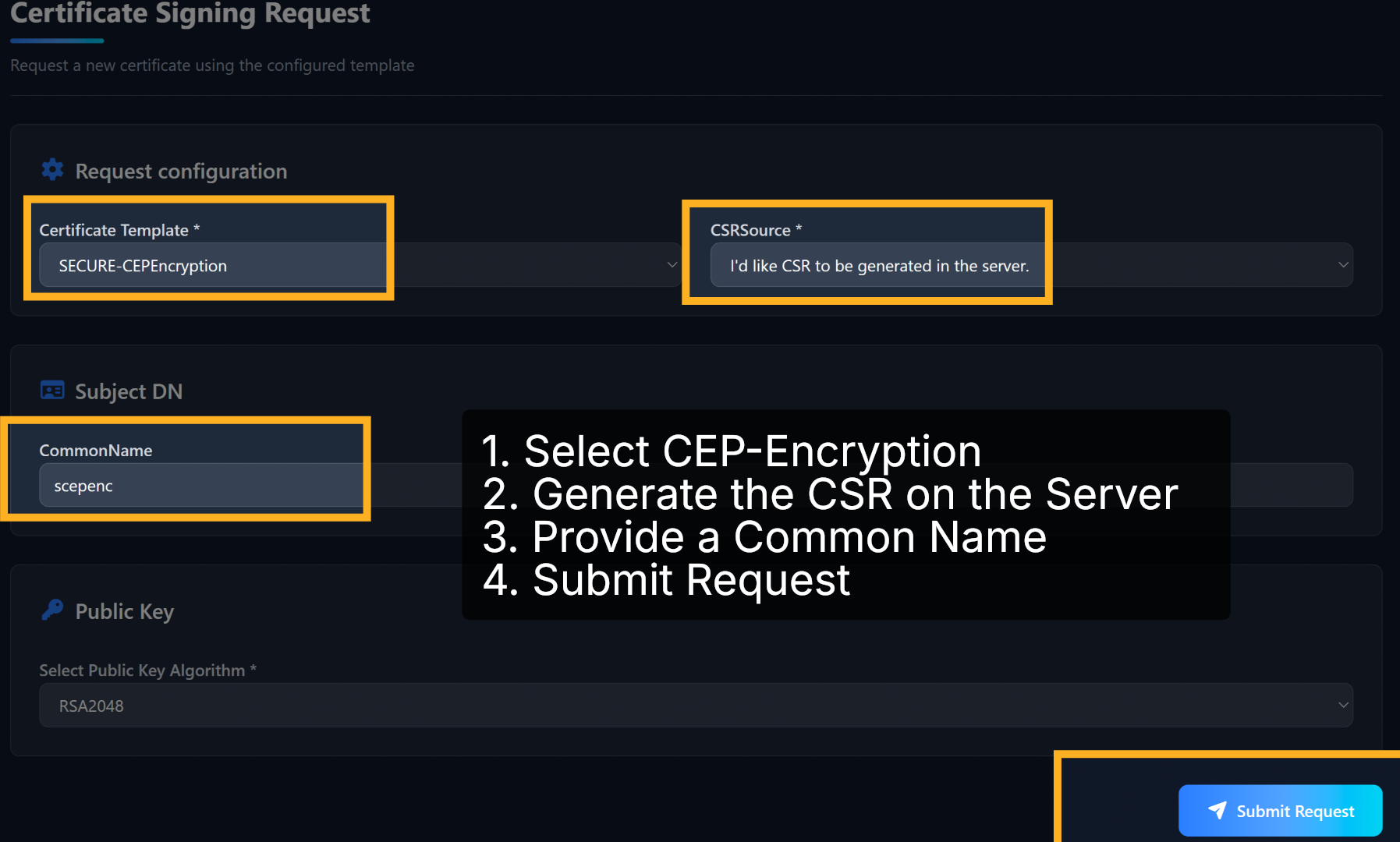
CEP and SIGNING Certificate - 05
The request is pending approval. Proceed to Approve the request.
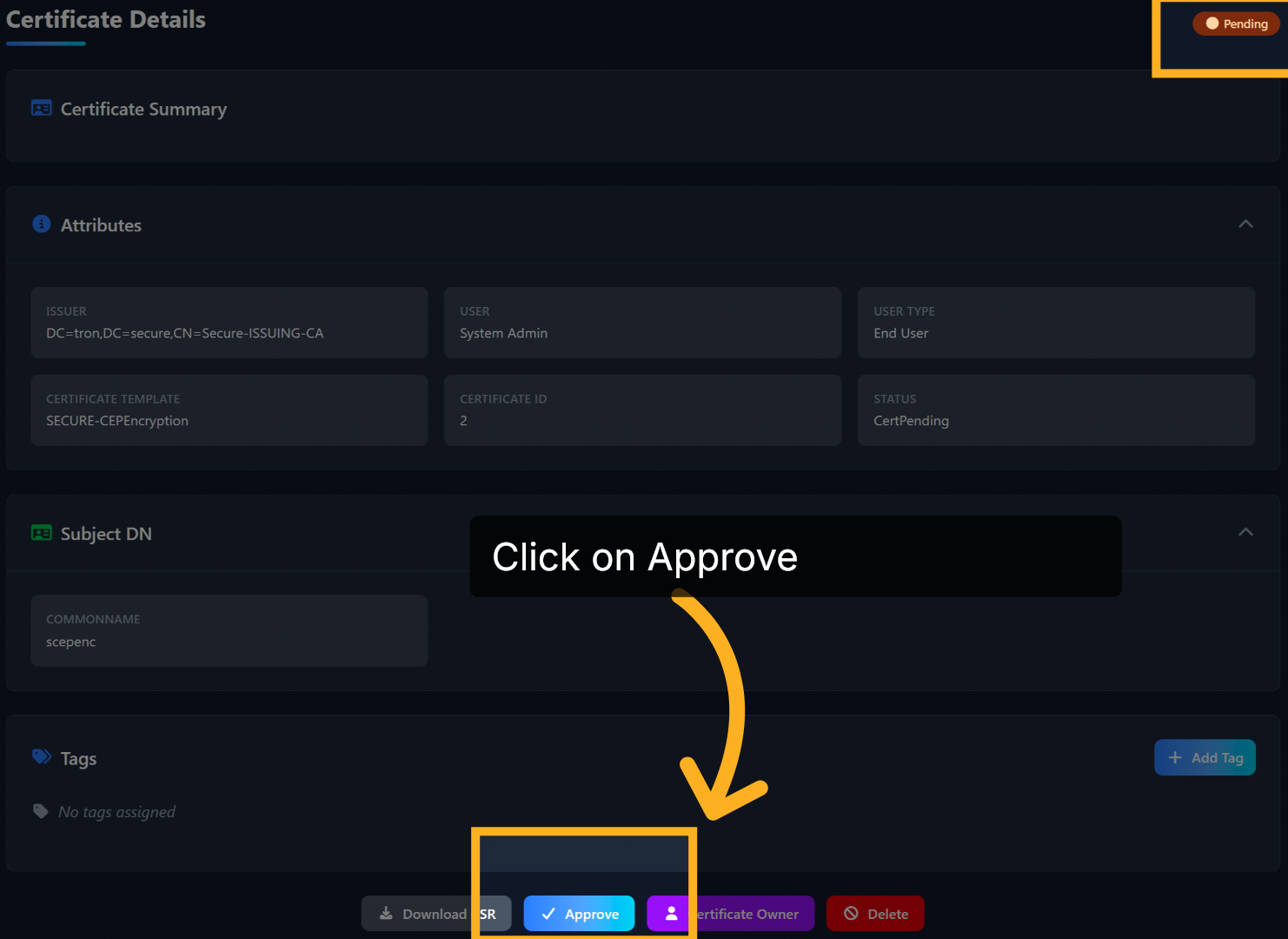
CEP and SIGNING Certificate - 06
Finally, Get the Certificate to import it into PKI Trust Manager automatically. Repeat These Steps for SCEP Signing Certificate as well
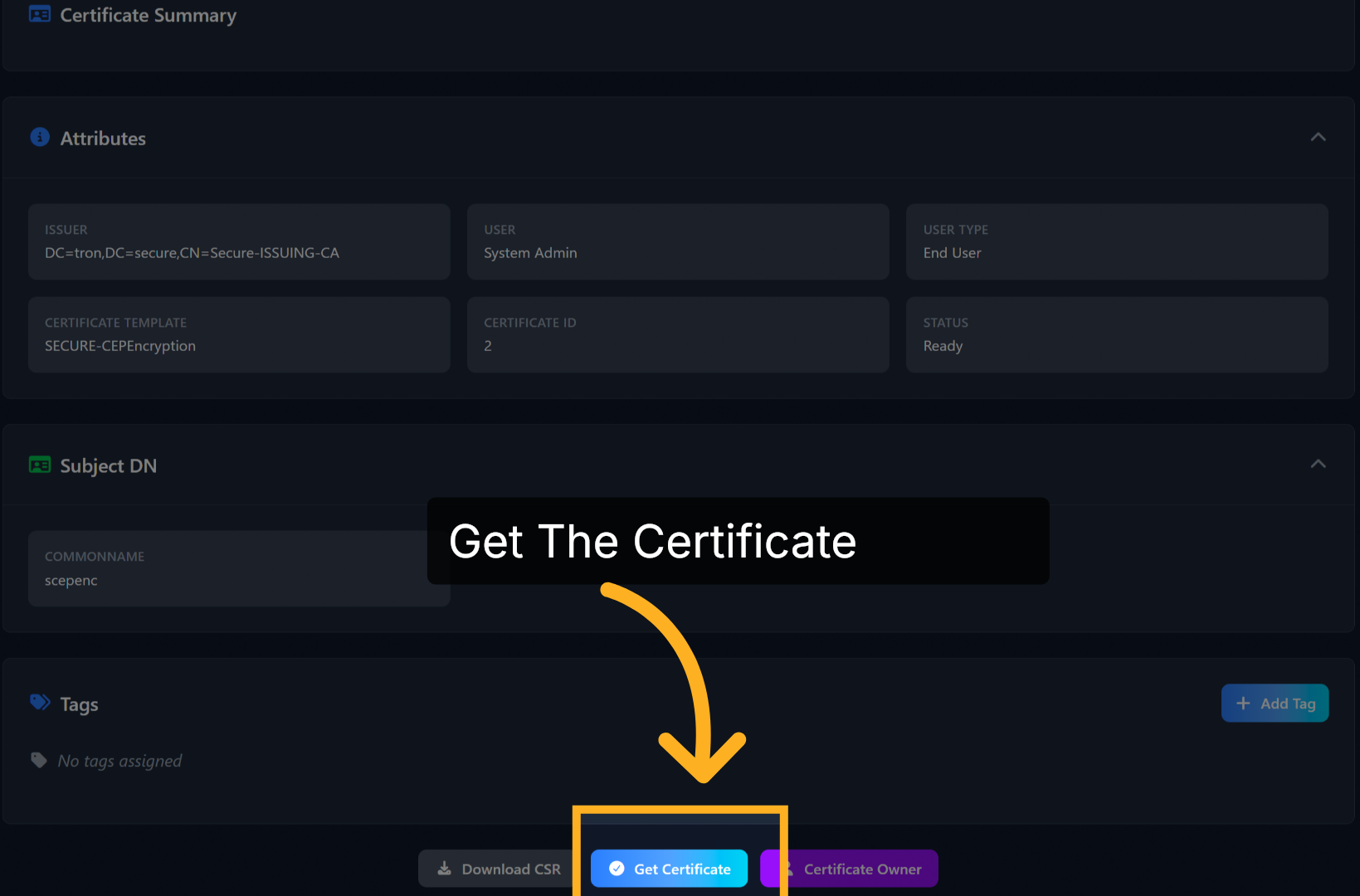
CEP and SIGNING Certificate - 07
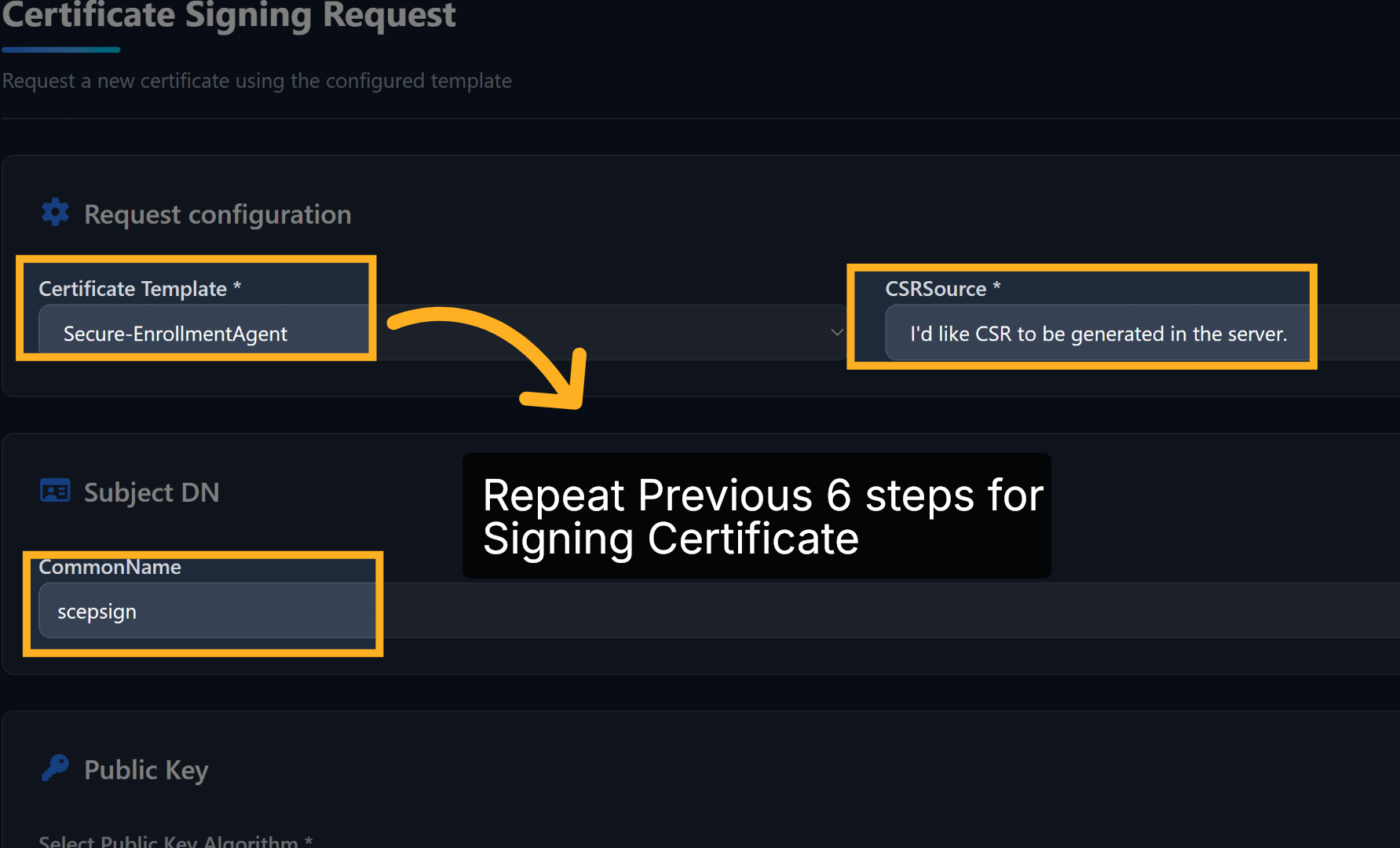
Repeat the previous 6 steps from to also get the CEP Signing Certificate that is needed for SCEP Service.
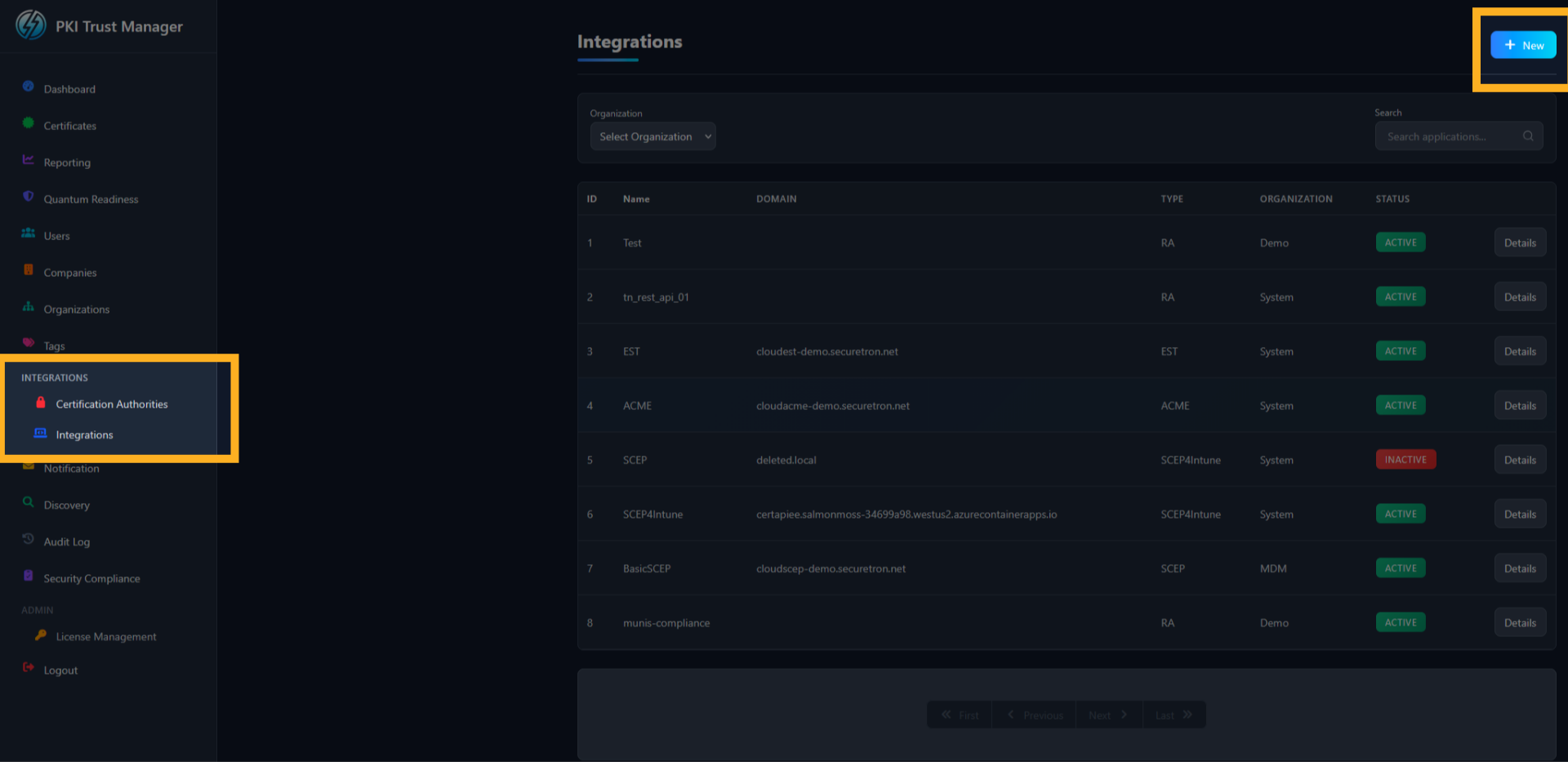
New SCEP Listner
Once the corresponding Enrollment Agent and CEP templates have been provisioned and Certificates issued, we will need to create a SCEP Listener Endpoint. Head over to the Integrations page and click the "NEW" button
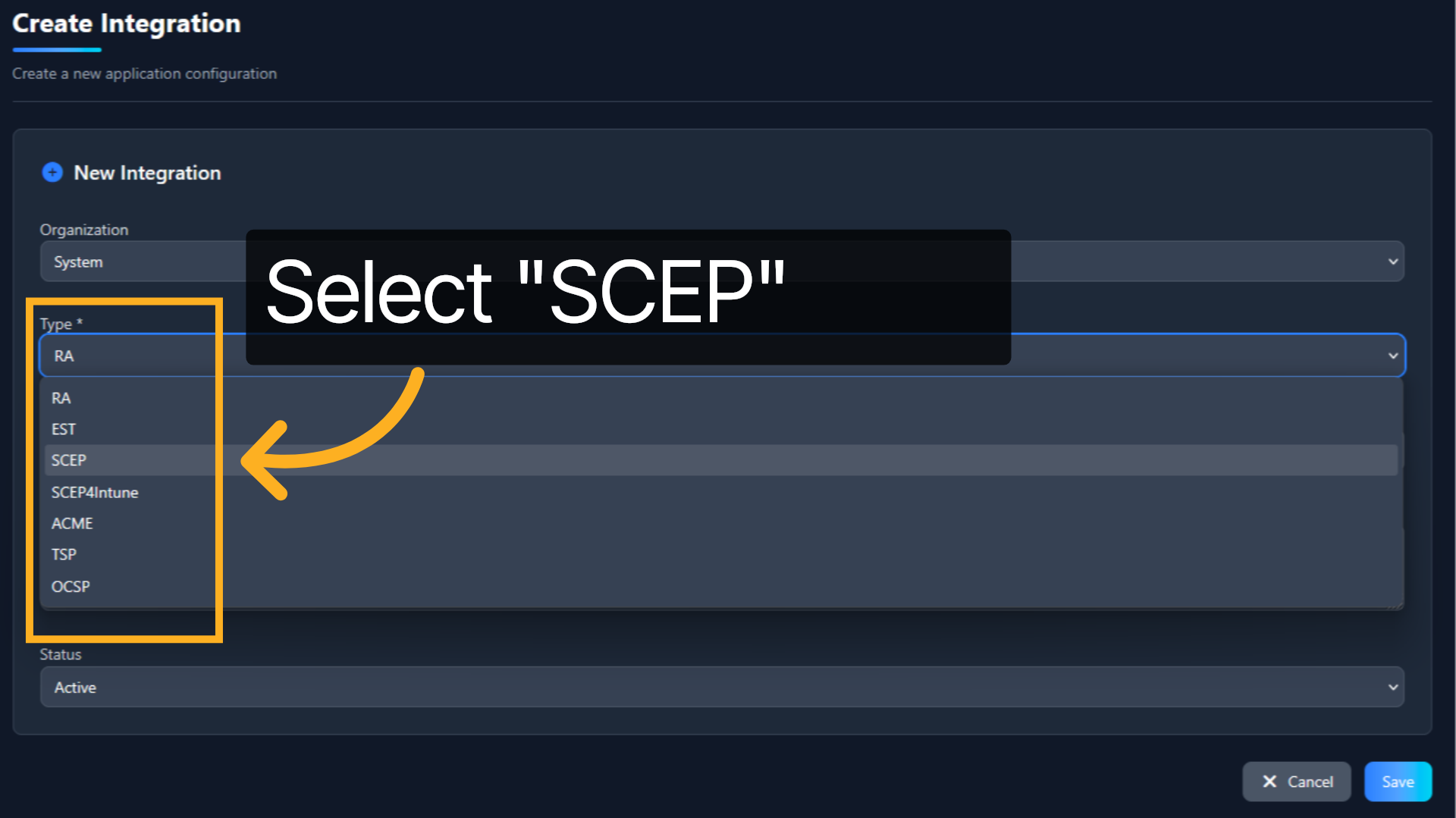
New "SCEP" Integration
In the new integration form, select the appropriate Organization. By default, it is the System Organization. In the Type dropdown menu - select SCEP.
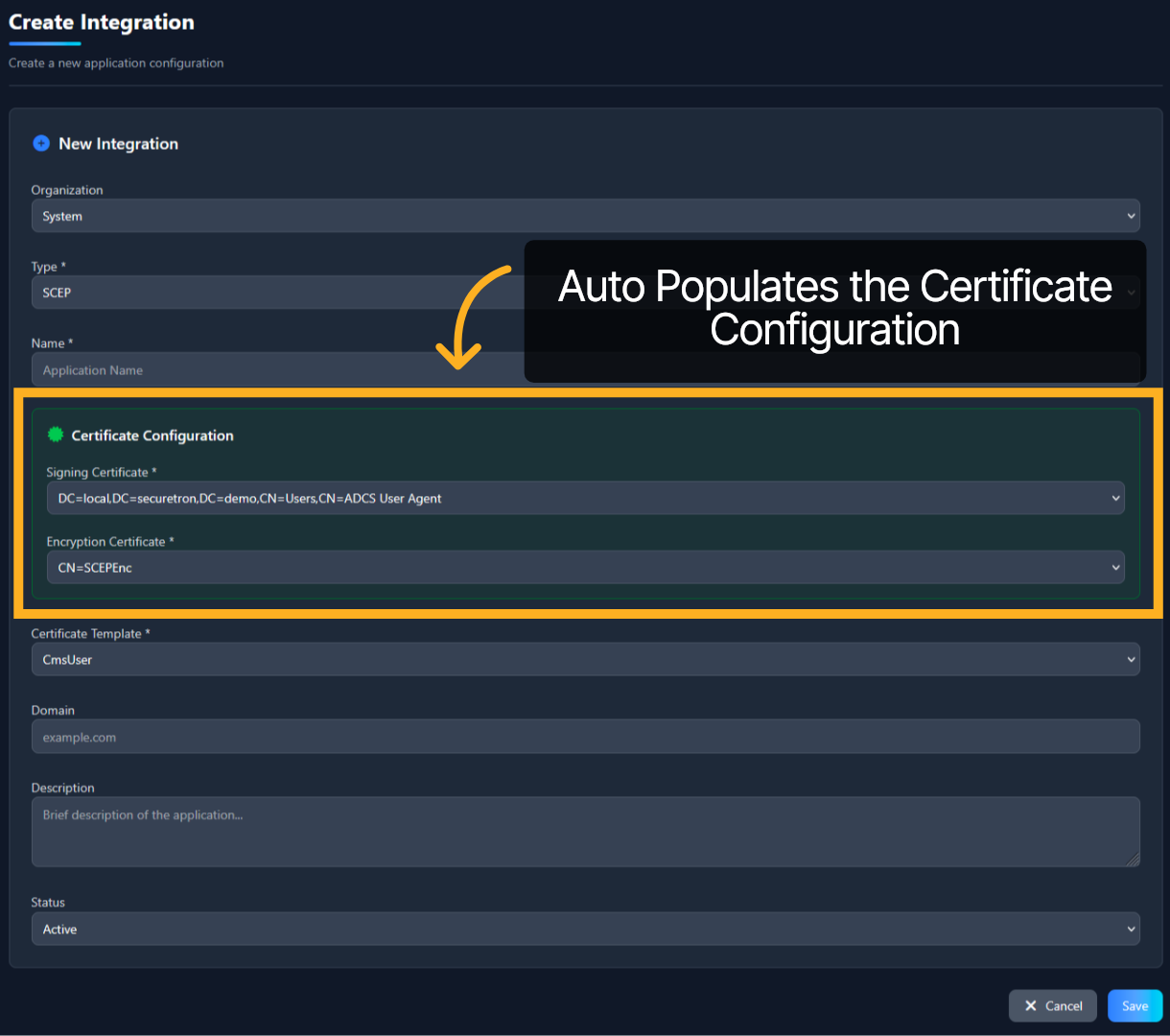
SCEP Integration Configuration
Once SCEP is selected from the dropdown, the Certificate Configuration should automatically populate. If it does not, ensure that the Certification Authority and its templates are attached to the Organization that was selected above.
SCEP Interface Name
Proceed to provide it a Name and select the Certificate Template that will be used by theSCEP interface.
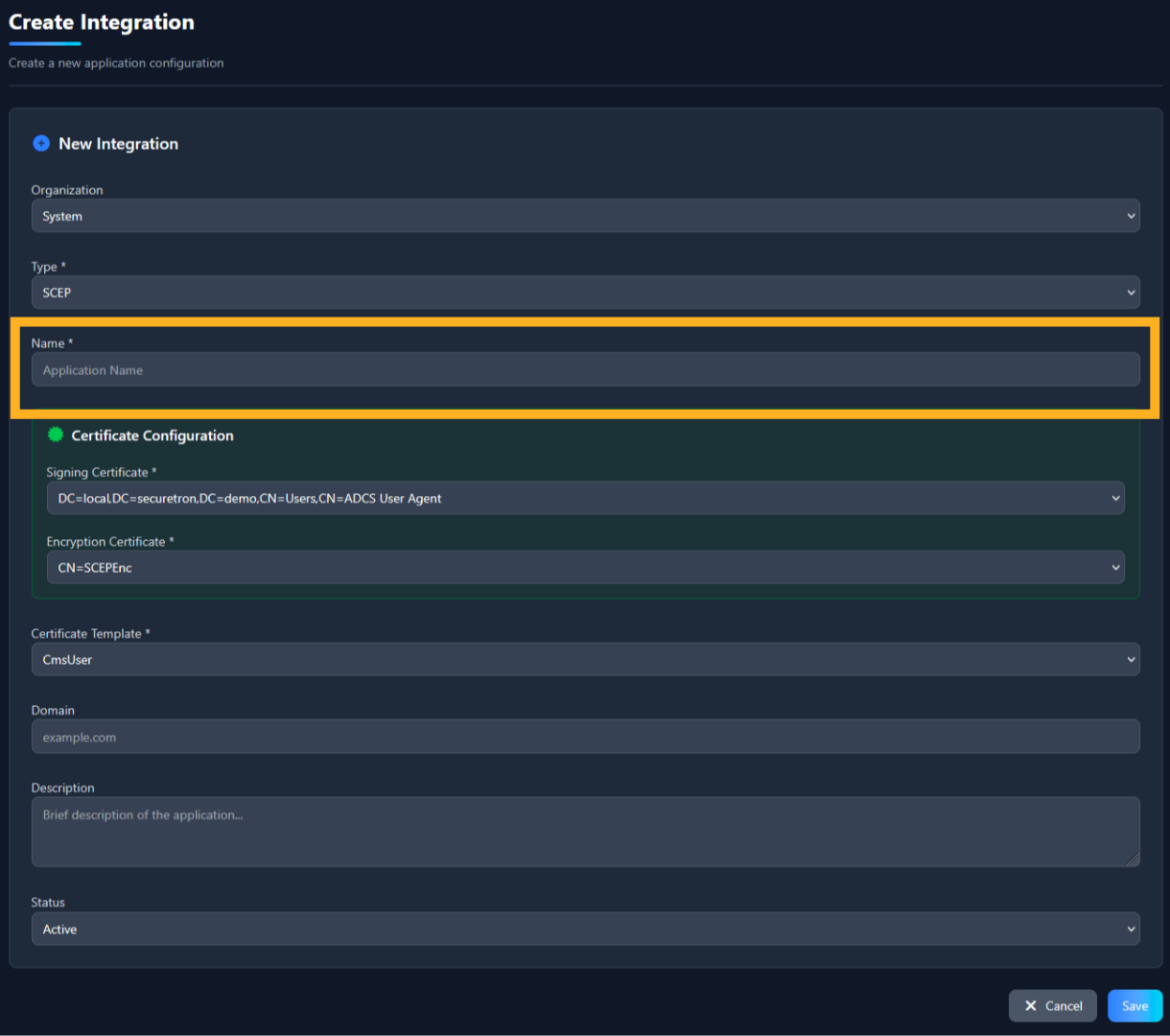
SCEP Certificate Template
Select a template to fulfill the Certificate Requests. In our demo, we will utilize the previously provisioned user template.
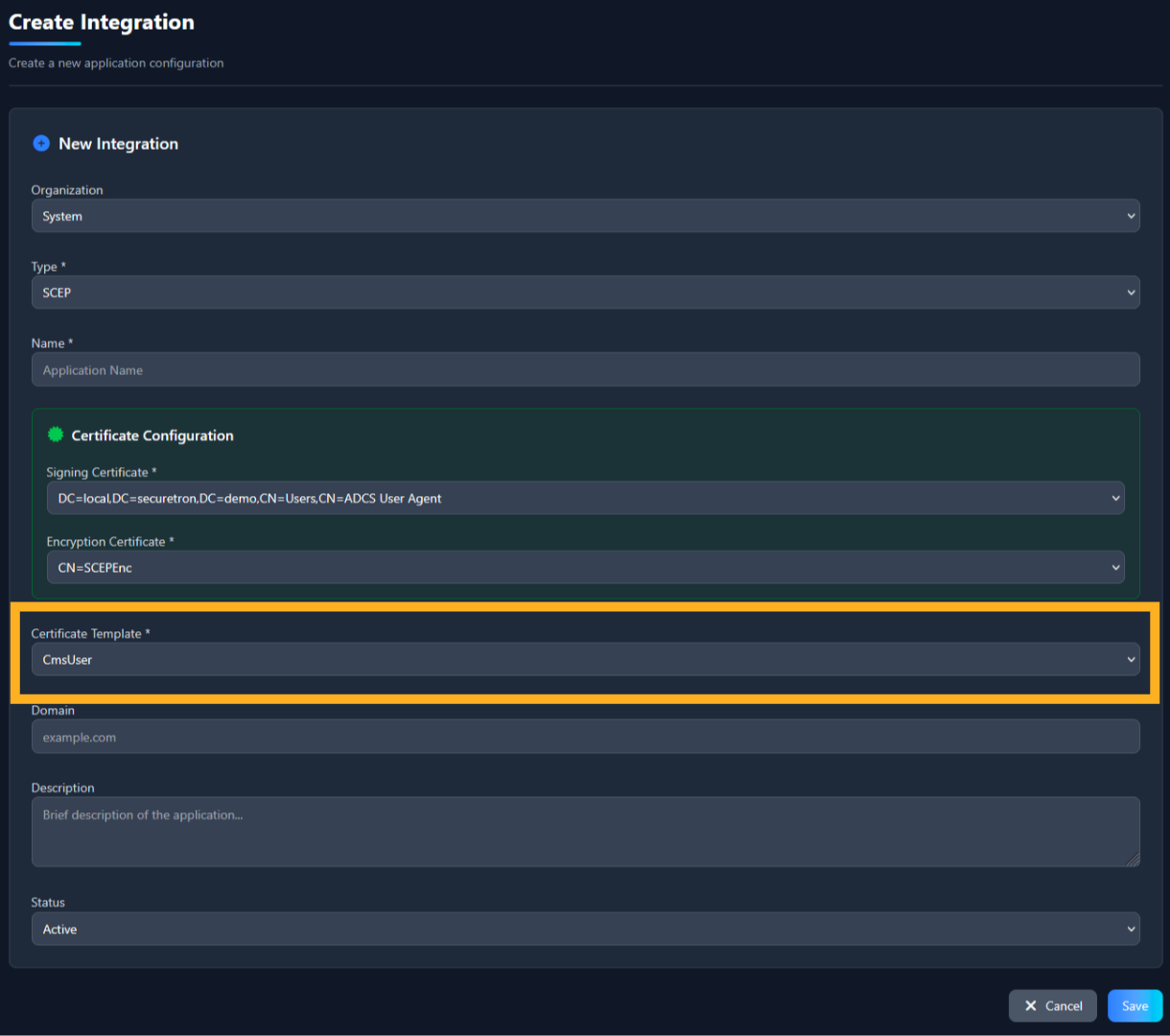
SCEP URL
Please provide a resolvable URL for the CERT API Container. This URL must be unique and can be a CNAME or an Alias that directs to the CERT API Container
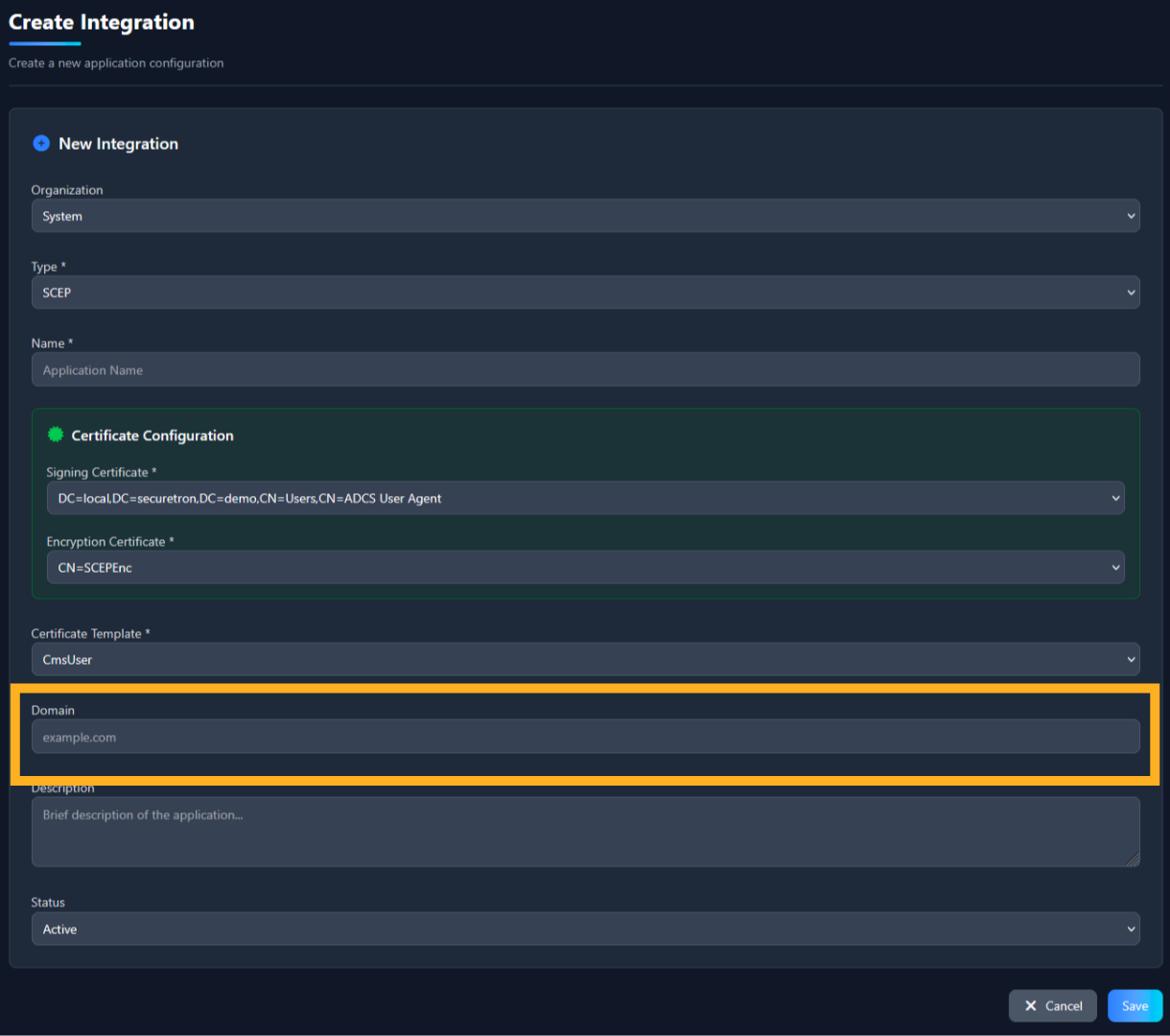
SCEP Challenge Password
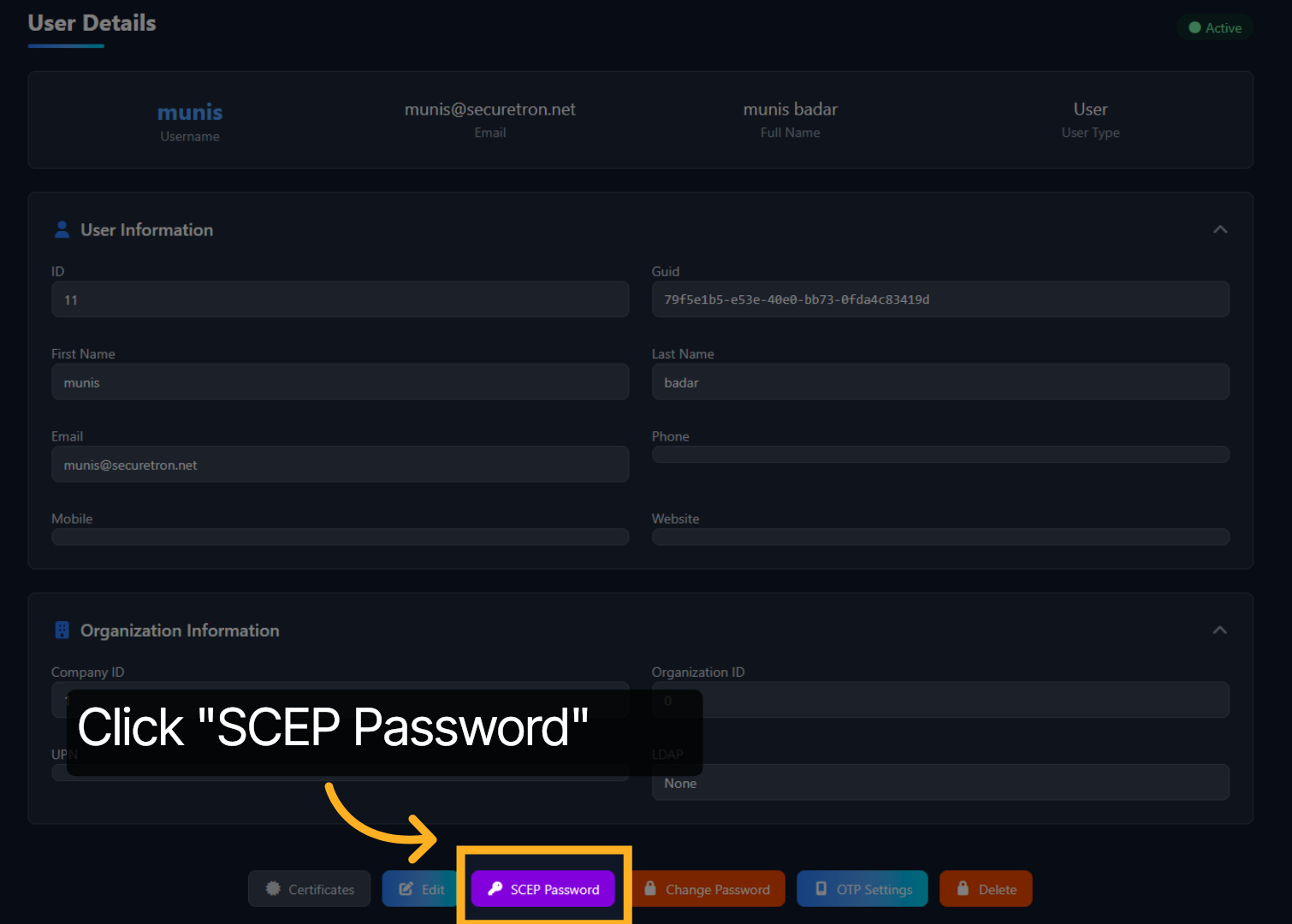
Now that you have successfully configured the SCEP Interface, let us proceed to obtain the SCEP Challenge Password. The SCEP Challenge Password in PKI Trust Manager is associated with a user. You can utilize either an Organization Admin User or a Service User Account specifically designated for SCEP. In this demonstration, we will use the existing user to retrieve its SCEP Challenge Password.
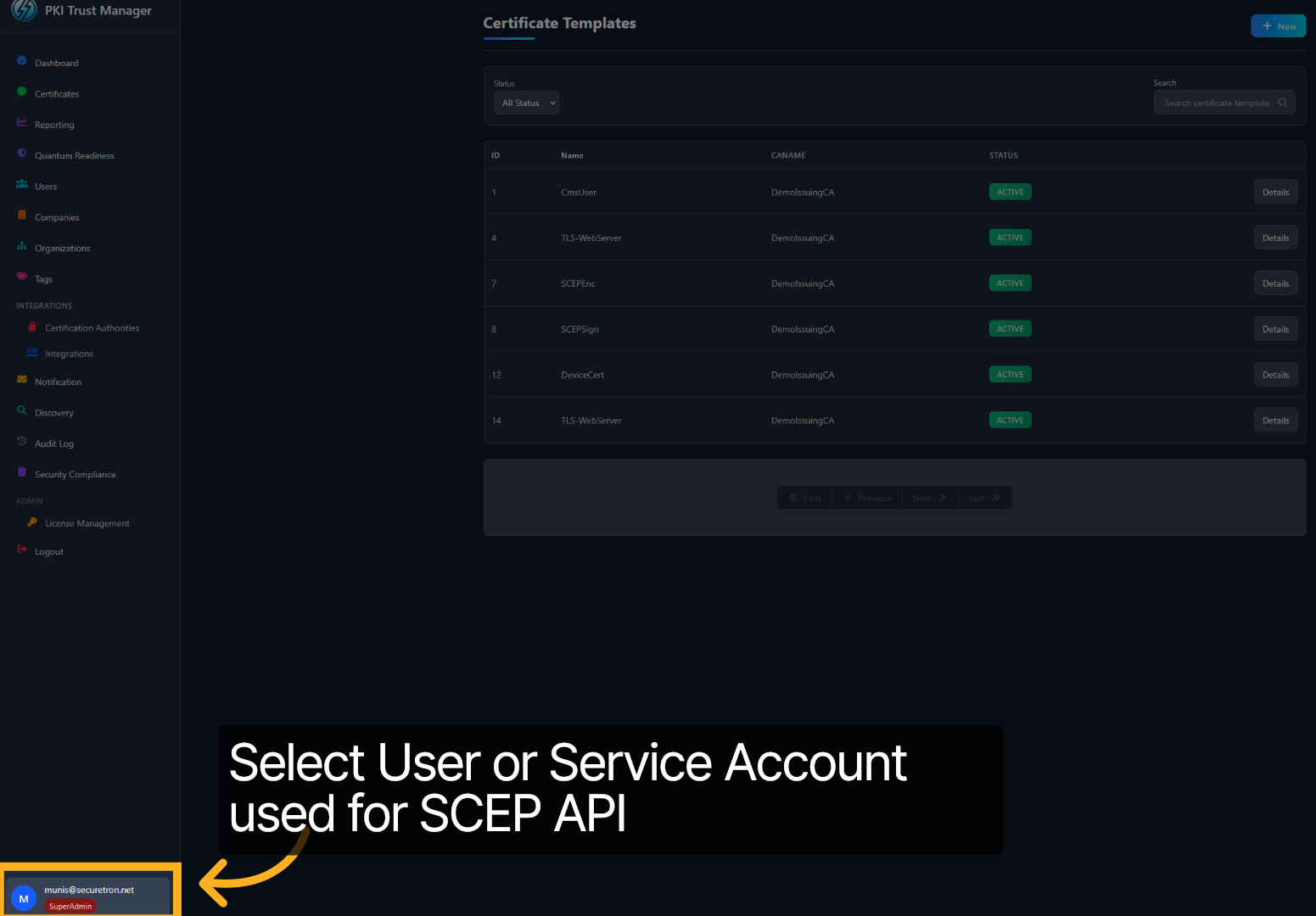
Generate SCEP Challenge Password
In the User Profile, click on SCEP Password to generate and retrieve the password for the SCEP service.
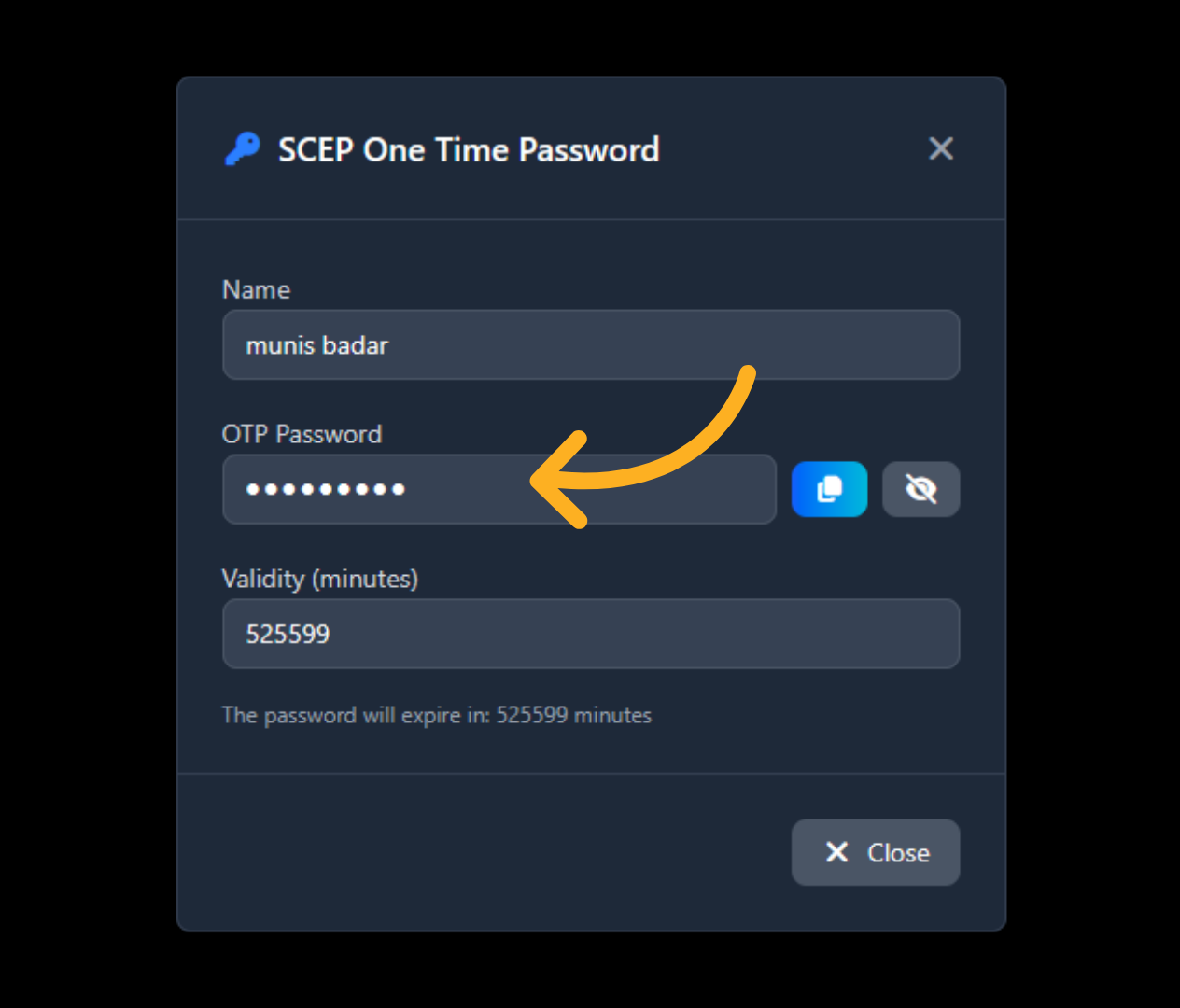
SCEP Challenge Password - One Time Code
This will display a window containing the Challenge Password along with its validity period, as specified in the Environment variable of the Container. Utilize this Challenge Password to enroll Network Devices, MDM, or any other service that employs the standard SCEP.
Congratulations!, You have successfully enabled the SCEP Service in the PKI Trust Manager by configuring the necessary certificate templates and settings. If you require more information, please refer to the documentation or contact support