Docker Deployment — PKI Trust Manager
Deploy PKI Trust Manager Using Docker
This tutorial guides you through deploying the PKI Trust Manager on Docker. You will complete all necessary steps to set up and verify the deployment successfully.
1. Introduction#
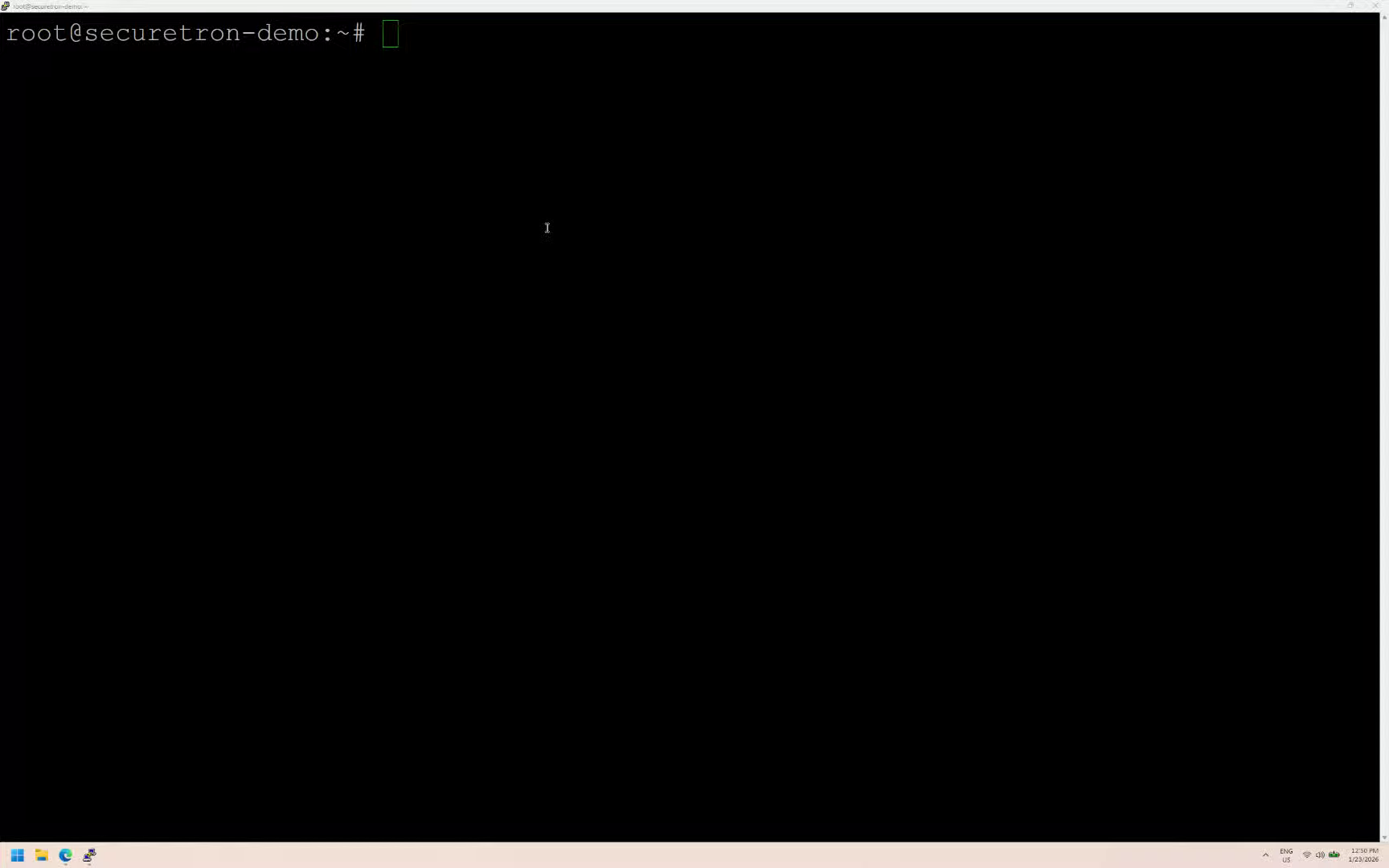
Let us begin by accessing a linux server terminal to begin the deployment process. In our demo we are using Ubuntu.
2. Create Directory#
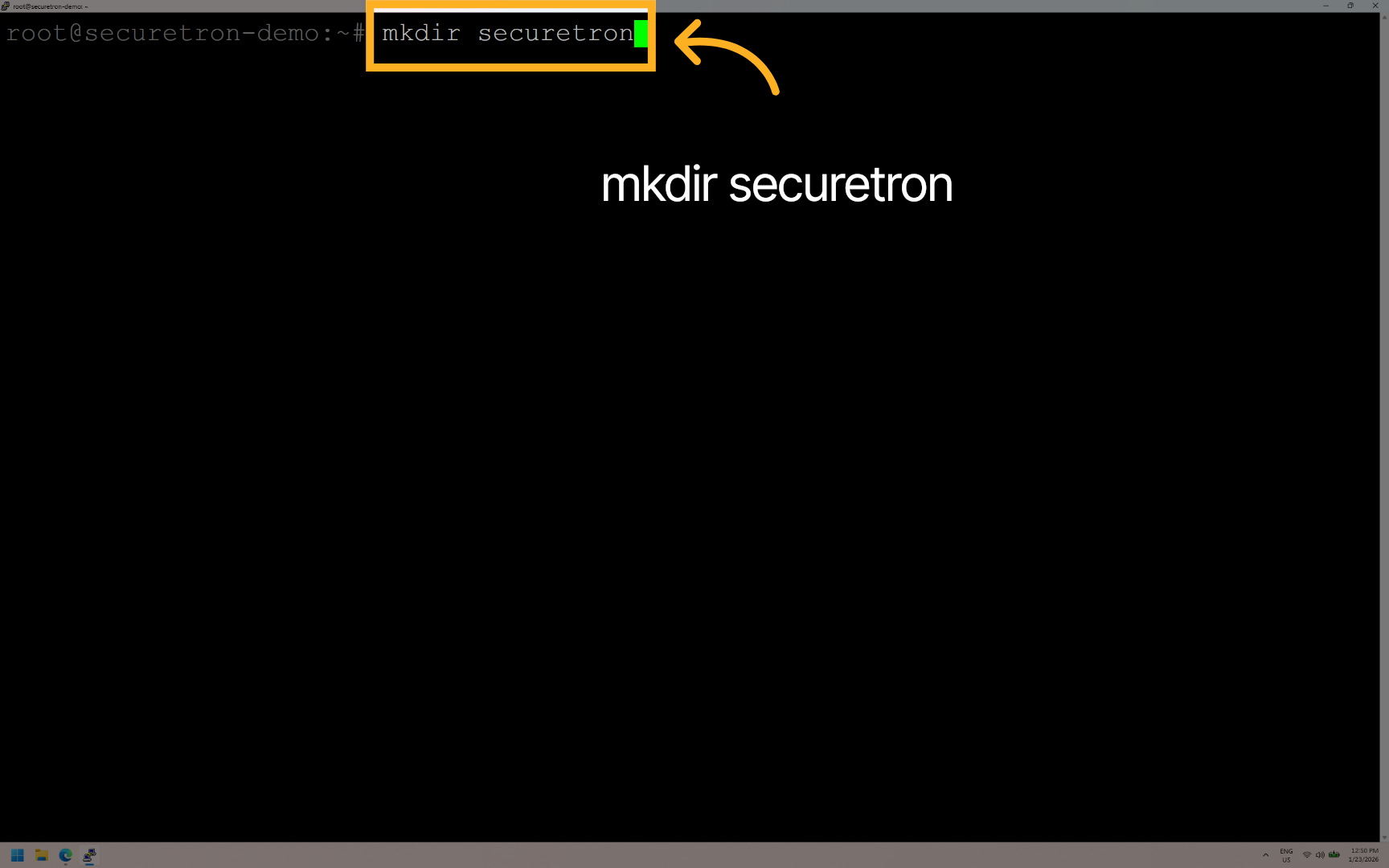
First, create a new directory called securetron. This directory will be used to download the necessary files required to run the PKI Trust Manager application
3. Enter Deployment Directory#
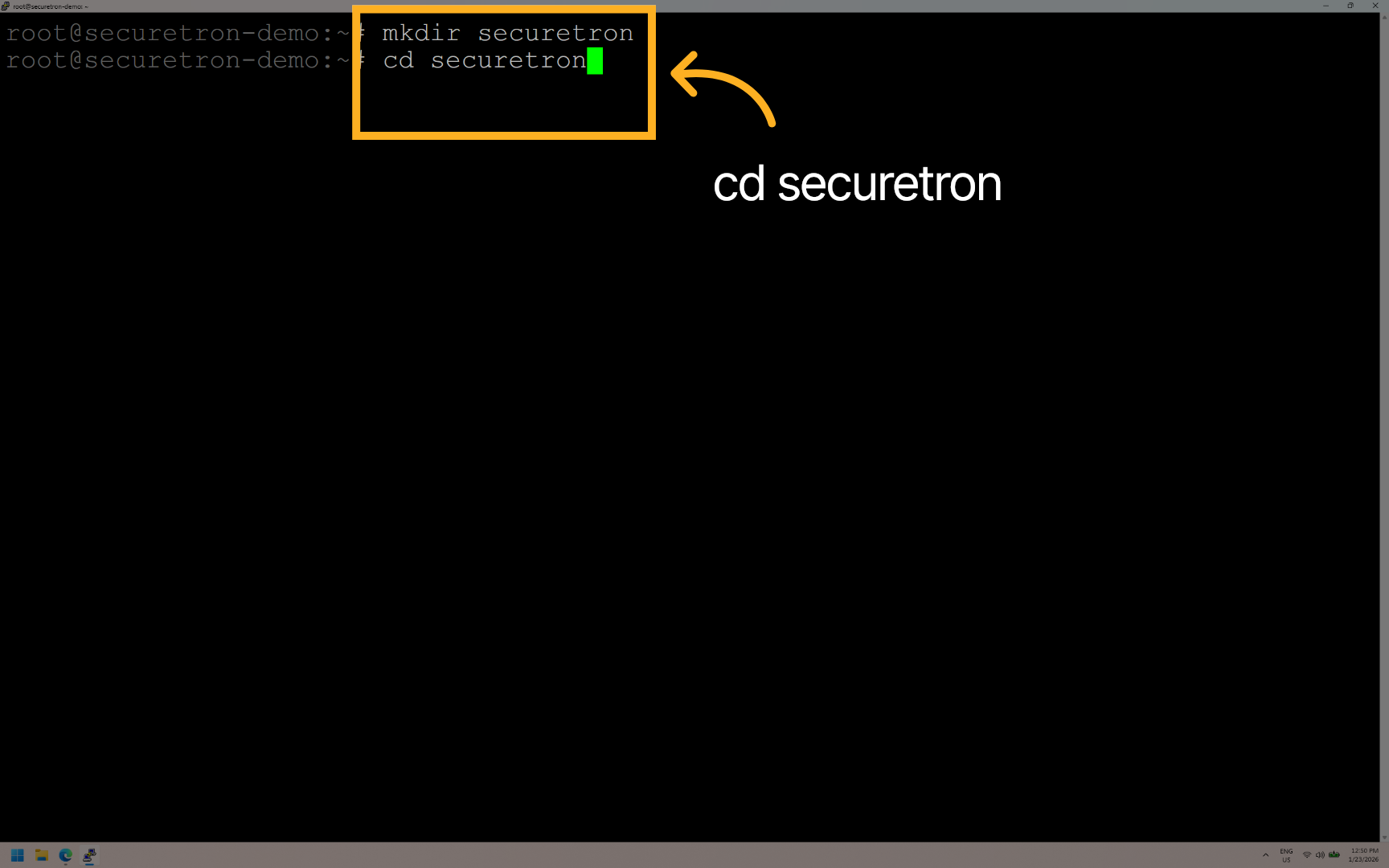
Navigate to the securetron directory where deployment files will be managed.
4. Navigate to Securetron Folder#
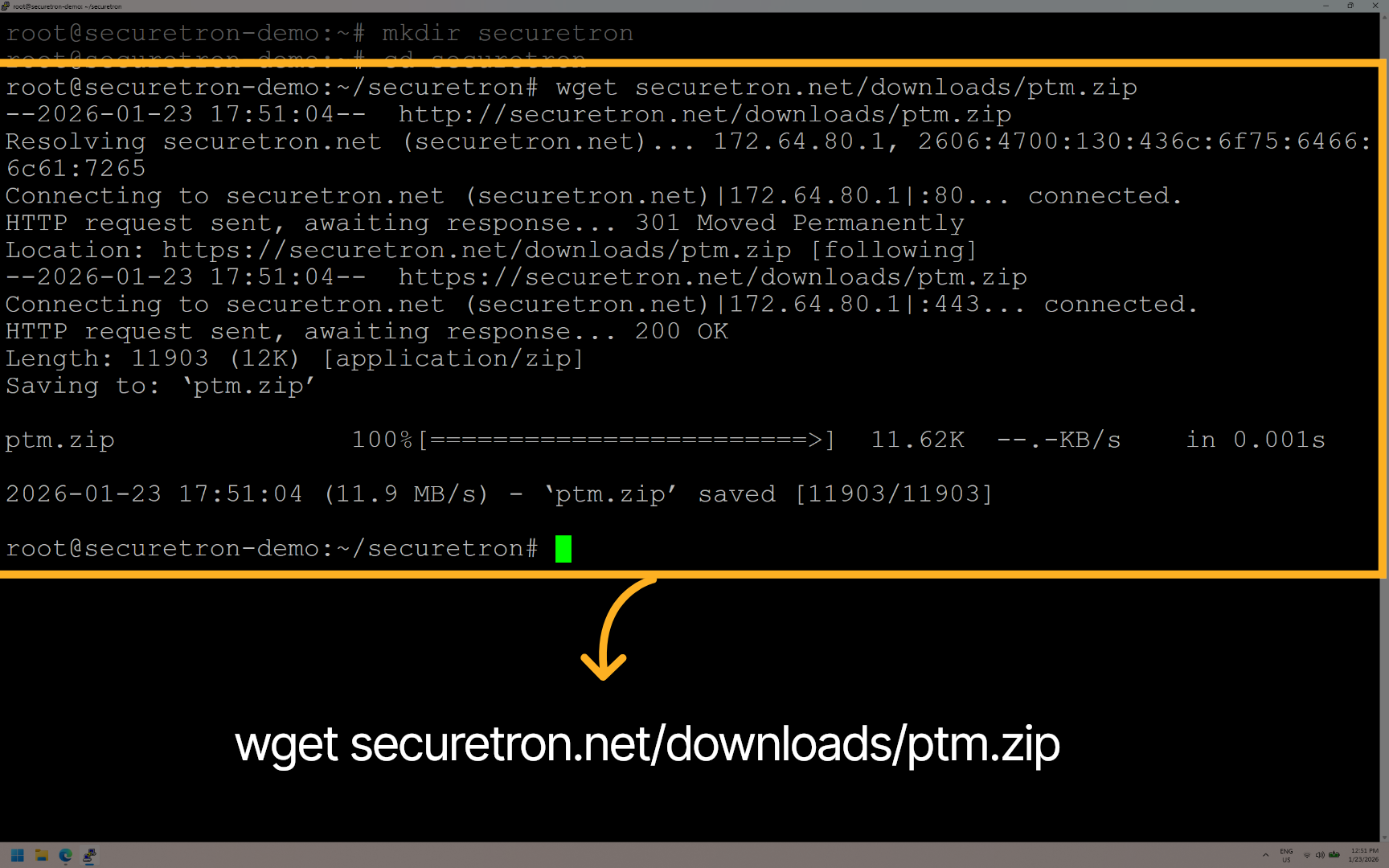
Next - download the PKI Trust Manager files using the wget command. Or alternatively, from the securetron website
5. Unzip the Content#
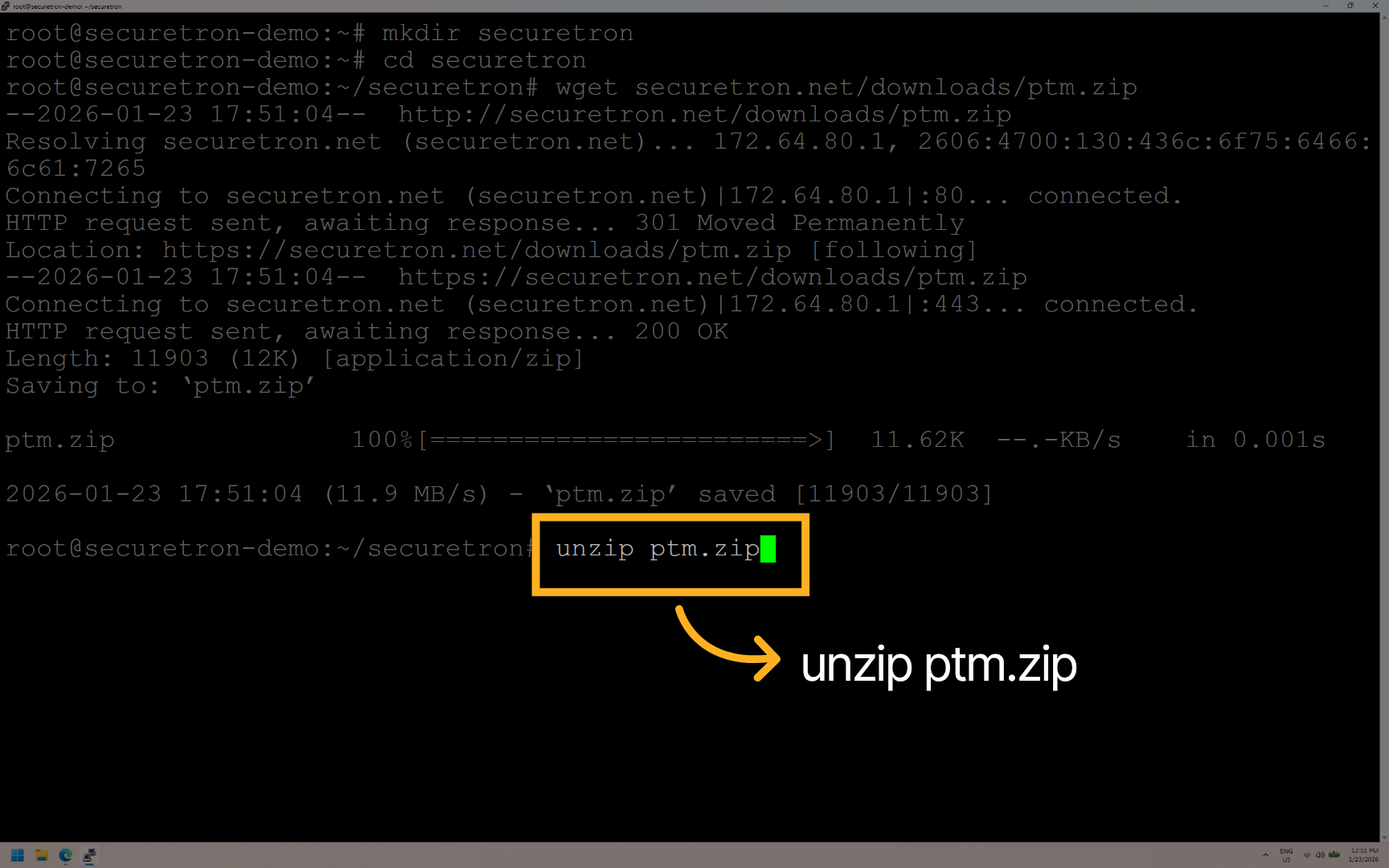
Once the zip file has been downloaded, then unzip it
6. Verify The Files#
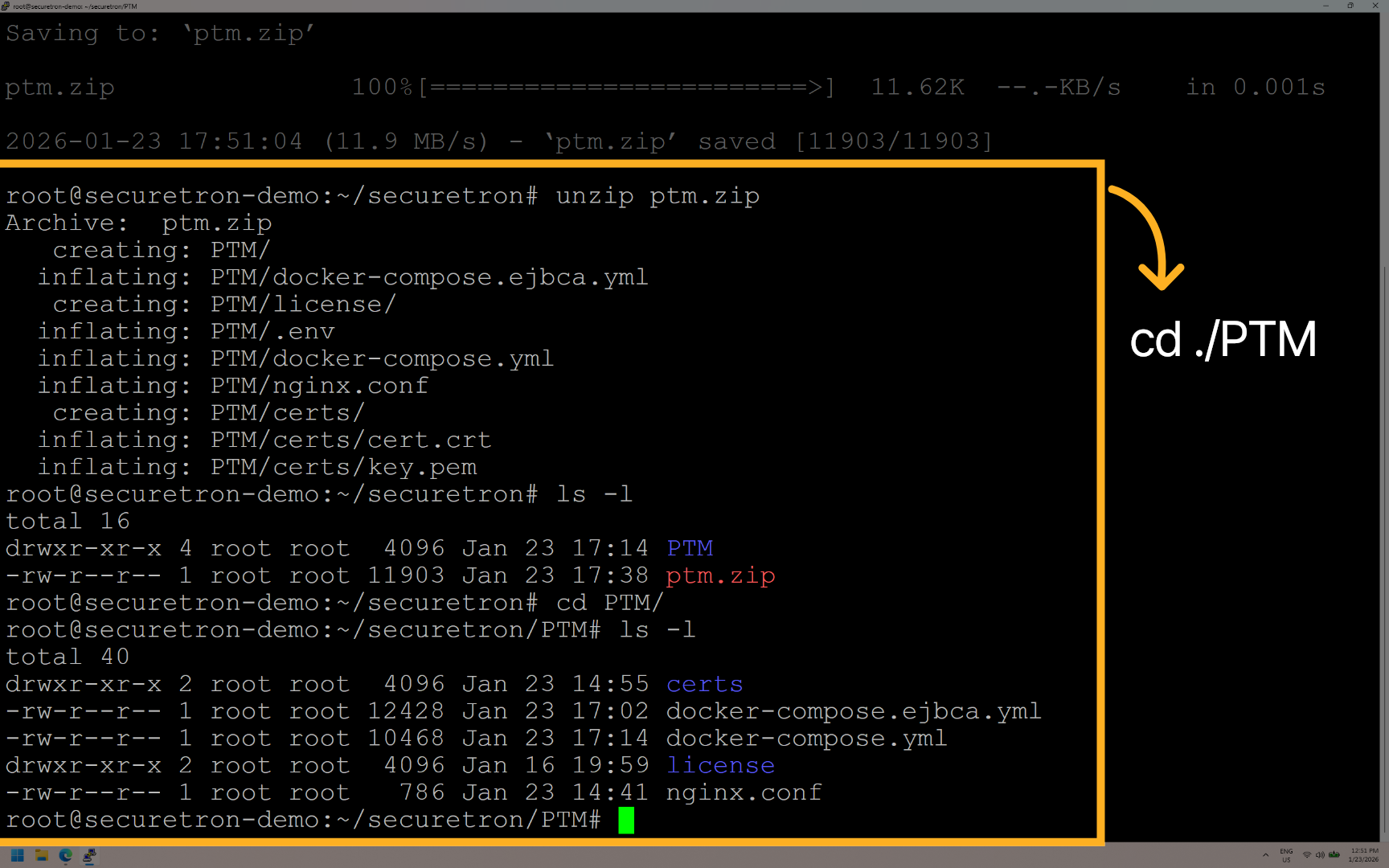
Once the content have been extracted. CD to the PTM directory that contains the required PKI Trust Manager files
7. Certs Directory#
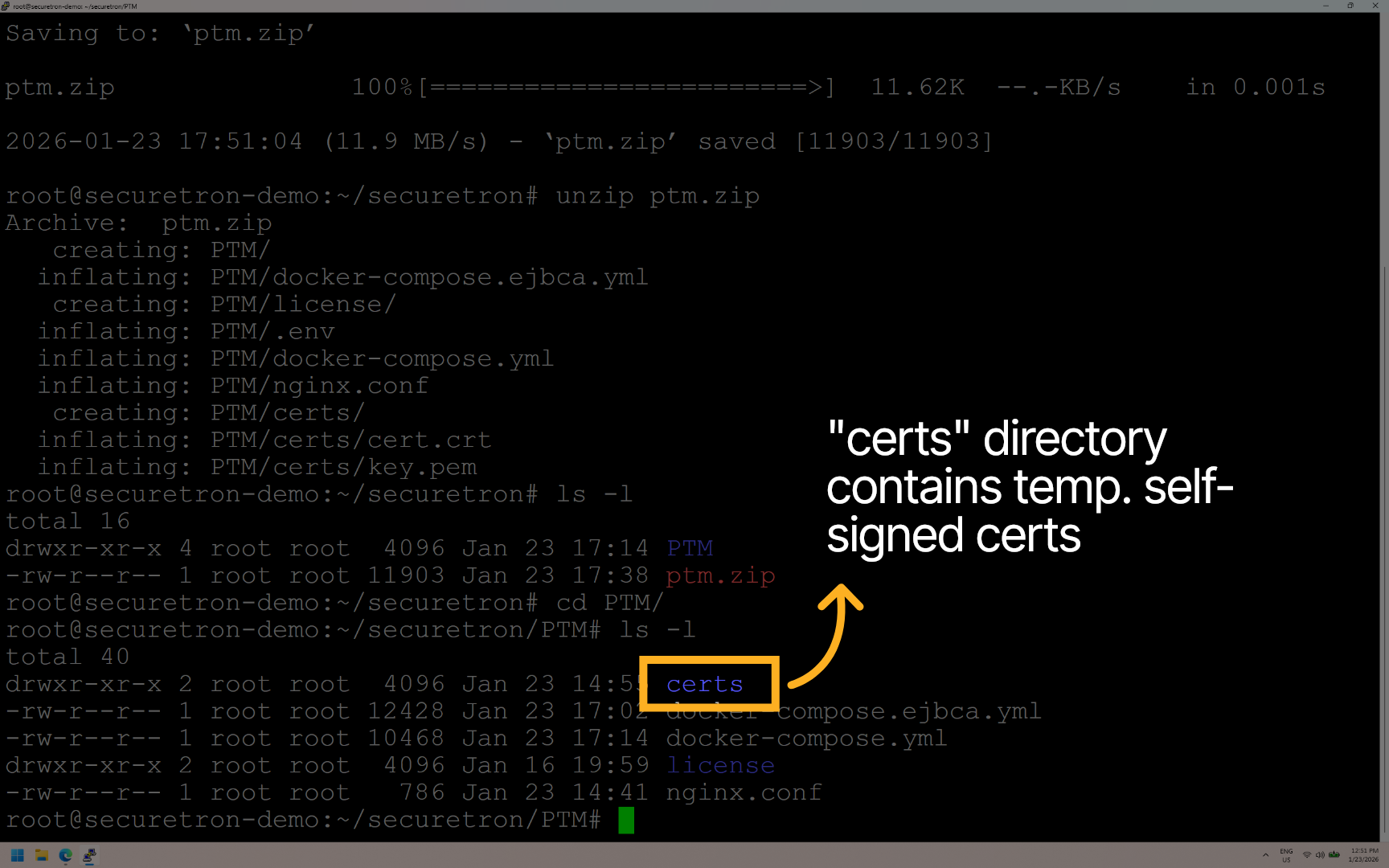
The Certs directory contains the certificates used by nginx. These are temporary self-signed certificates.
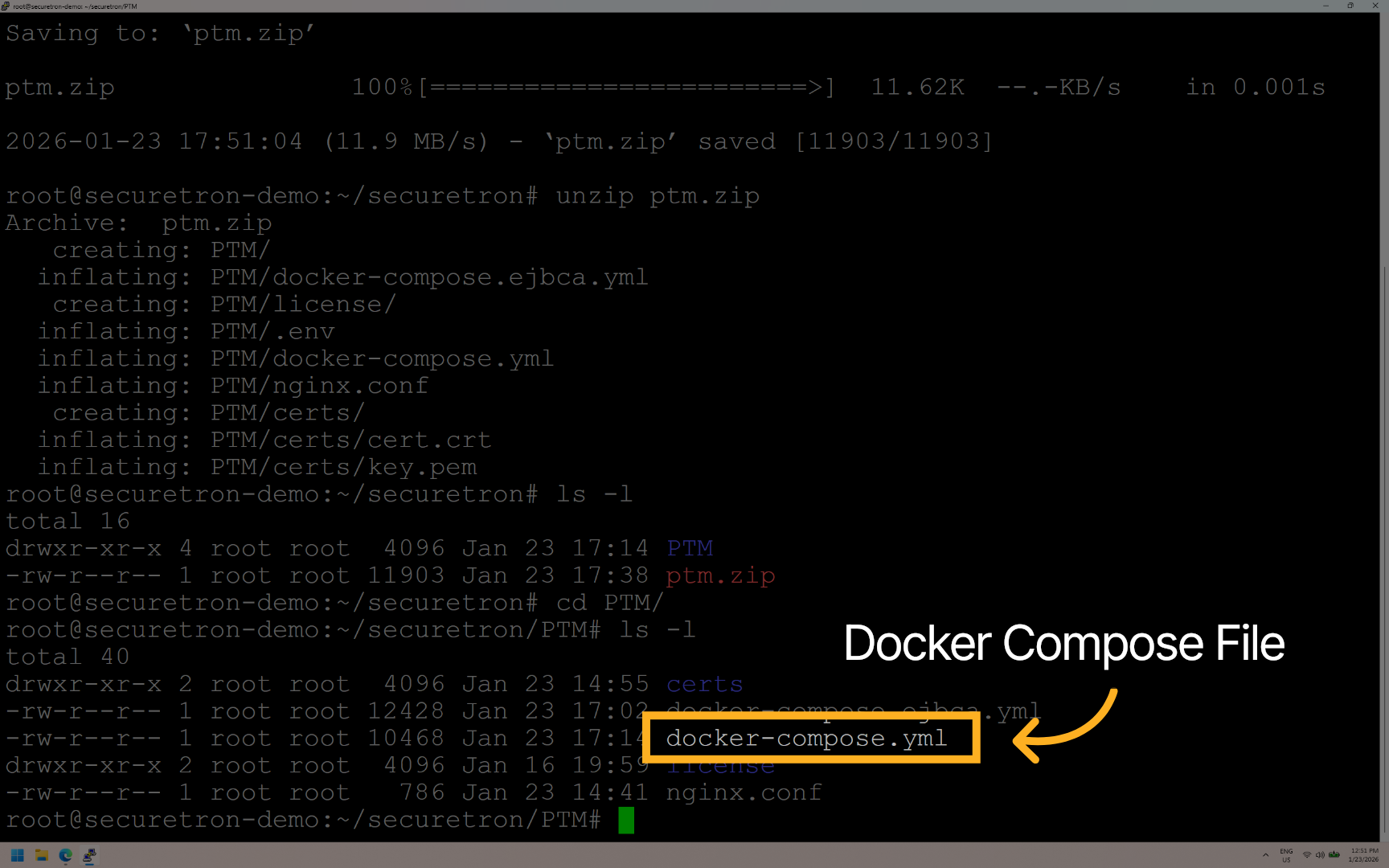
8. Docker-Compose File#
This is the default docker compose file that includes the required PKI Trust Manager containers and configuration
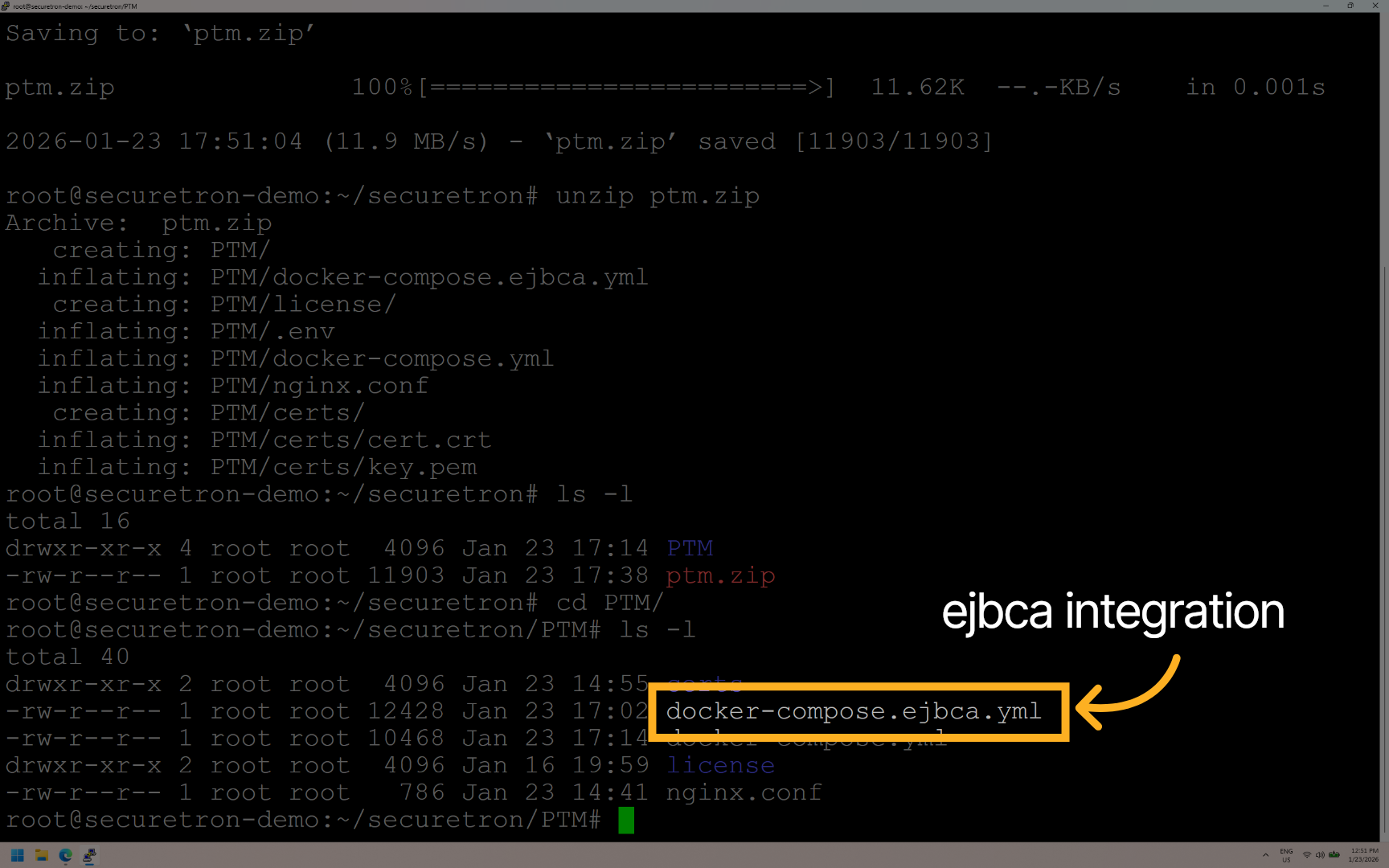
9. Docker-Compose-EJBCA#
The docker-compose-ejbca.yml includes the containers and steps required to integrate EJBCA with PKI Trust Manager
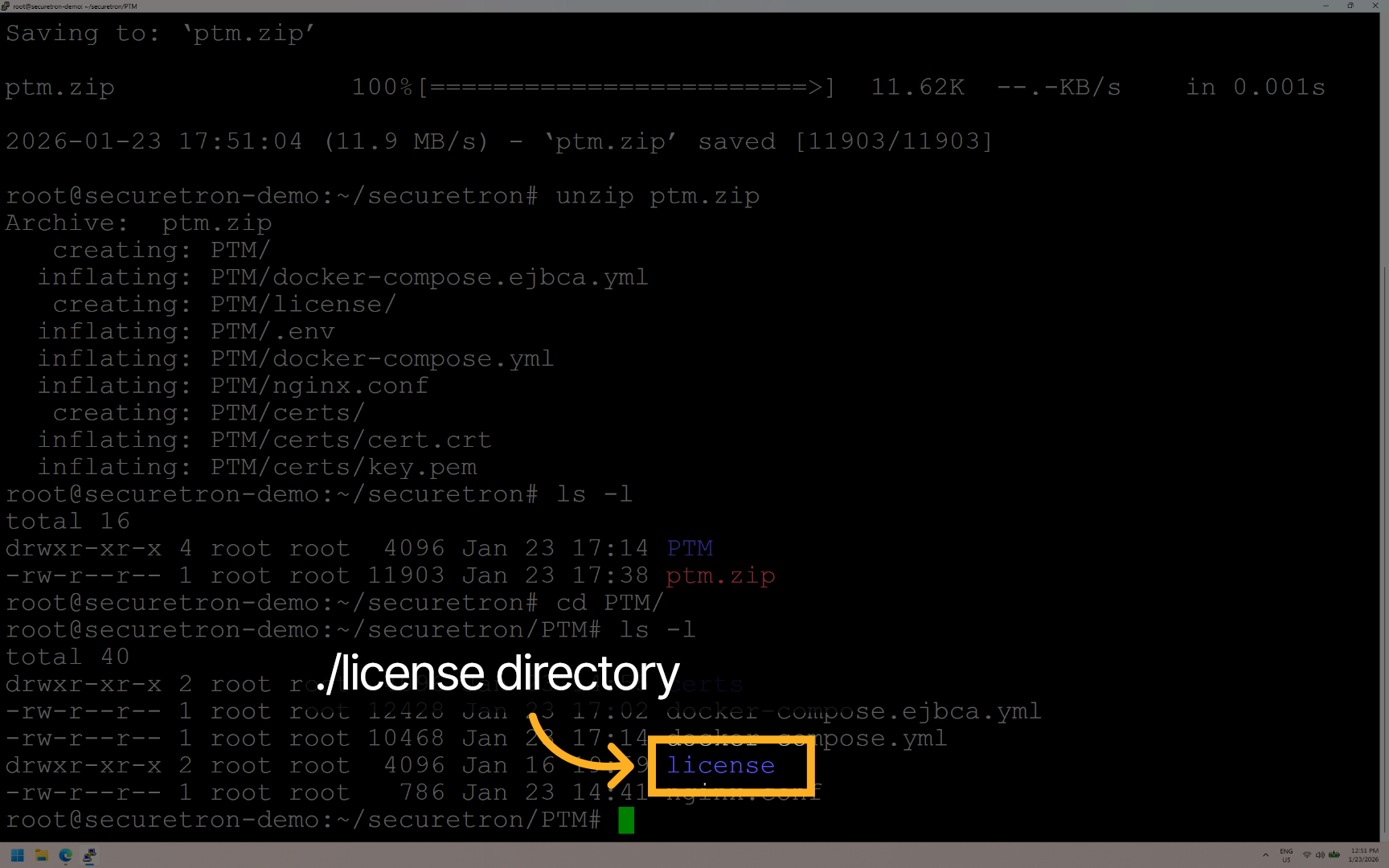
10. License Directory#
The license directory is used for activating the offline license typically used on OT or Highly Sensitive environments where internet connection is not possible
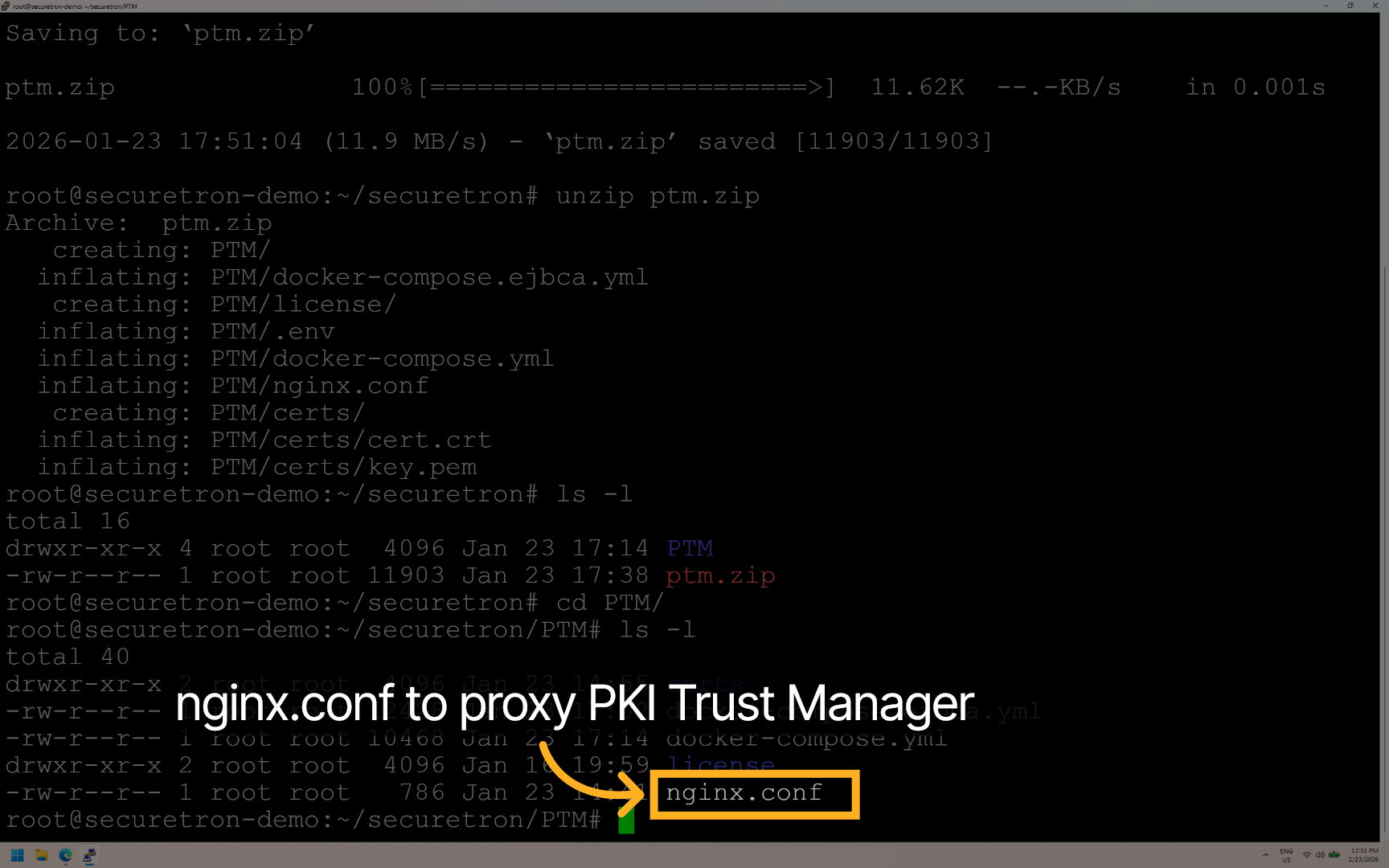
11. NGINX.CONF#
The nginx.conf file contains the initial configuration required to proxy the PKI Trust Manager Web Application. You may customize this to your organization requirements.
12. Run PKI Trust Manager Containers#
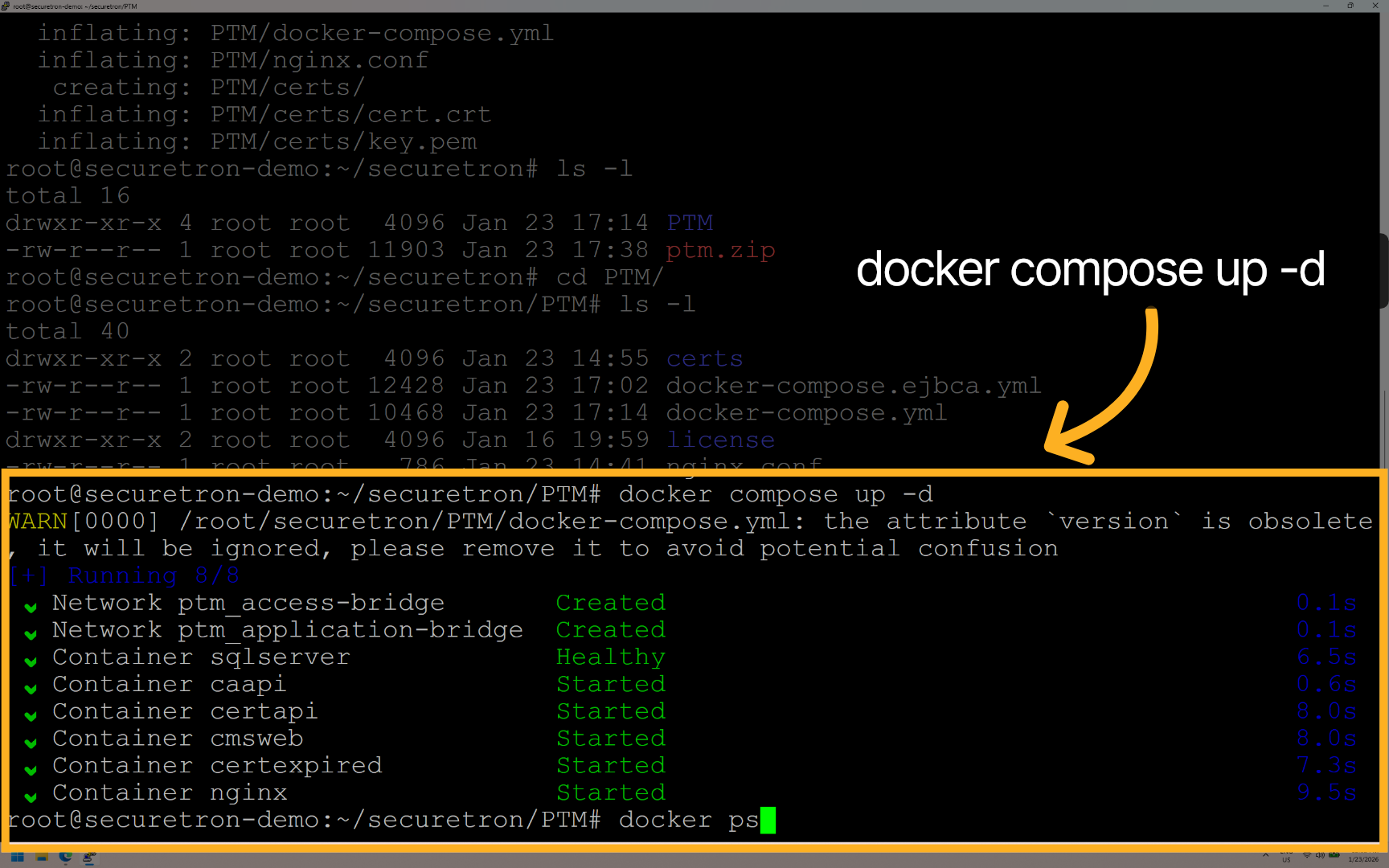
Run the application by executing: "docker compose up -d". This should initialize the containers and run the application.
13. Verify Docker Process#
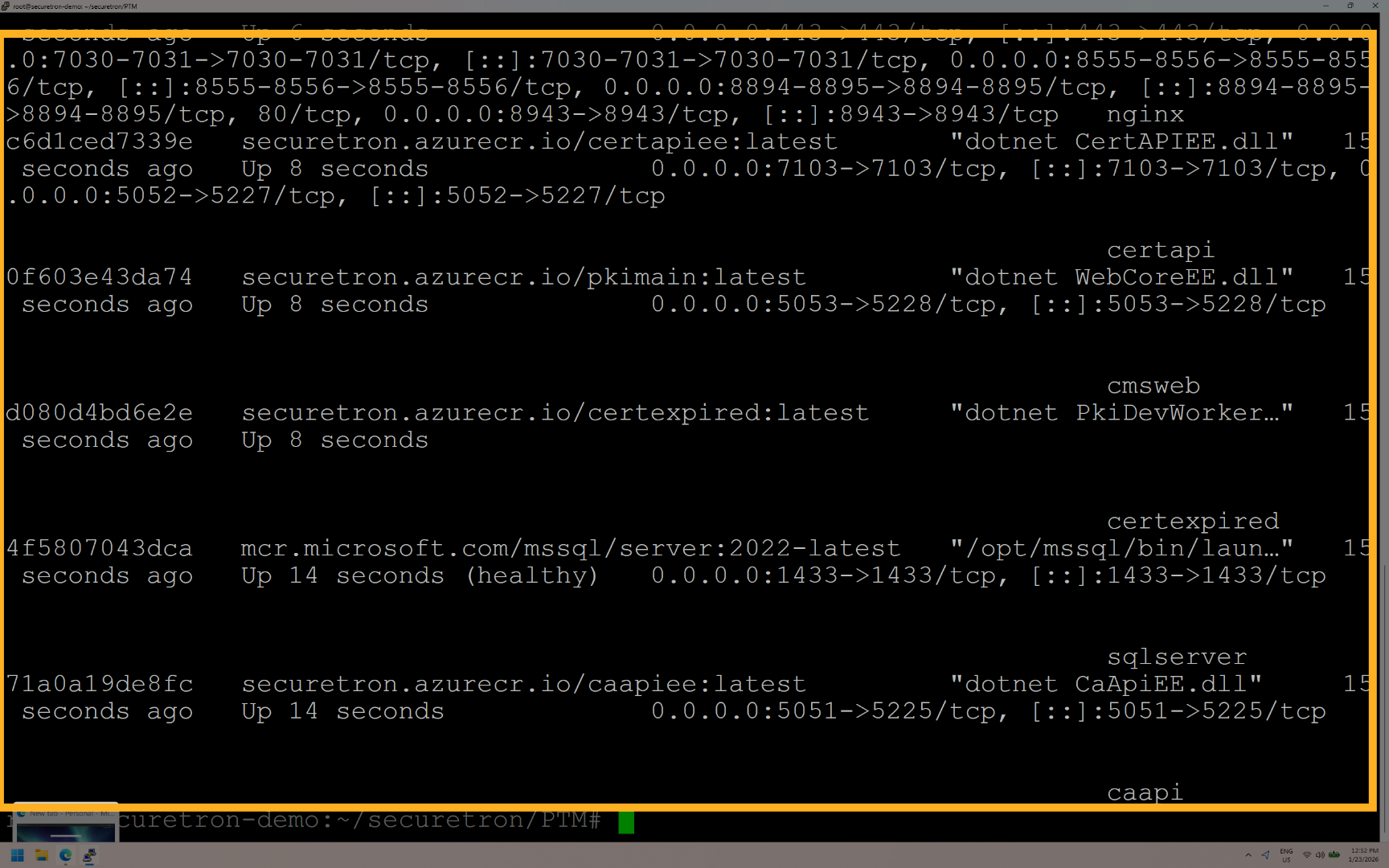
Confirm that all of the containers are running correctly by running "docker ps".
14. Access PKI Trust Manager#
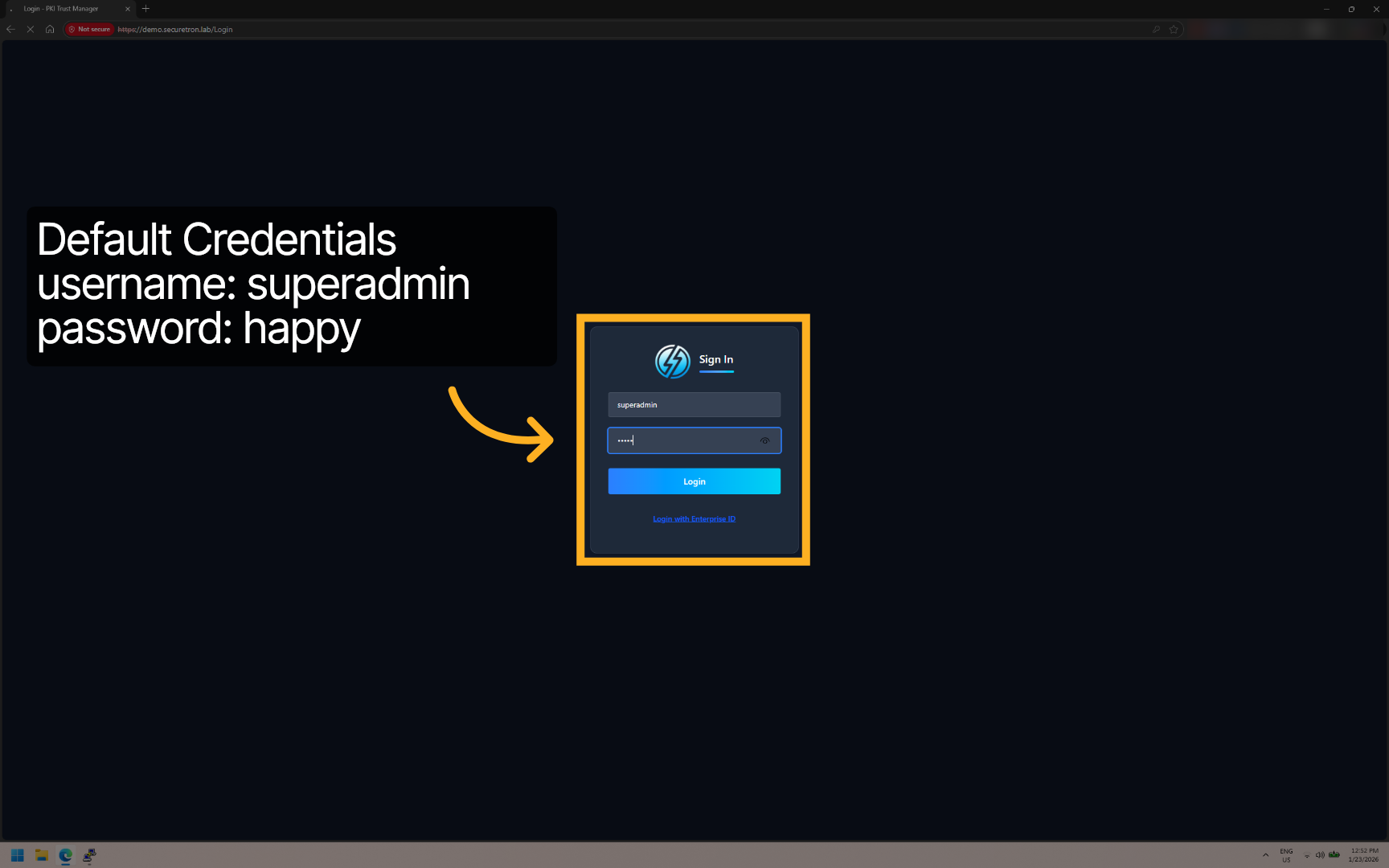
Access the PKI Trust Manager application by pointing to the IP-Address over port 443 or to DNS FQDN that you may have configured that resolves to the application. Enter the default credentials
Default Credentials: Username: superadmin Password: happy
15. Success!#
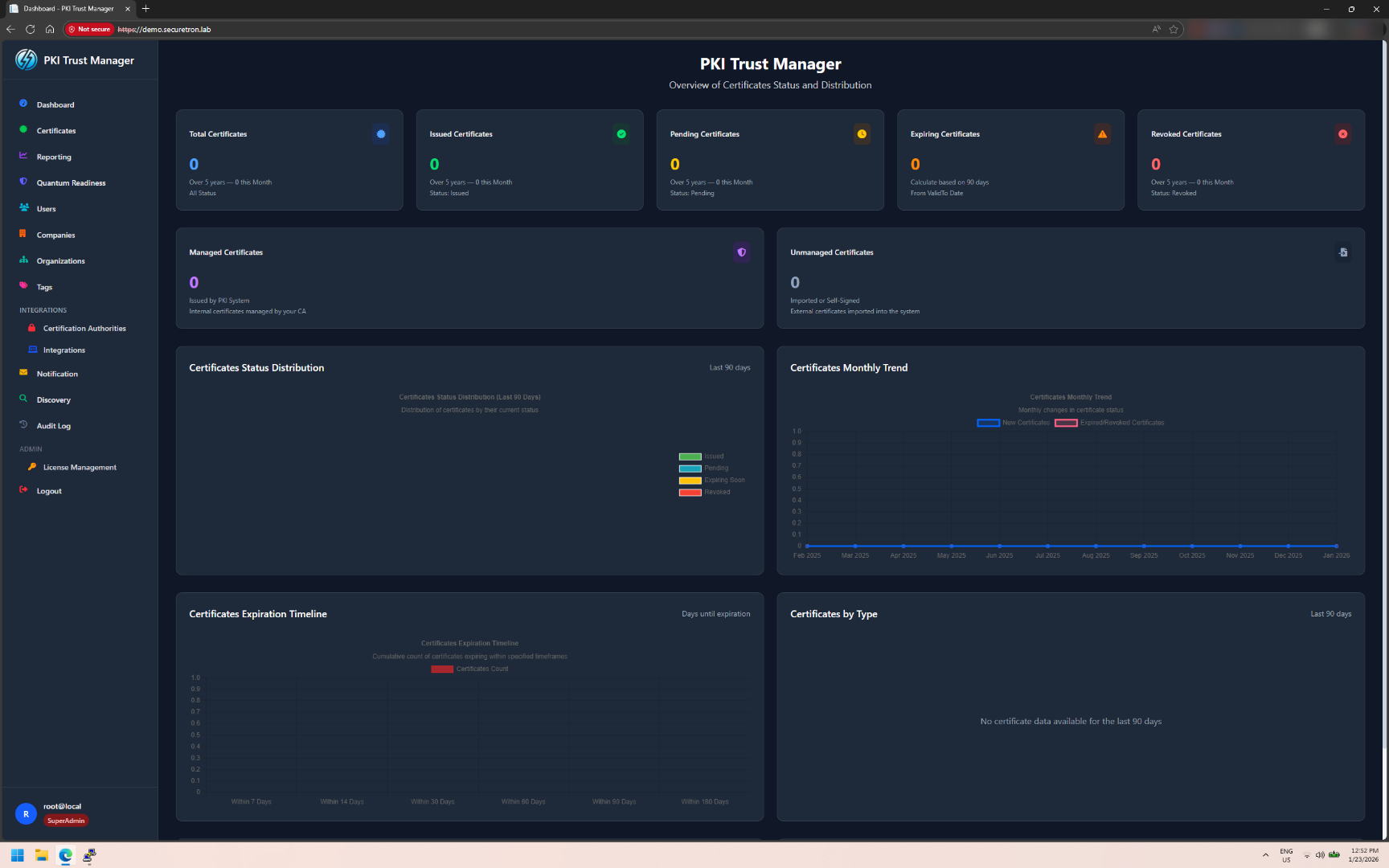
You should see the Next Generation PKI Trust Manager Platform, ready to integrate with your Certificate Authorities and to begin automating the management of the certificates across your organization!
Congratulations! You have successfully deployed the PKI Trust Manager on Docker and verified its configuration. Next, you can explore advanced certificate management or integrate with your existing security infrastructure. For more information visit our website or contact support.