Azure Deployment — PKI Trust Manager
Deploy Securetron PKI Trust Manager To Azure Cloud
This tutorial guides you through deploying the Securetron PKI Trust Manager to Azure.
1. Introduction#
You will configure container settings, environment variables, and ingress to complete the deployment.
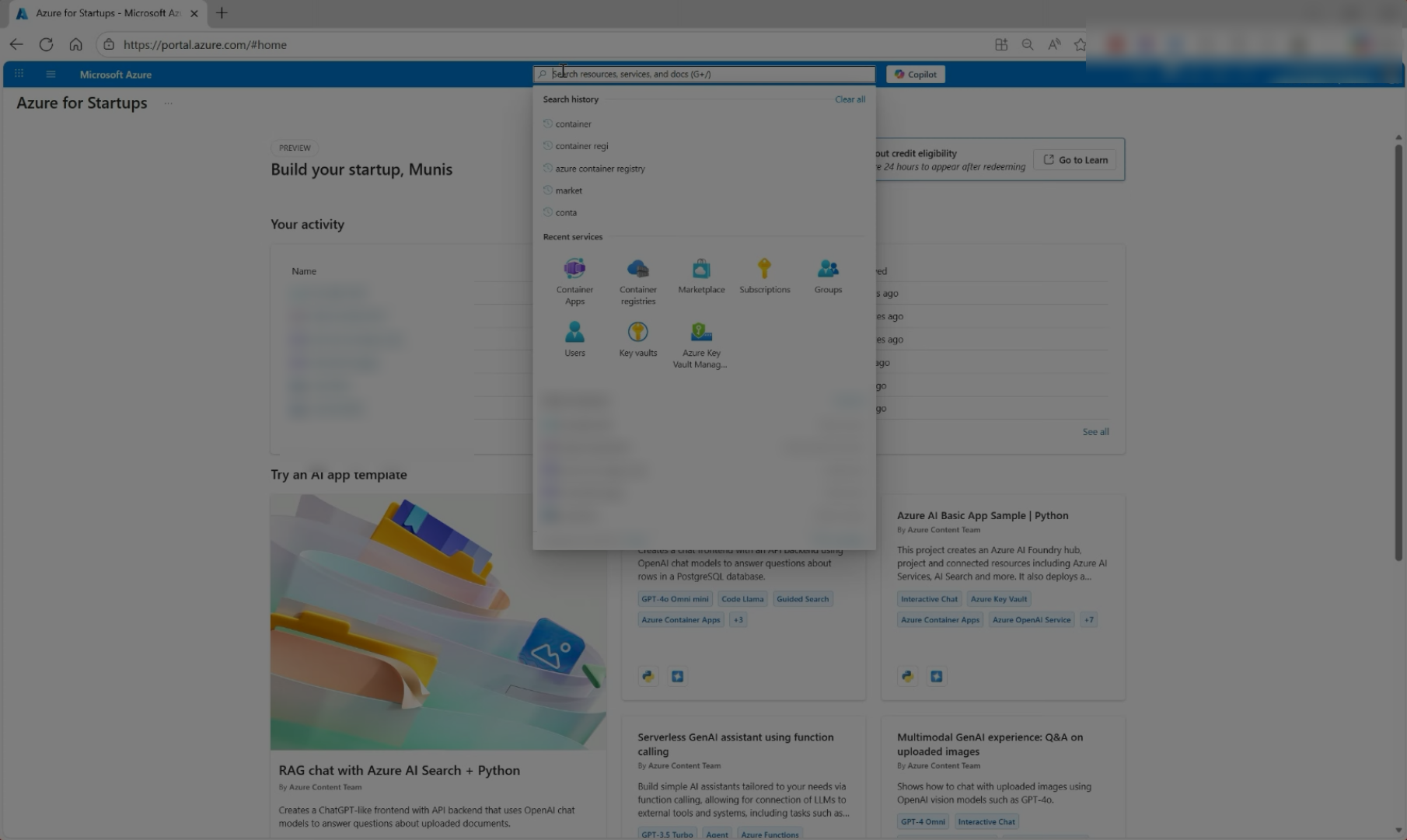
2. Enter Container Keyword#
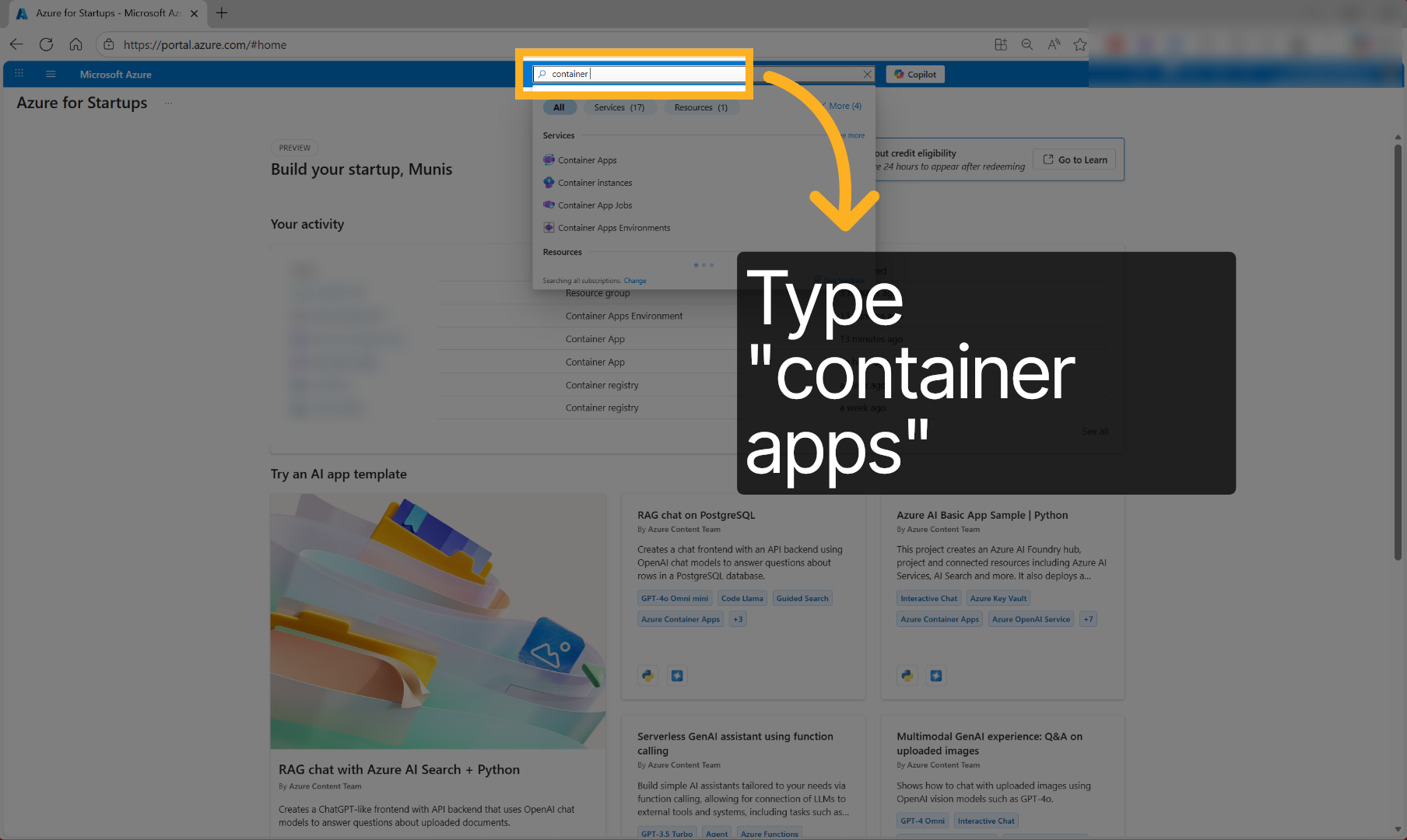
Click the azure search bar and type in Container Apps to access the Container Apps Management Service
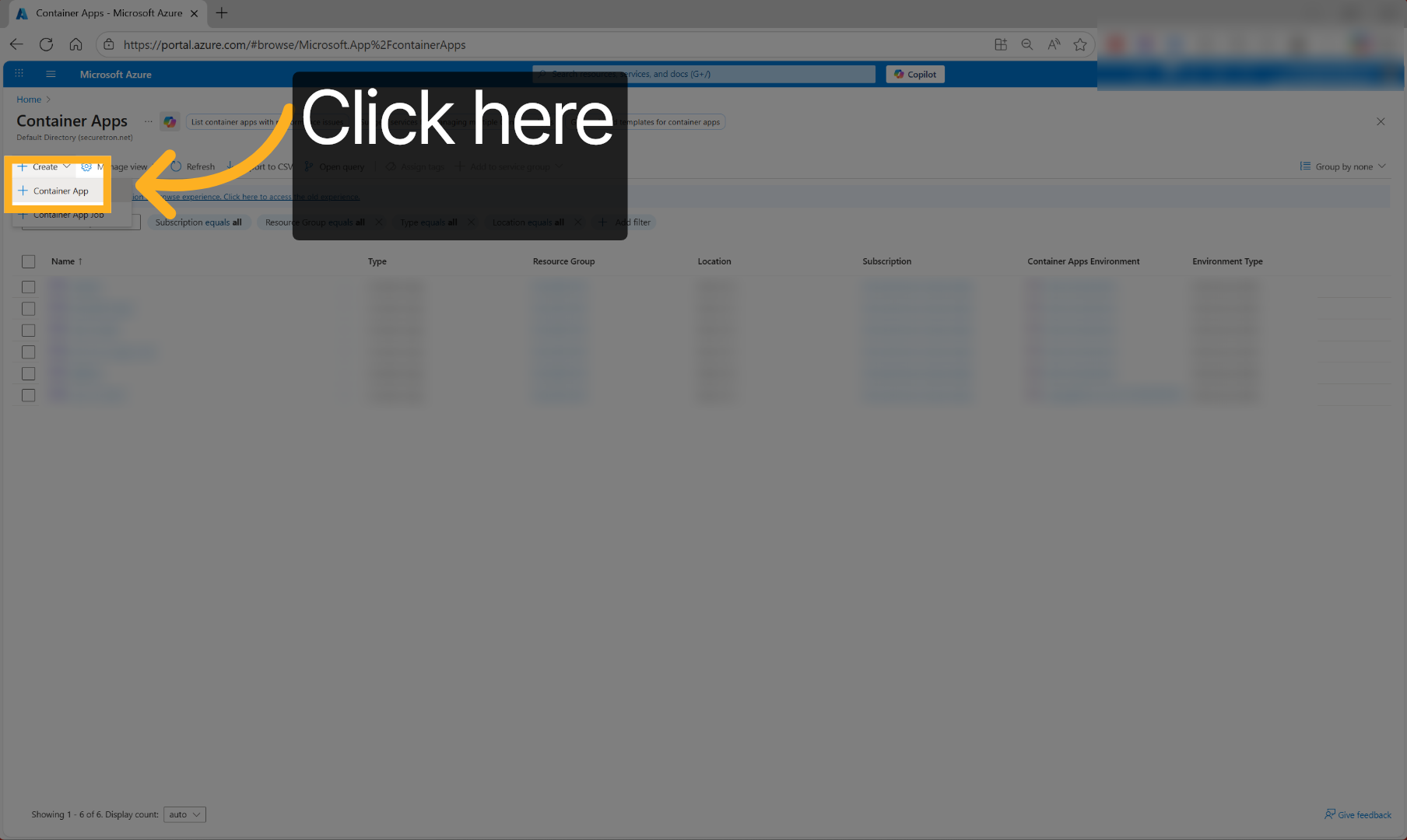
3. Navigate To Container Apps#
Click Create and then select Container App from the drop-down to deploy new PKI Trust Manager App
4. Select Container App#
Click the container app name to access, its detailed settings and deployment options.
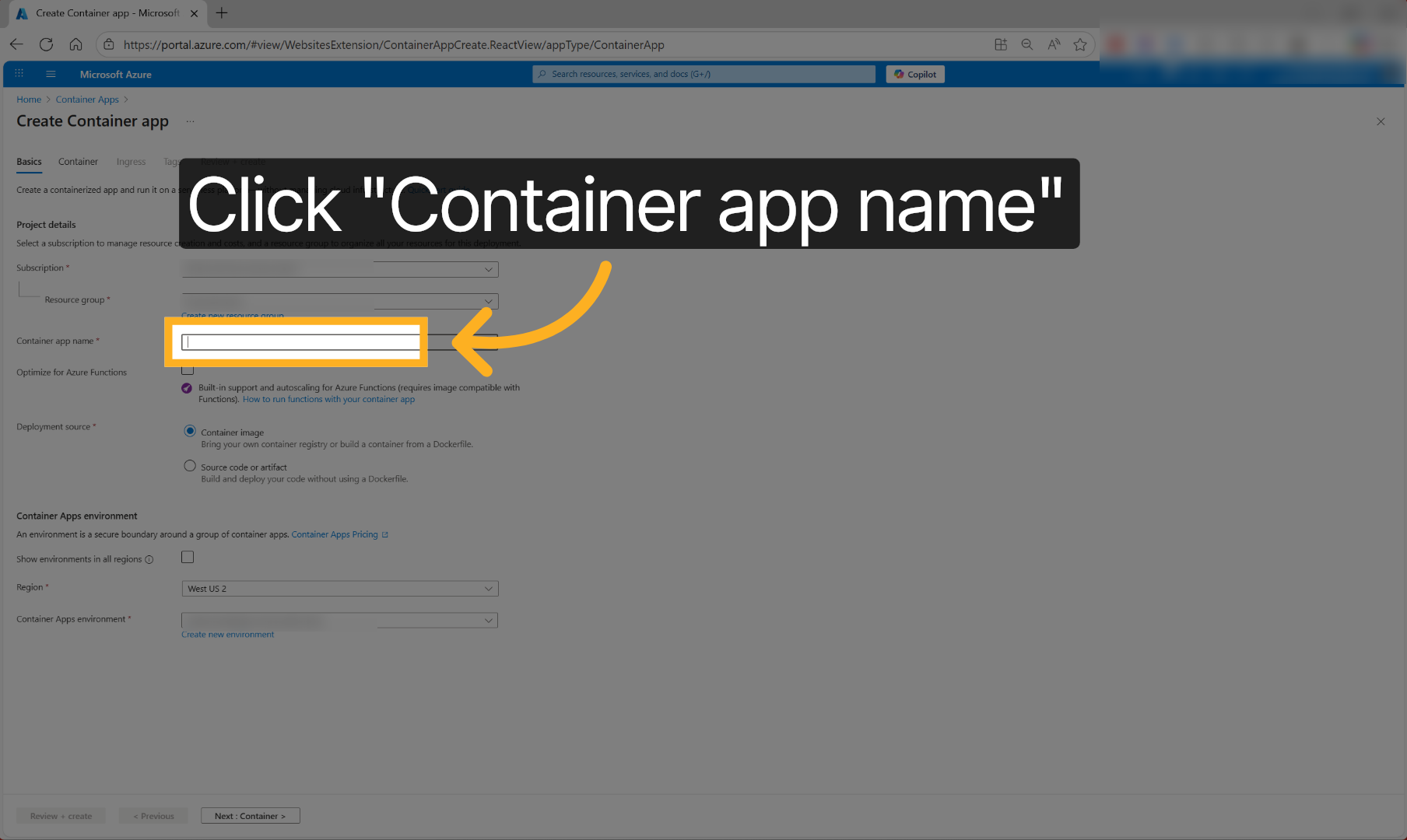
5. Enter Container App Name#
Enter the container app name to identify your deployment, such as 'pki-trust-manager'.
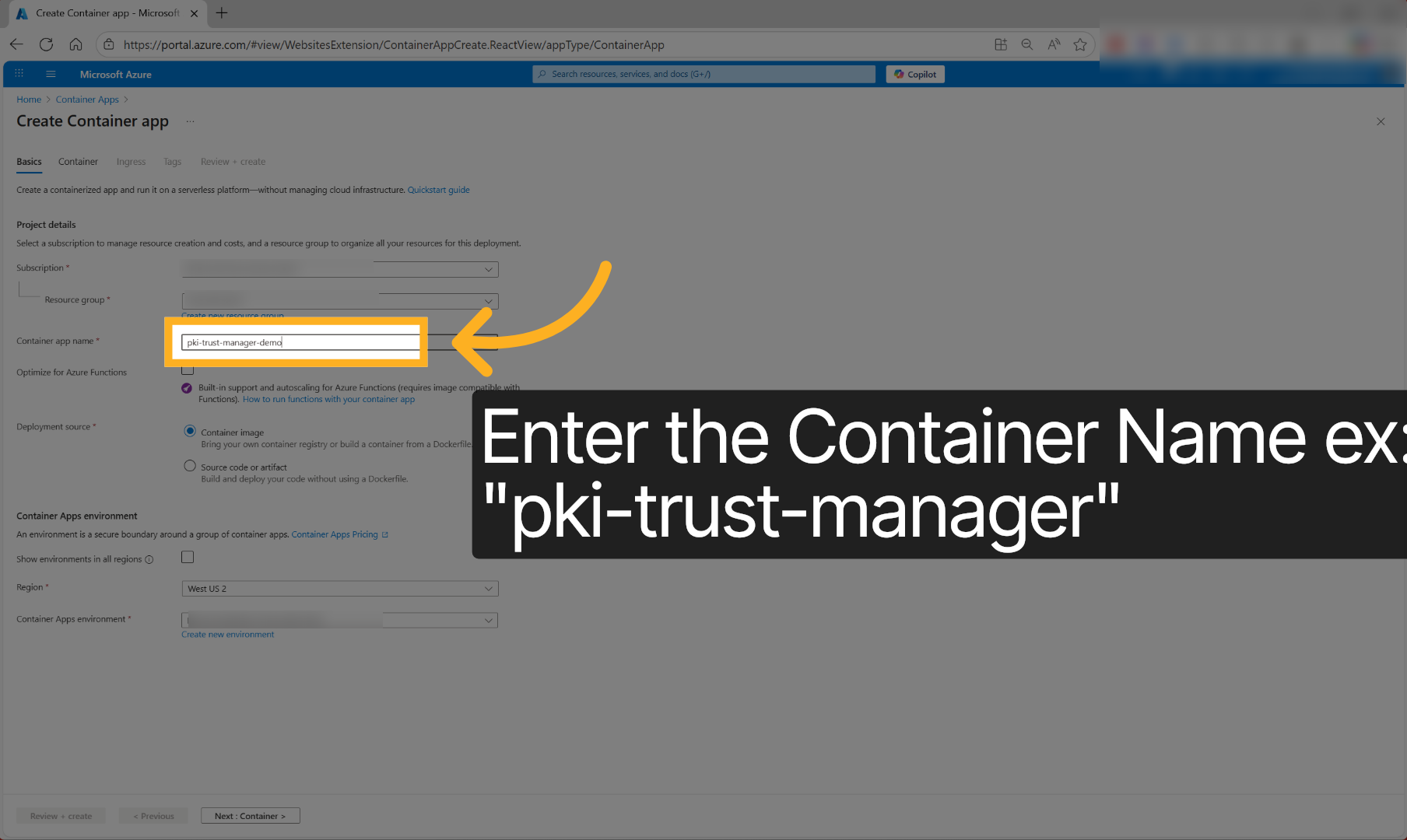
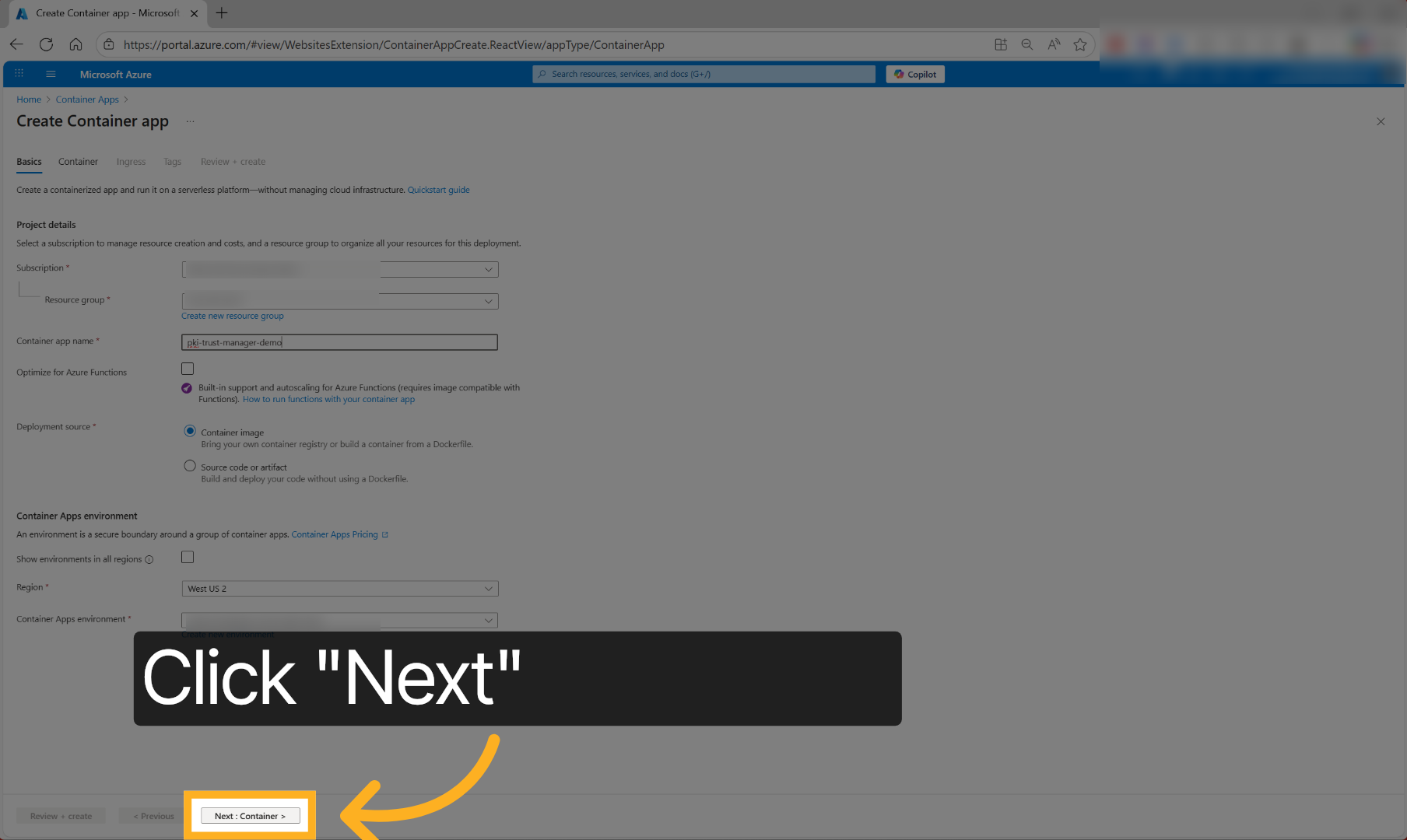
6. Proceed To Container Settings#
Click 'Next : Container' to move forward to configuring container-specific settings.
7. Open Image Source Settings#
Click image source to specify the container image, that will be deployed.
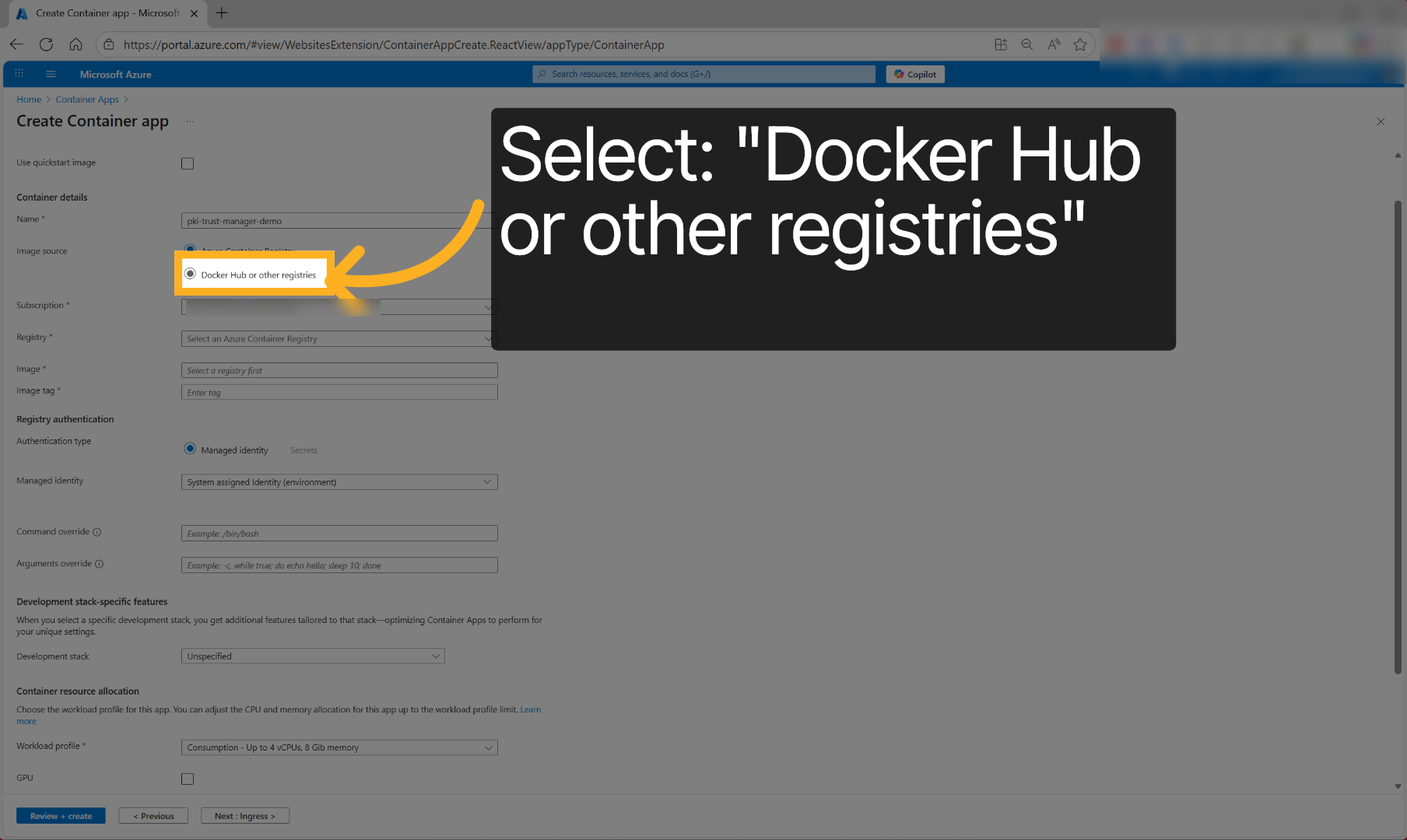
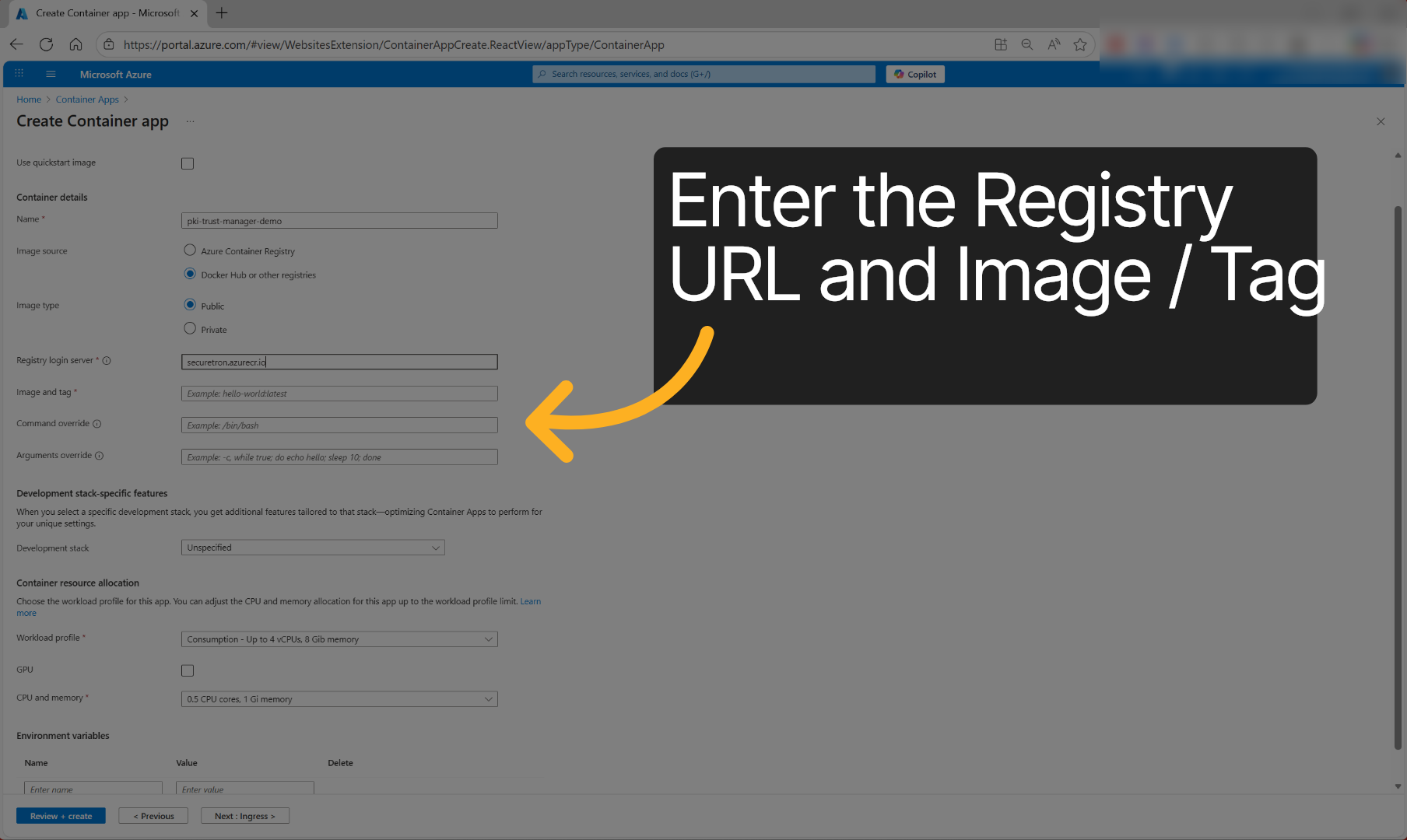
8. Fill Image Tag#
Enter the Registry URL and image tag or version to specify, which container image version to deploy.
- Container Registry URL: securetron.azurecr.io
- Image Name and Tag: pkimain:latest
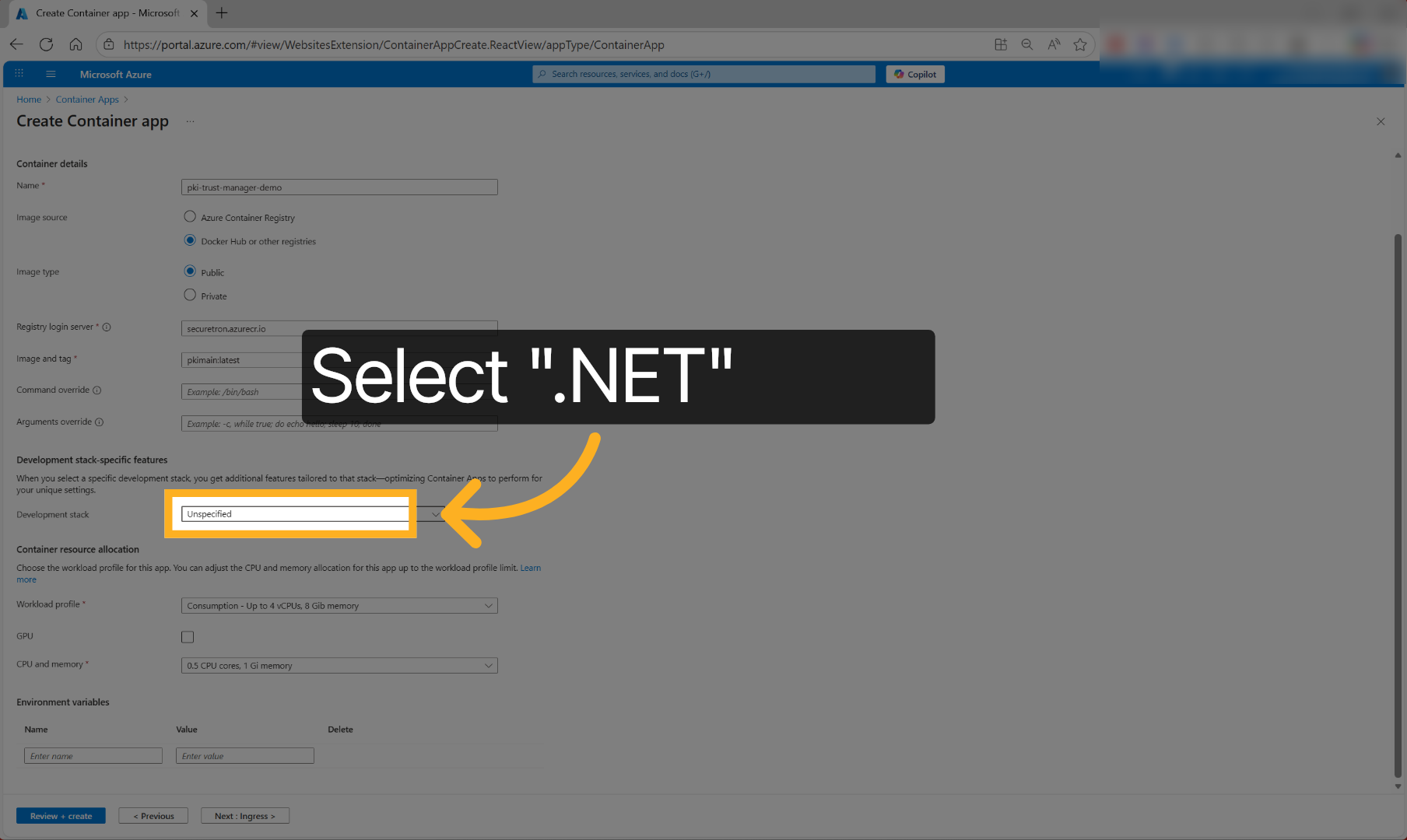
9. Development Stack#
Select .NET Development stack to optimize the container app.
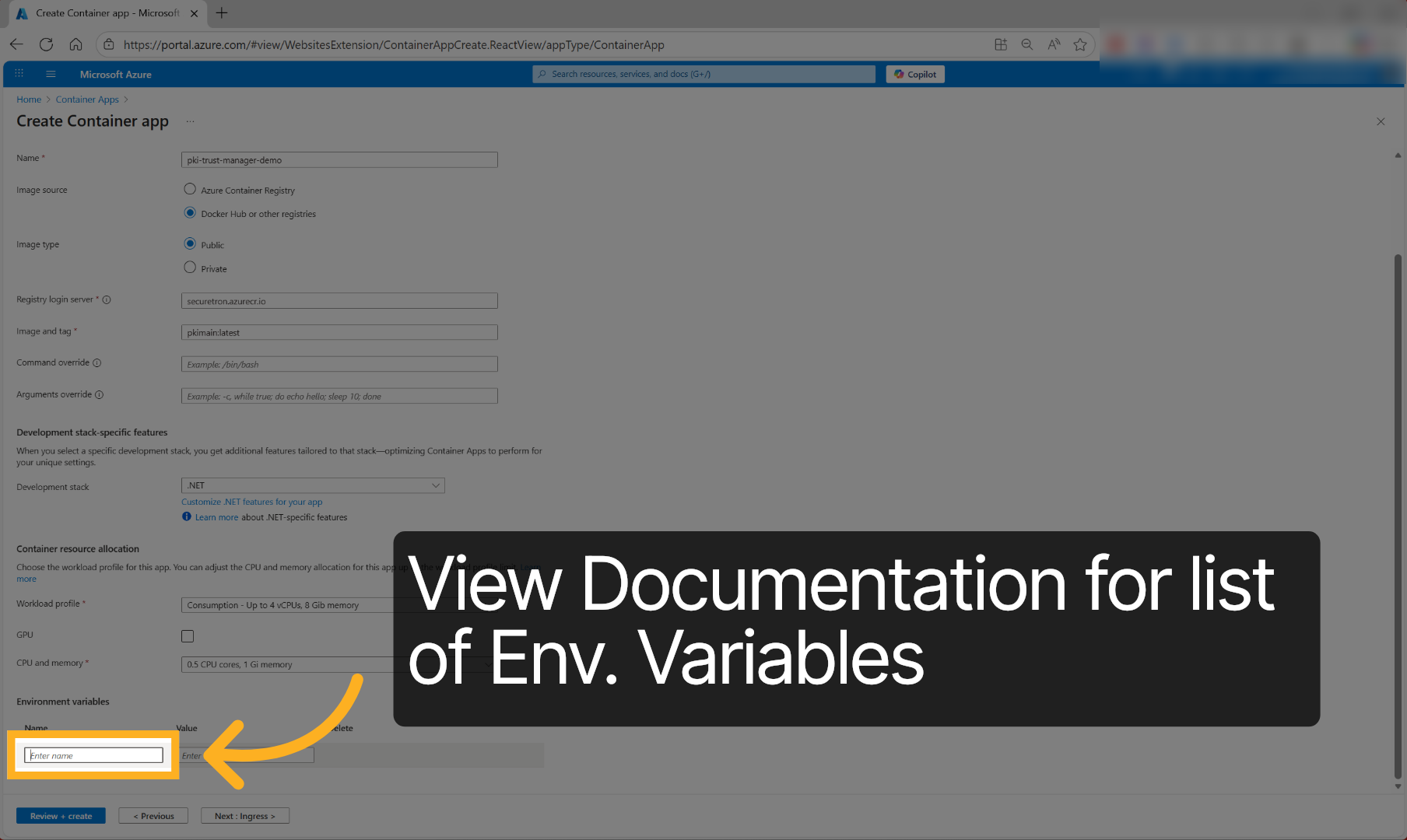
10. Select Environment Variable Name#
Fill in the environment variable name, such as the initial Admin credentials and DB Connection String to define configuration.
Required
- ADMIN__USERNAME=superadmin
- ADMIN__PASSWORD=YourUniquePassword
- ADMIN__EMAIL=[email protected]
- ConnectionStrings__OurDBContext=Your MSSQL DB Connection String
- Environment__CanMigrateData=True
Recommended
-
Scep__OtpValidityMinutes=525600
-
Licensing__ServerUrl=Check_your_email_or_submit_request_for_license
-
Licensing__ApiKey=Check_your_email_or_submit_request_for_license
-
Licensing__ClientId=CompanyName-PKI-Trust-Manager
-
Licensing__OfflineMode=false
-
Licensing__EnableOnlineValidation=true
-
Smtp__Server=Your_SMTP_Server_FQDN
-
Smtp__Auth=true
-
Smtp__SenderName=PKI-Trust-Manager
-
Smtp__SenderAddress=[email protected]
-
Smtp__ReceiverAddressOnError=[email protected]
-
Smtp__ReceiverAddressOnEvent=[email protected]
-
Smtp__Port=Your_SMTP_Server_Port
-
Smtp__Username=Your_SMTP_Username
-
Smtp__Password=Your_SMTP_Password
-
Smtp__EnableSsl=true
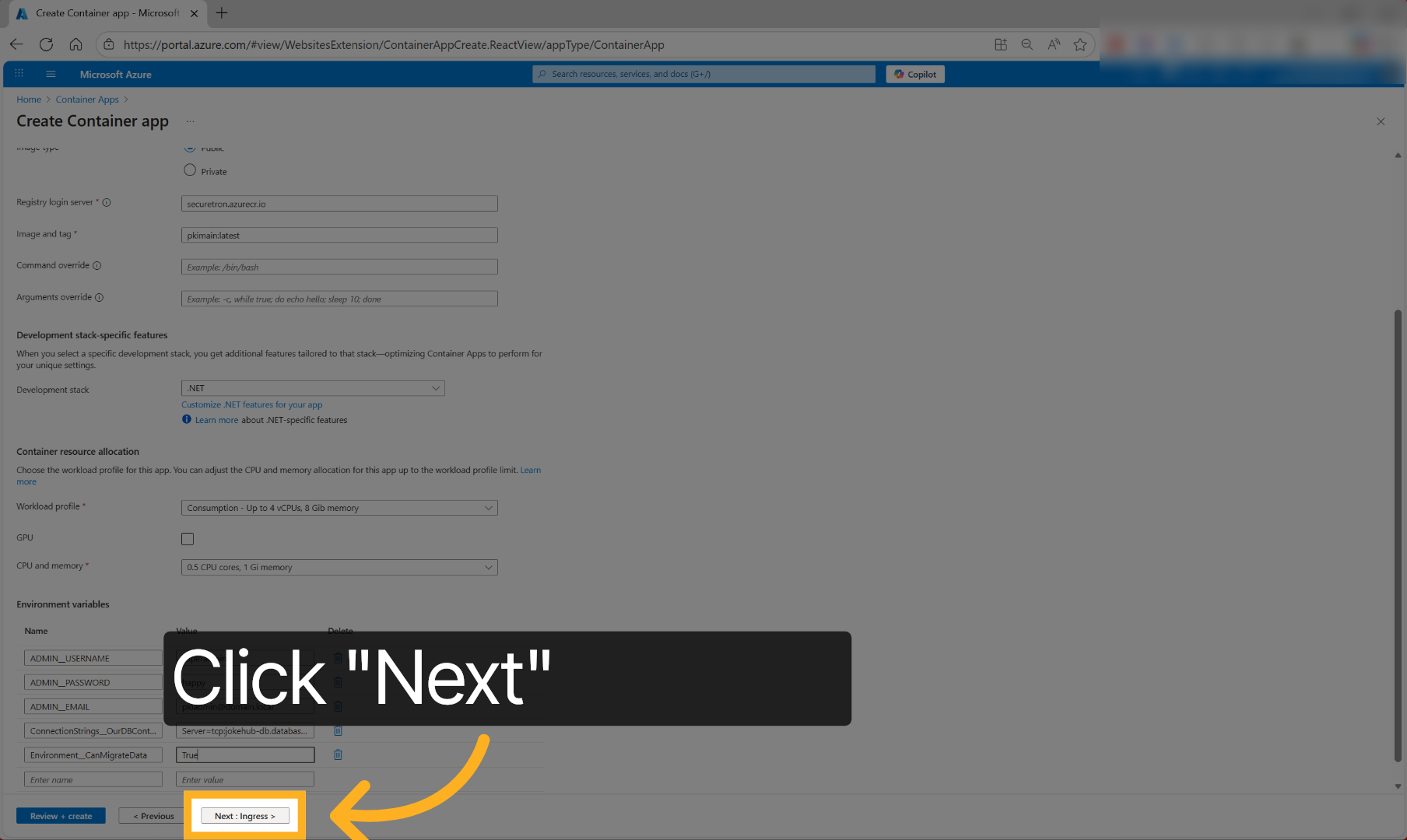
11. Proceed To Ingress Settings#
Click 'Next : Ingress' to configure network ingress settings for the container app.
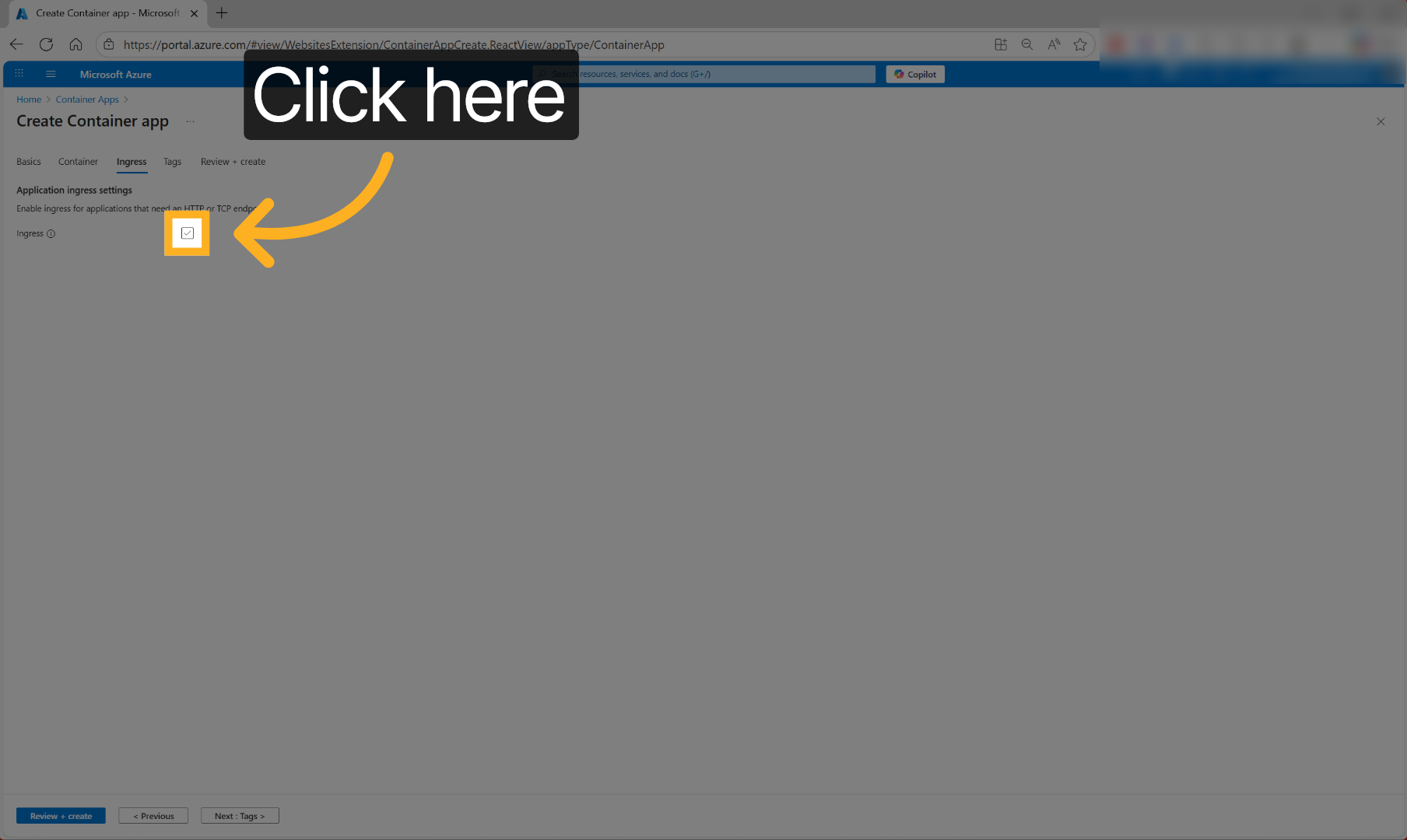
12. Open Ingress Configuration#
Click to access ingress traffic settings to control external access to the container.
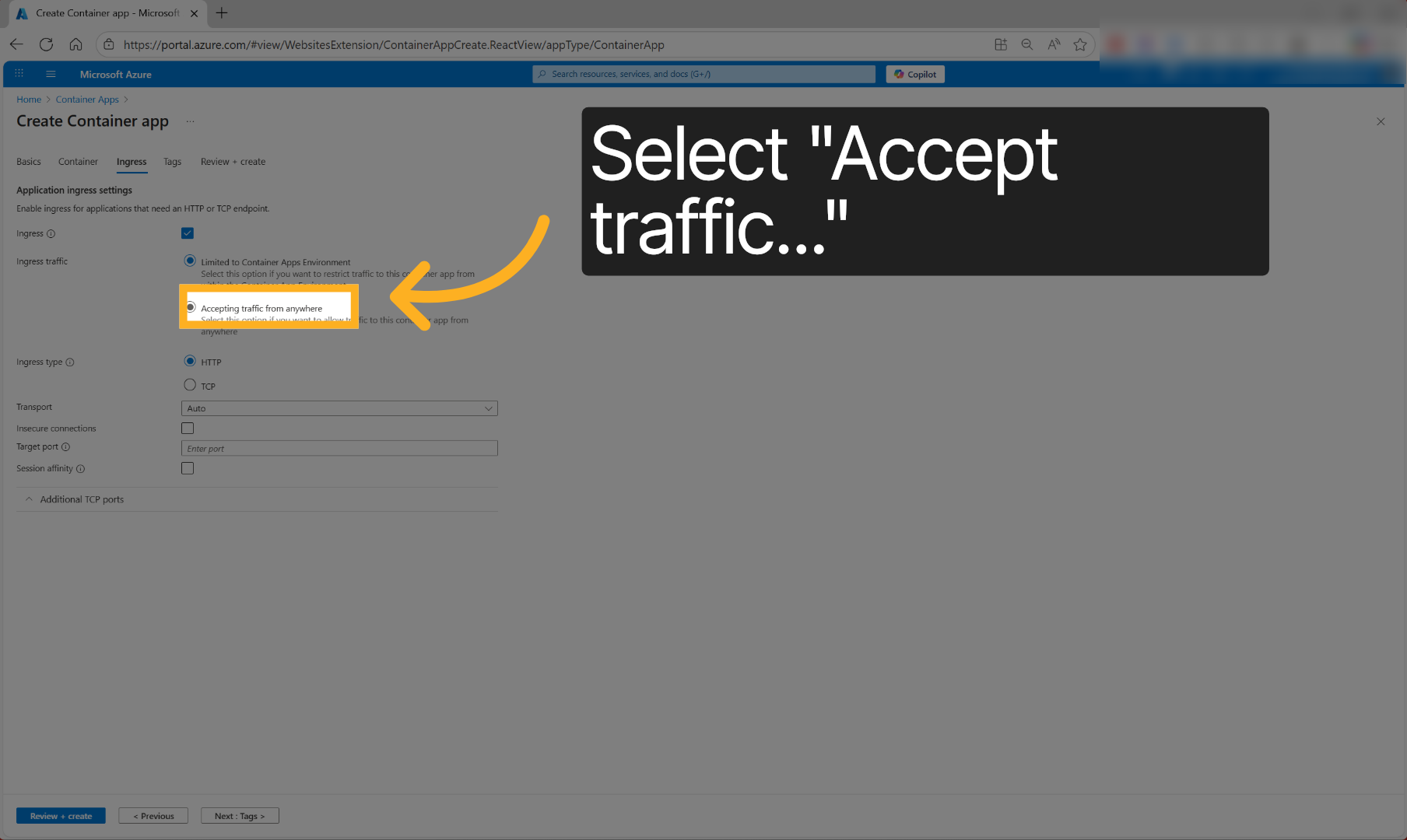
13. Select Ingress Traffic Option#
Click 'Ingress traffic' to specify how incoming network traffic is handled.
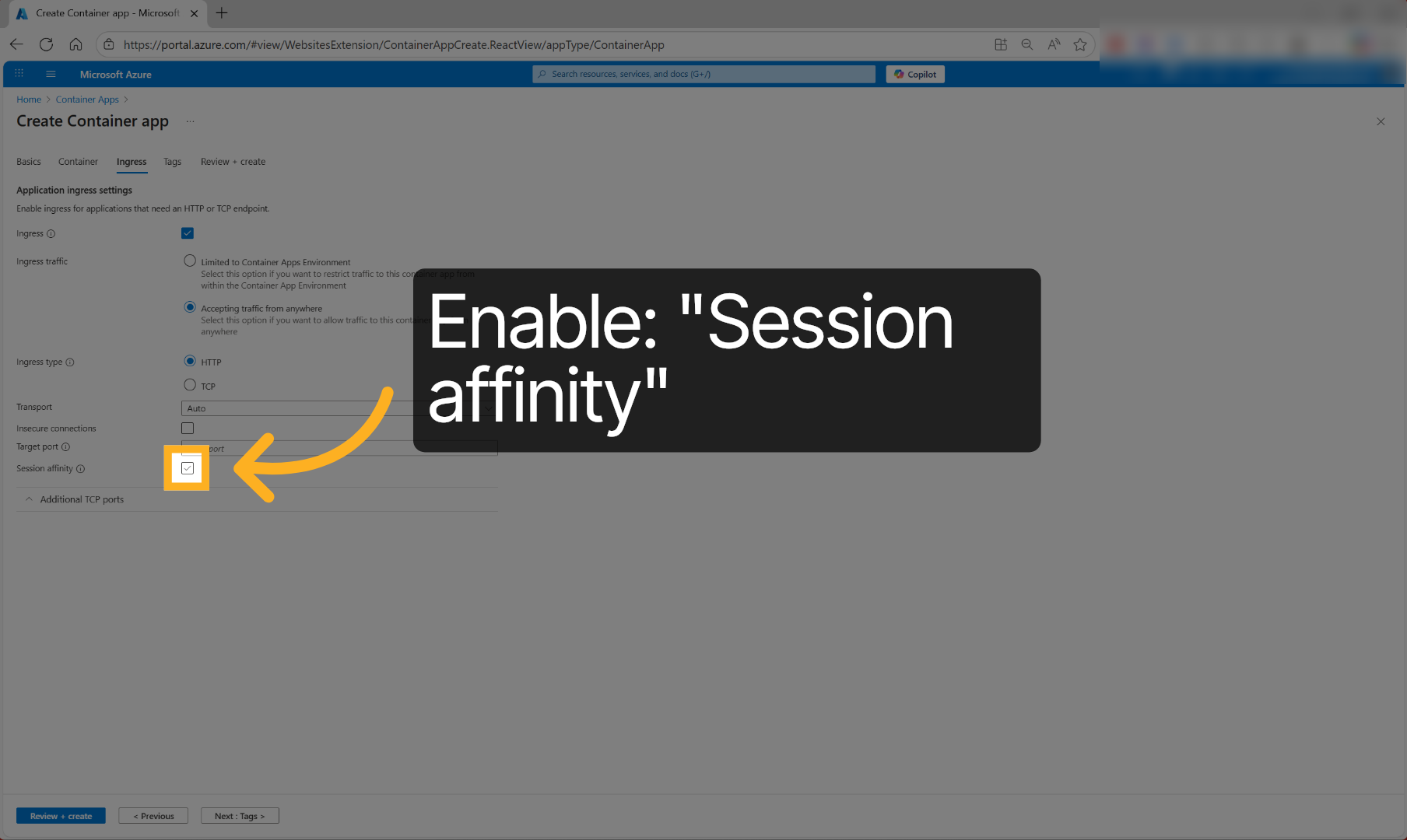
14. Modify Ingress Settings#
Enable Session Affinity to enable connection persistence.
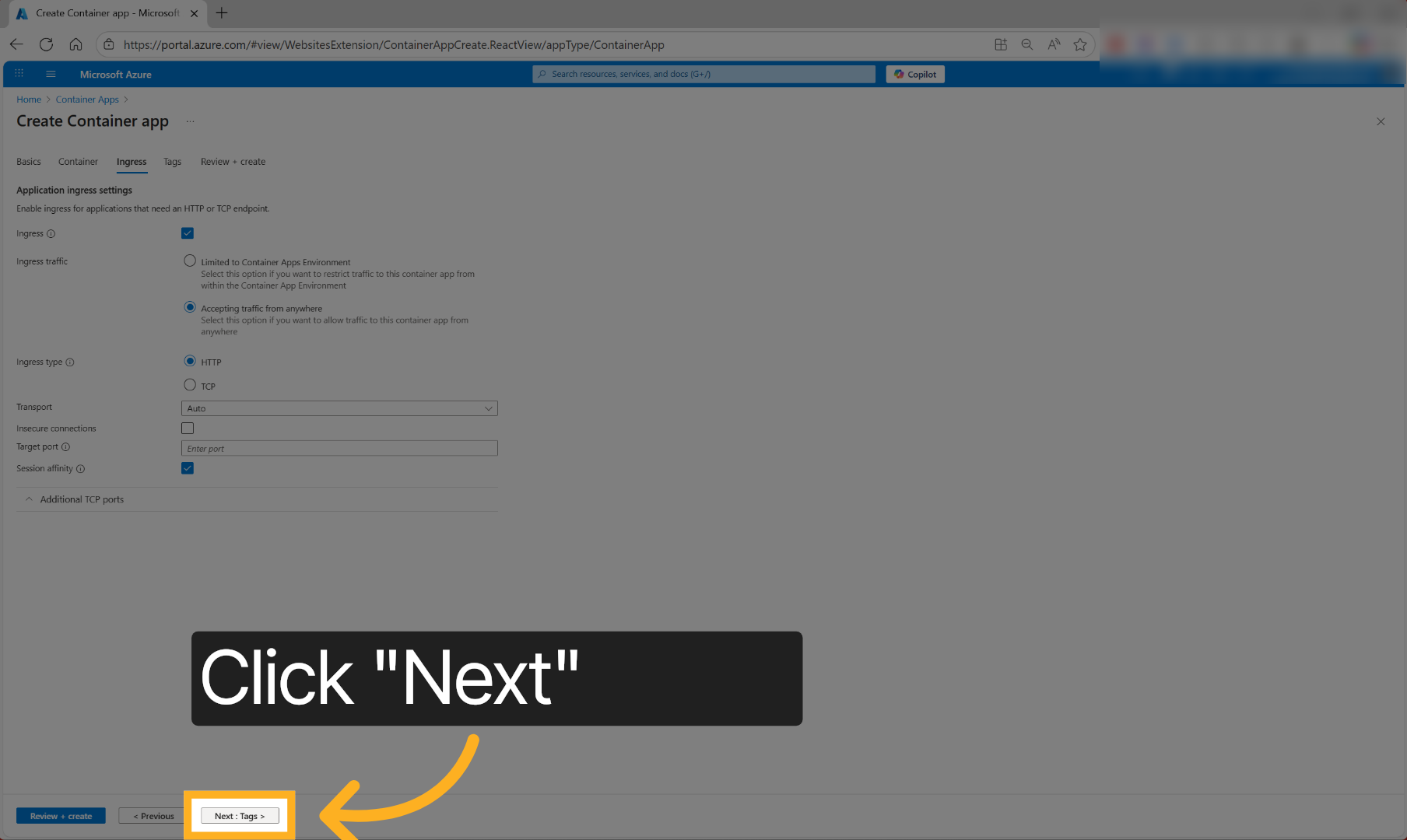
15. Proceed To Tags Section#
Click 'Next' to add metadata tags to your container app deployment.
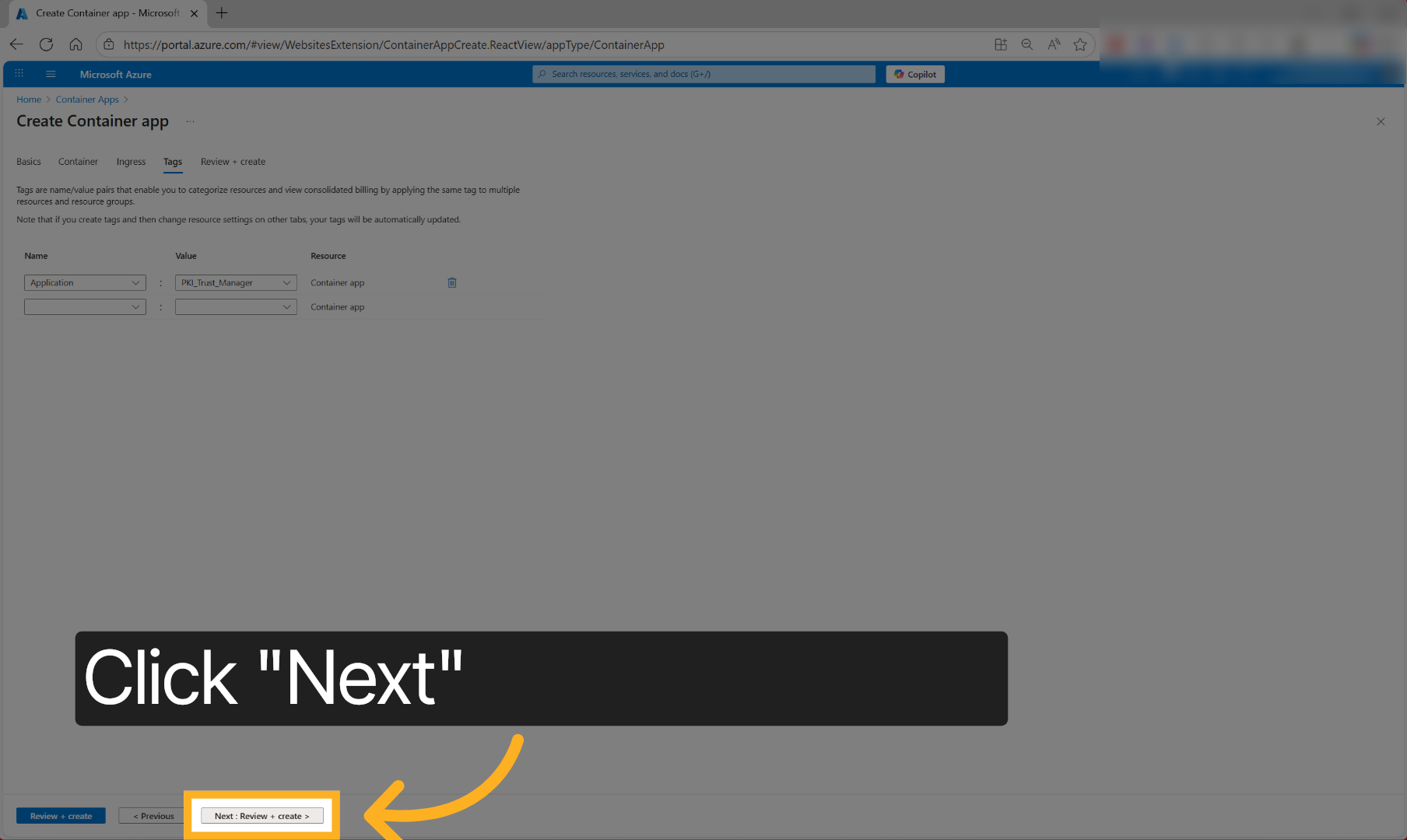
16. Proceed To Review And Create#
Click 'Next ' to review your configuration before deployment.
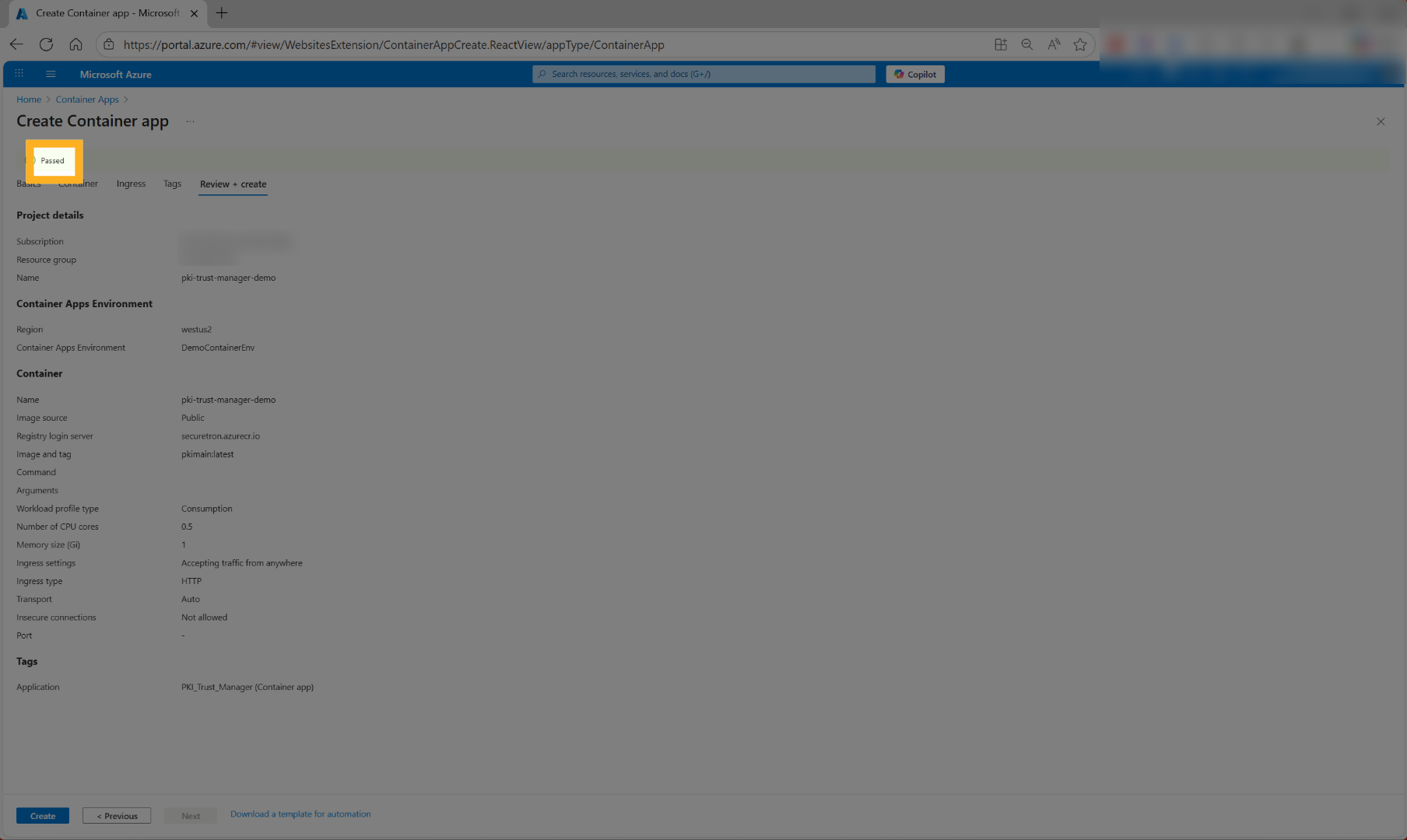
17. Verify Validation Status#
The container settings will be verified and "Passed" if no issues are found
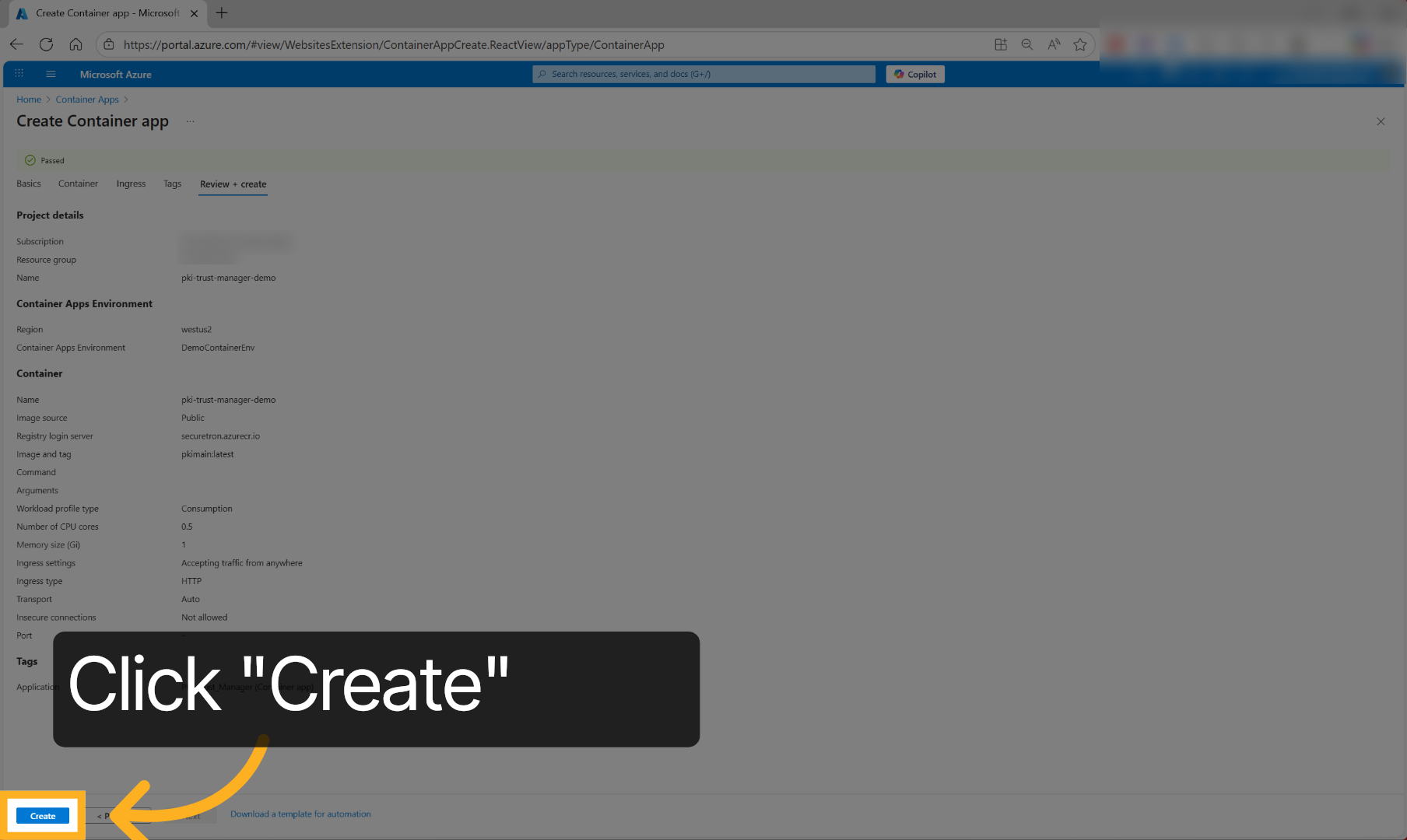
18. Create Container App#
Click 'Create' to initiate the deployment of your PKI Trust Manager container app.
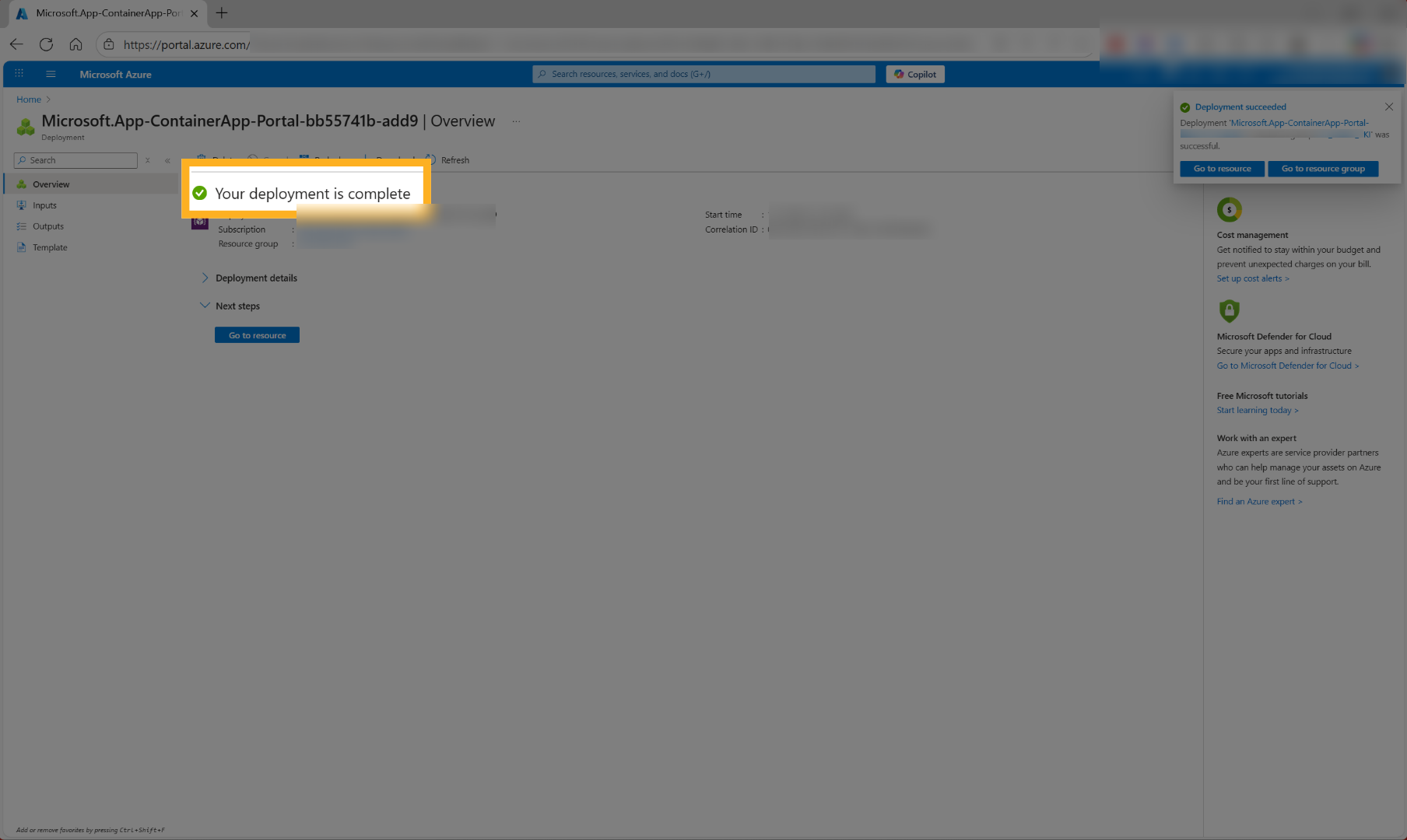
19. Open Deployment Progress#
You should see that the Deployment of the Container App is completed successfully
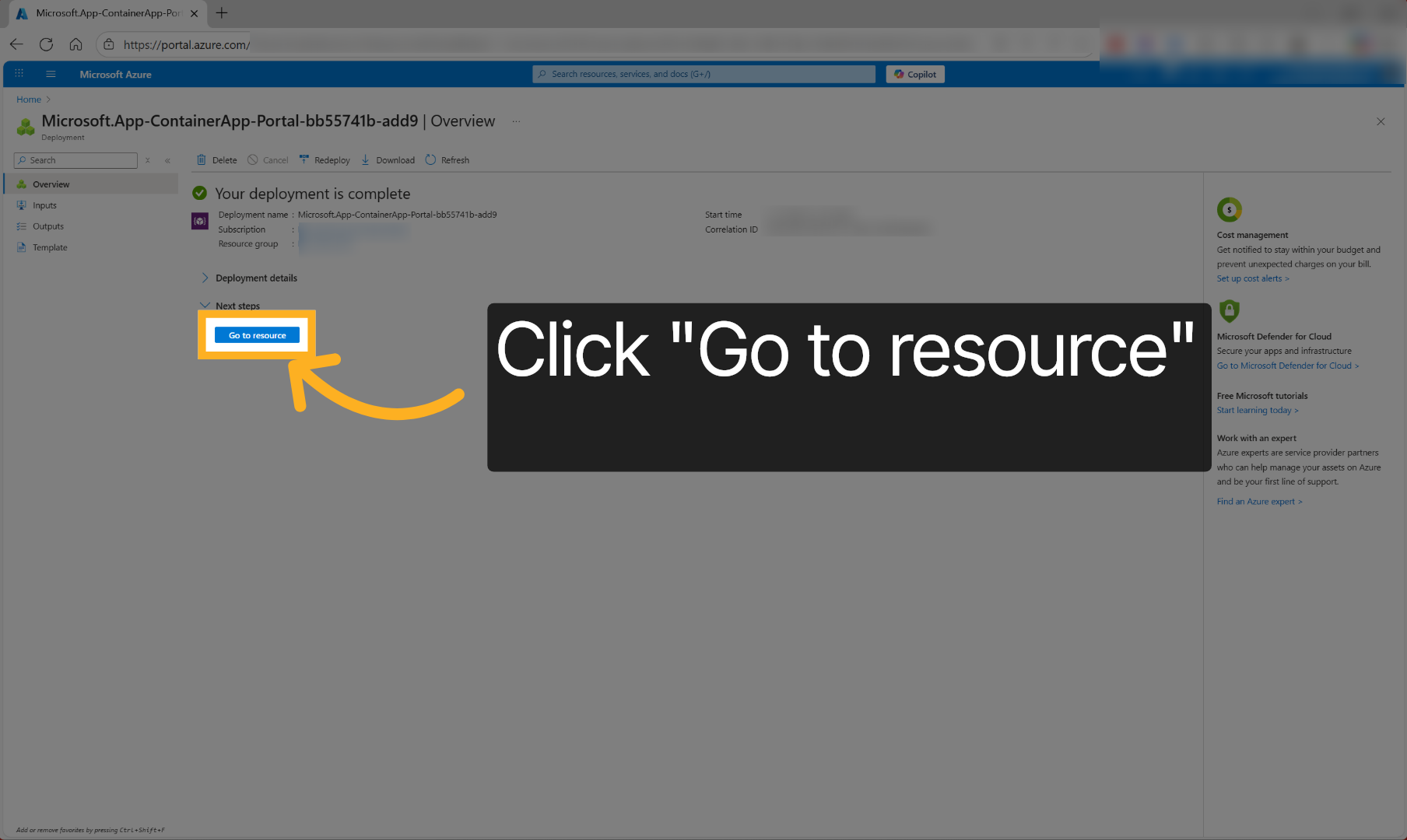
20. Go To Resource Page#
Click 'Go to resource' to access the deployed container app's resource page.
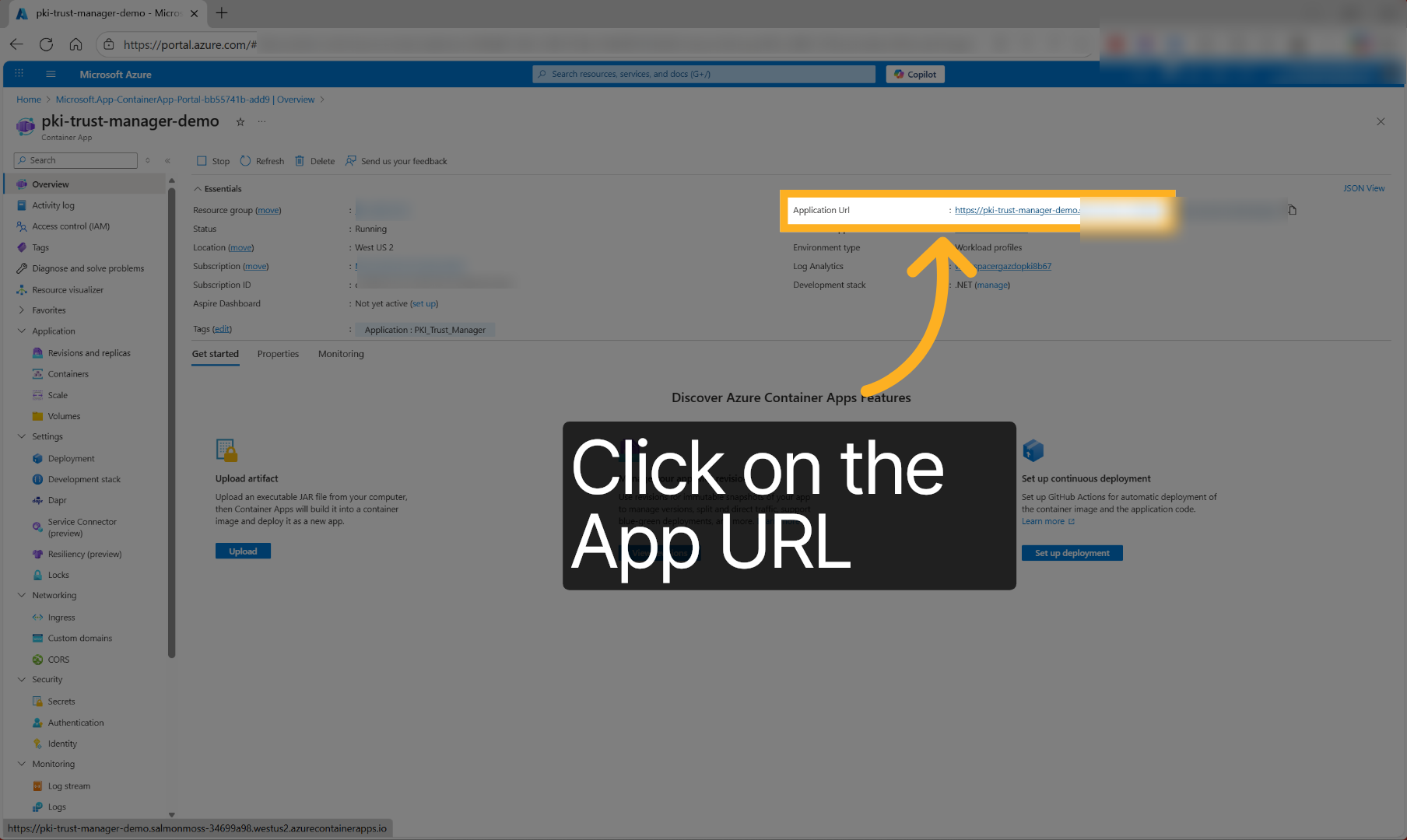
21. Access Application URL#
Click the Application URL to open the pki trust manager, web application in your browser.
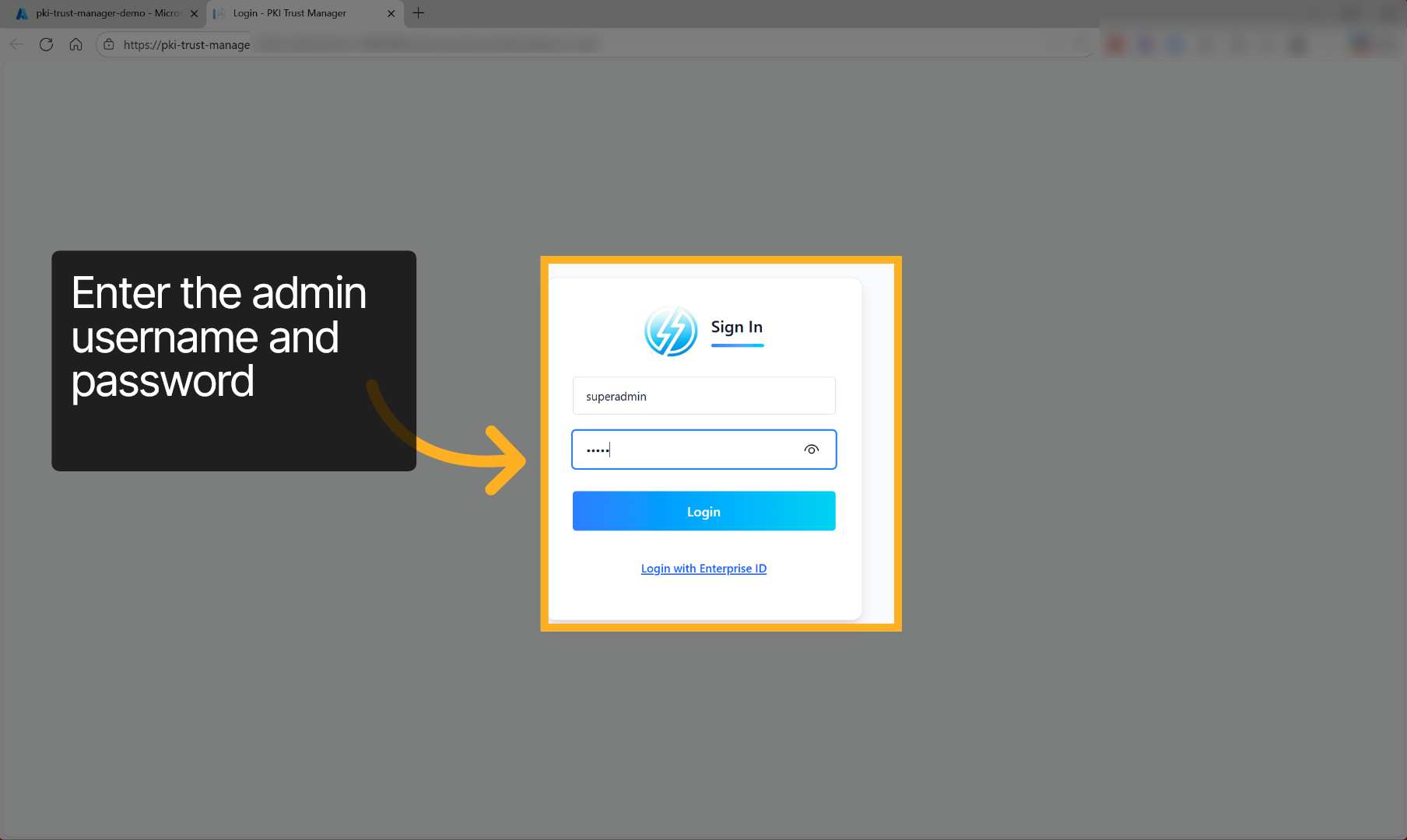
22. Enter Password#
Enter your username and password as defined in the environment variable to log into the pki trust Manager application and click login
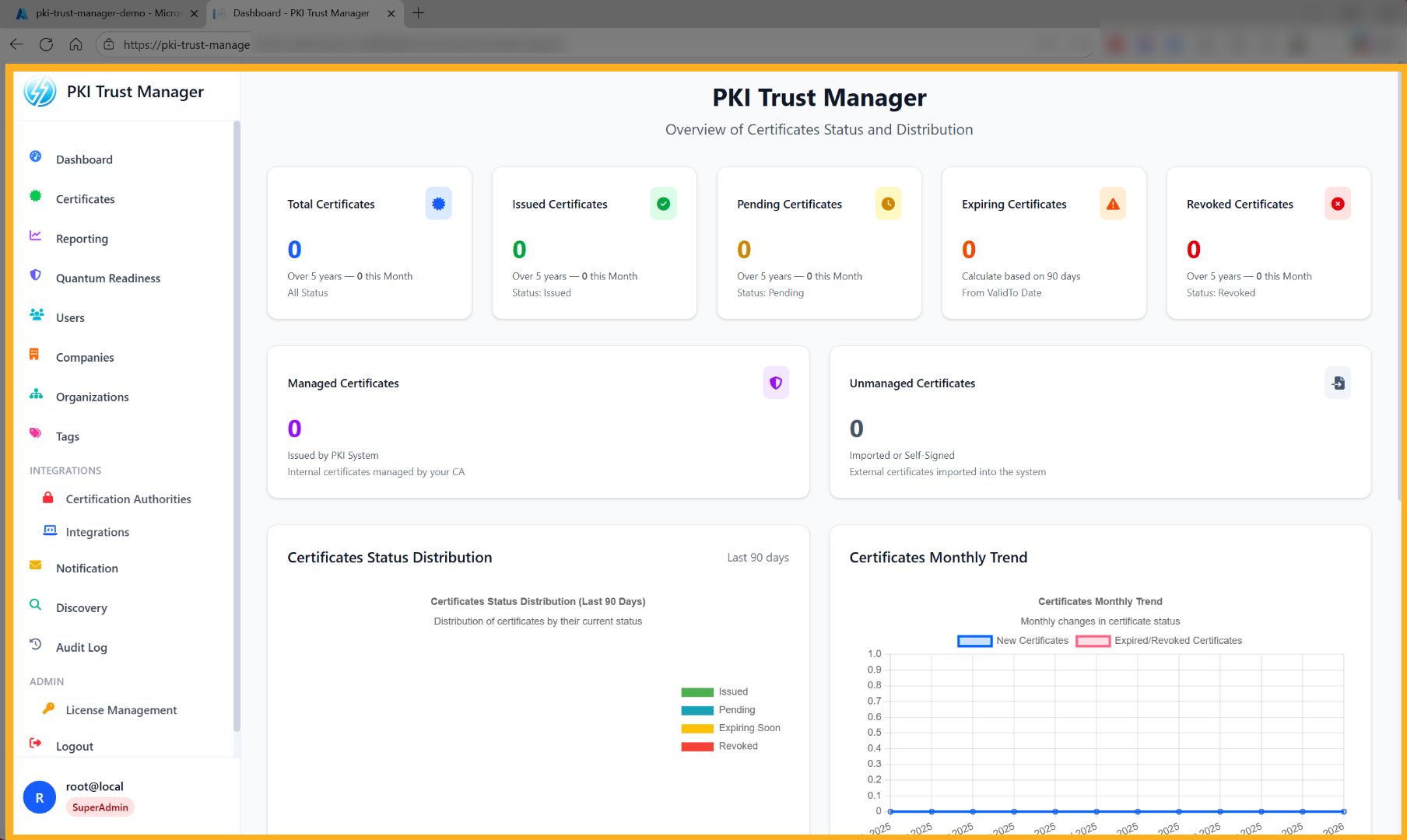
23. PKI Trust Manager WebUI#
You will see the PKI Trust Manager Main Dashboard. Congratulations!, You have successfully deployed the PKI Trust Manager to Azure.
Thank you for using the Next Generation of Certificate Management System by Securetron - PKI Trust Manager. For more information, support, and additional tools, please visit our website.