Audit ADCS Using PKI Trust Auditor
Audit Active Directory Certificate Authority Using PKI Trust Auditor
This guidexplains how to audit an Active Directory Certificate Authority using PKI Trust Auditor. You will learn the step-by-step process to perform a comprehensive audit efficiently.
1. Prerequisites#
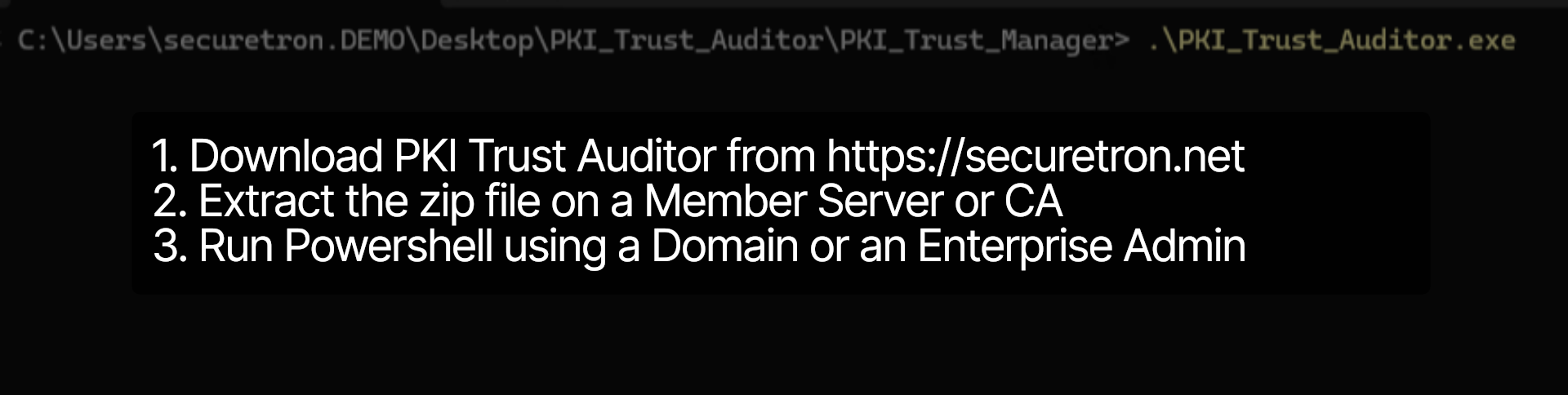
To begin, You will need to have these steps performed: 1. Download the PKI Trust Auditor from securetron.net for Free. 2. User account that is a Domain Admin or an Enterprise Admin. For specific permissions refer to the documentation.
2. Unblock Powershell Scripts#
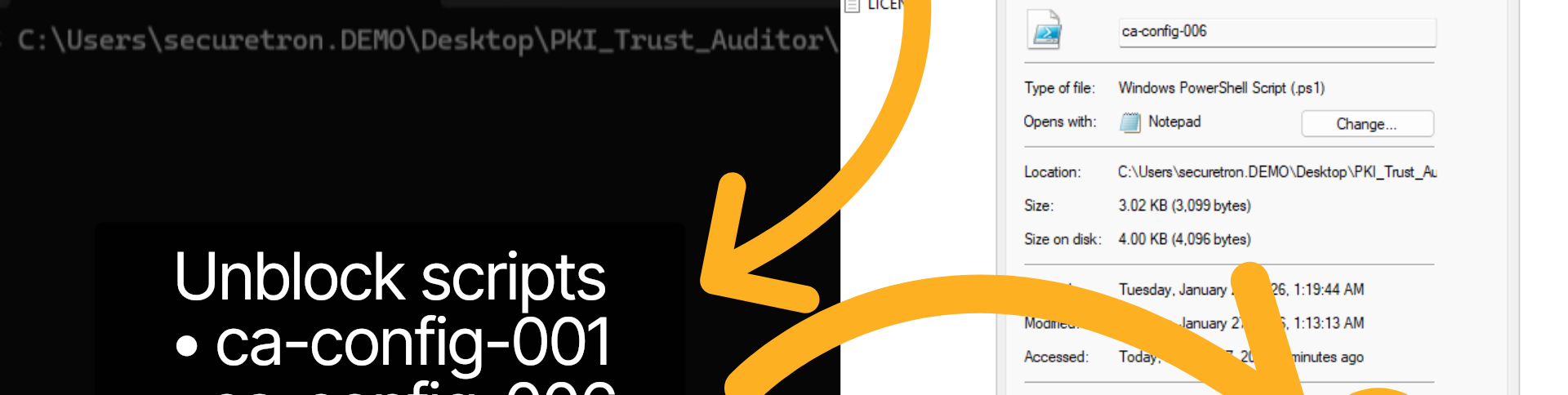
Within the helper folder - ensure that the two PowerShell scrips are unblocked so that the Auditing utility can run successfully without any issues.
3. Run PKI Trust Auditor#
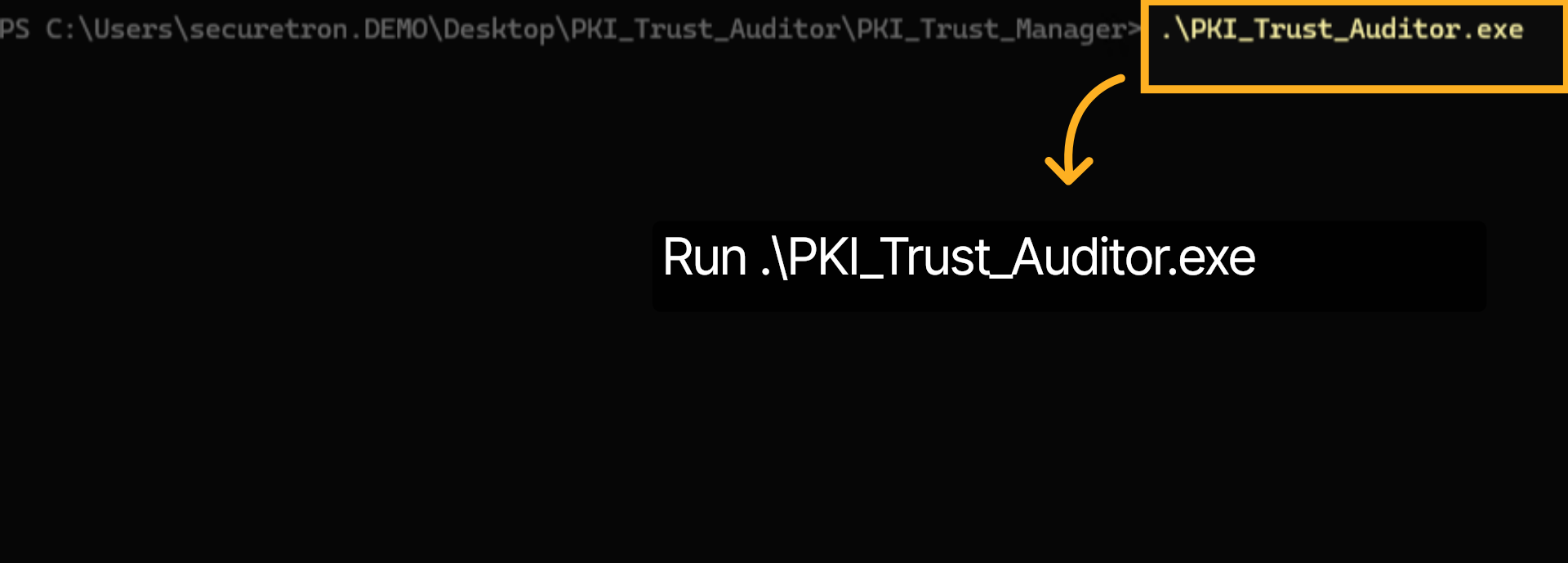
Now, let us run the PKI Trust Auditor utility using powershell with appropriate permissions
4. PKI Trust Auditor Main Menu#
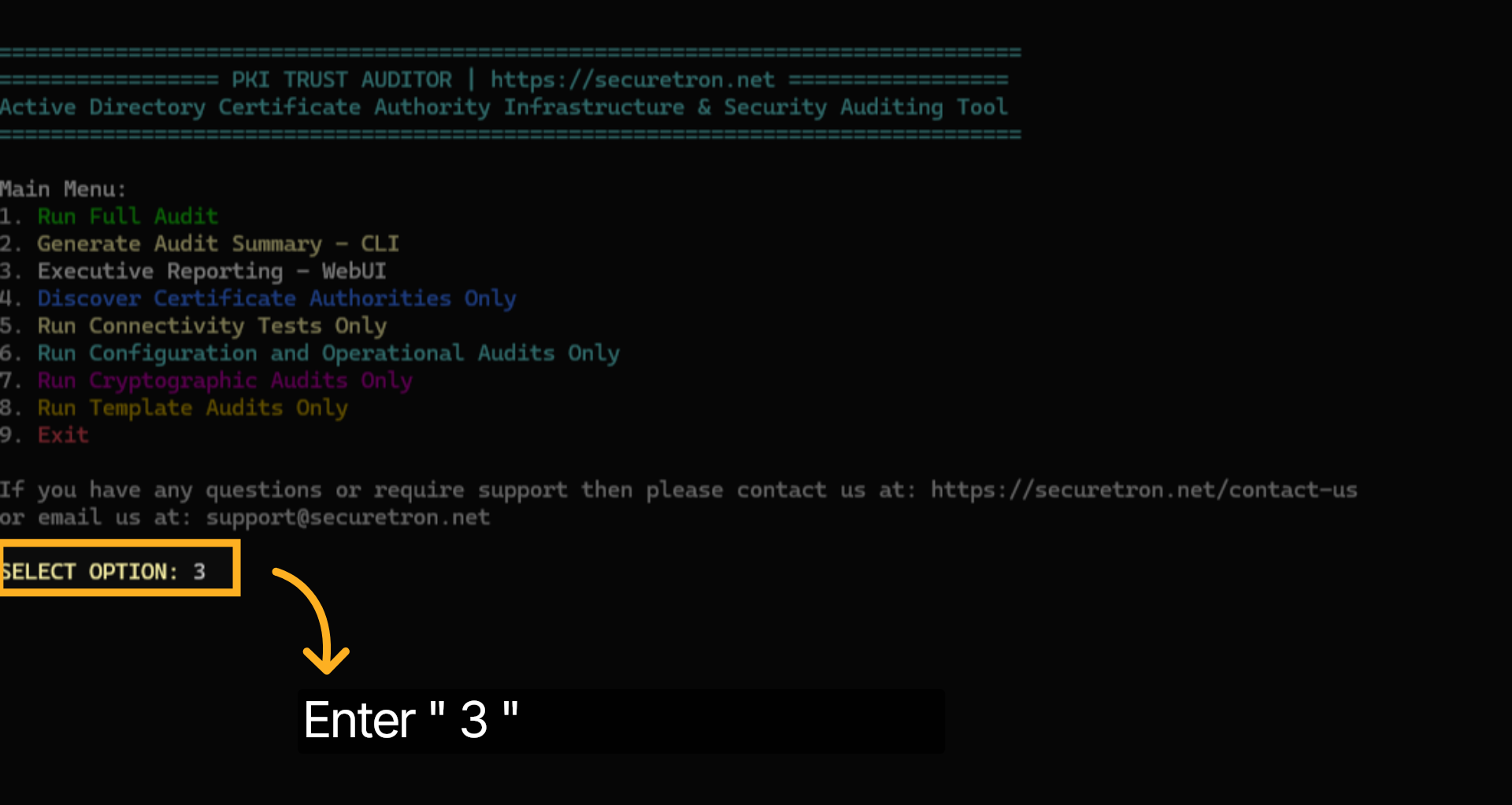
The Auditing utility will launch and provide an interactive menu with various options. Refer to the documentation for more information. We will be using Option 1 to run a full audit and option 3 to view the repor
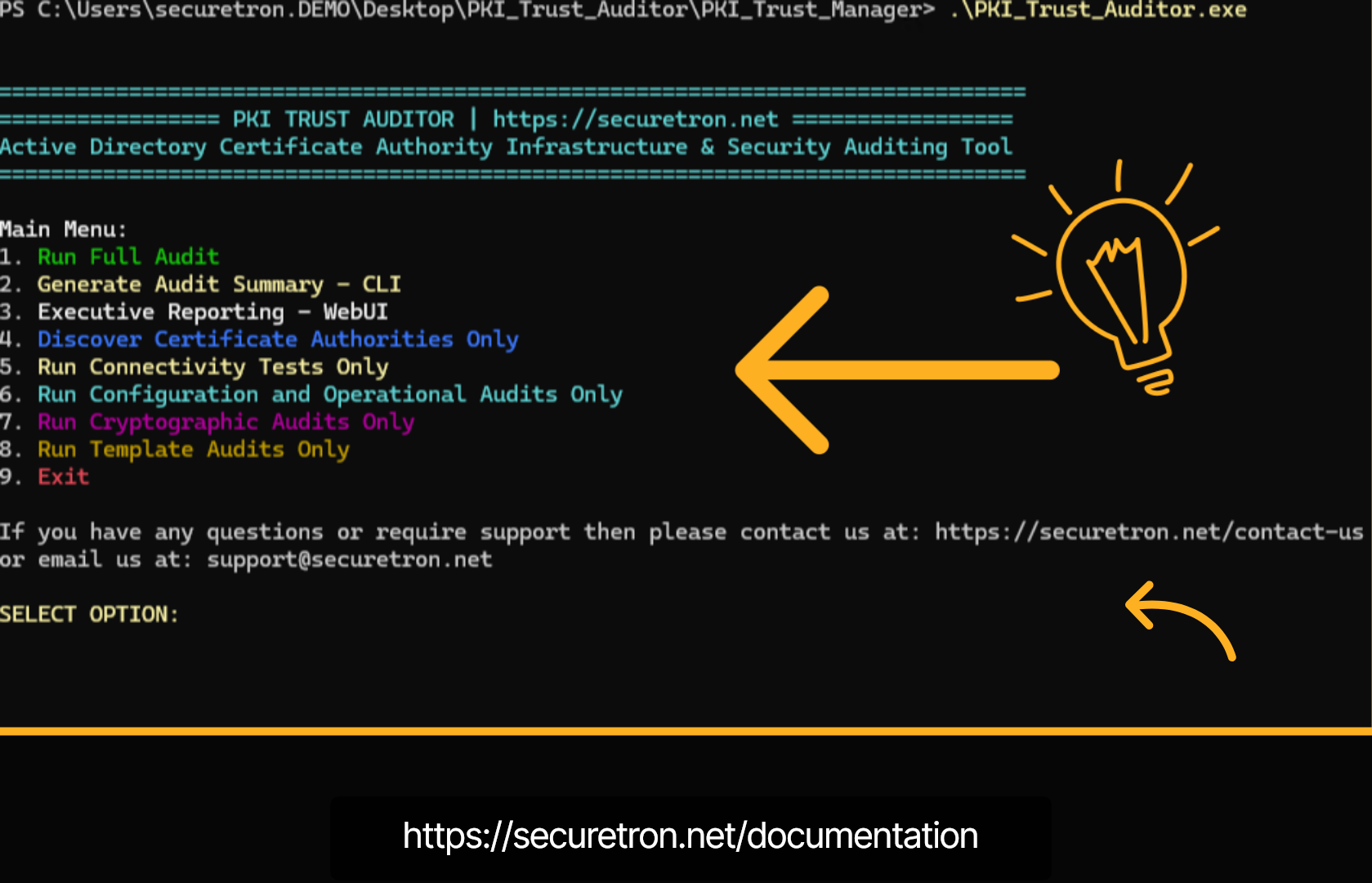
5. Run Full Audit of ADCS#
Let us proceed with option 1. Type the number 1 and hit enter
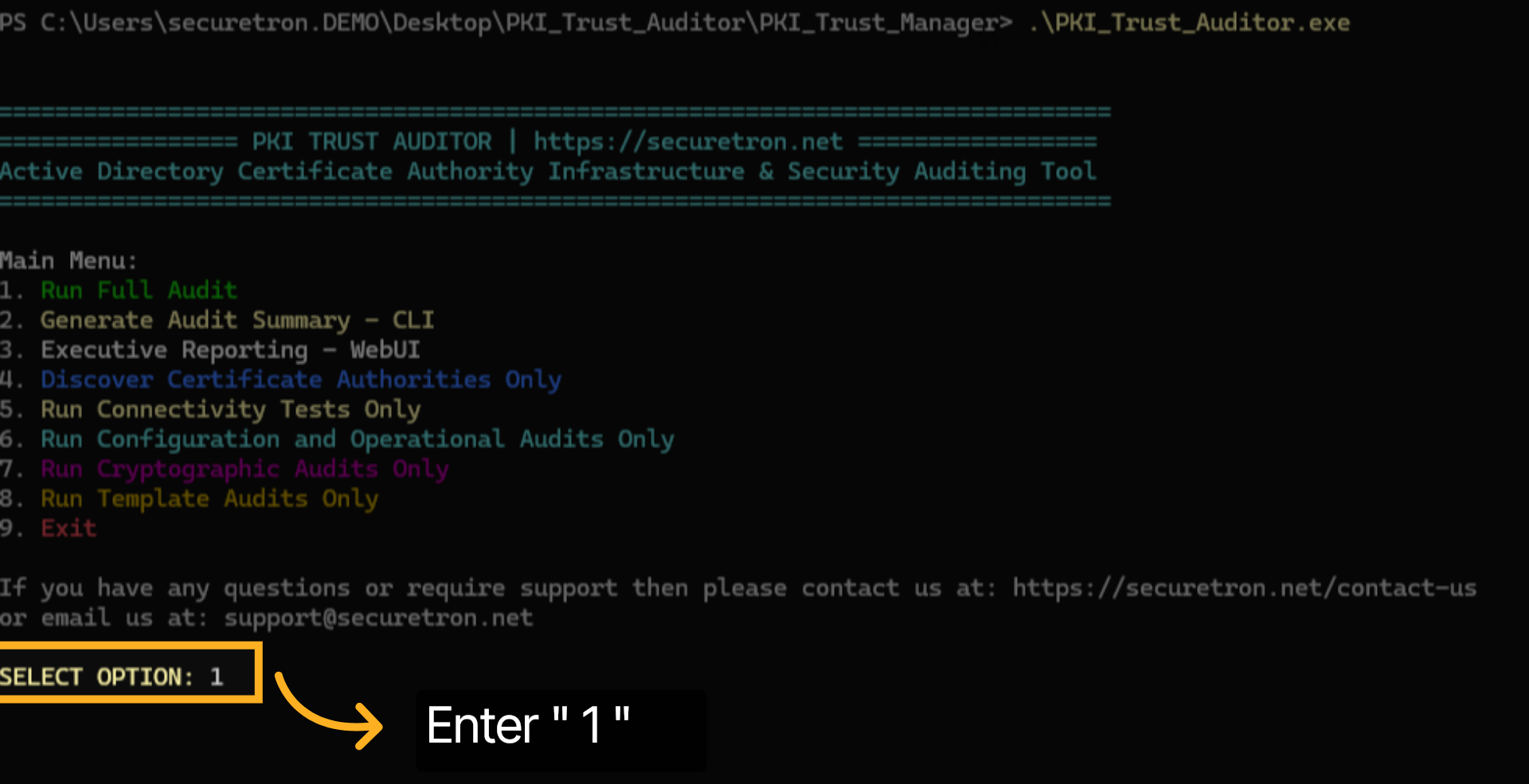
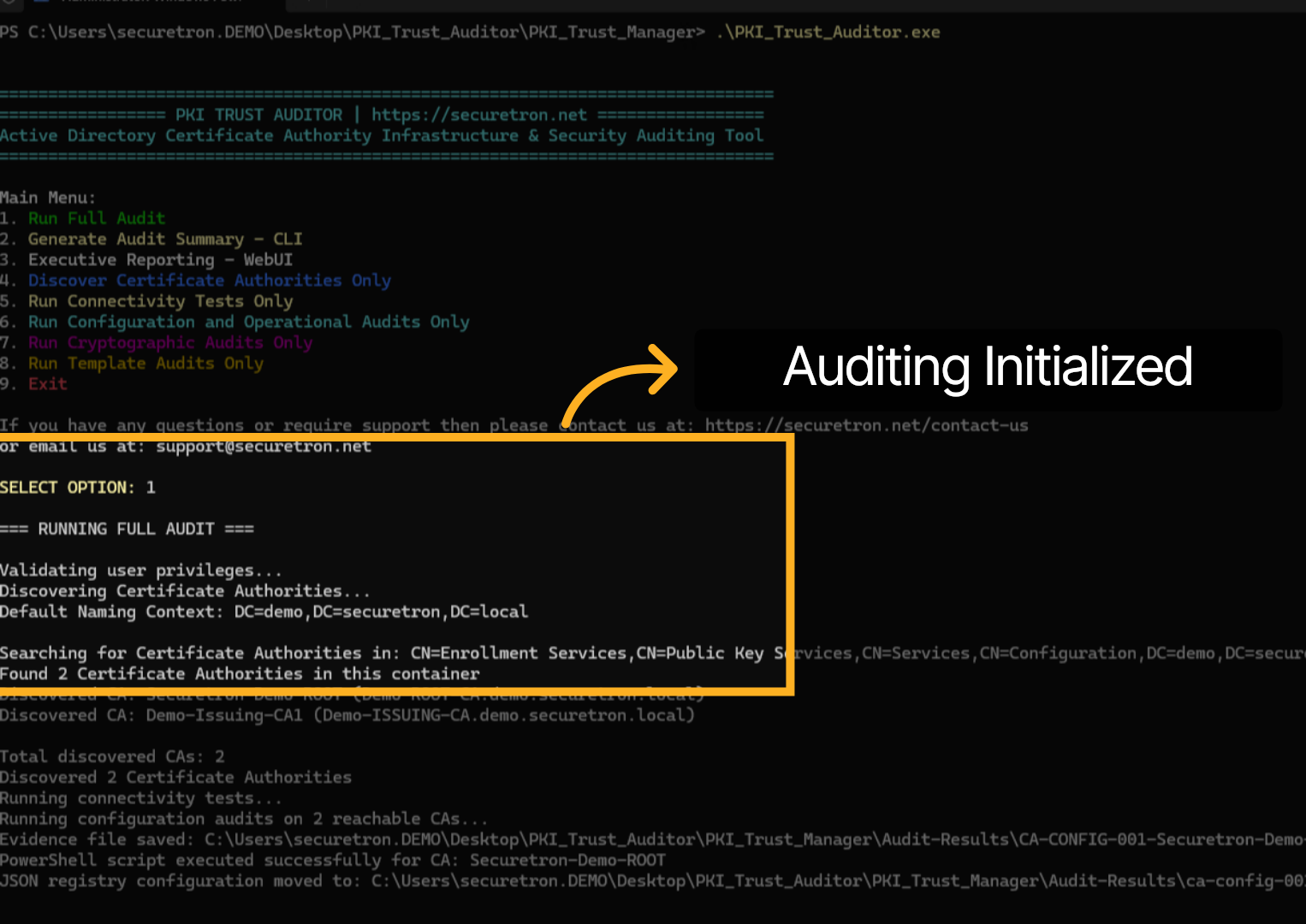
6. MSCA Auditing Run Status#
The Auditing will initialize and you should see the message stating the status as it progresses.
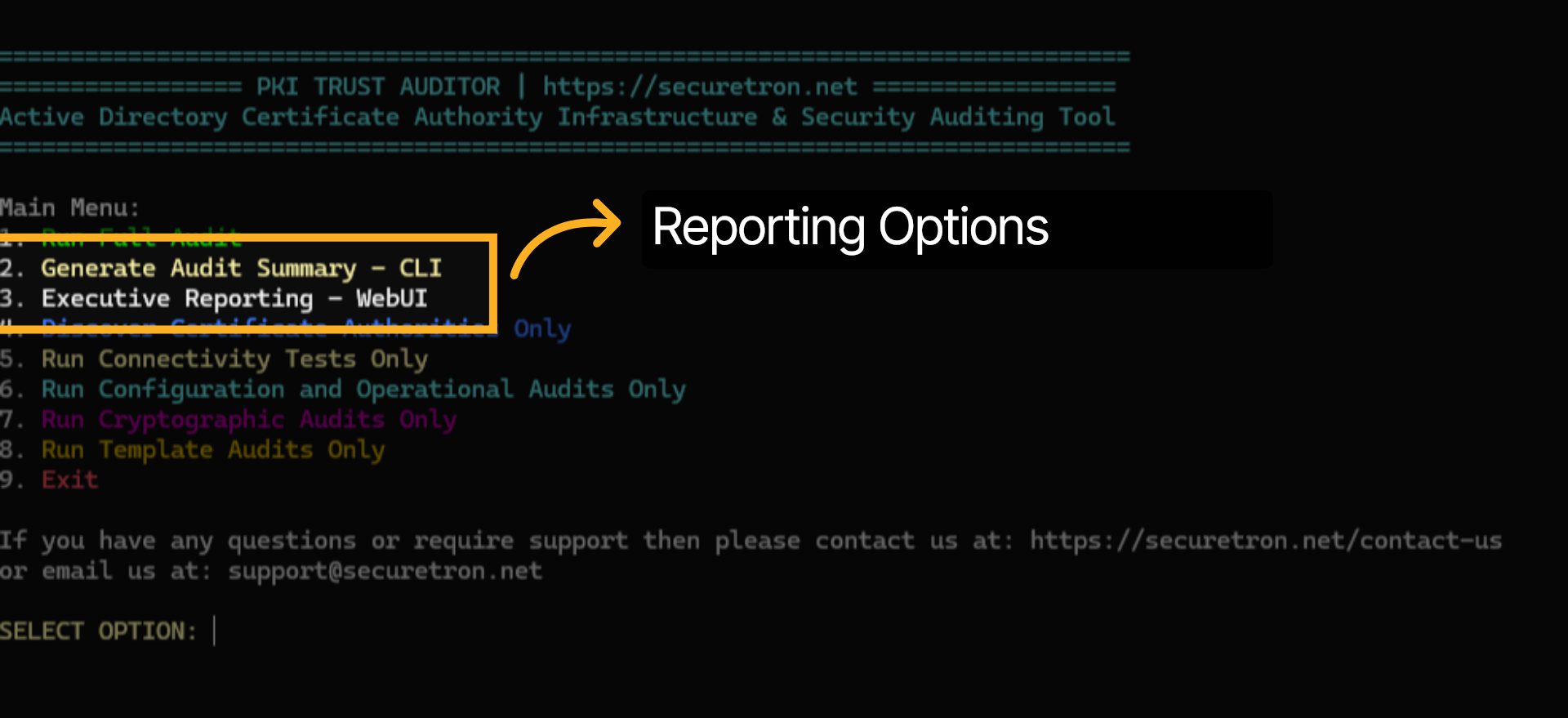
7. Audit Reports#
There are two options for viewing the Audit Results. Option 2 displays the results in PowerShell, which can be helpful for administrators to quickly determine if remediation has resolved a finding. In contrast, Option 3 offers a comprehensive WebUI report that can be shared with management, along with a detailed report for administrators.
8. Graphical Audit Report for Certification Authority#
Type the number 3 and hit enter. This will launch the graphical Web report in the browser
9. PKI Trust Auditor Web UI Audit Results#
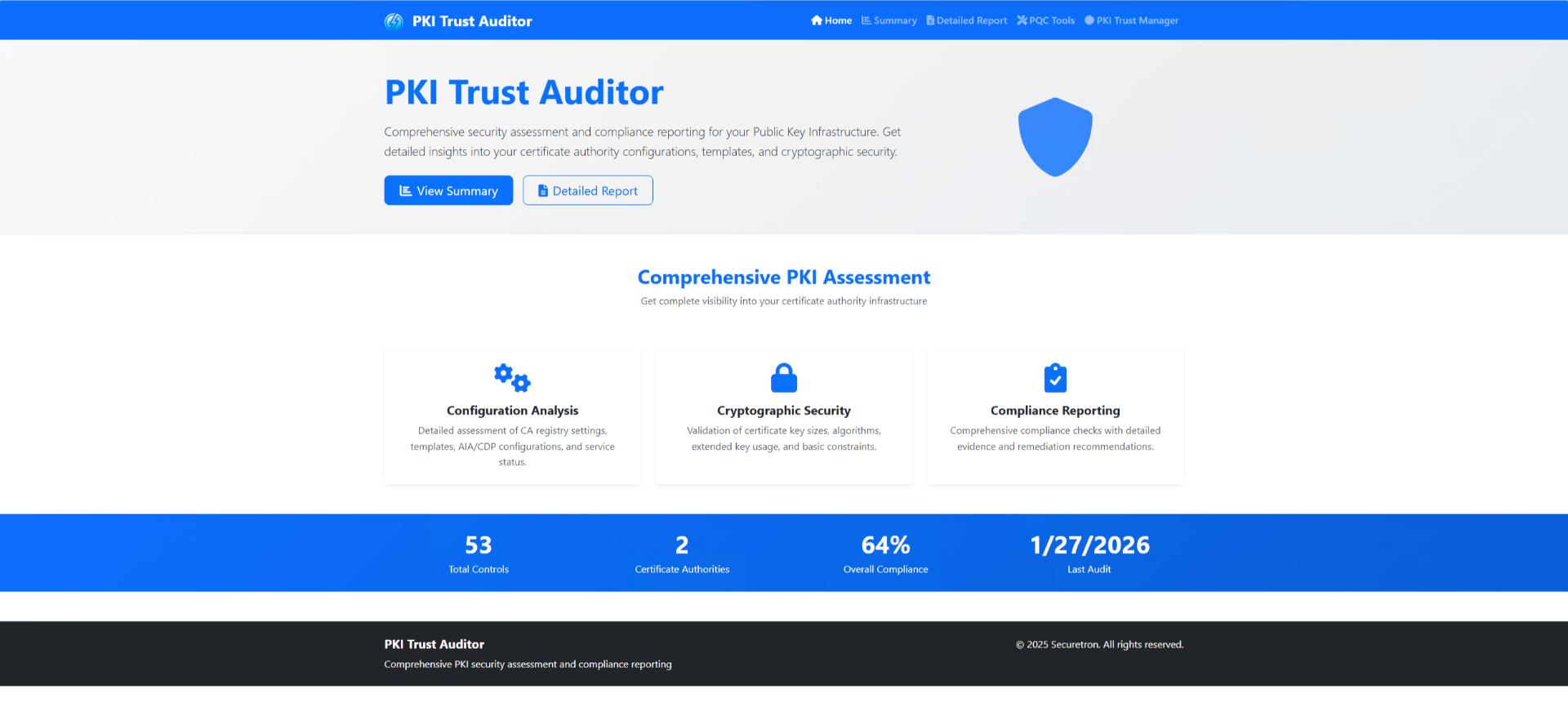
The PKI Trust Auditor will generate the graphical report in the browser, allowing the admin to review both the Summary and the Detailed Findings report.
10. Report Summary#
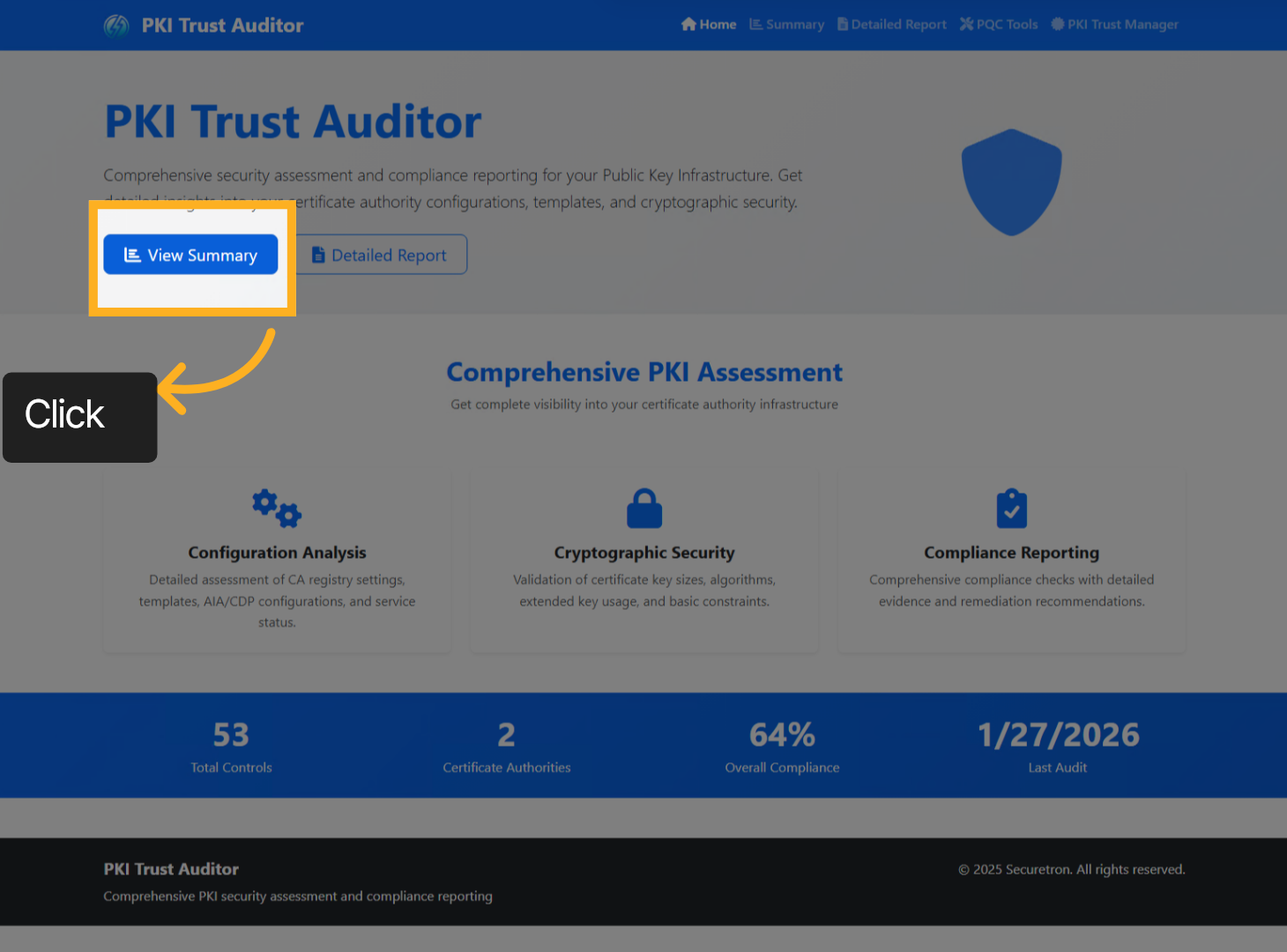
Proceed to the Summary of the report by clicking the "View Summary" button
11. PKI Trust Auditor Summary Page#
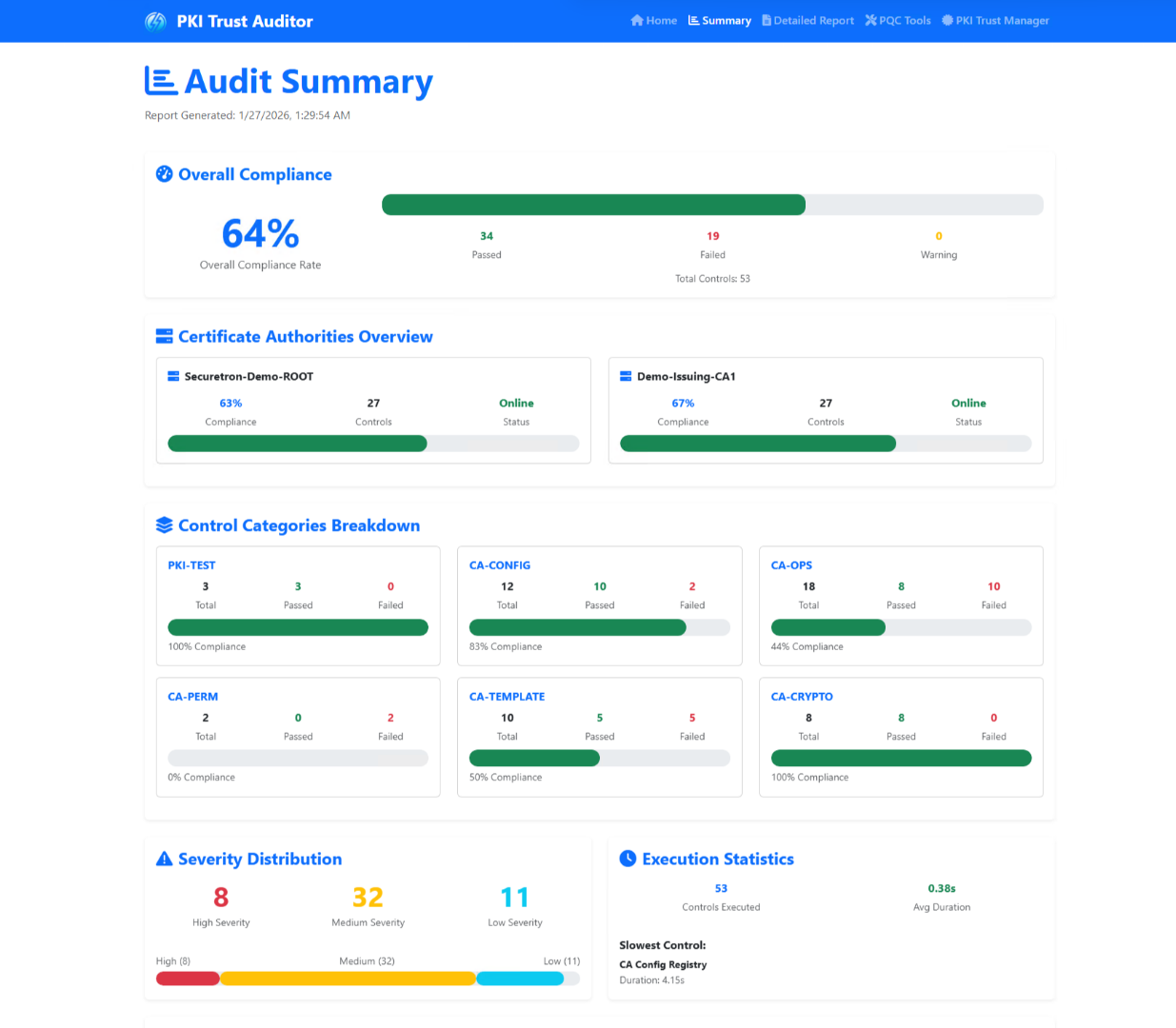
The audit summary page serves as a comprehensive overview of the findings, effectively organizing them into various distinct sections. This structured approach allows users to easily navigate through the information, ensuring that each key finding is highlighted and accessible.
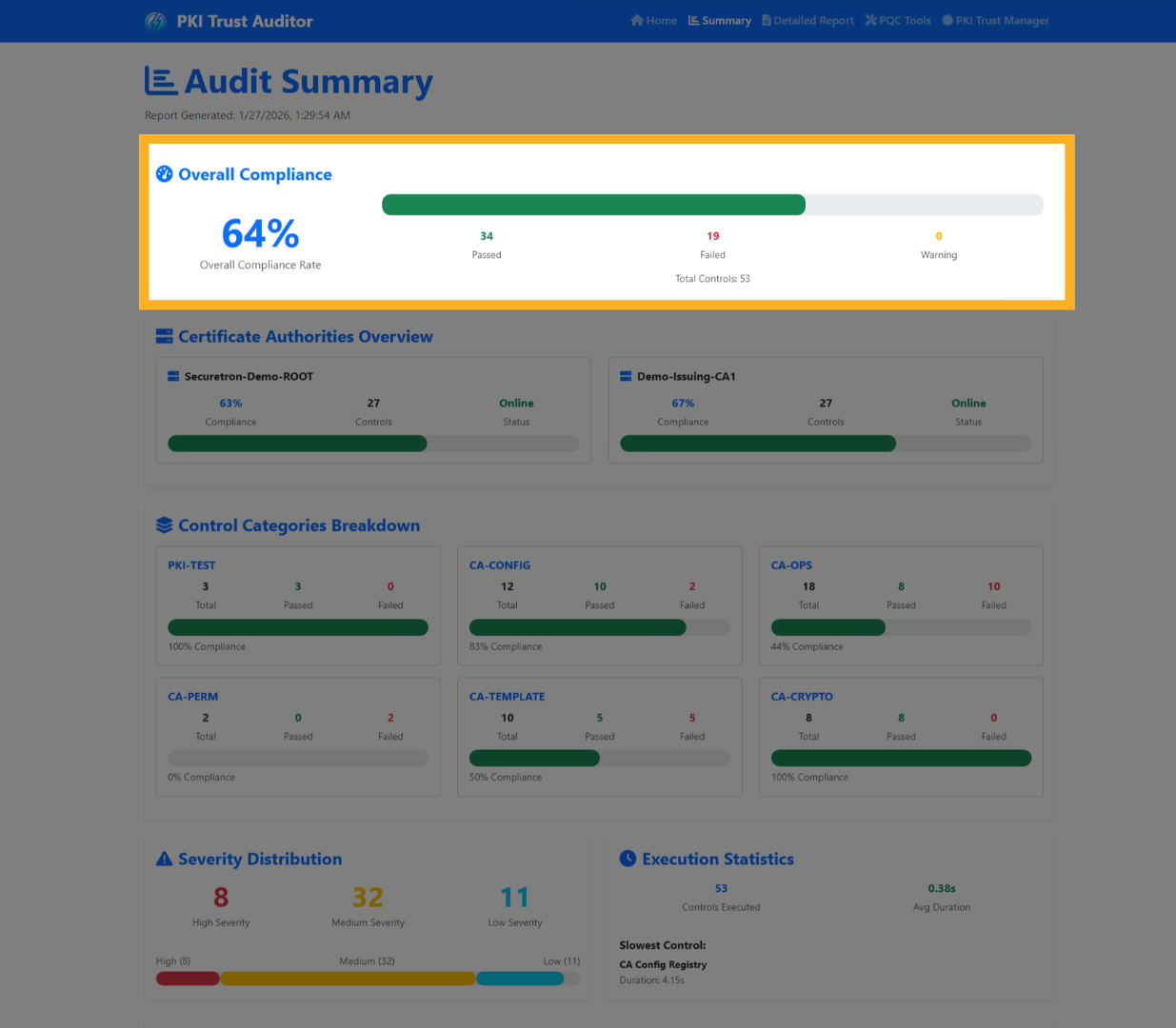
12. Audit Summary - Overall Compliance#
The compliance rate across the PKI Infrastructure.
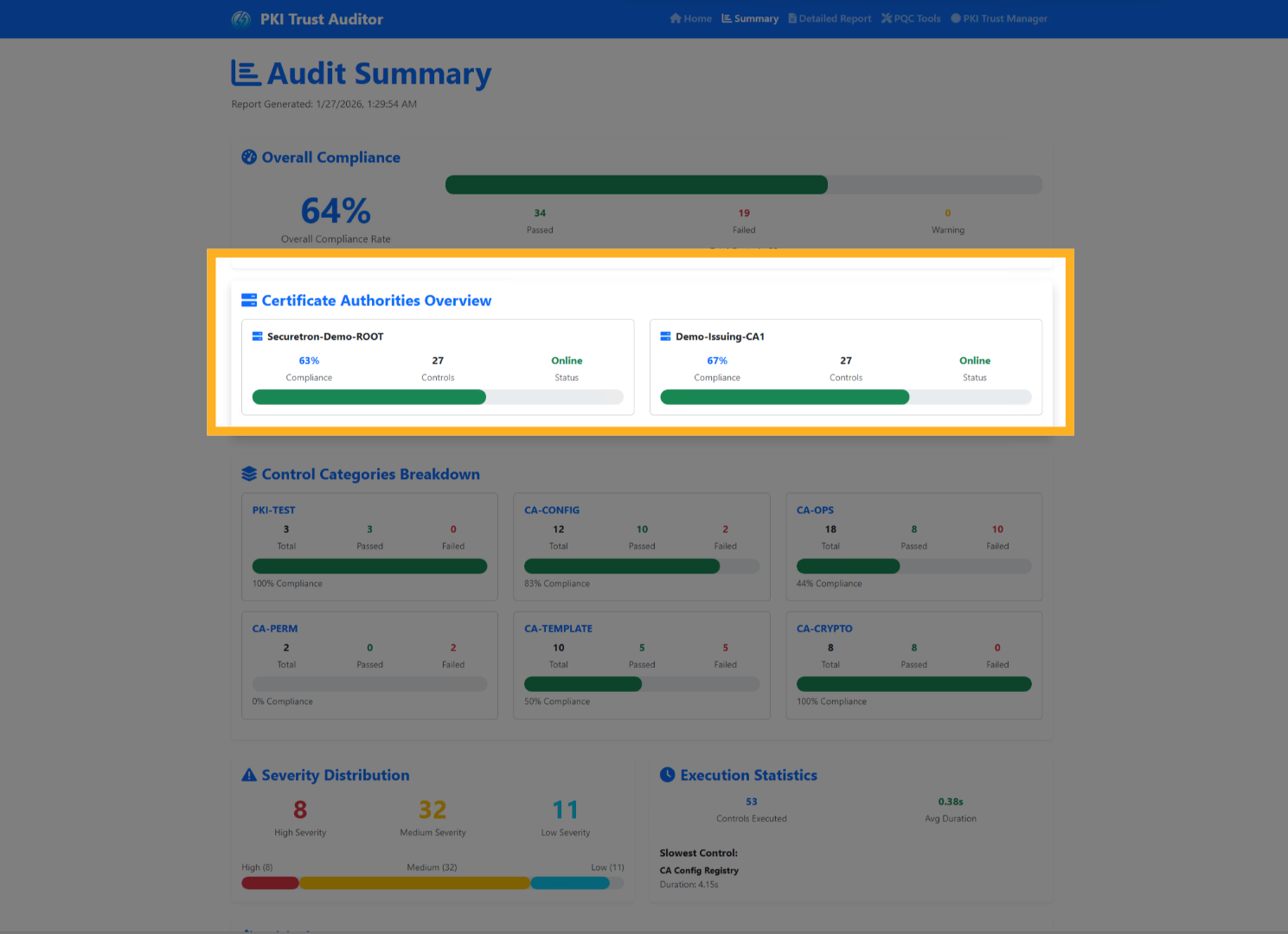
13. Audit Summary - Certificate Authority#
The findings distributed across all the discovered and audited Certification Authorities
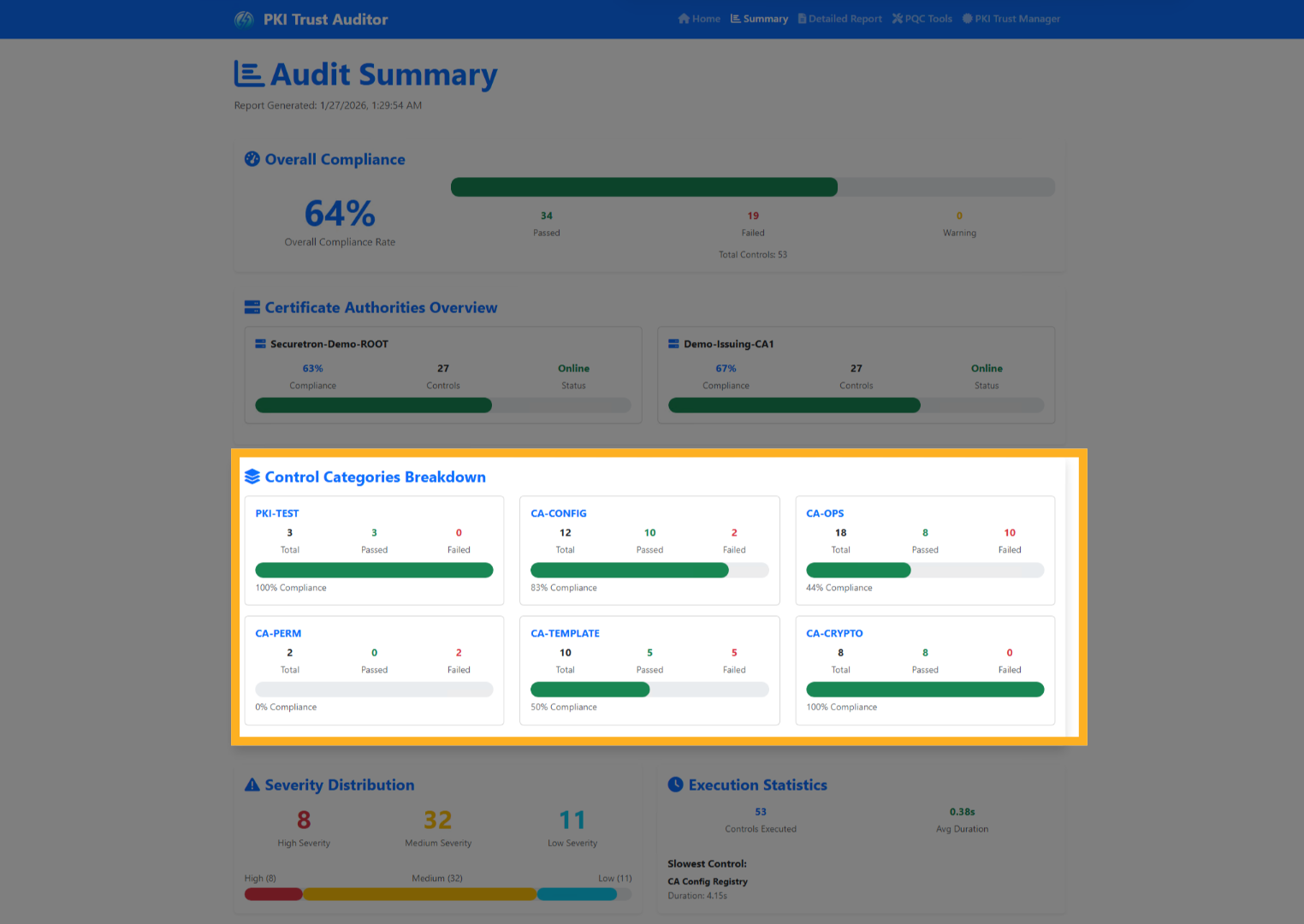
14. Audit Summary - Categories#
The summary of findings by categories
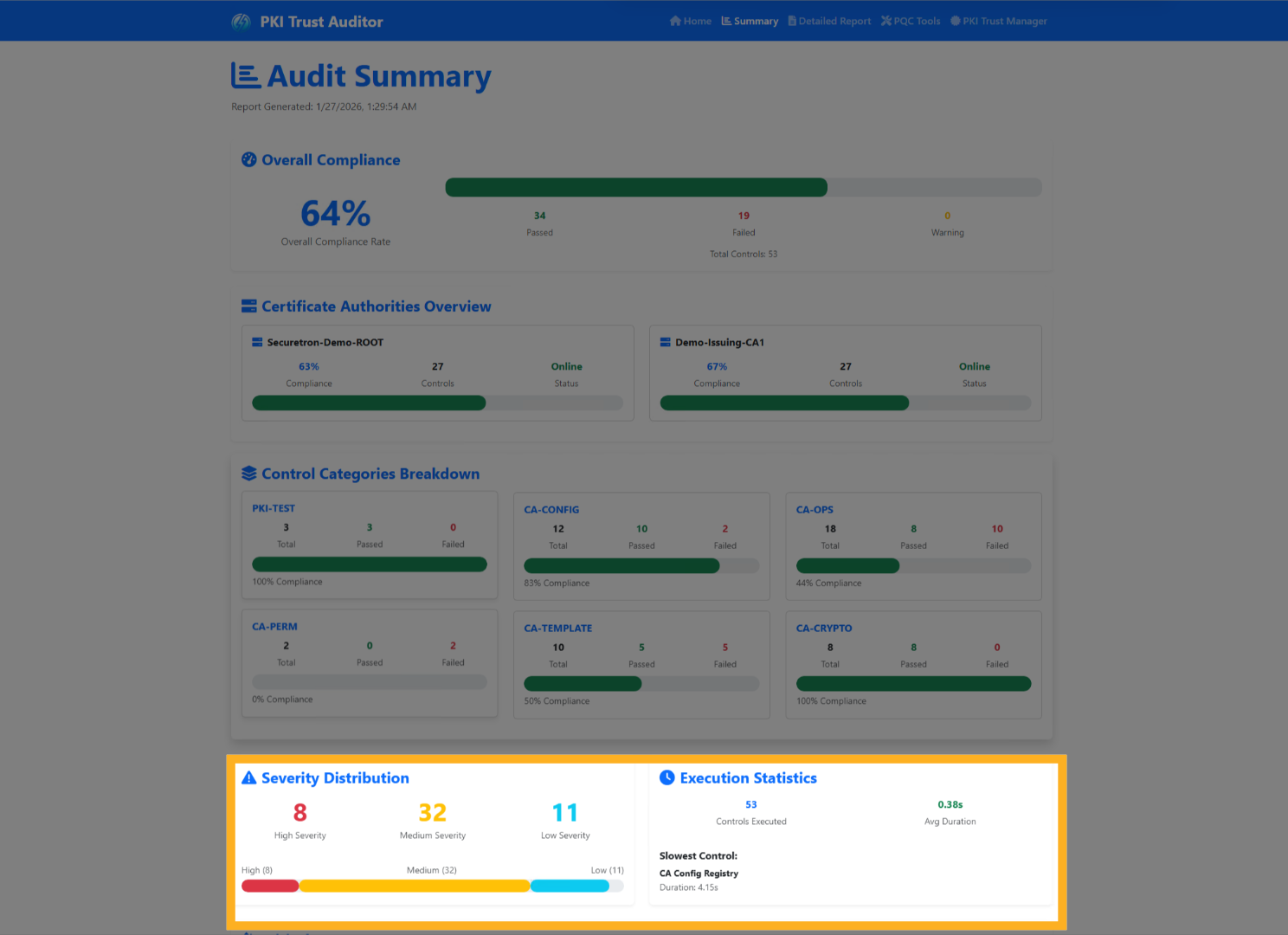
15. Audit Summary - Stats#
as well as amount of time taken to execute the controls across the infrastructure
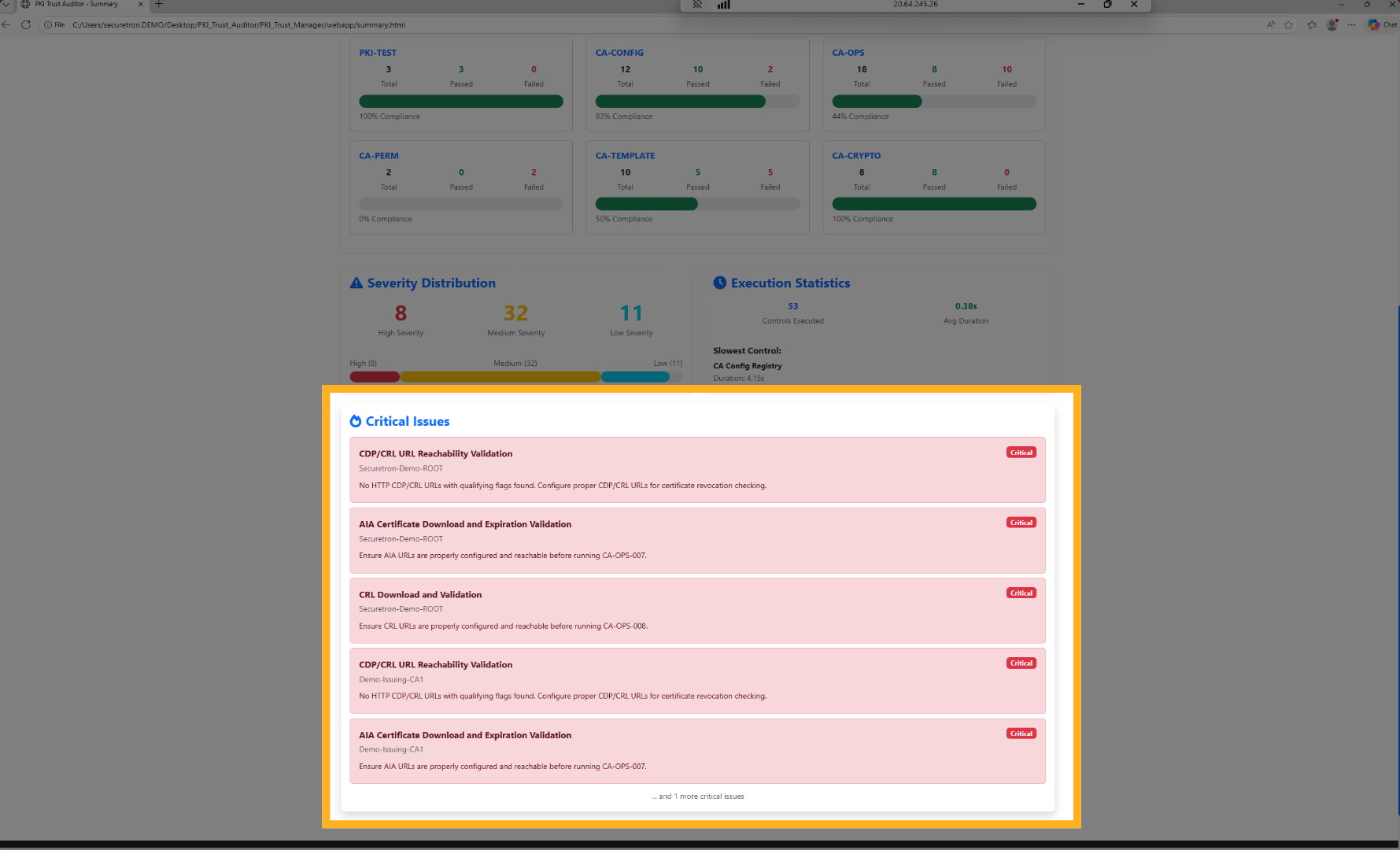
16. Audit Summary: Critical Issues#
Finally, a section of critical issues identified, ensuring they receive the spotlight that they deserve.
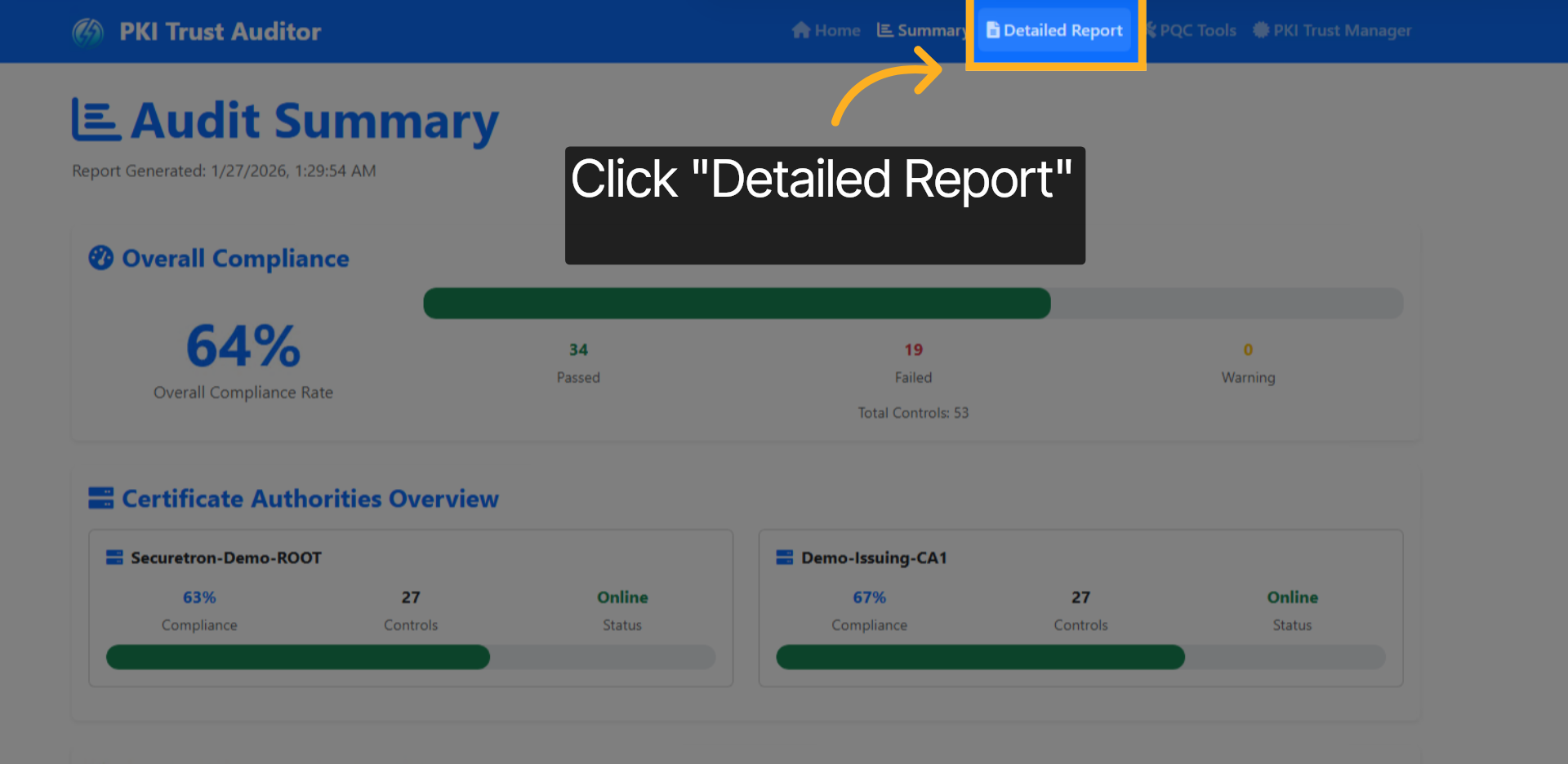
17. Click Detailed Report#
Open the detailed report to analyze certificate authority audit findings comprehensively.
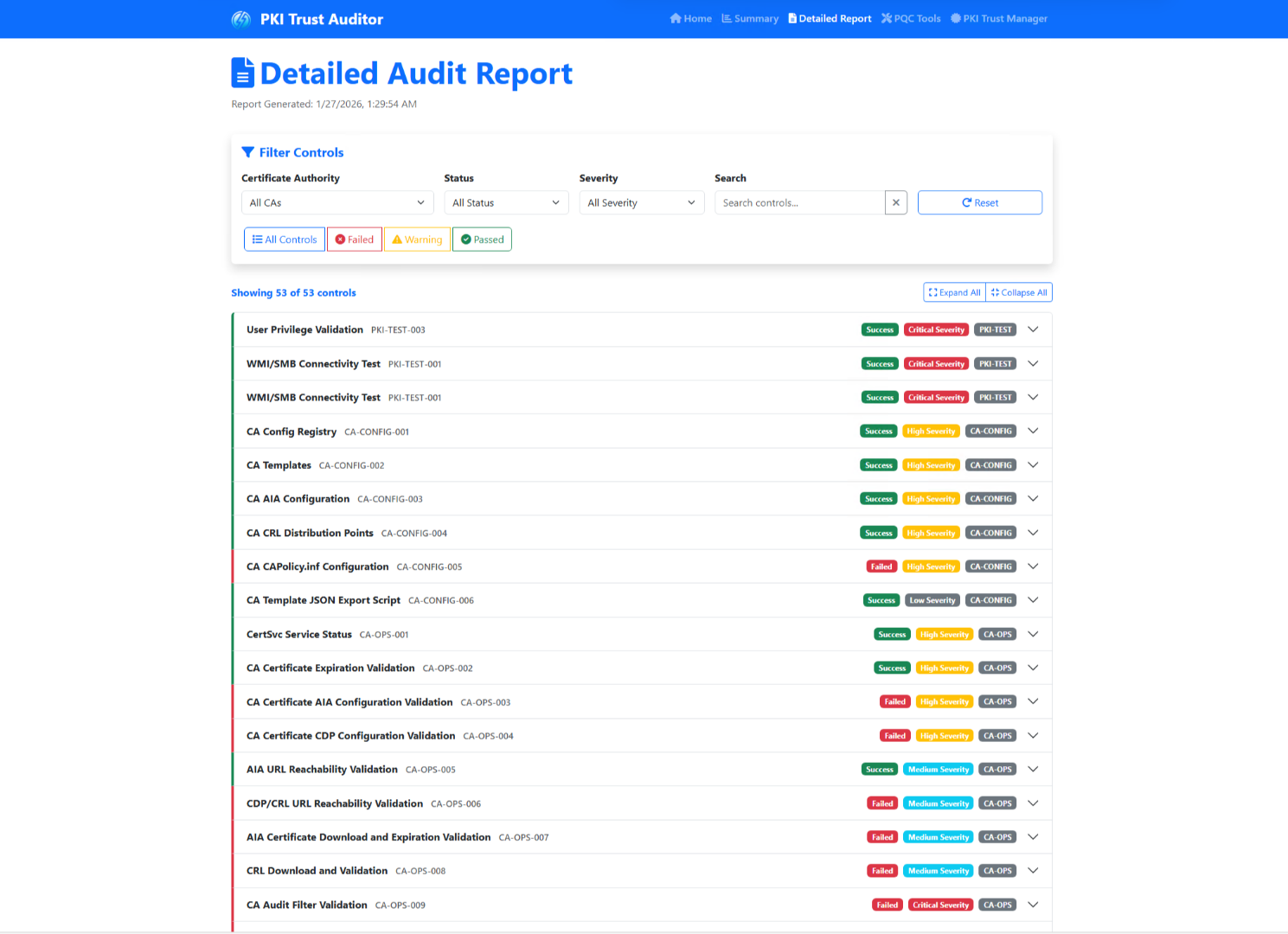
18. PKI Trust Auditor - Graphical Detailed Report#
The audit details page presents information regarding the audit findings, including an option to filter them, review them in details and take an action.
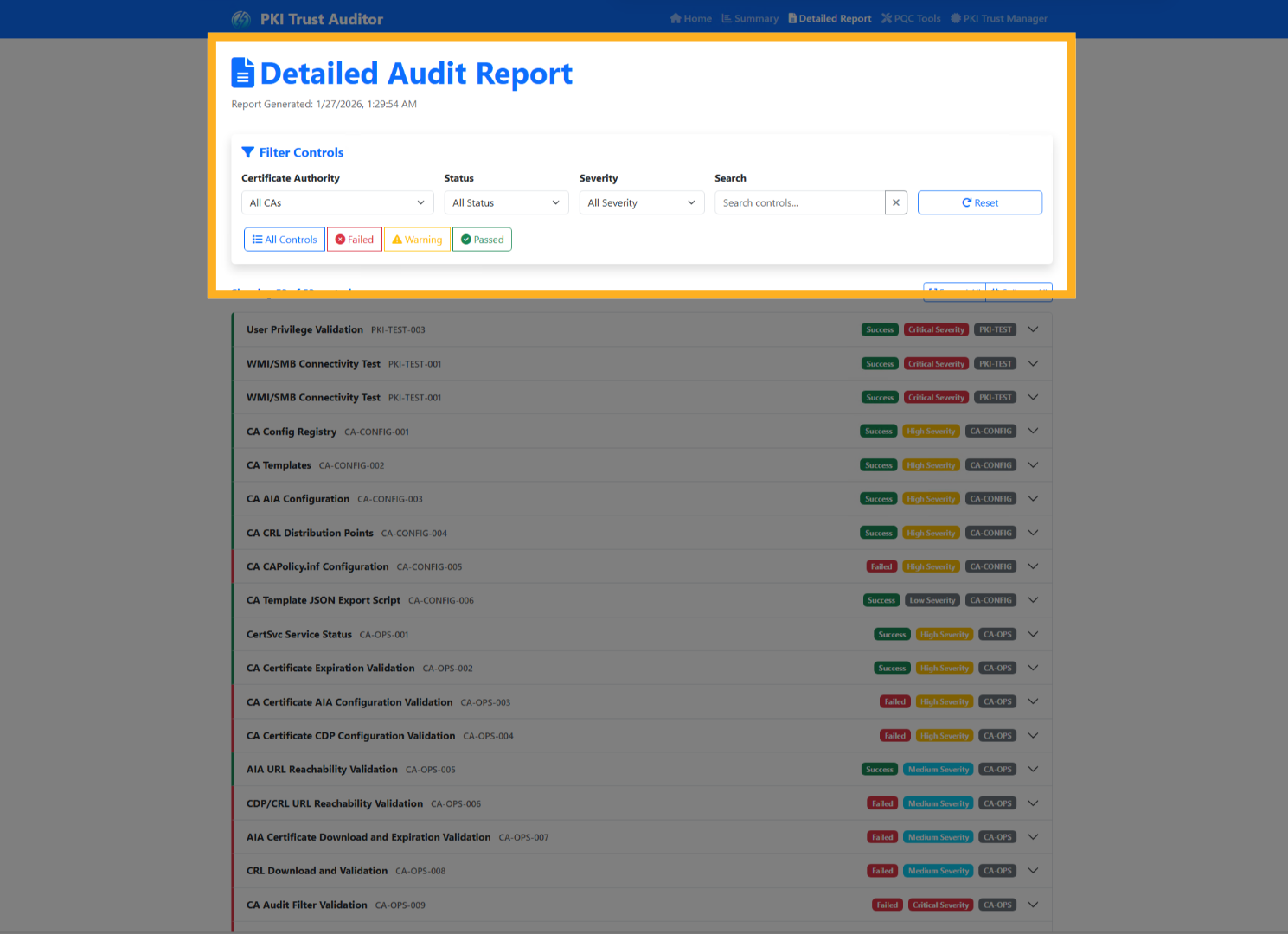
19. Detailed Report: Filter Controls#
let's quickly review the Filters that can be applie
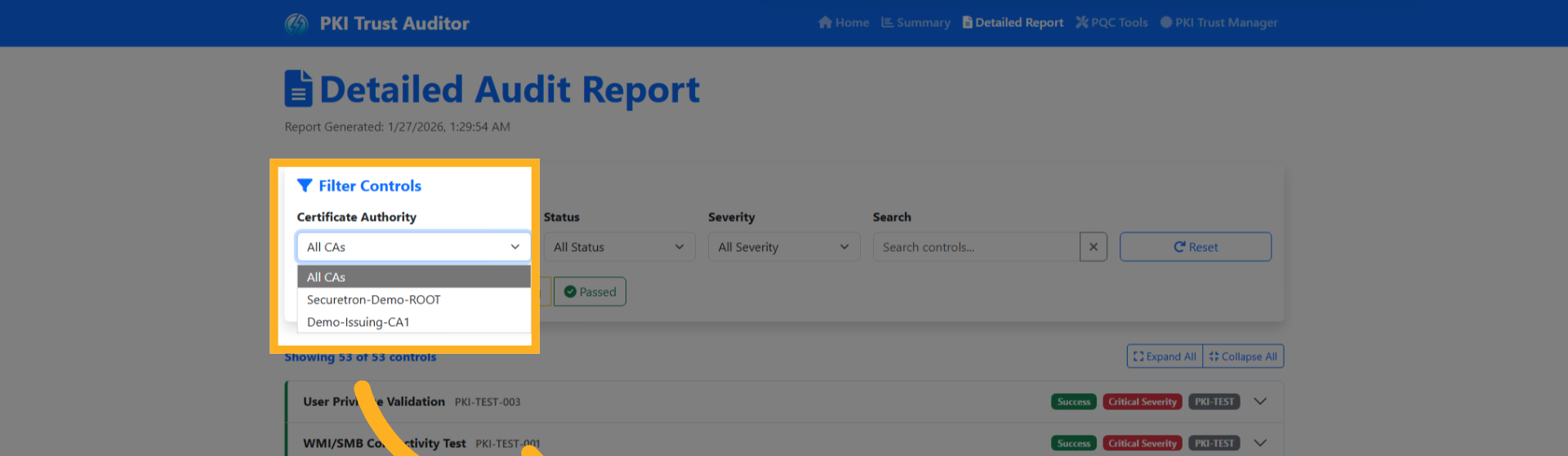
20. Filter Control: Certificate Authority#
You may filter the findings by Certification Authority
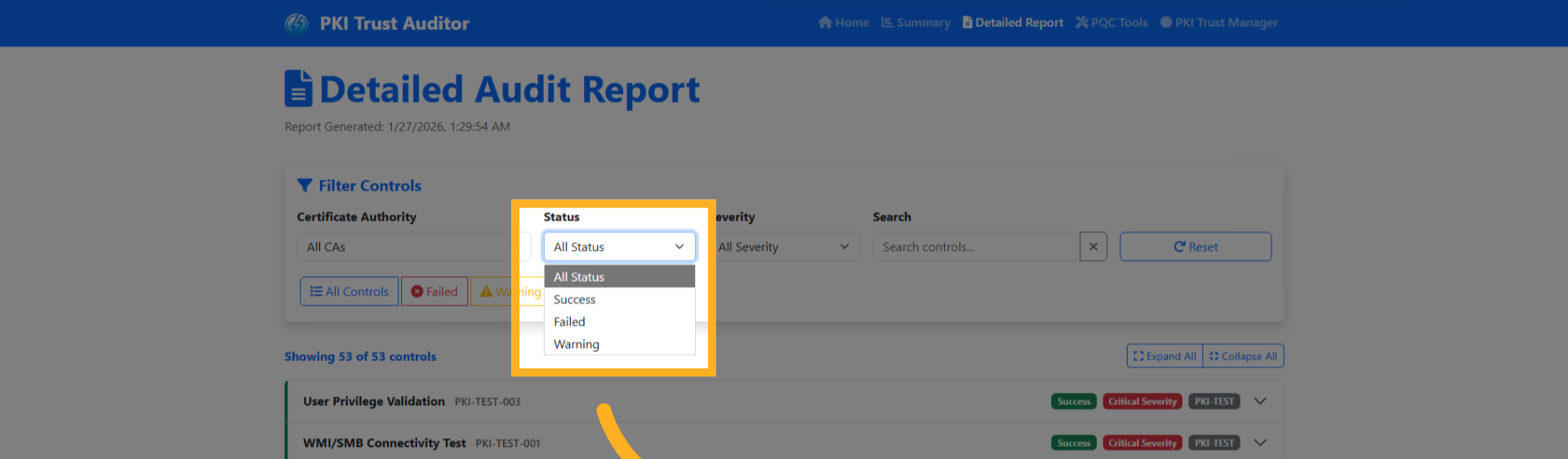
21. Filter Control: Status#
by Status of the gaps
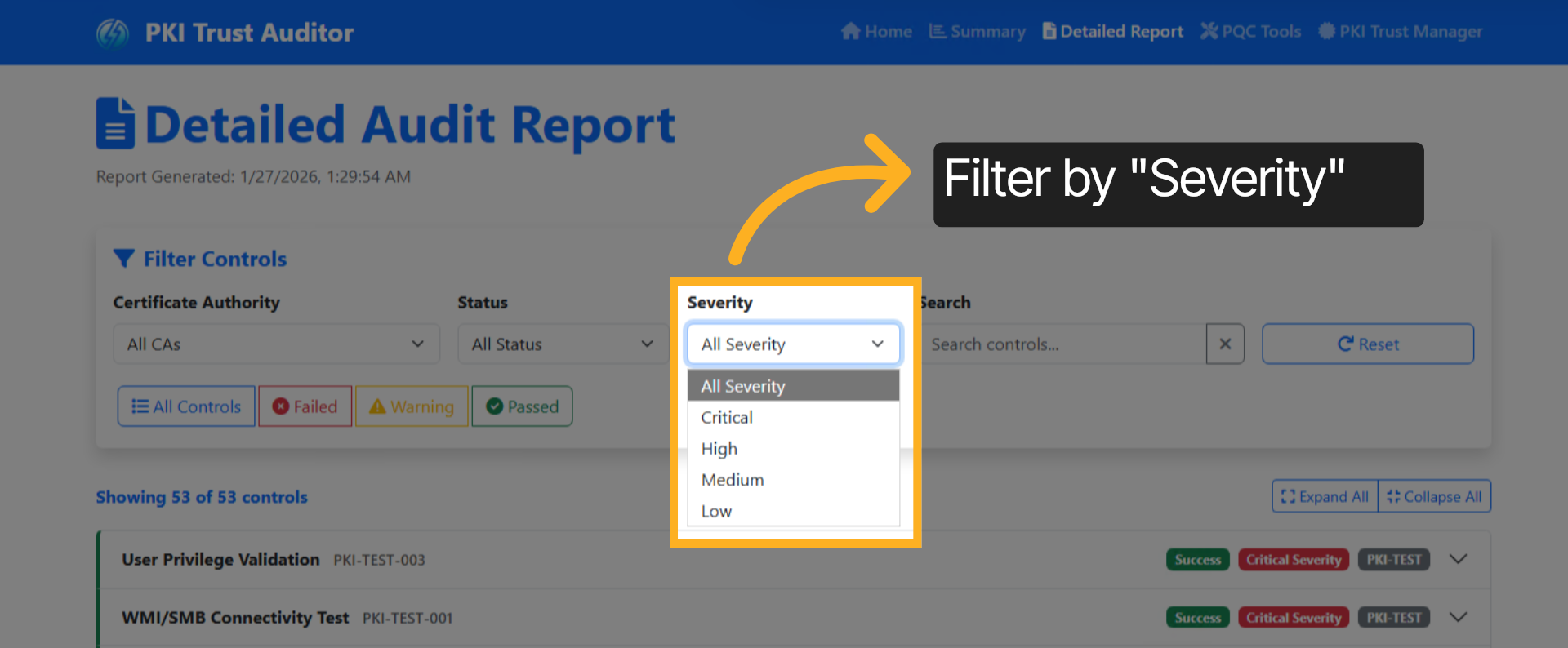
22. Filter Control: Severity#
you may also filter by Severity
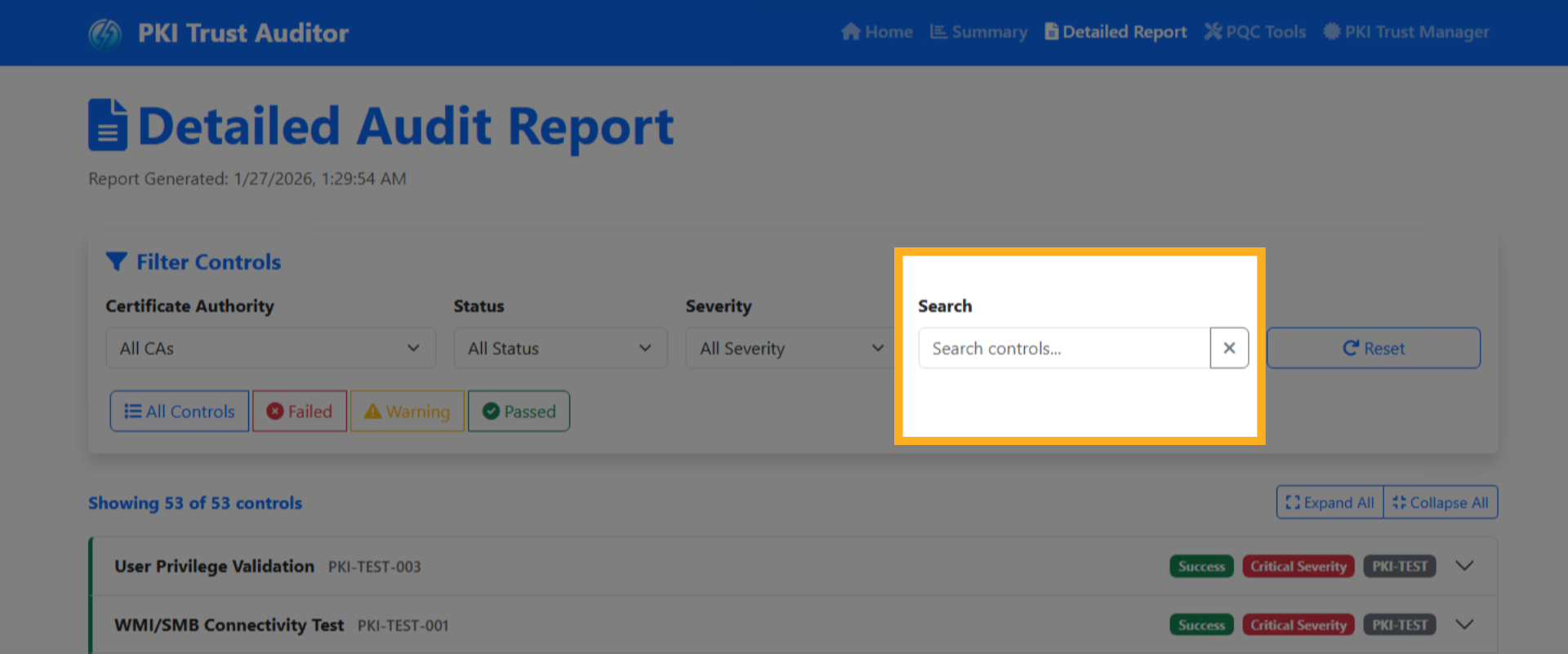
23. Filter Control: Search#
and finally search any of the findings by it name or Control ID
24. Detailed Findings List#
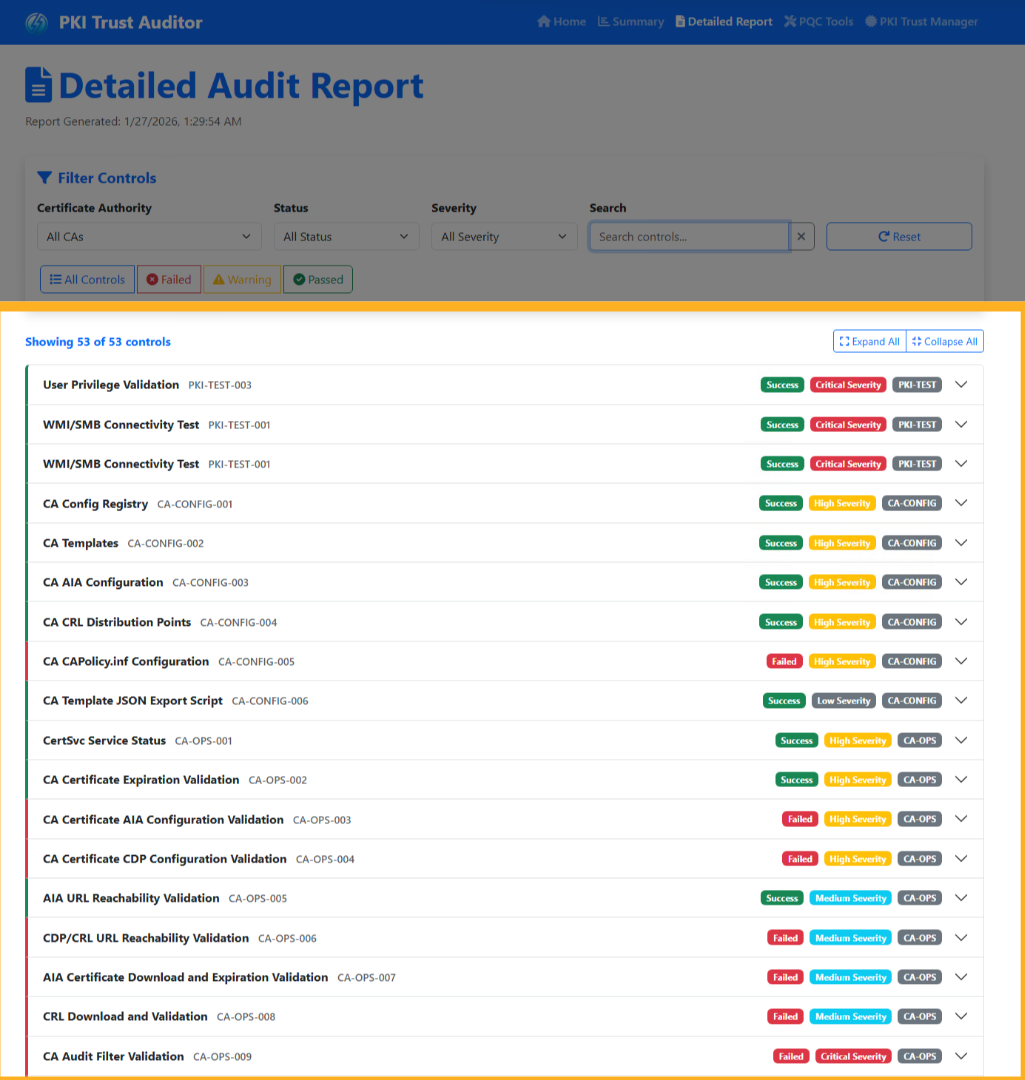
This report lists all audited controls, each tagged with its Status, Severity, and corresponding category.
25. Finding Details: Information#
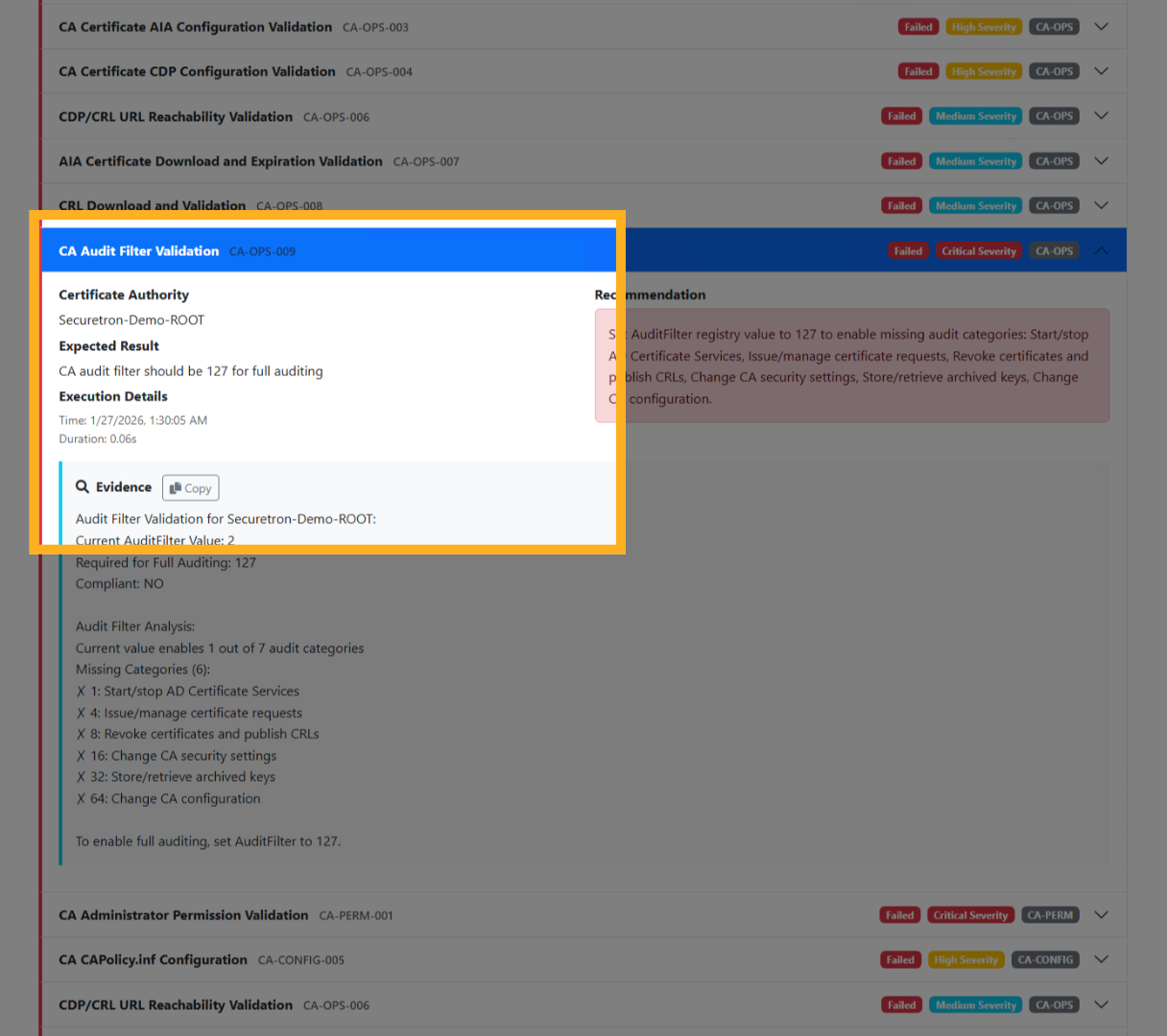
When you expand a control, you will see additional information, including the Certificate Authority where it was found, the expected result , and the timestamp of when it was discovered.
26. Finding Details: Evidence#
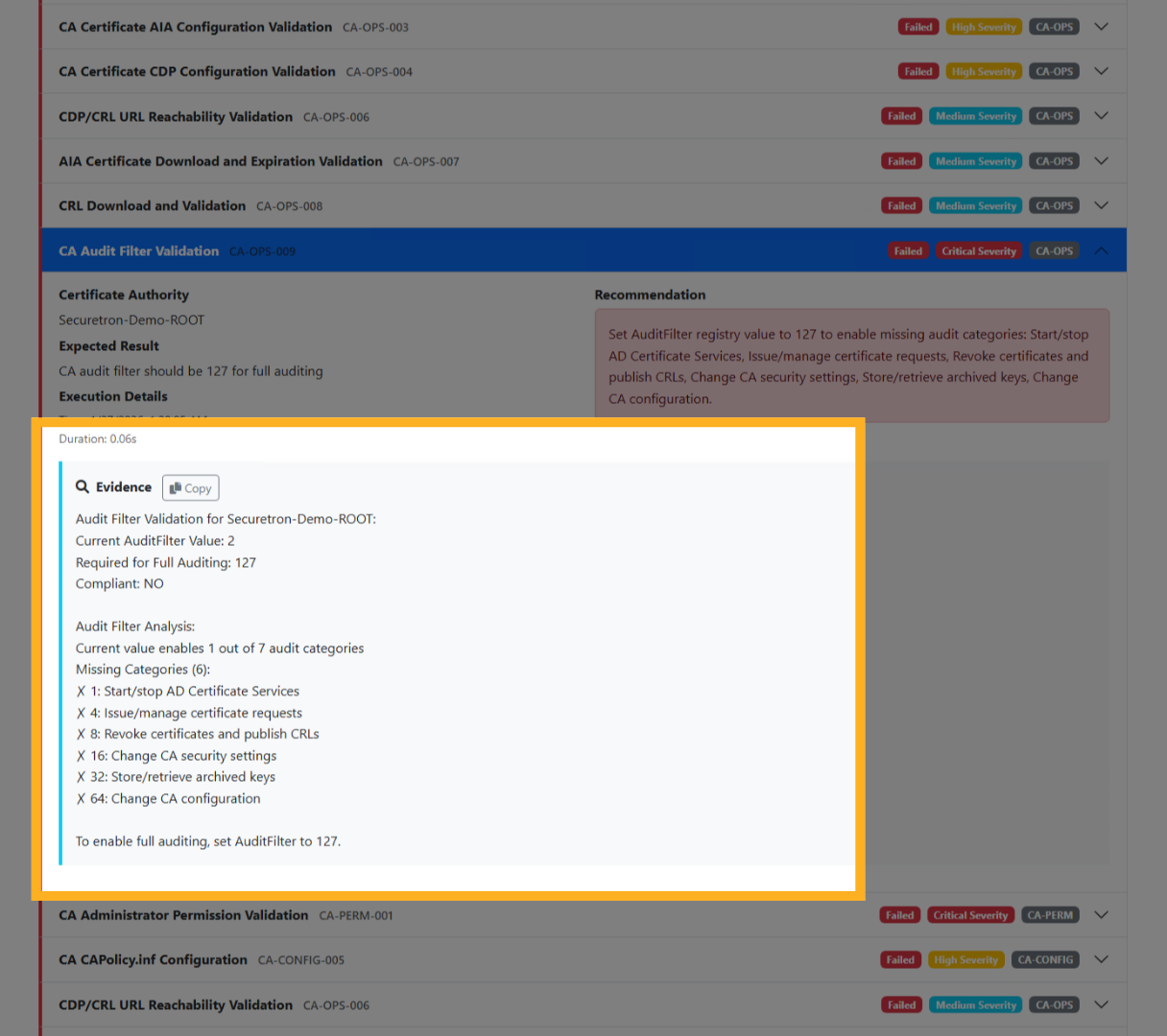
The evidence section offers comprehensive details regarding the findings, the requirements, the status of the control, and the configuration that illustrates how the control is set up.
27. Finding Details: Recommendation#
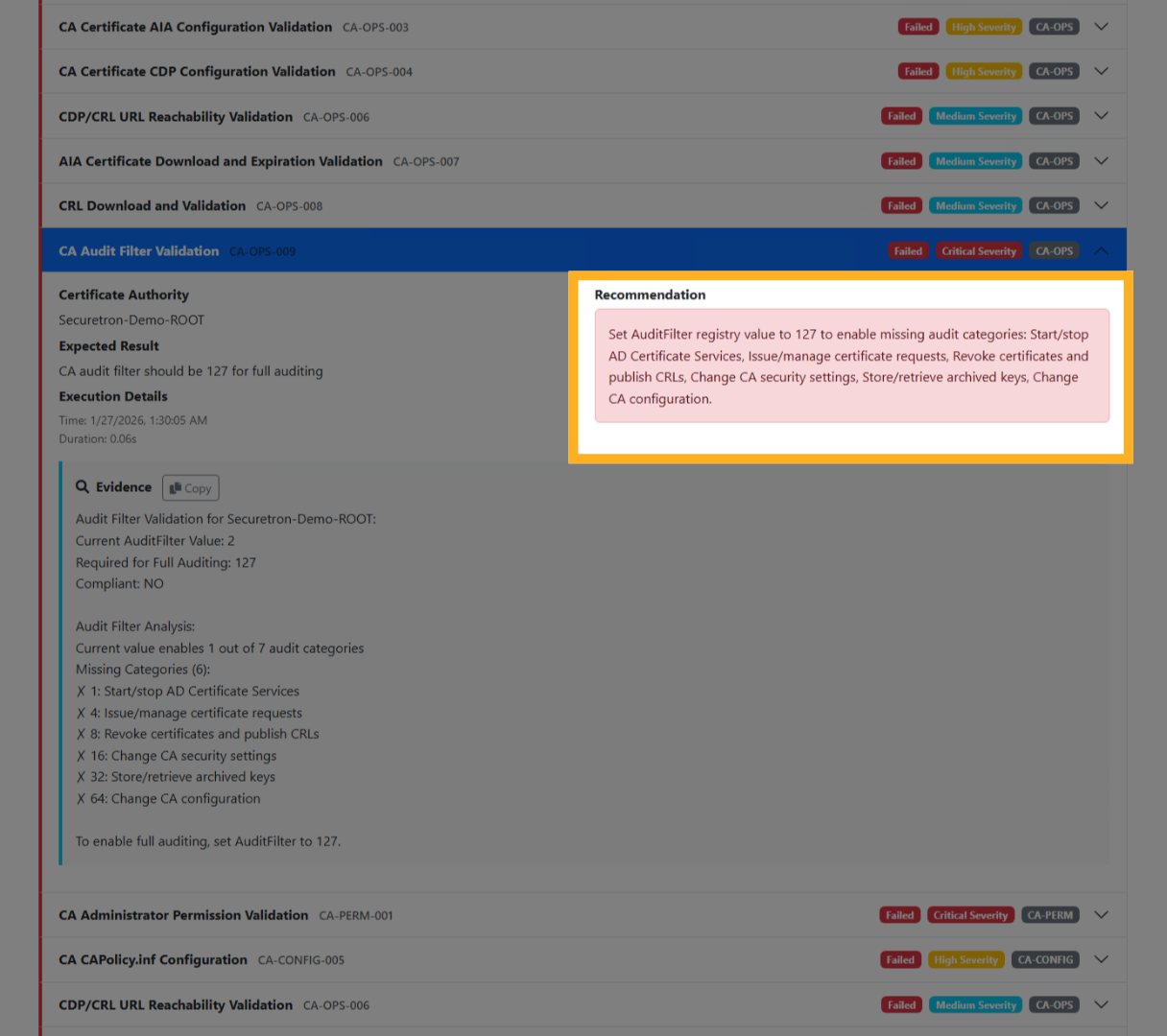
Finally, the Recommendation section offers comprehensive guidance on how to effectively remediate the finding identified in the previous analysis. This section is crucial as it outlines specific steps and best practices that can be implemented to address the issues raised, ensuring that all necessary actions are taken to mitigate any potential risks associated with the finding.
This detailed the step-by-step process to audit an Active Directory Certificate Authority using PKI Trust Auditor. Following these instructions ensures a thorough and efficient audit of certificate authorities within your environment. For more information, refer to related articles on PKI management and security auditing at our website or contact support.