
Deploy Securetron PKI Trust Manager CertAPI To Azure Cloud
This tutorial guides you through deploying the Securetron PKI Trust Manager CertAPI to the Azure Cloud environment. You will configure container app settings, registry details, ingress rules, and complete the deployment process. The Cert API provides SCEP, EST, ACME, and RESTful API interface for automation
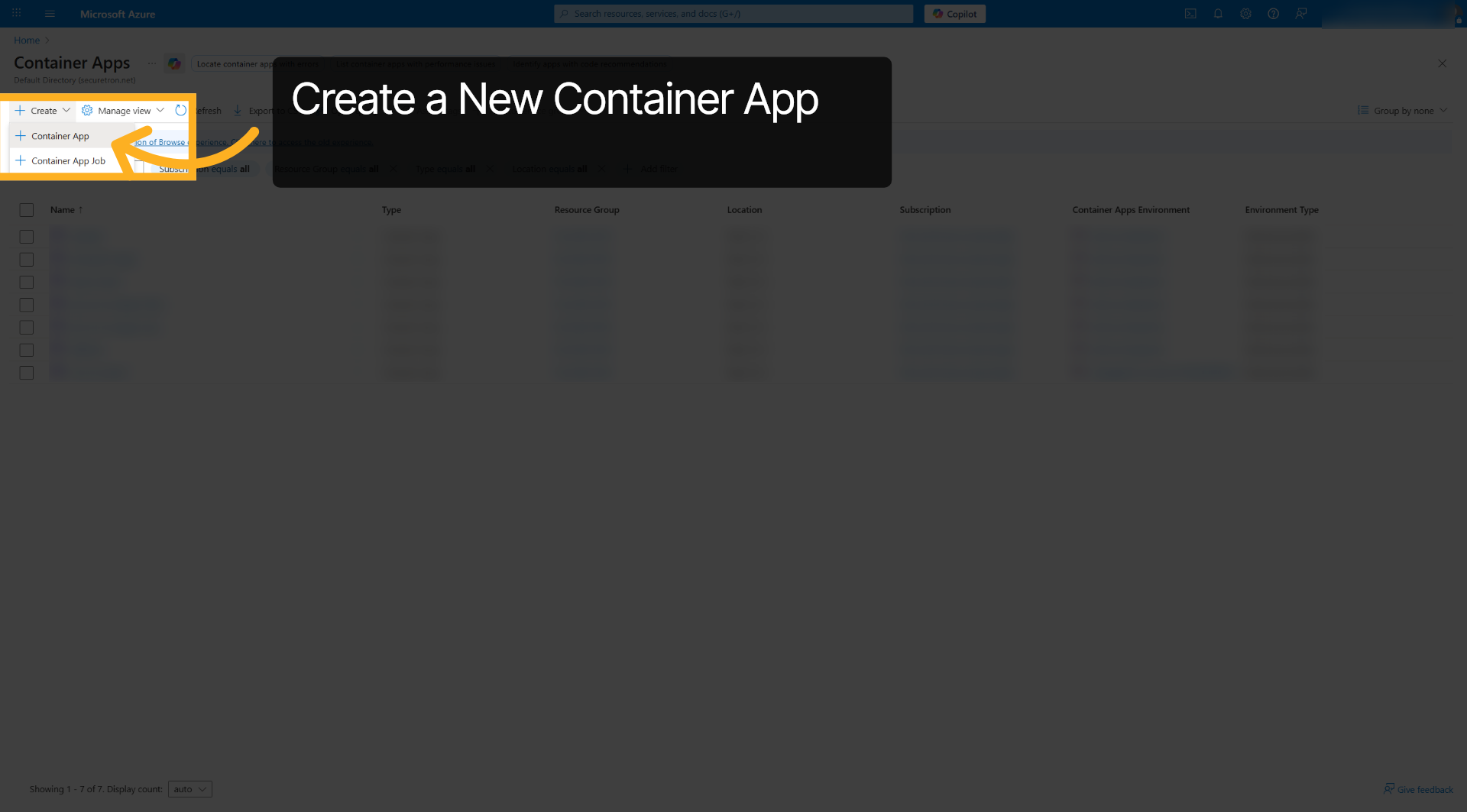
Click the Container App option to initiate creating a new container application.
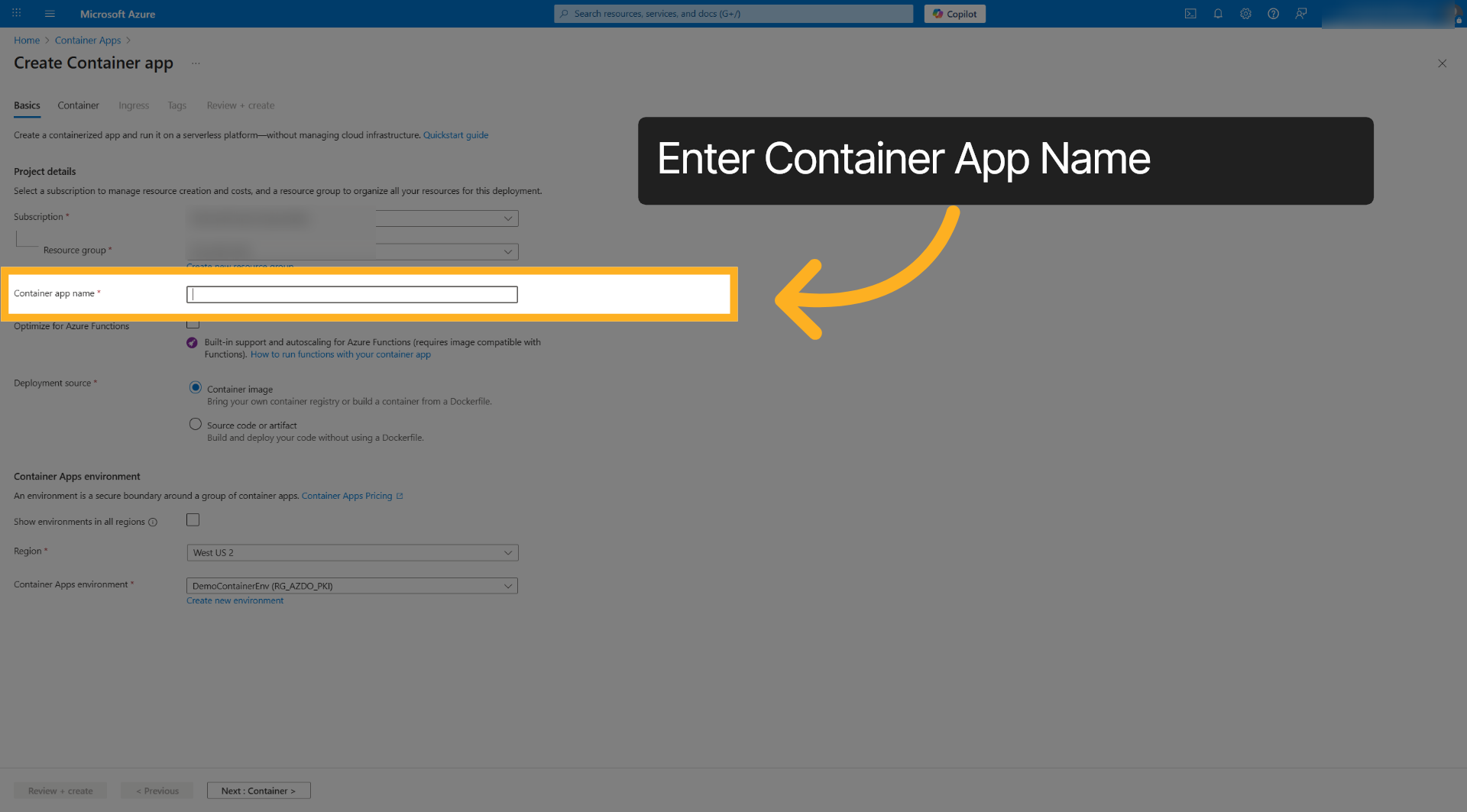
Click the container app name field to specify the name for your new container app. Enter your container app name to identify the deployment such as pki-trust-manager-cert-api
Click Next to move forward to configuring container-specific settings.

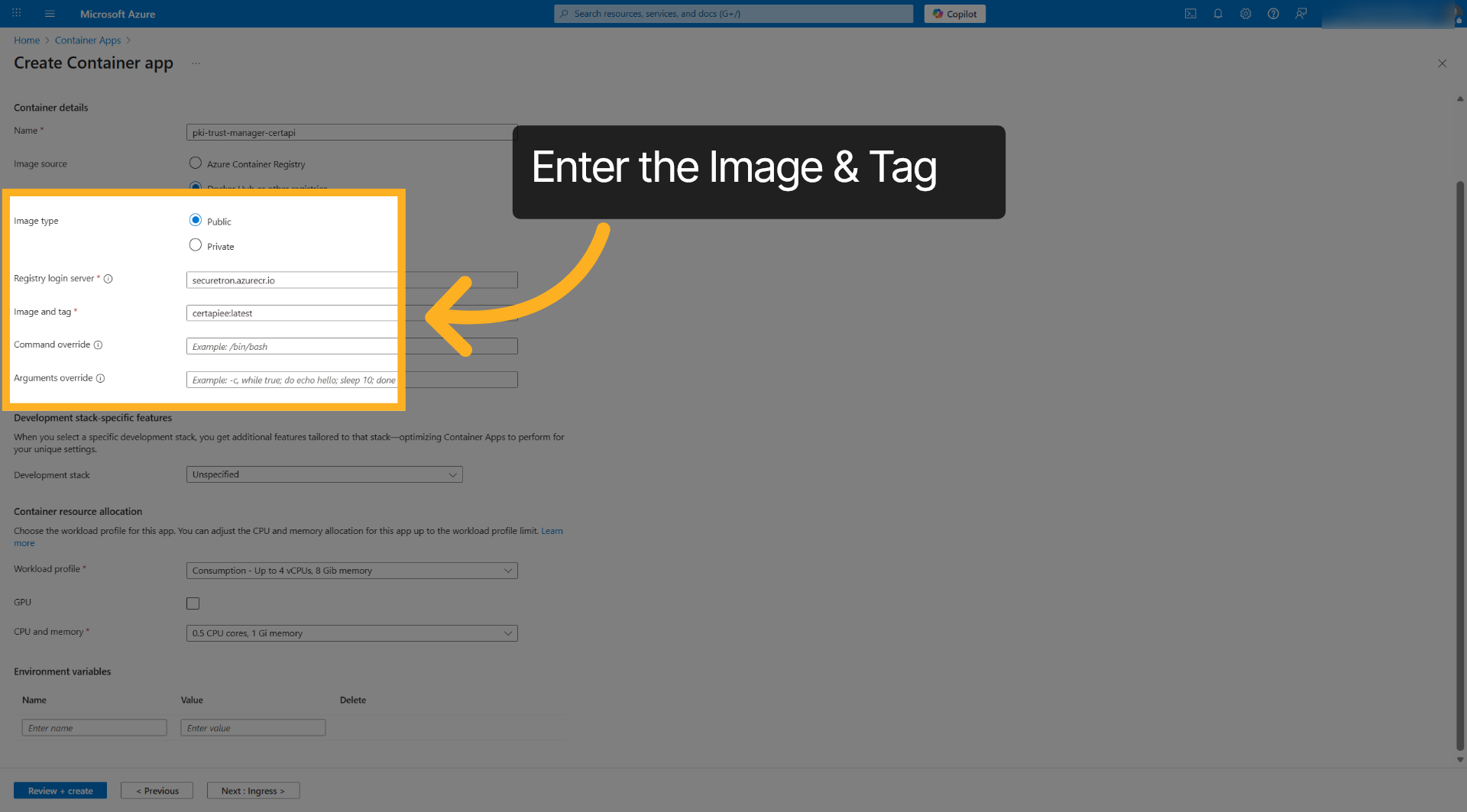
Enter the registry login server address, such as securetron.azurecr.io to connect to the securetron container registry.
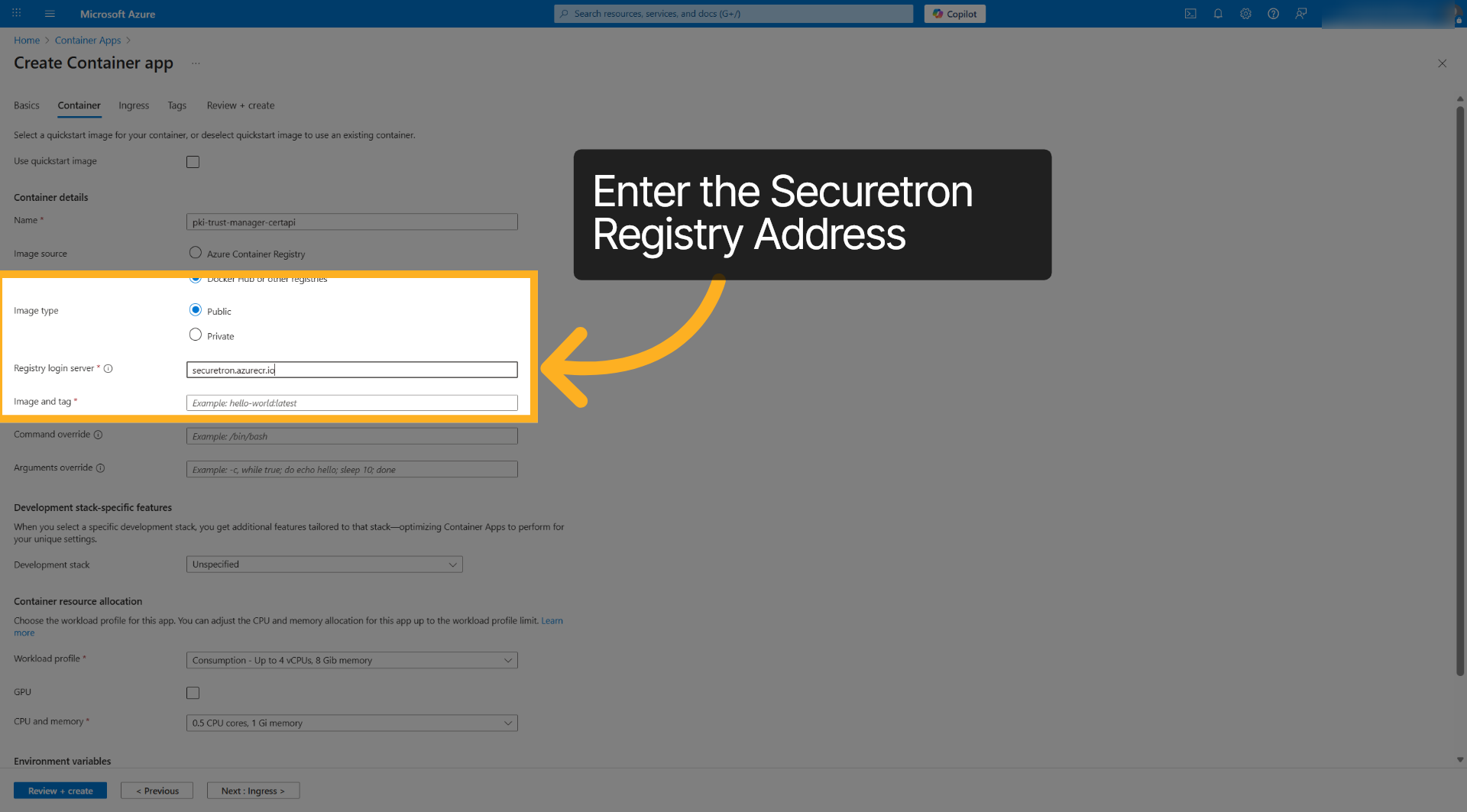
Enter the Image and Tag such as certapiee:latest
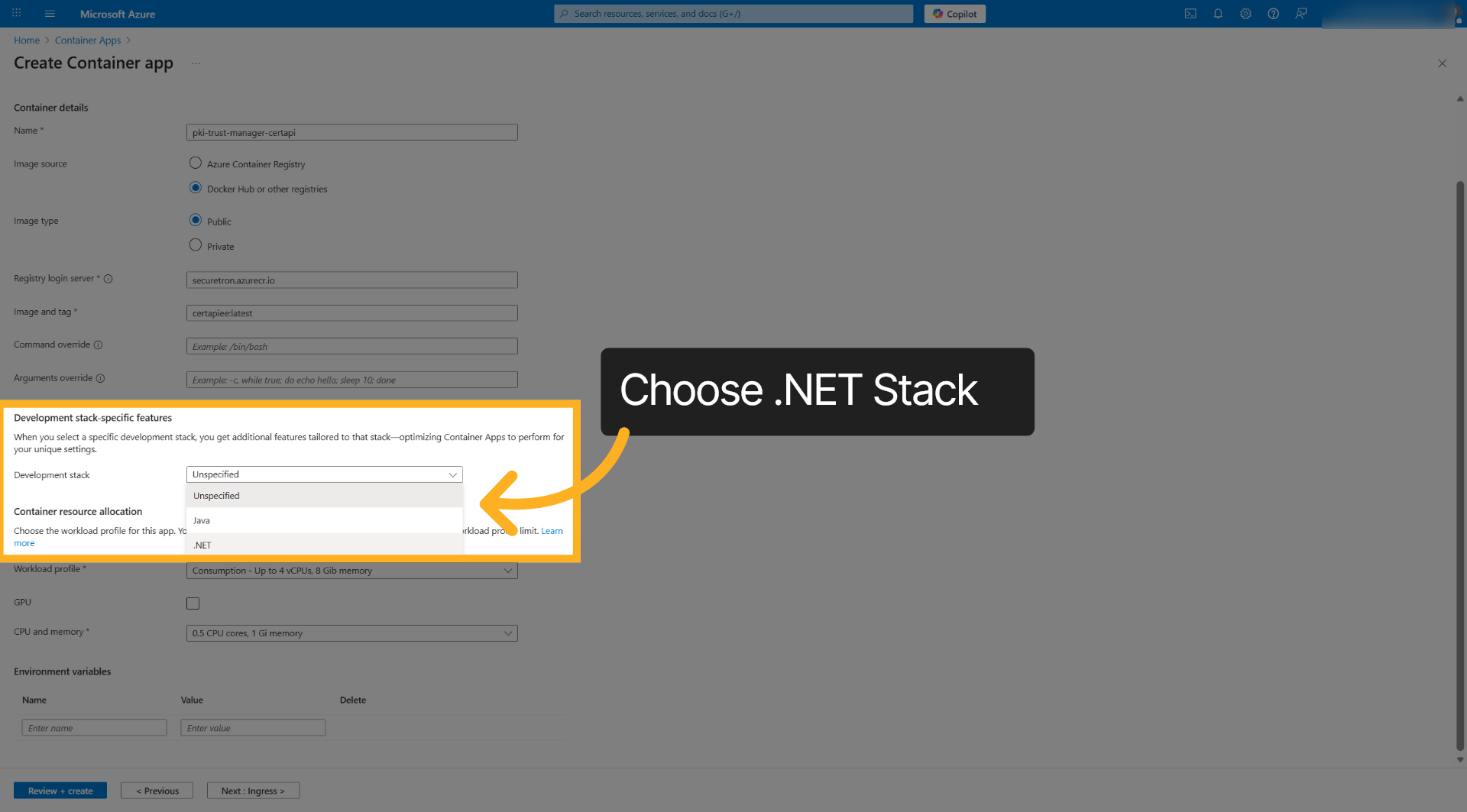
Select the .NET development stack to optimize the container.
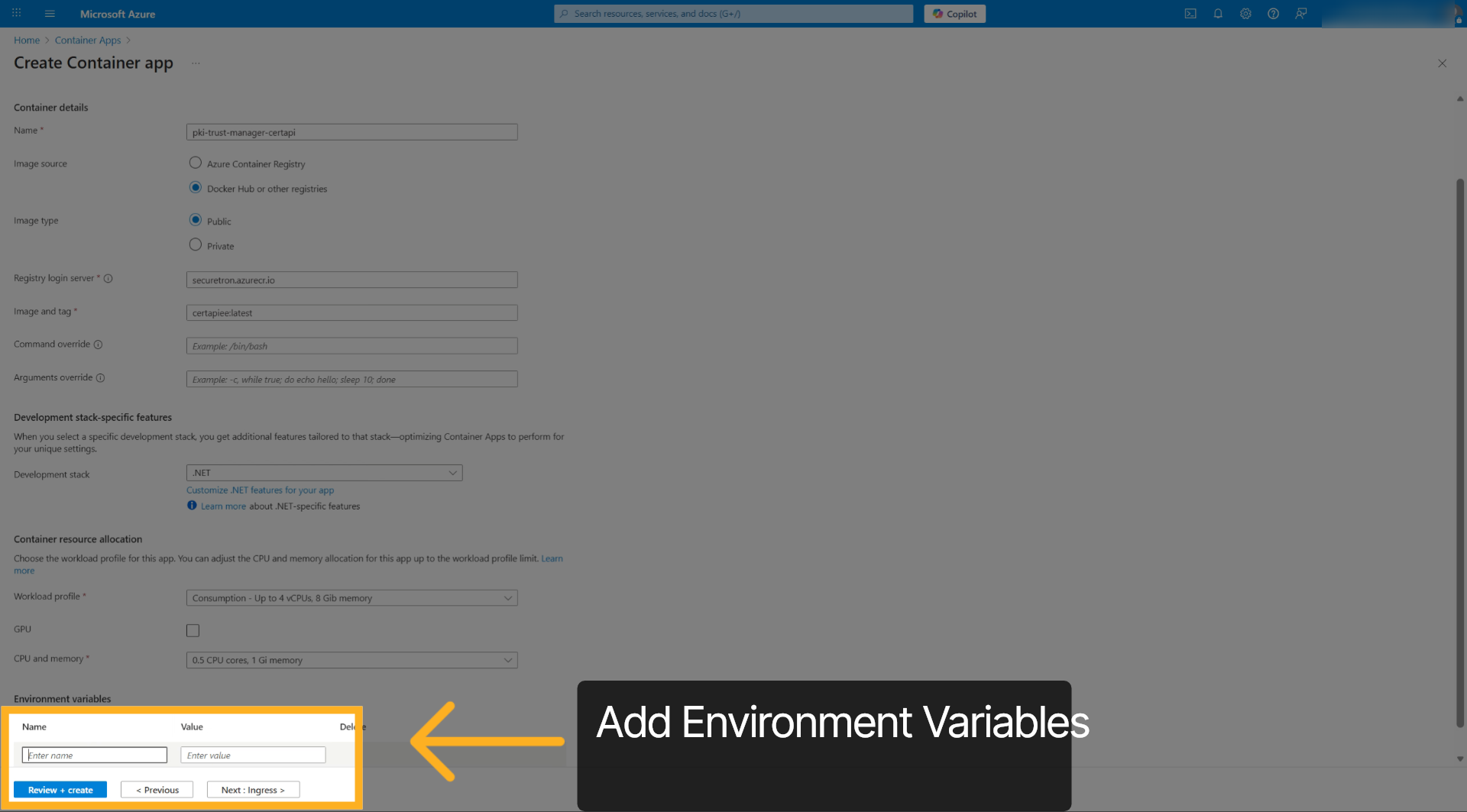
Enter the Environment variables such as ConnectionStrings__OurDBContext, to link your app to the database. Additional variables are listed below
- Smtp__Server=Your_SMTP_Server_FQDN
- Smtp__Auth=true
- Smtp__SenderName=PKI-Trust-Manager-CertAPI
- Smtp__SenderAddress=[email protected]
- Smtp__ReceiverAddressOnError=[email protected]
- Smtp__ReceiverAddressOnEvent=[email protected]
- Smtp__Port=Your_SMTP_Server_Port
- Smtp__Username=Your_SMTP_Username
- Smtp__Password=Your_SMTP_Password
- Smtp__EnableSsl=true
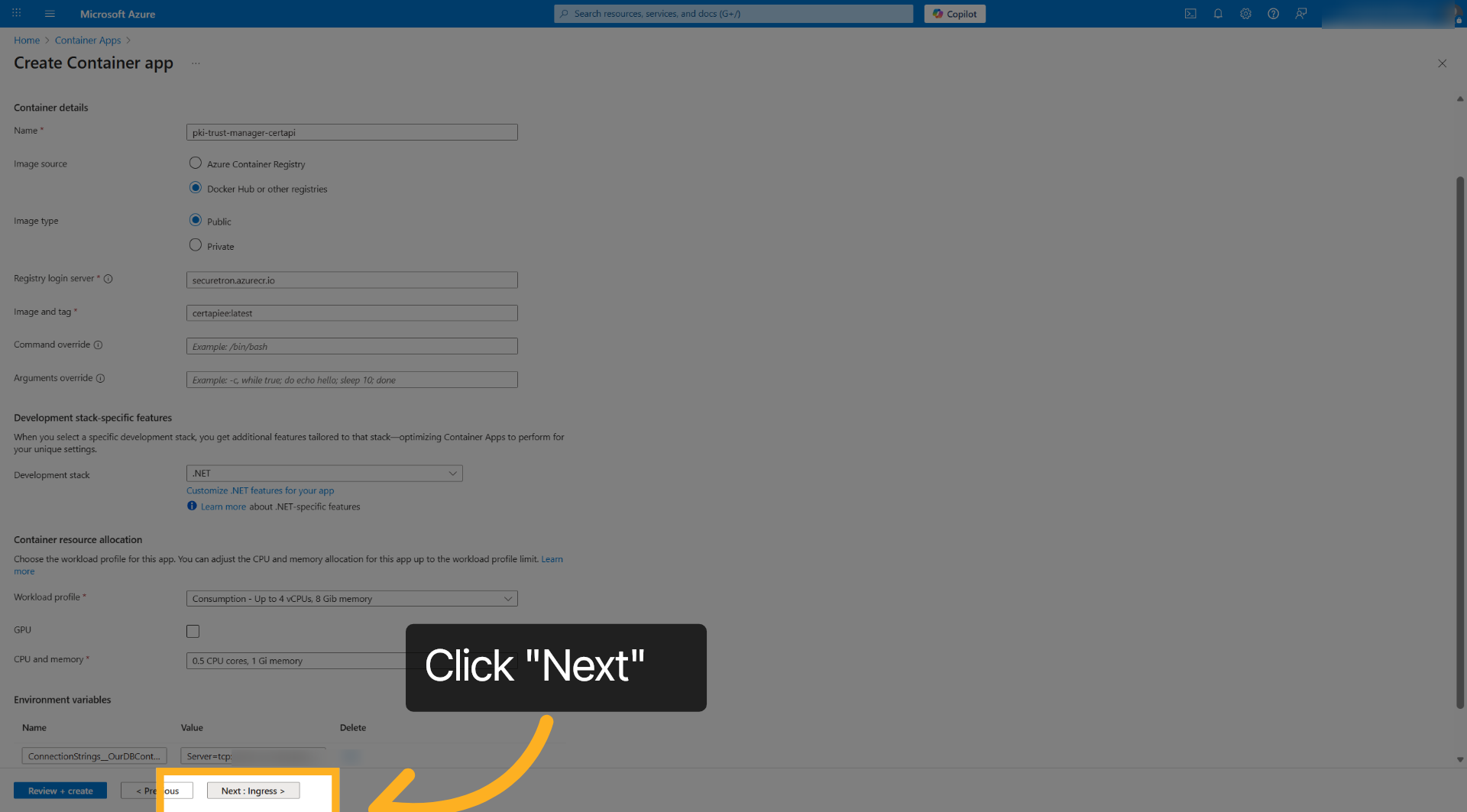
Click Next to configure network traffic and access rules for your container app.
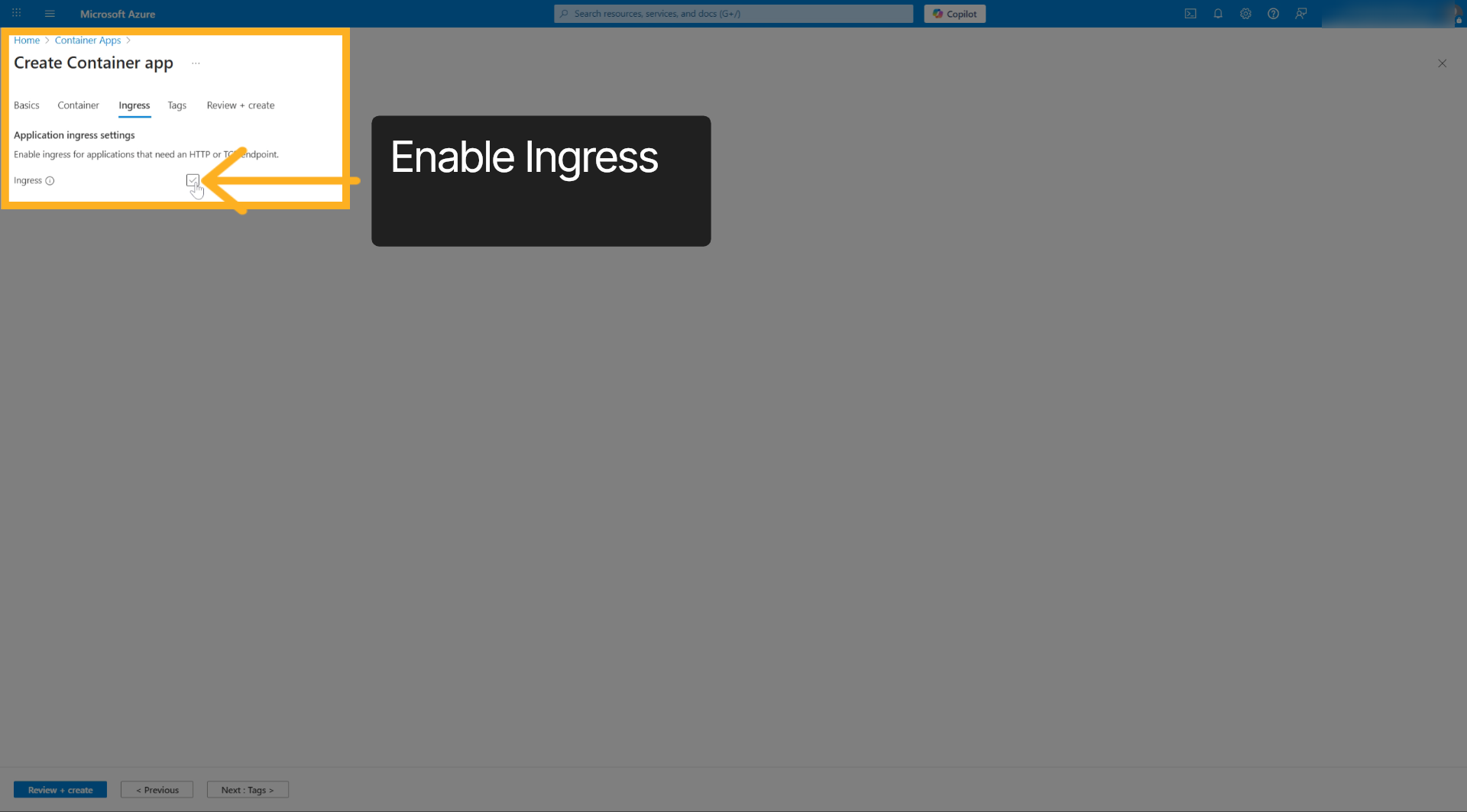
Turn on ingress to allow your container app to receive network traffic.
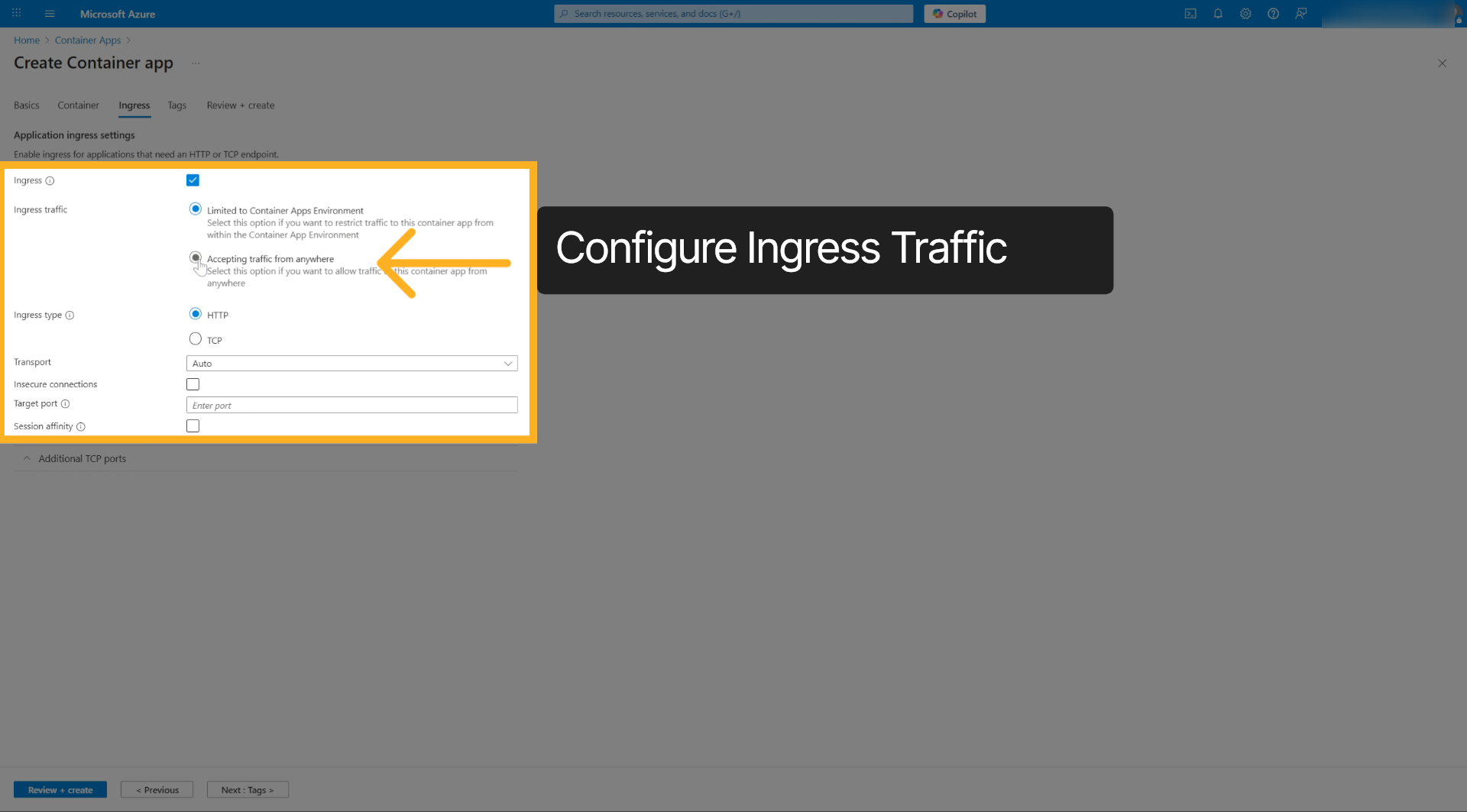
Turn on the setting to accept traffic from all sources for your container app.
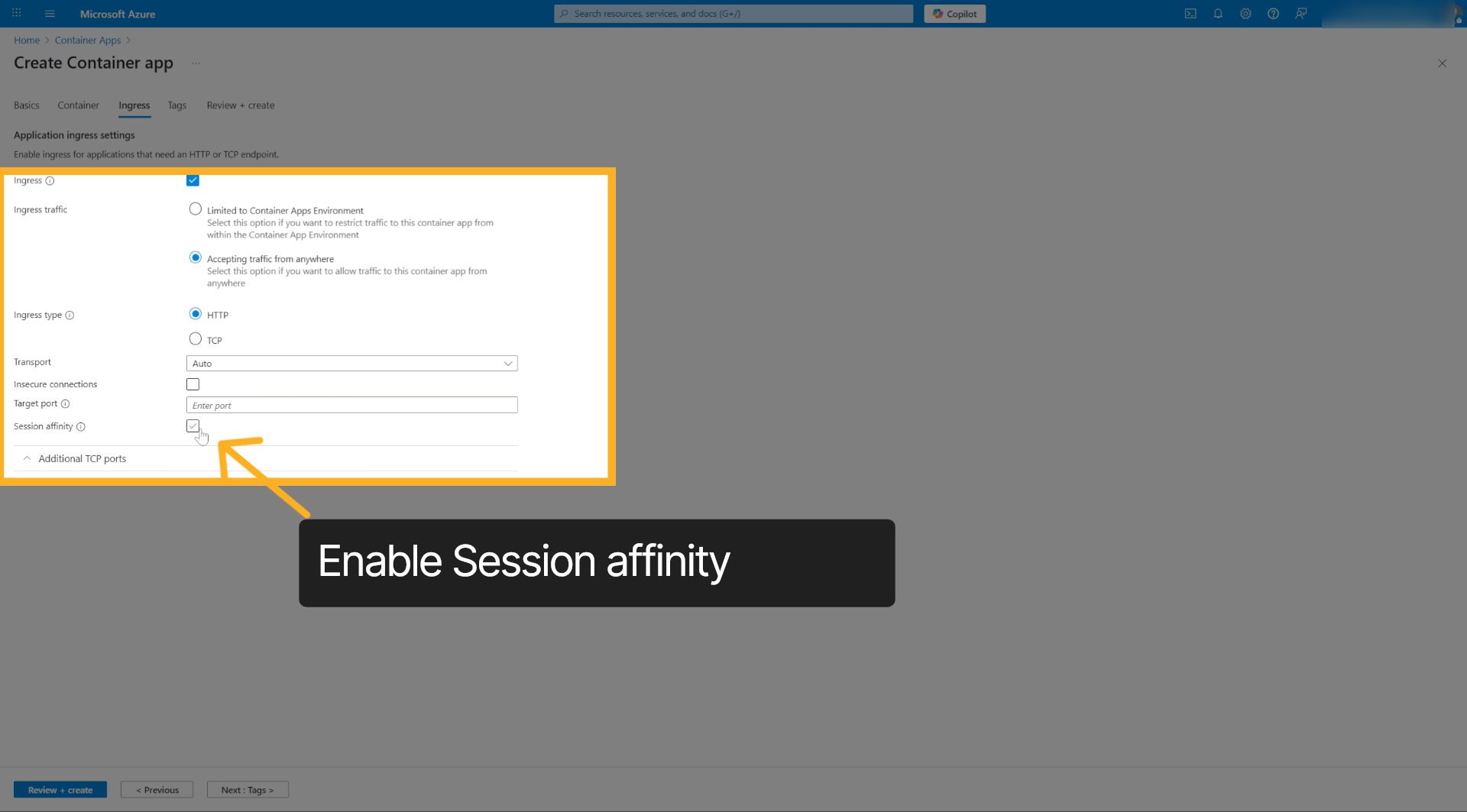
Enable Session affinity to ensure connection persistence
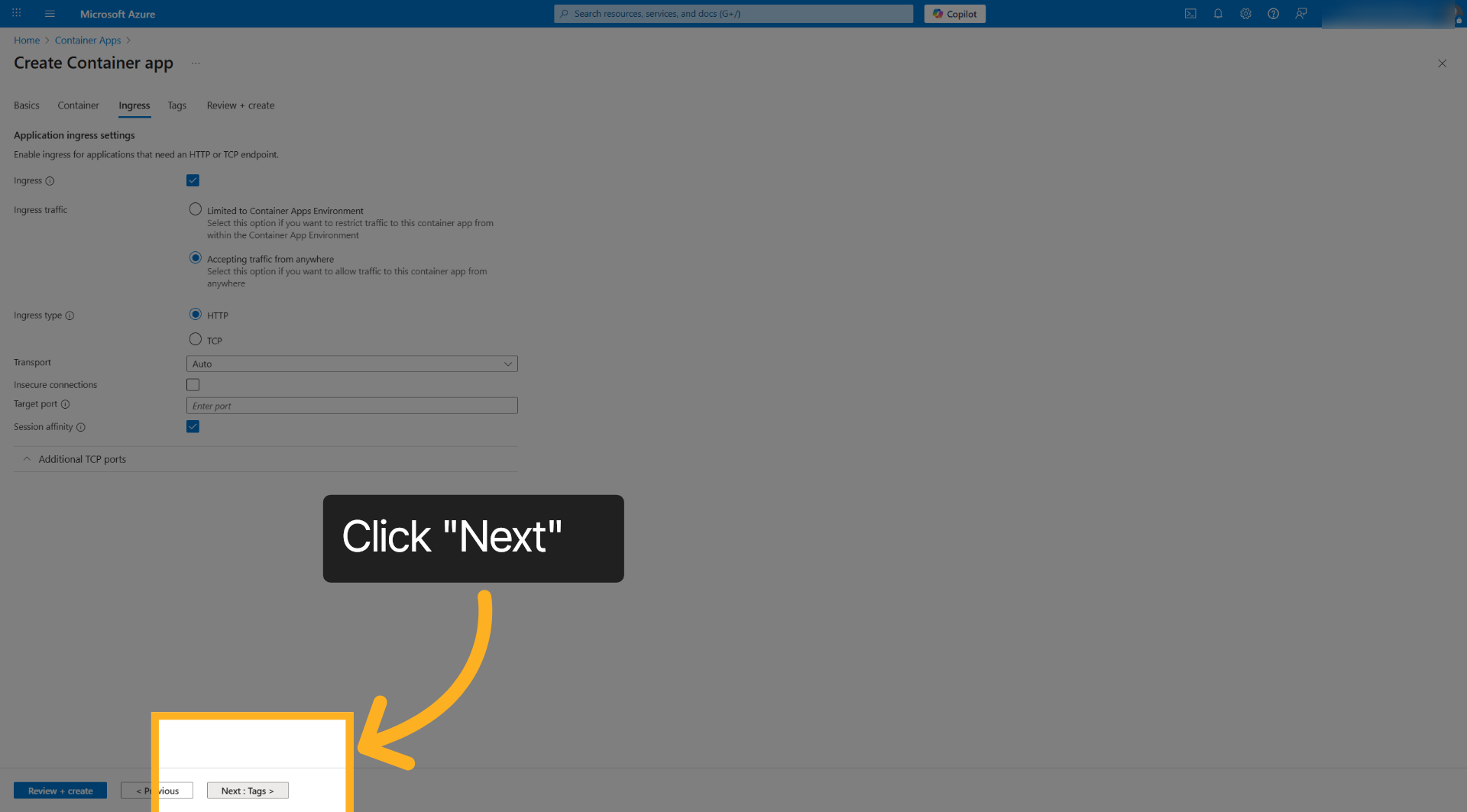
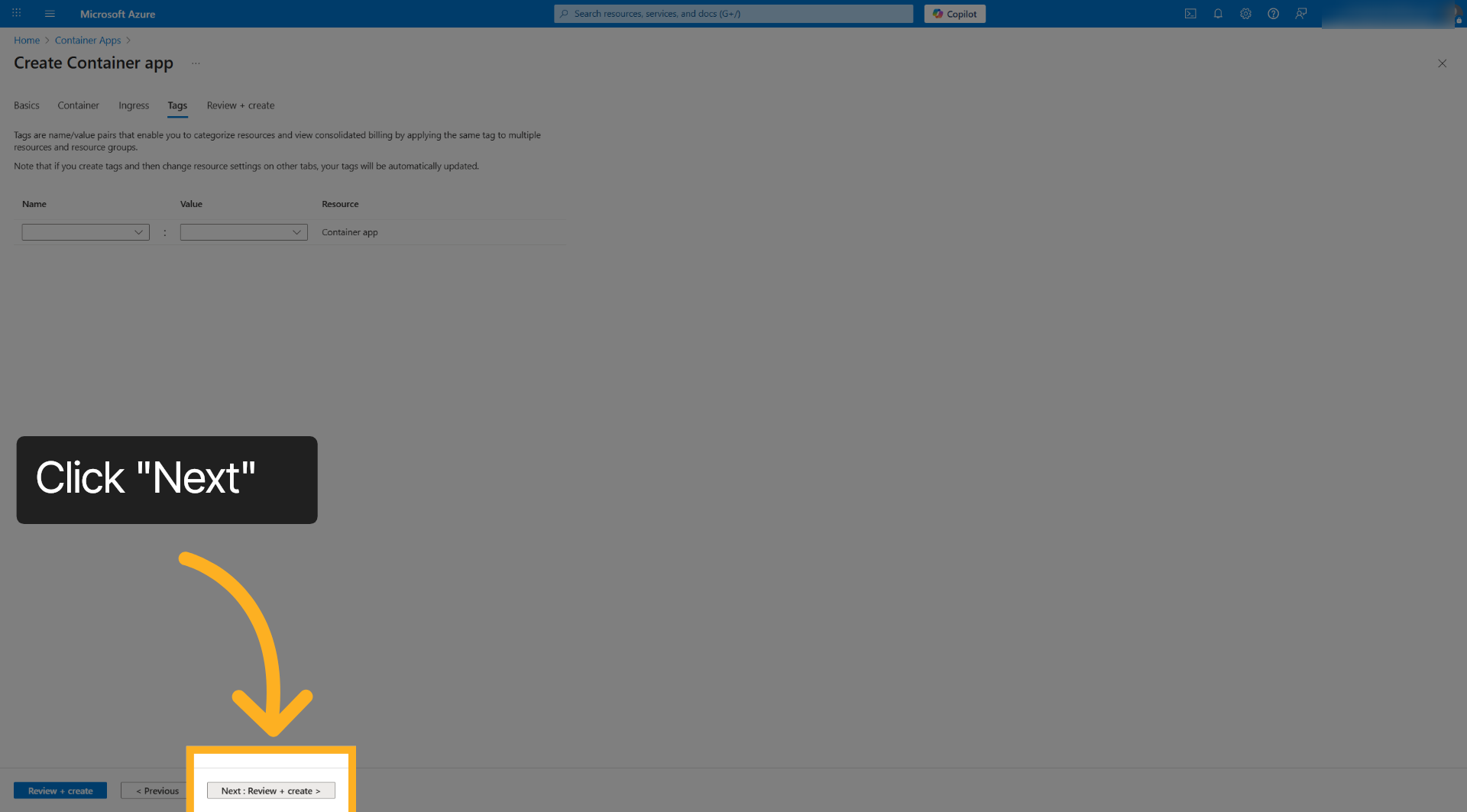
Click Next to add metadata tags for organizing your container app.
Click Next to review your configuration before deployment.
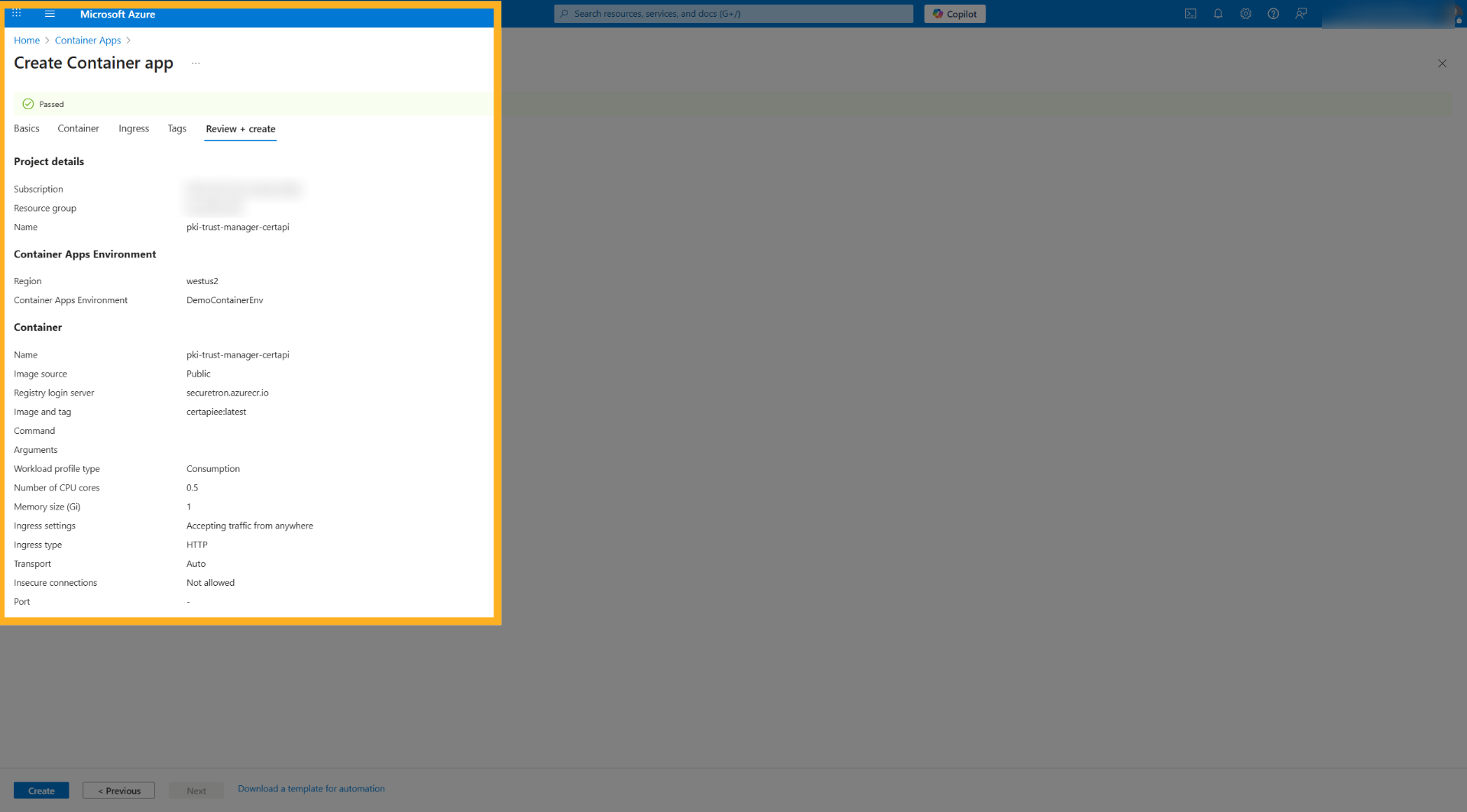
Passed should be displayed that confirms your container app configuration has no errors.
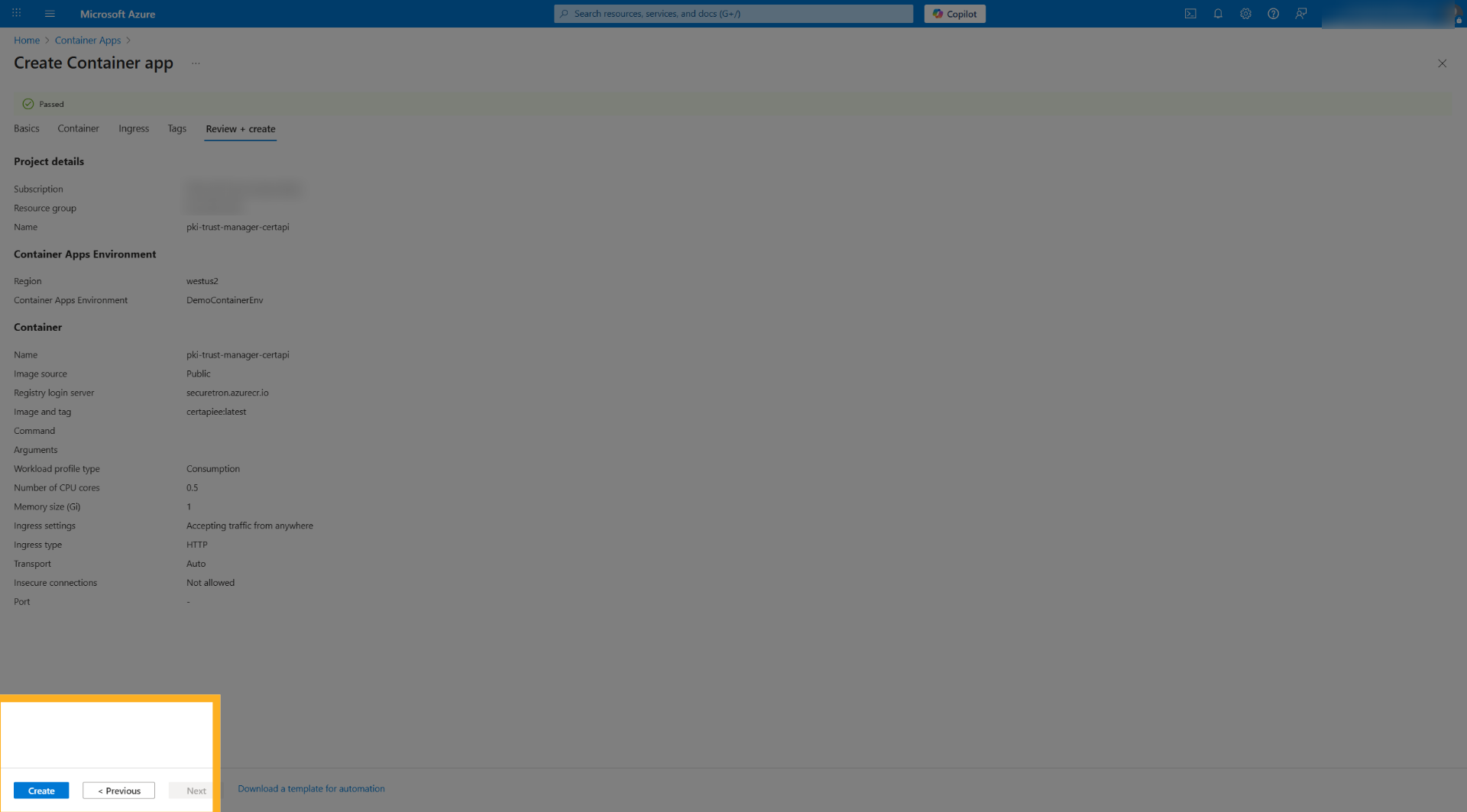
Click Create to start deploying your configured container app to Azure.
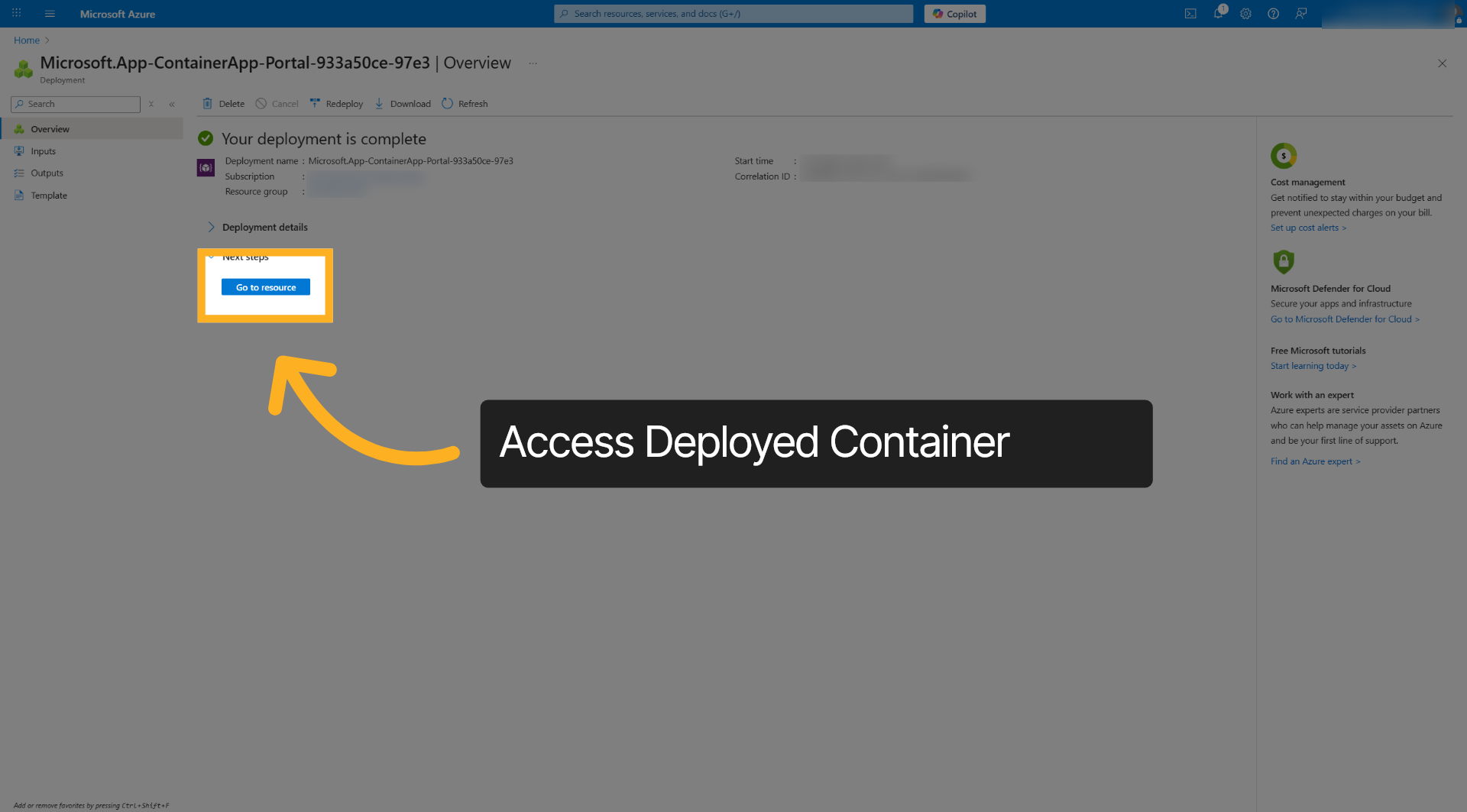
Your deployment should complete and your container has been successfully deployed
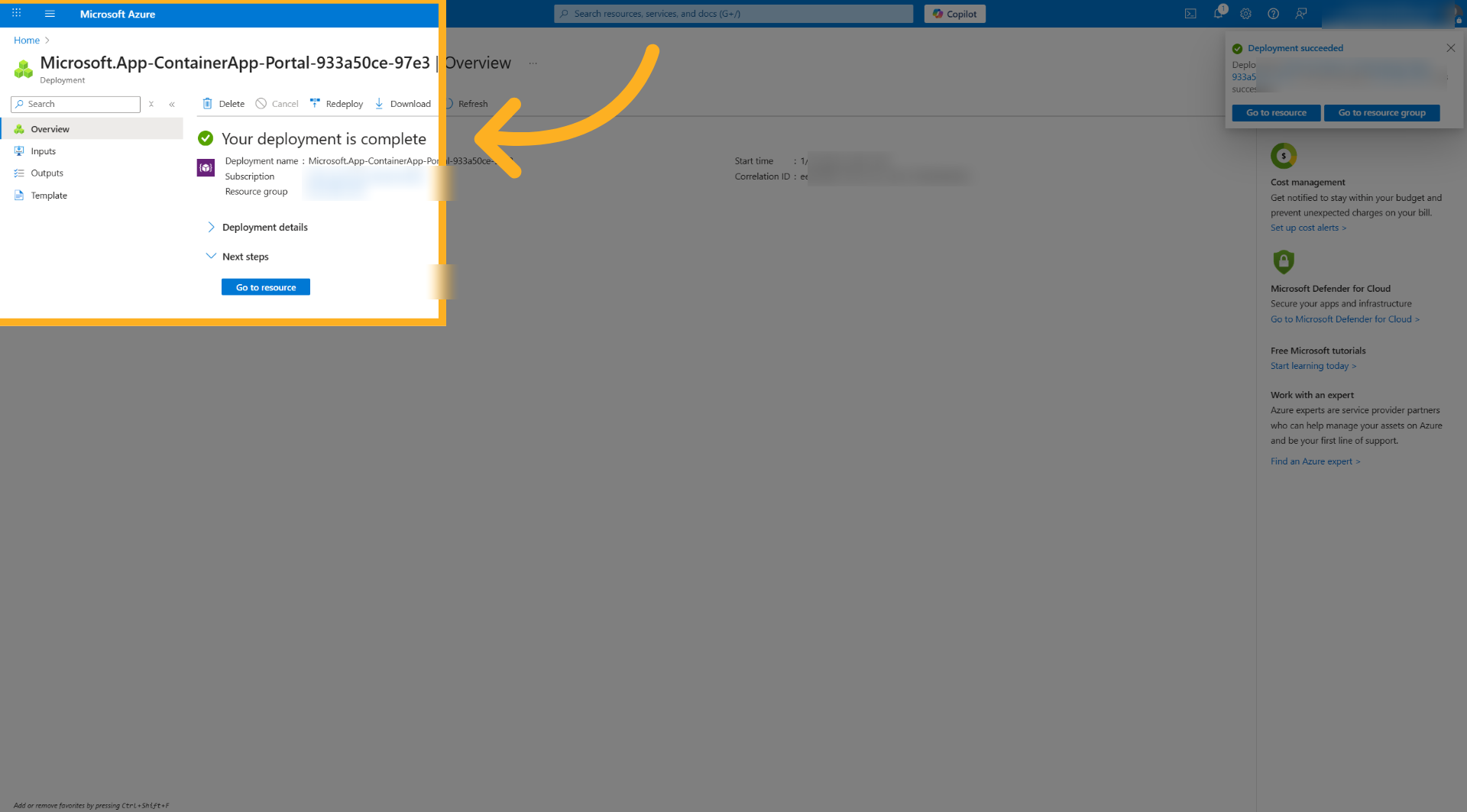
Click Go to resource to open the deployed container app’s resource page.
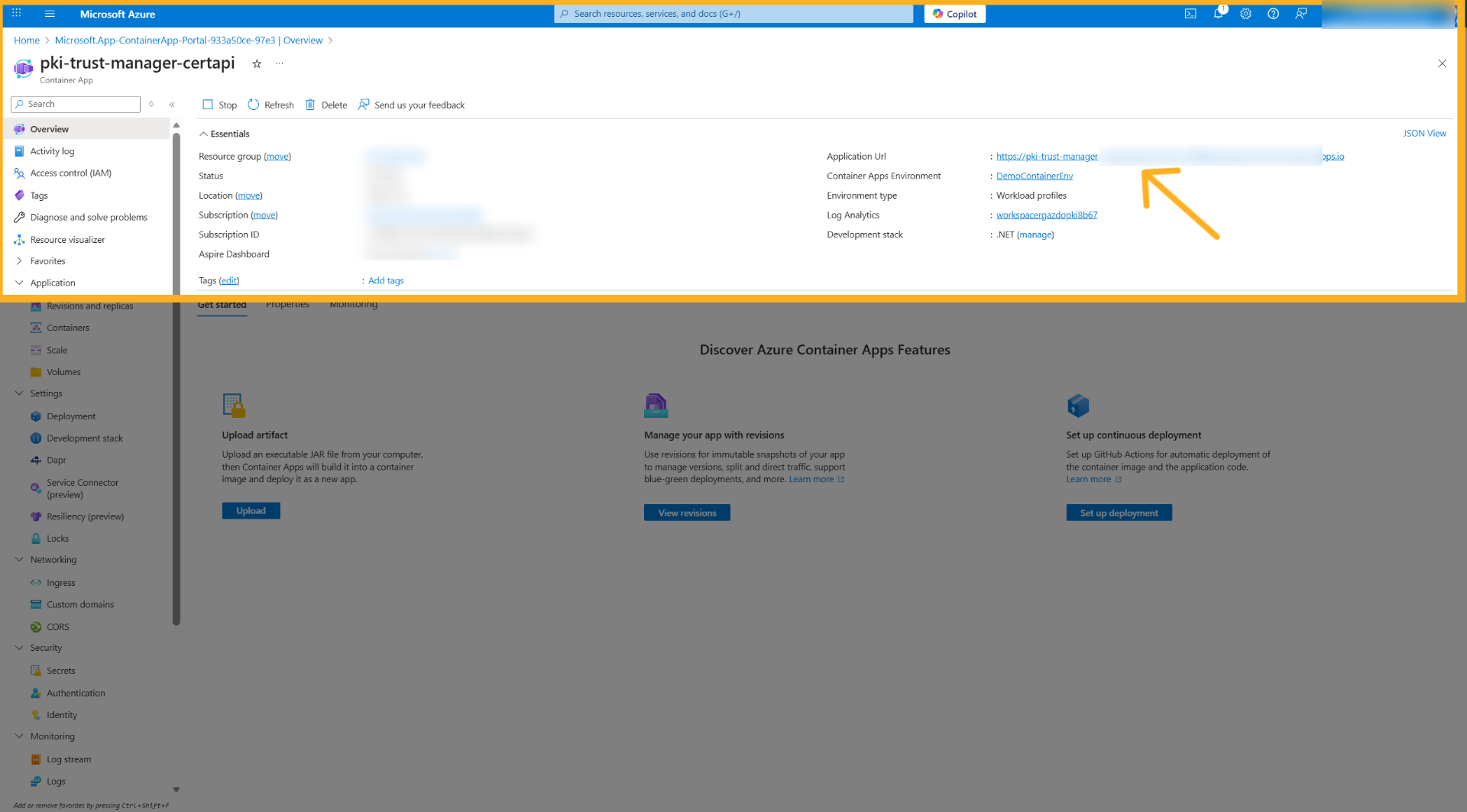
Click Application Url to view the public endpoint of your deployed container app.
Switch to the browser tab displaying your container app’s URL. You should see the on-screen message

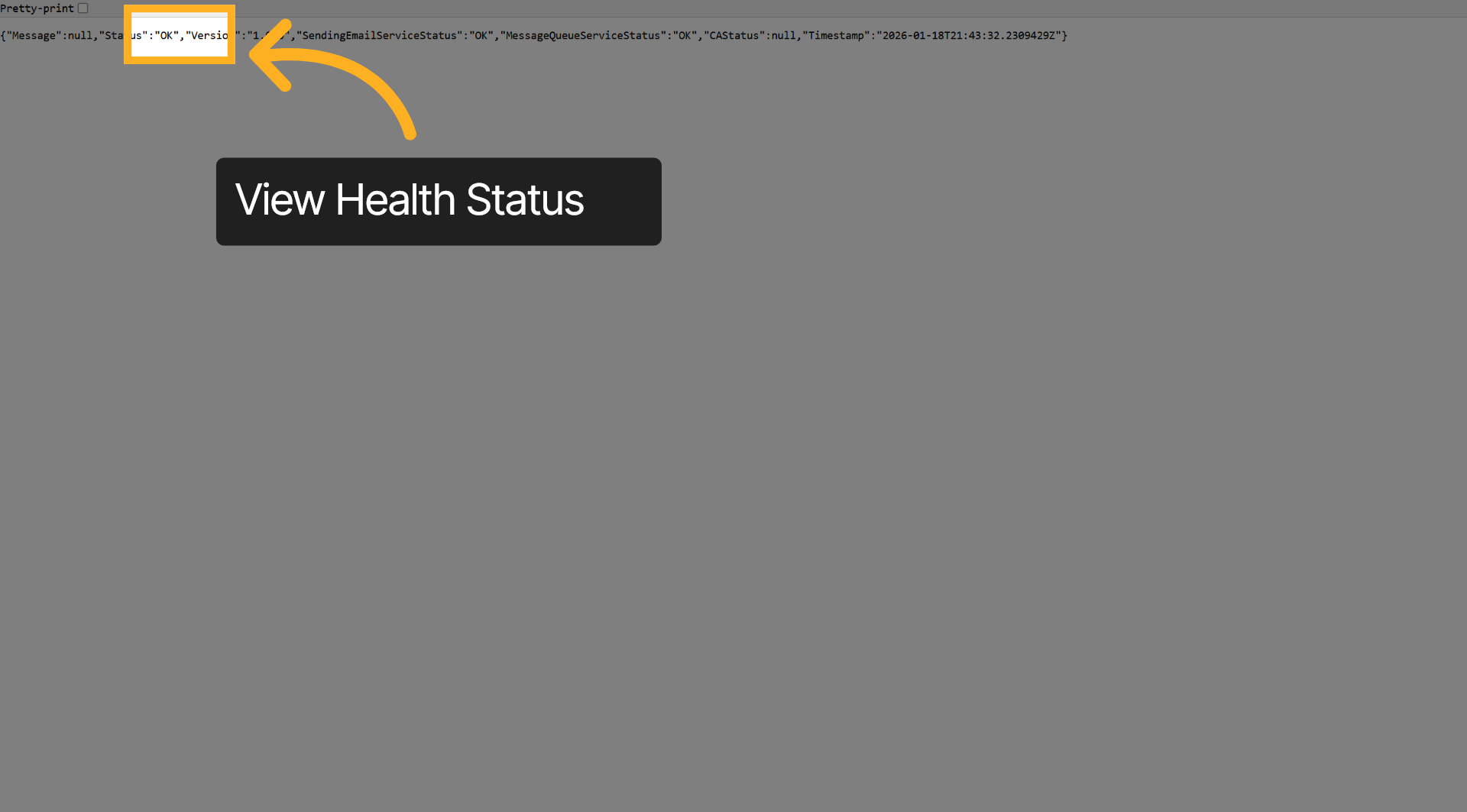
add forward slash health to the URL and hit enter. This should provide the health of the container
You have successfully deployed the Securetron PKI Trust Manager Cert API to Azure Cloud by configuring container settings, registry access, ingress rules, and completing the deployment. The Cert API is used for applications, networks, servers, and devops to automate Certificate Lifecycle Management via SCEP, EST, ACME, and RESTful API. For more information please visit our website at https://securetron.net or contact support.