
Deploy Securetron PKI Trust Manager To Azure Cloud
This tutorial guides you through deploying the Securetron PKI Trust Manager to Azure.
You will configure container settings, environment variables, and ingress to complete the deployment.
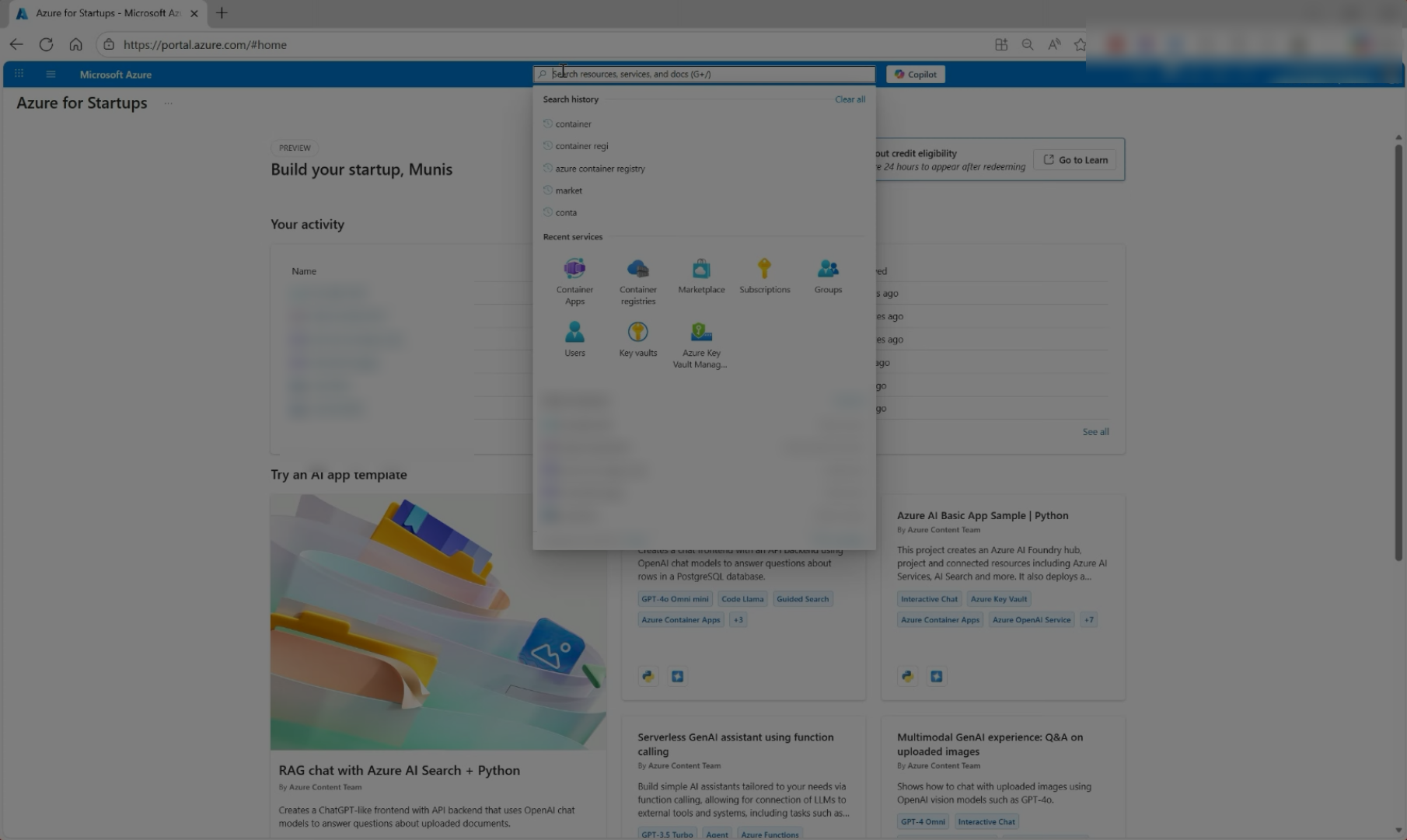
Click the azure search bar and type in Container Apps to access the Container Apps Management Service
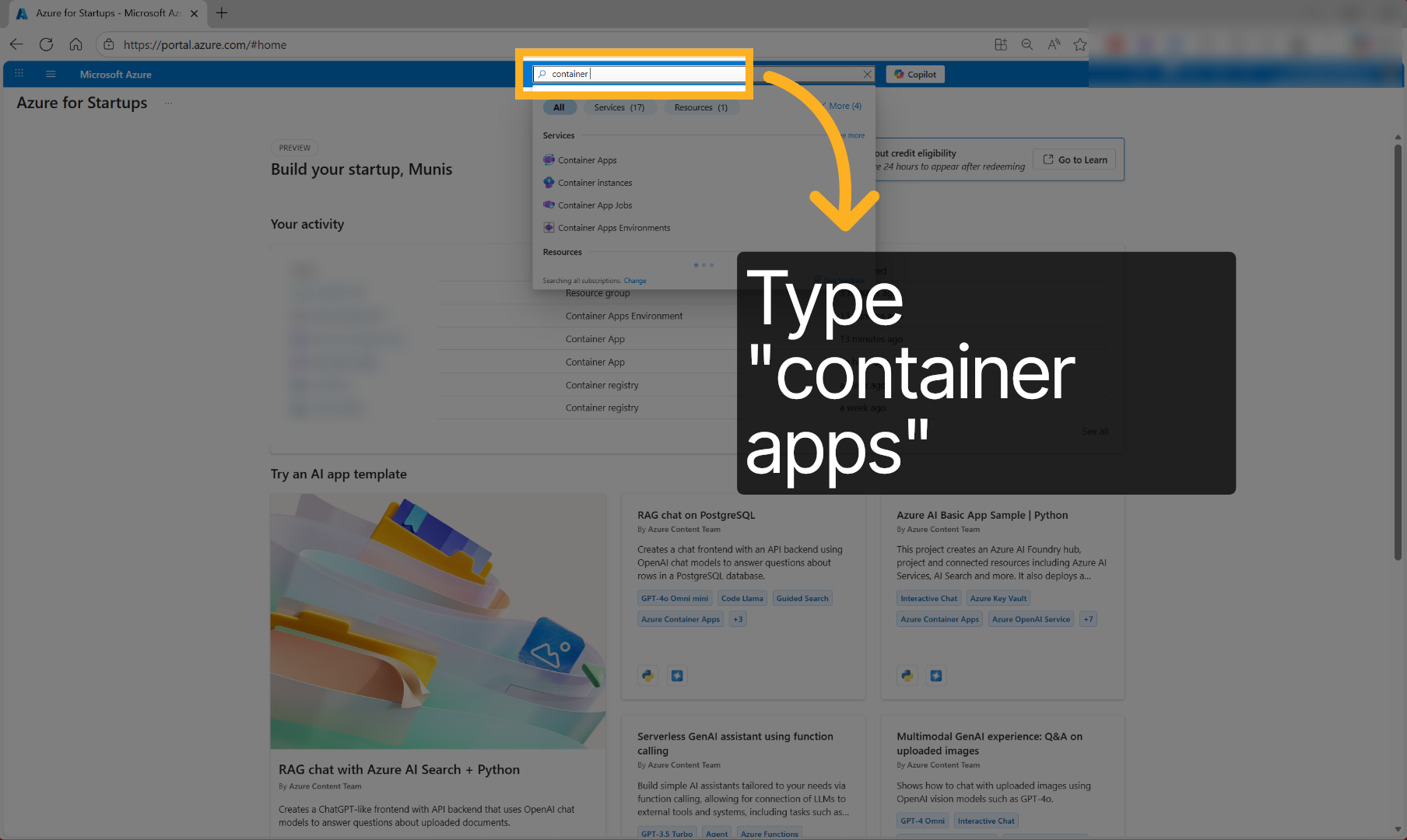
Click Create and then select Container App from the drop-down to deploy new PKI Trust Manager App
Click the container app name to access, its detailed settings and deployment options.
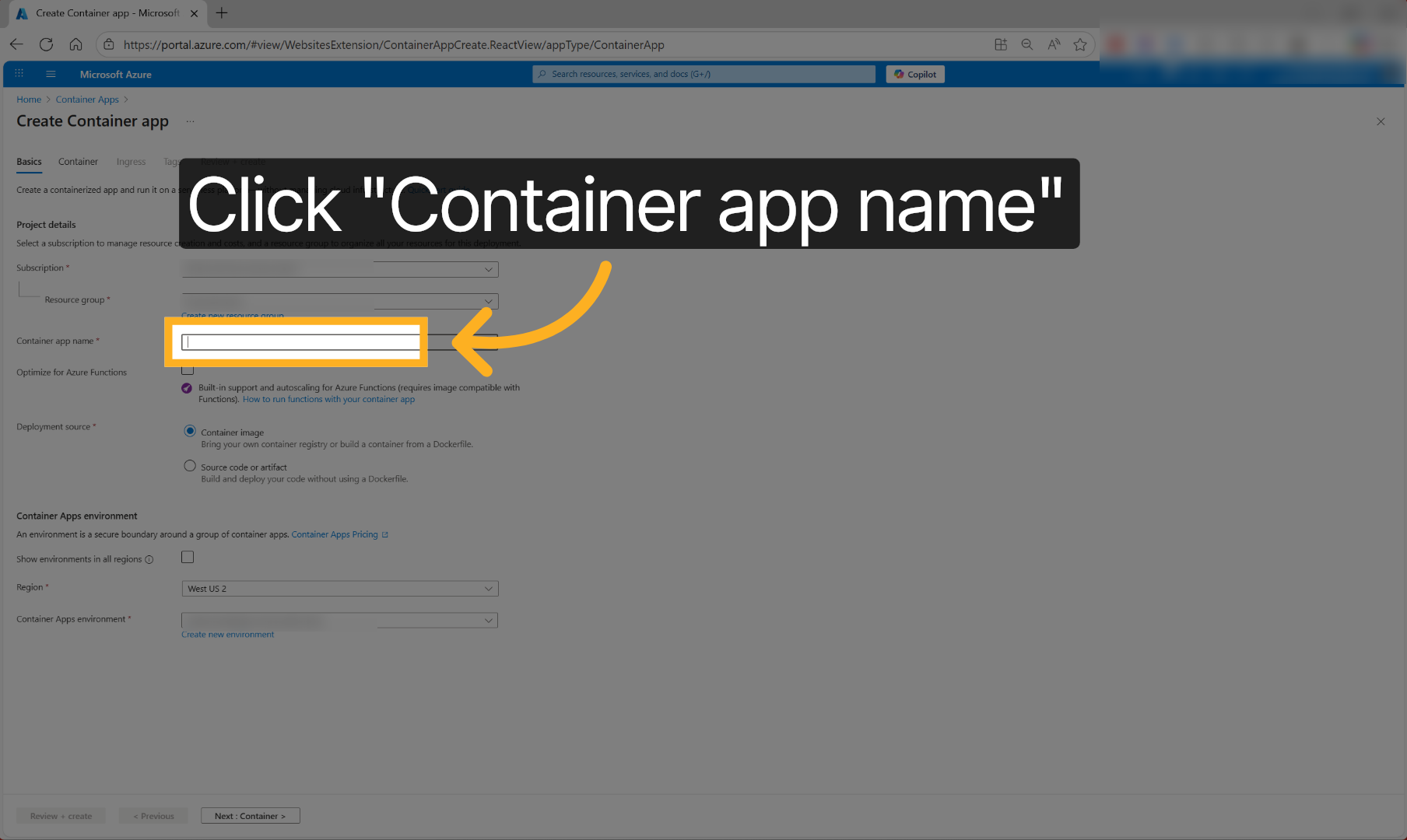
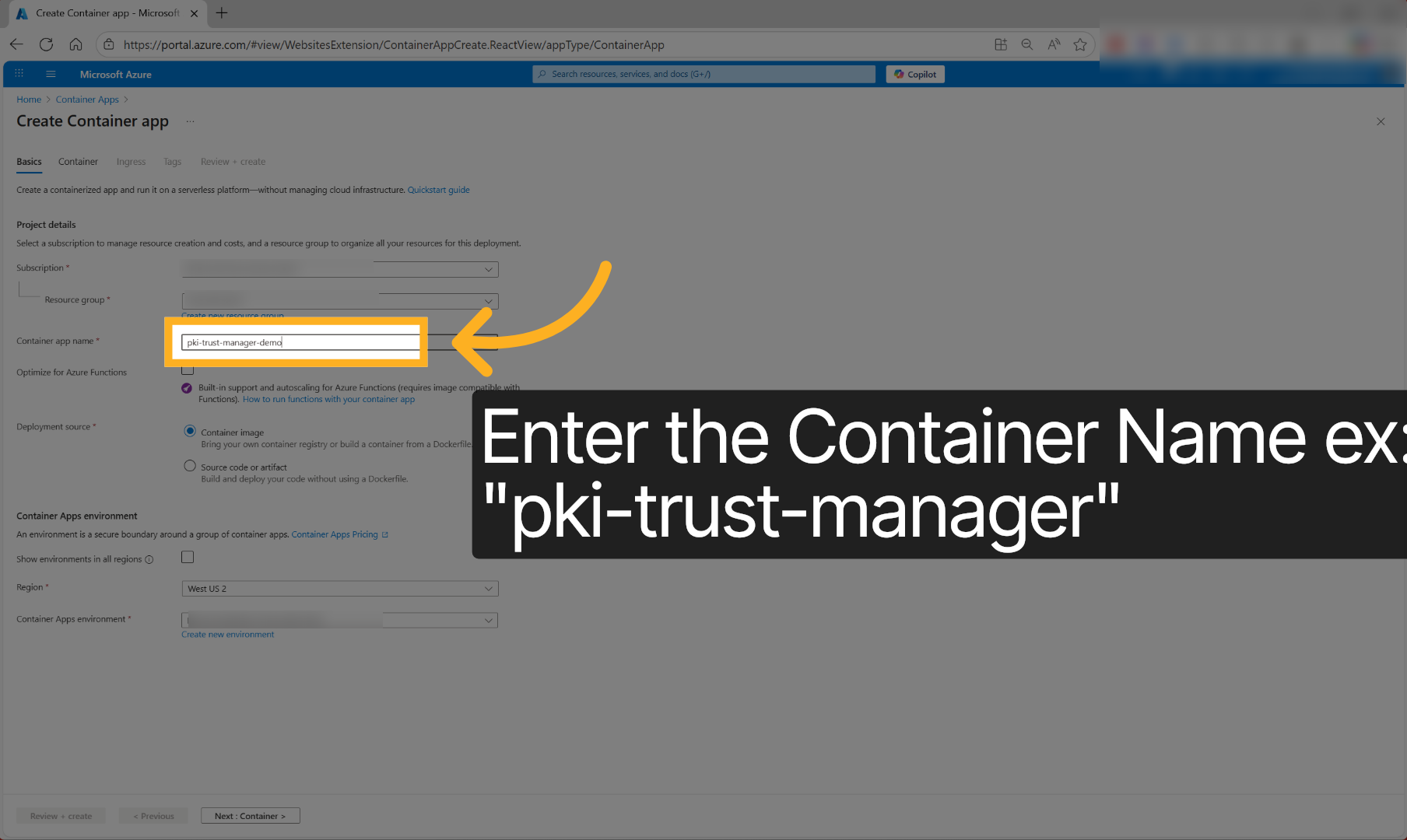
Enter the container app name to identify your deployment, such as ‘pki-trust-manager’.
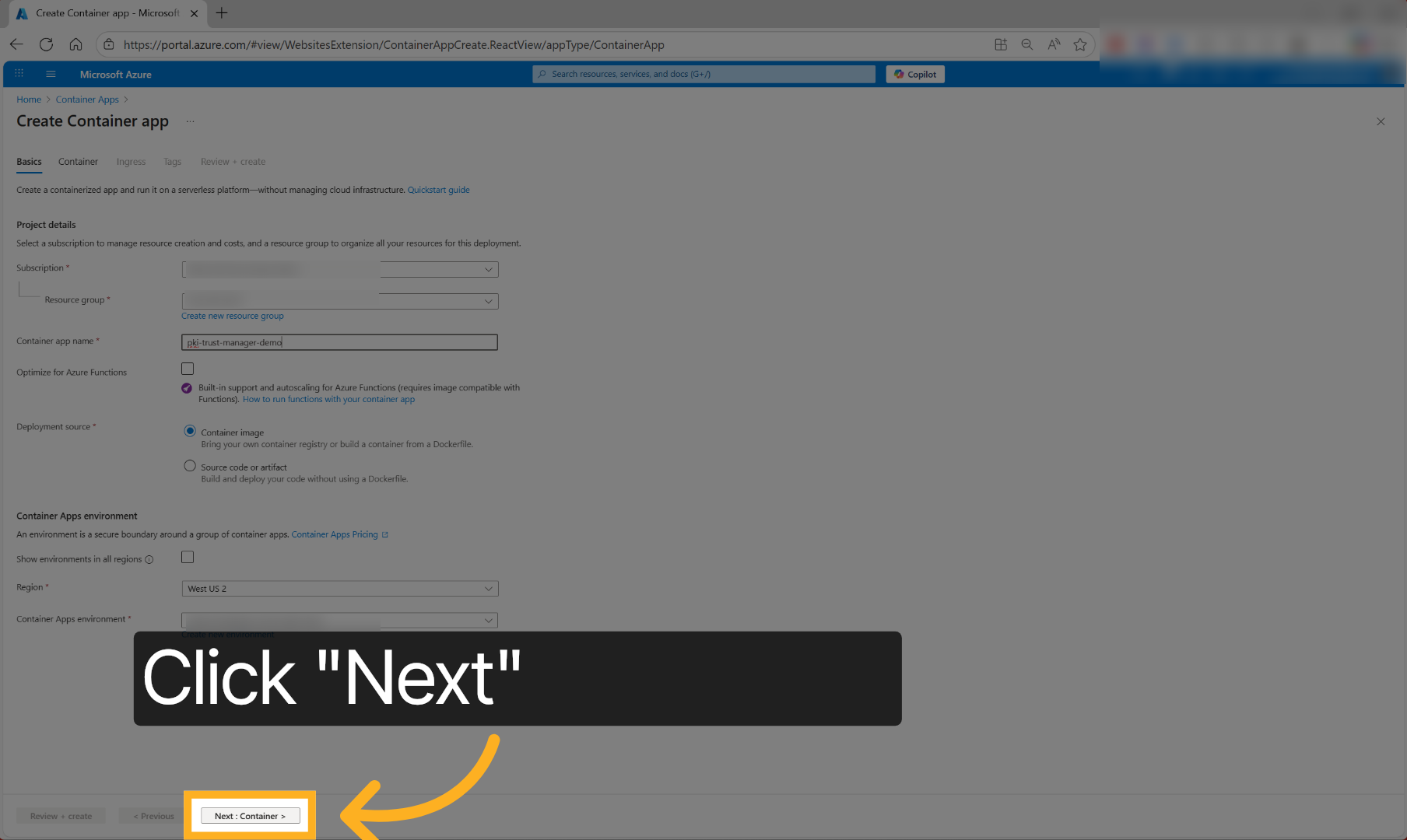
Click ‘Next : Container’ to move forward to configuring container-specific settings.
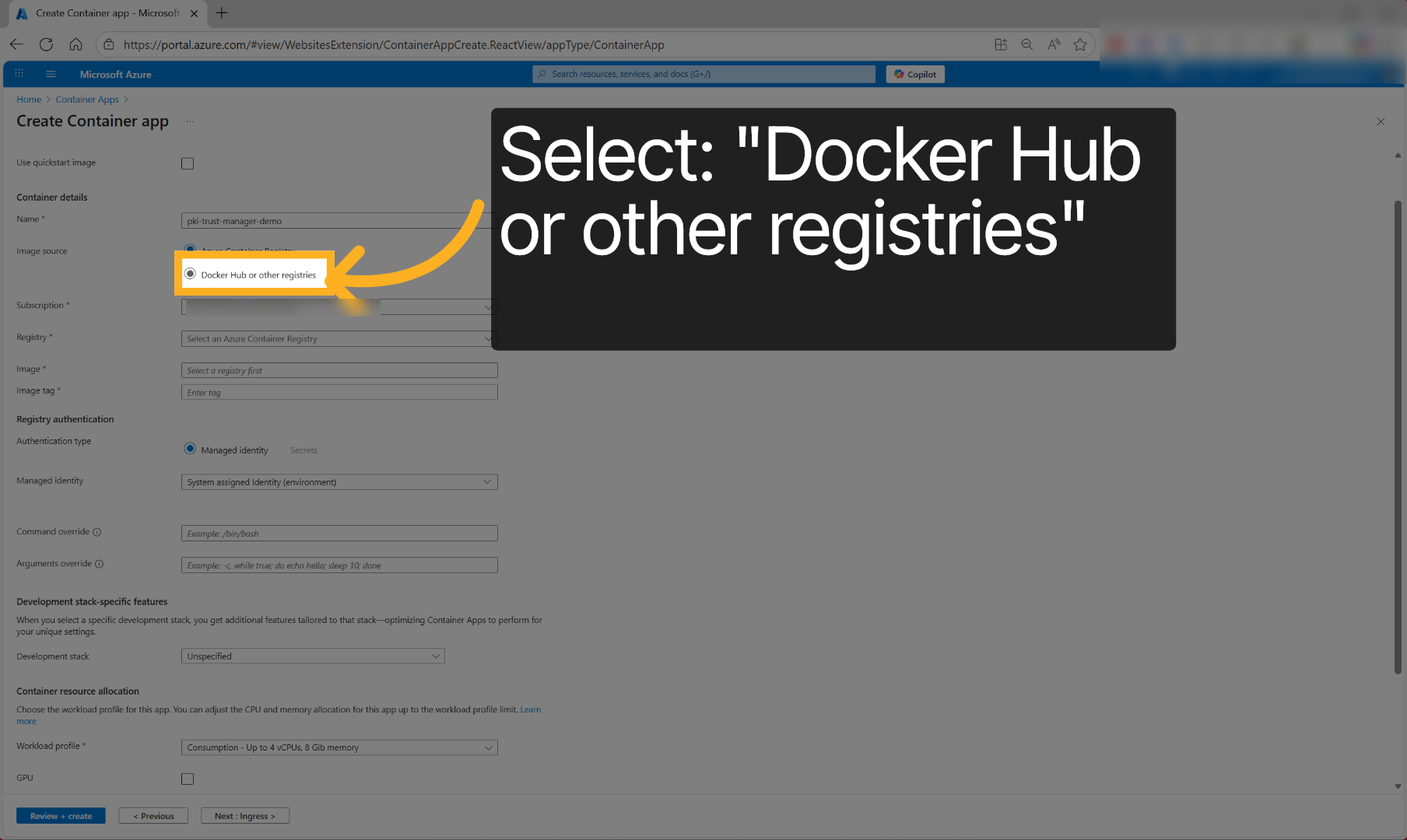
Click image source to specify the container image, that will be deployed.
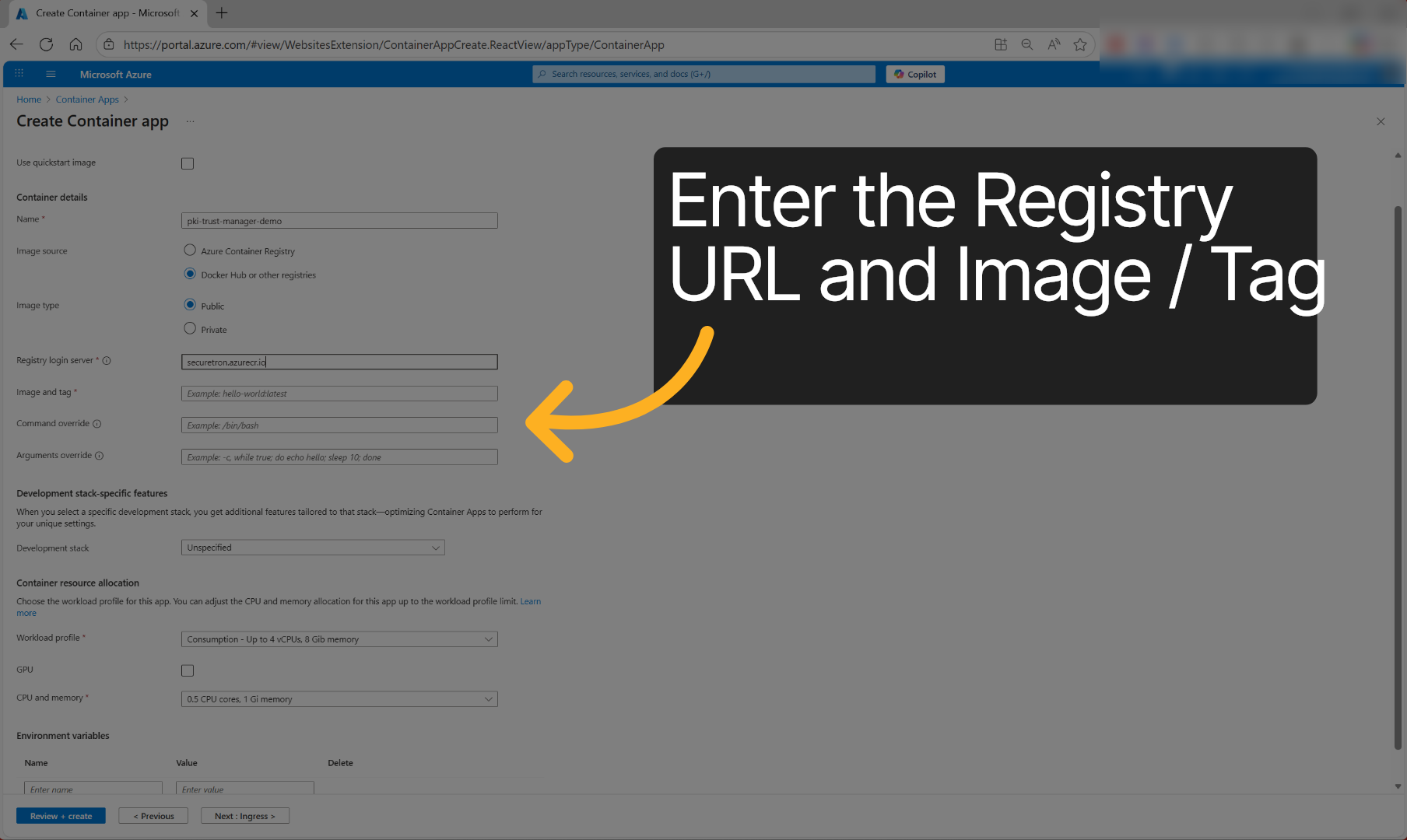
Enter the Registry URL and image tag or version to specify, which container image version to deploy.
- Container Registry URL: securetron.azurecr.io
- Image Name and Tag: pkimain:latest
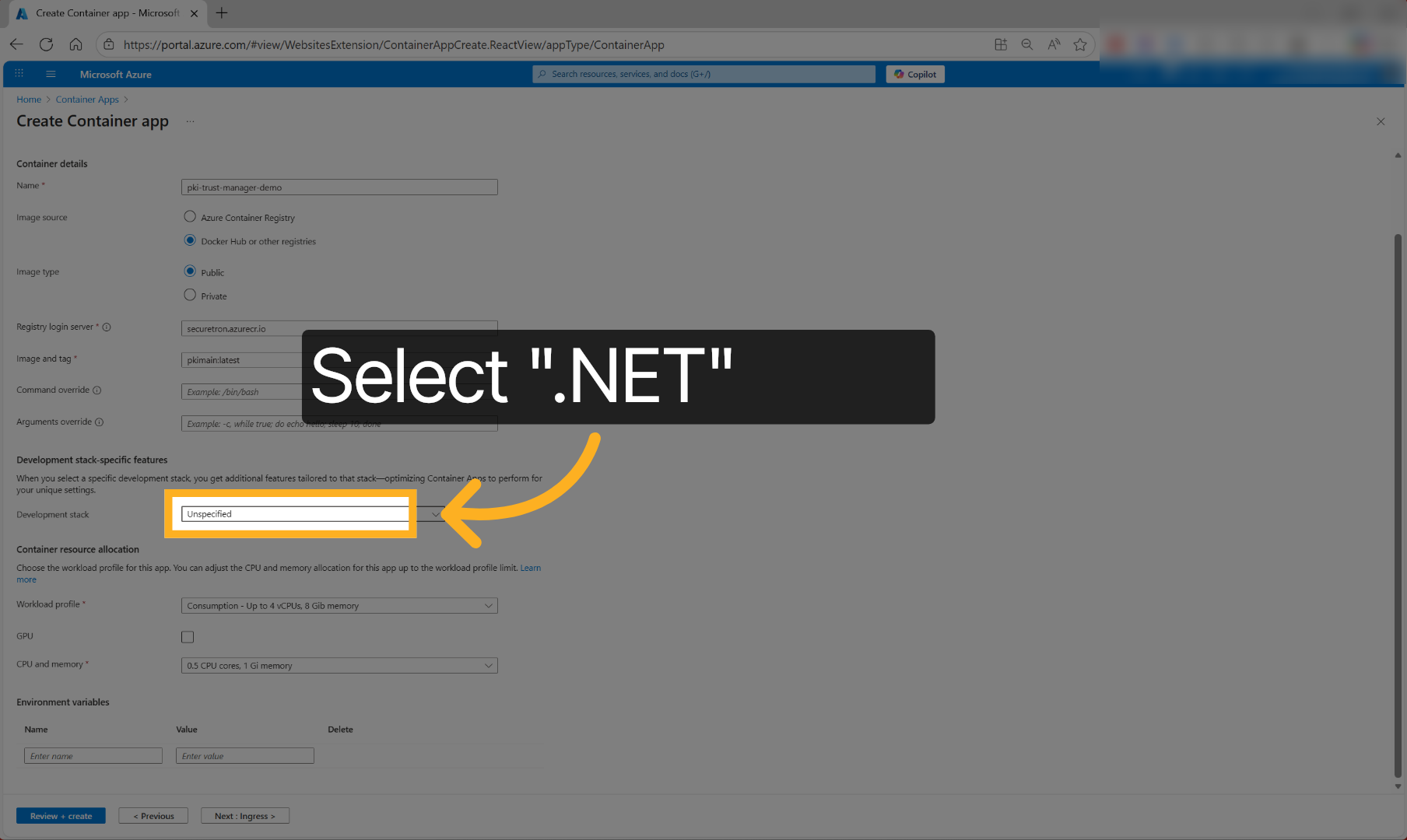
Select .NET Development stack to optimize the container app.
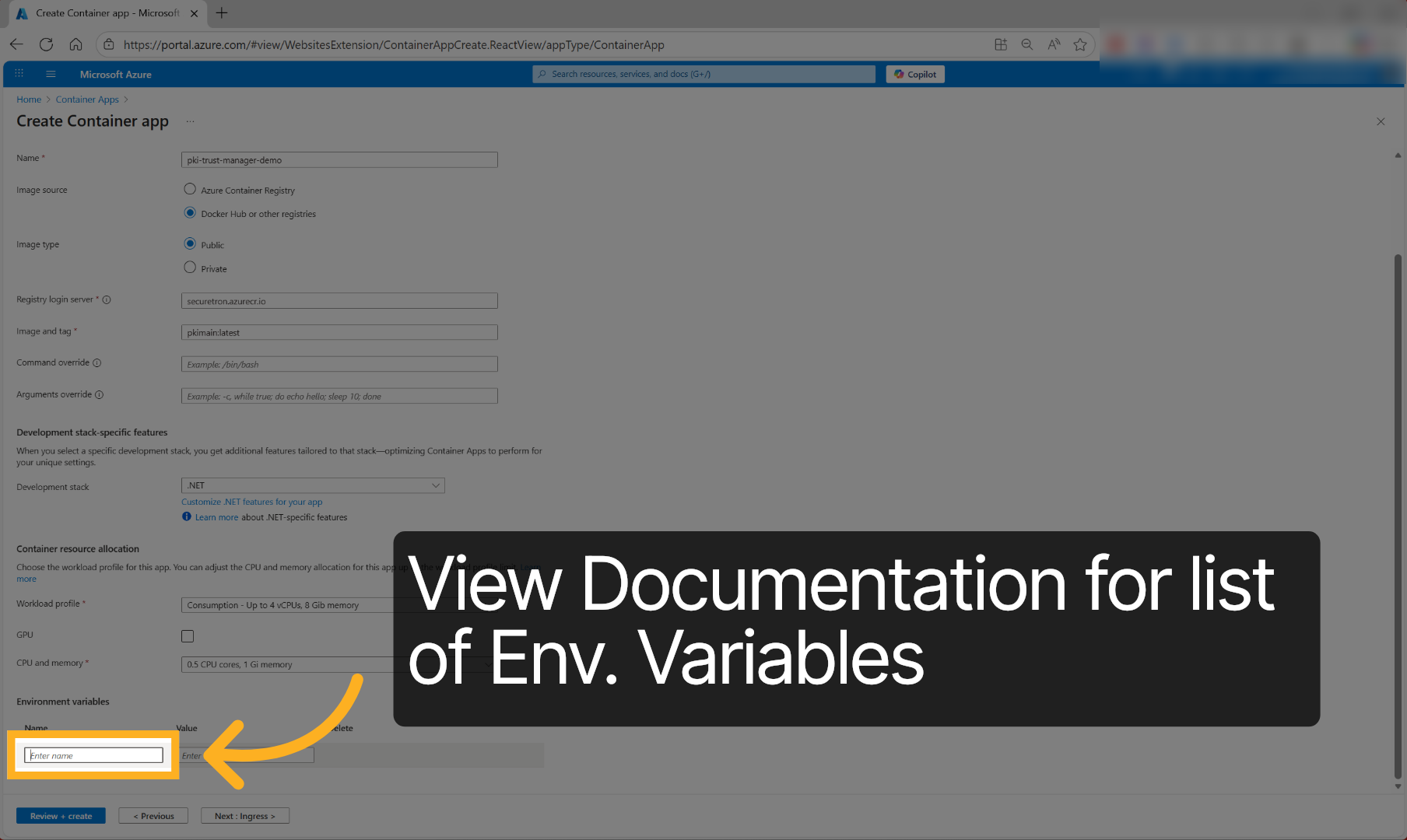
Fill in the environment variable name, such as the initial Admin credentials and DB Connection String to define configuration.
Required
- ADMIN__USERNAME=superadmin
- ADMIN__PASSWORD=YourUniquePassword
- ADMIN__EMAIL=[email protected]
- ConnectionStrings__OurDBContext=Your MSSQL DB Connection String
- Environment__CanMigrateData=True
Recommended
-
Scep__OtpValidityMinutes=525600
-
Licensing__ServerUrl=Check_your_email_or_submit_request_for_license
-
Licensing__ApiKey=Check_your_email_or_submit_request_for_license
-
Licensing__ClientId=CompanyName-PKI-Trust-Manager
-
Licensing__OfflineMode=false
-
Licensing__EnableOnlineValidation=true
-
Smtp__Server=Your_SMTP_Server_FQDN
-
Smtp__Auth=true
-
Smtp__SenderName=PKI-Trust-Manager
-
Smtp__SenderAddress=[email protected]
-
Smtp__ReceiverAddressOnError=[email protected]
-
Smtp__ReceiverAddressOnEvent=[email protected]
-
Smtp__Port=Your_SMTP_Server_Port
-
Smtp__Username=Your_SMTP_Username
-
Smtp__Password=Your_SMTP_Password
-
Smtp__EnableSsl=true
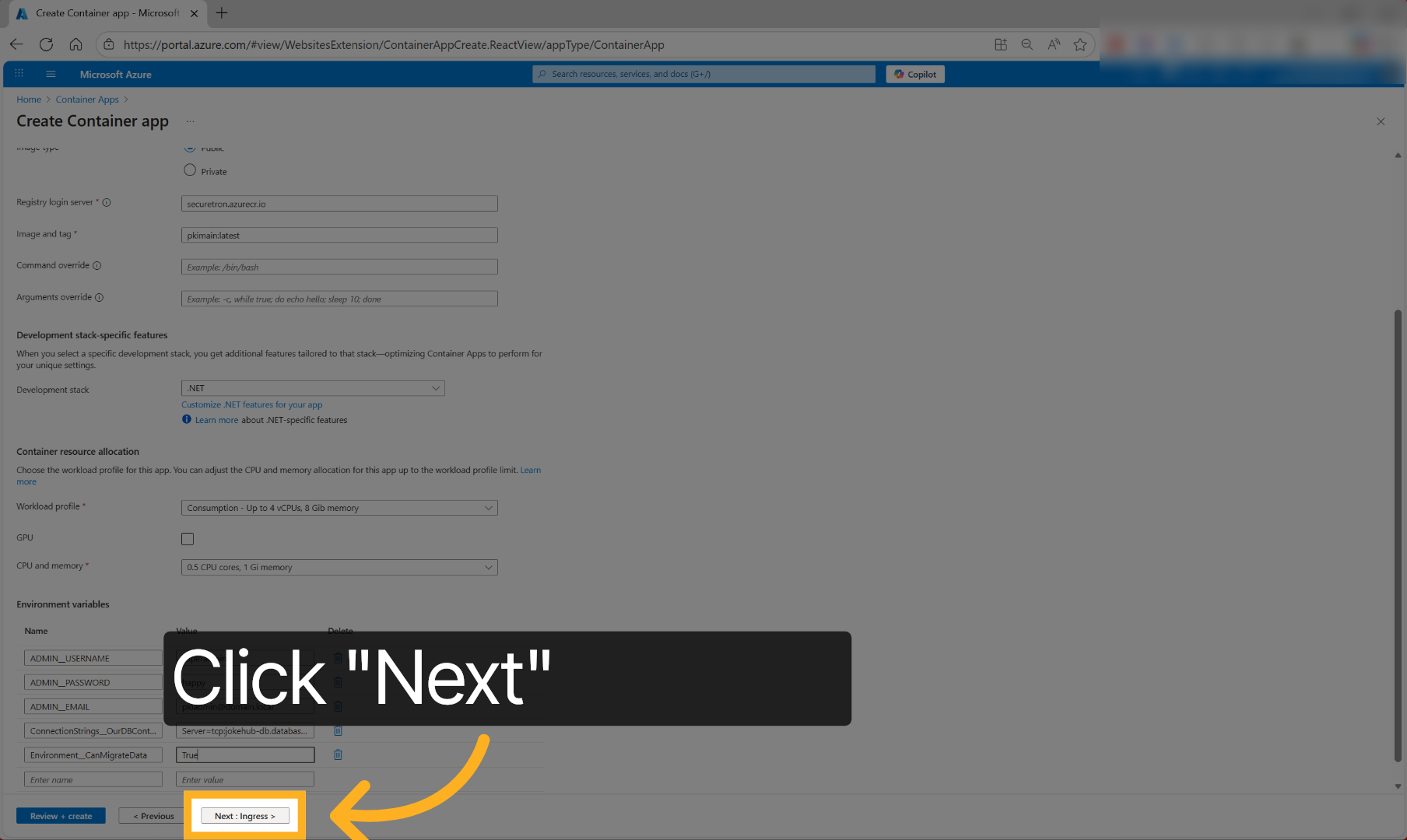
Click ‘Next : Ingress’ to configure network ingress settings for the container app.
Click to access ingress traffic settings to control external access to the container.
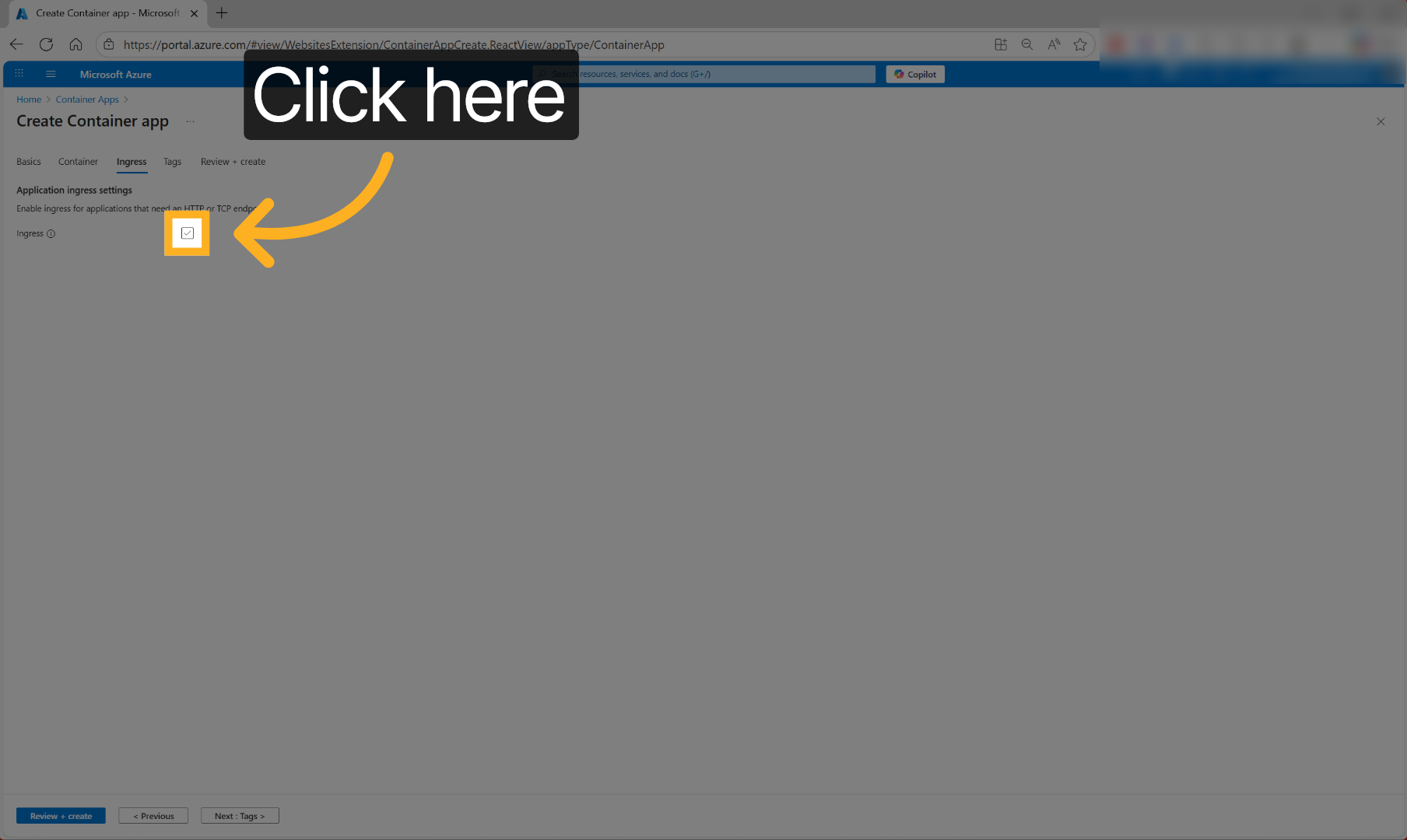
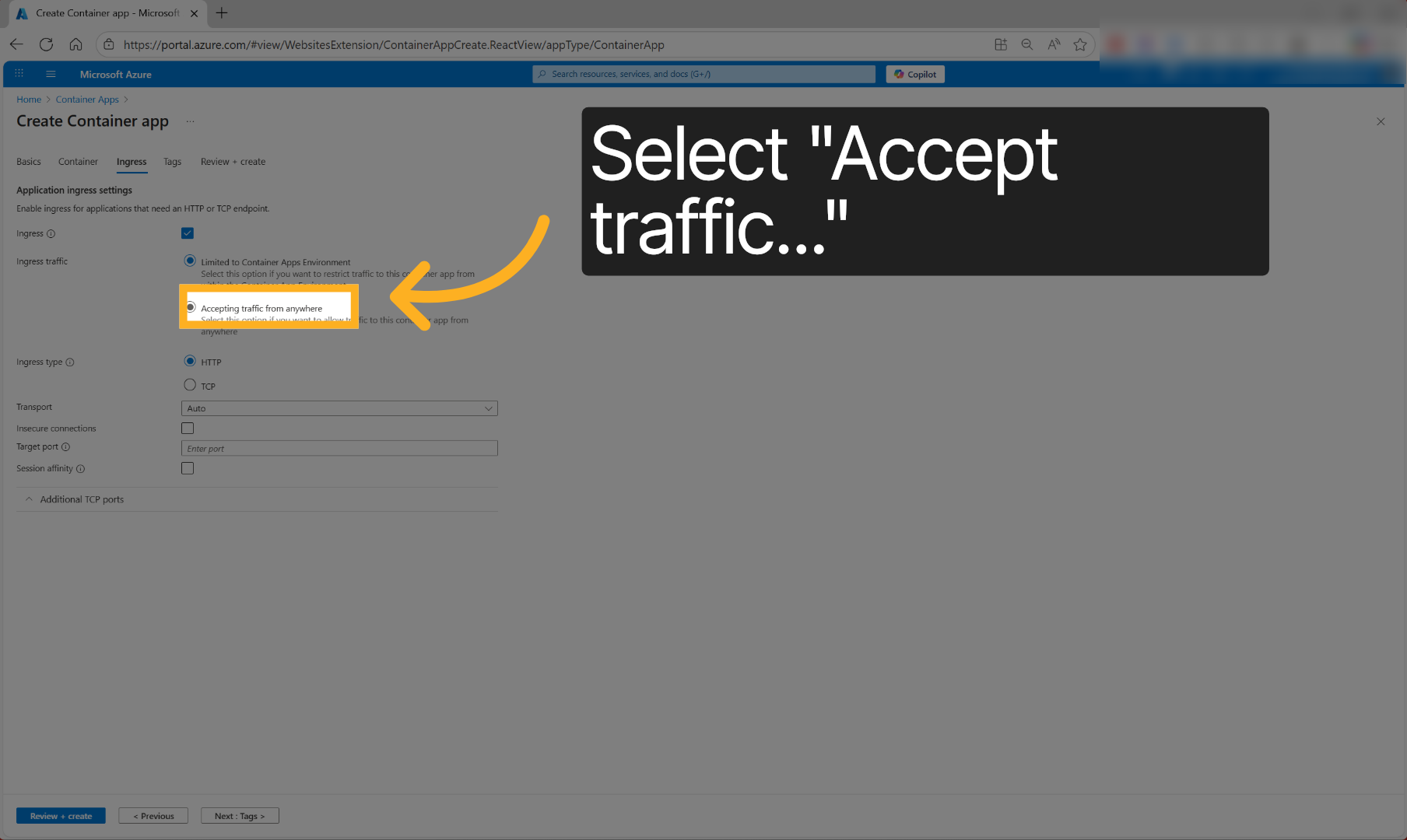
Click ‘Ingress traffic’ to specify how incoming network traffic is handled.
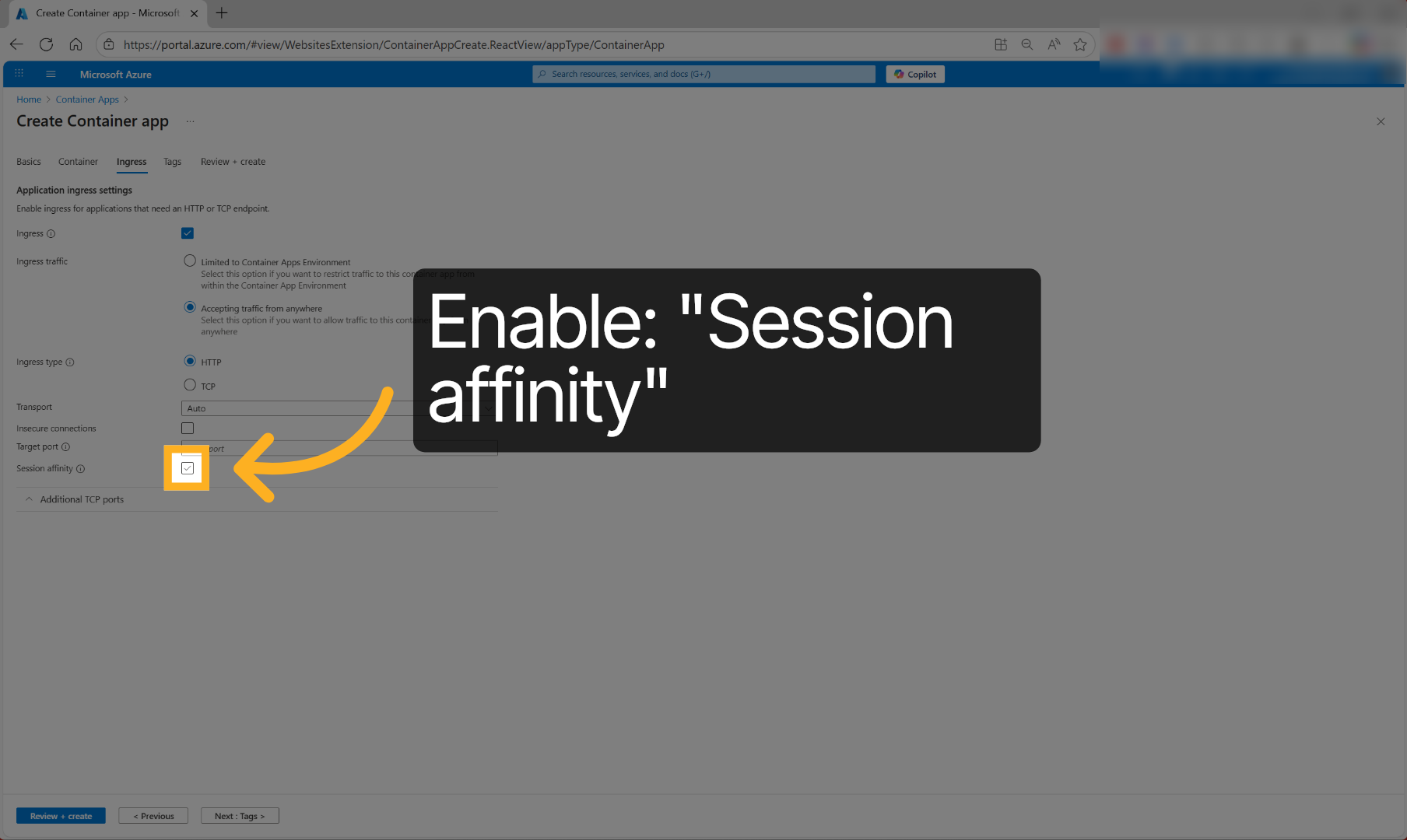
Enable Session Affinity to enable connection persistence.
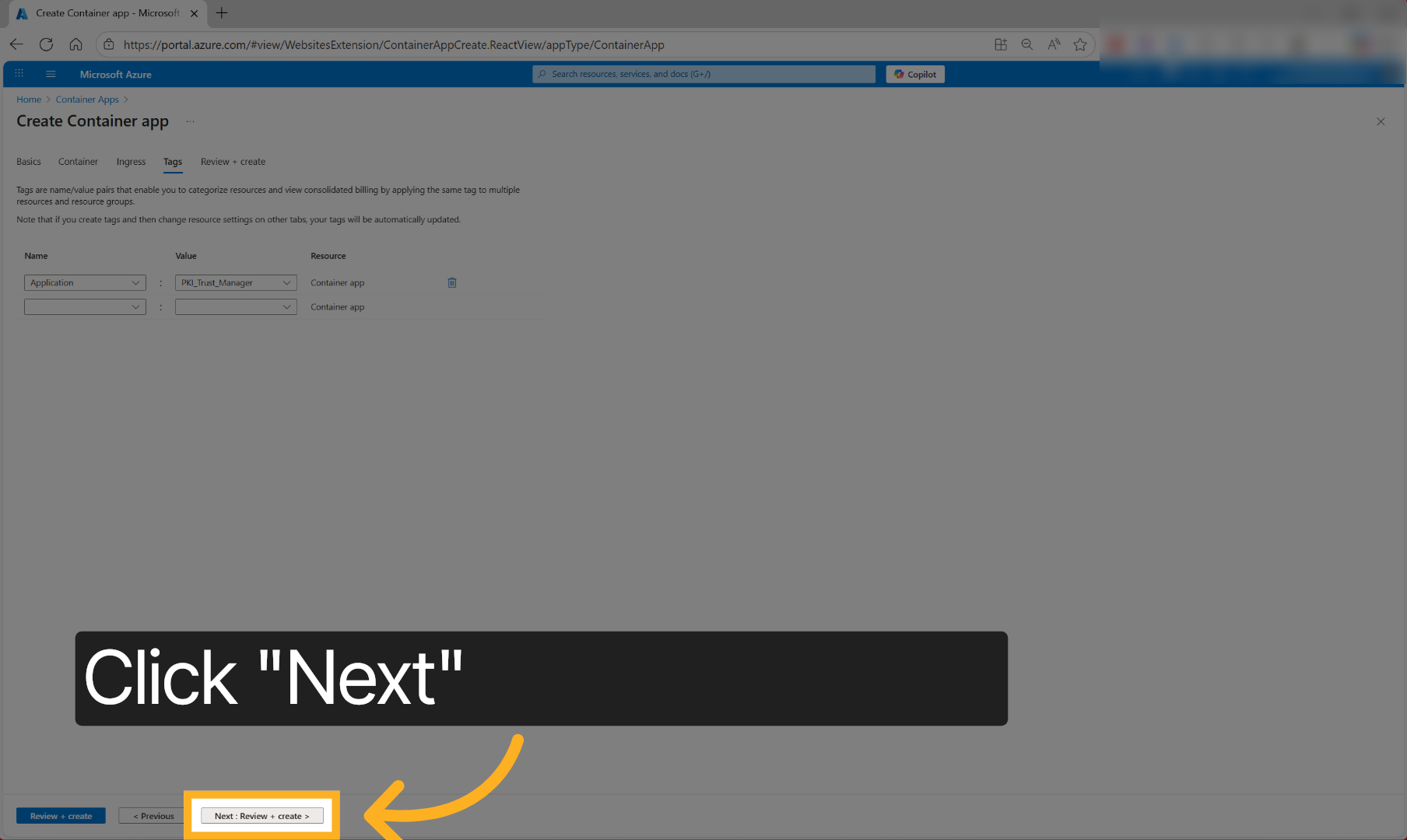
Click ‘Next’ to add metadata tags to your container app deployment.
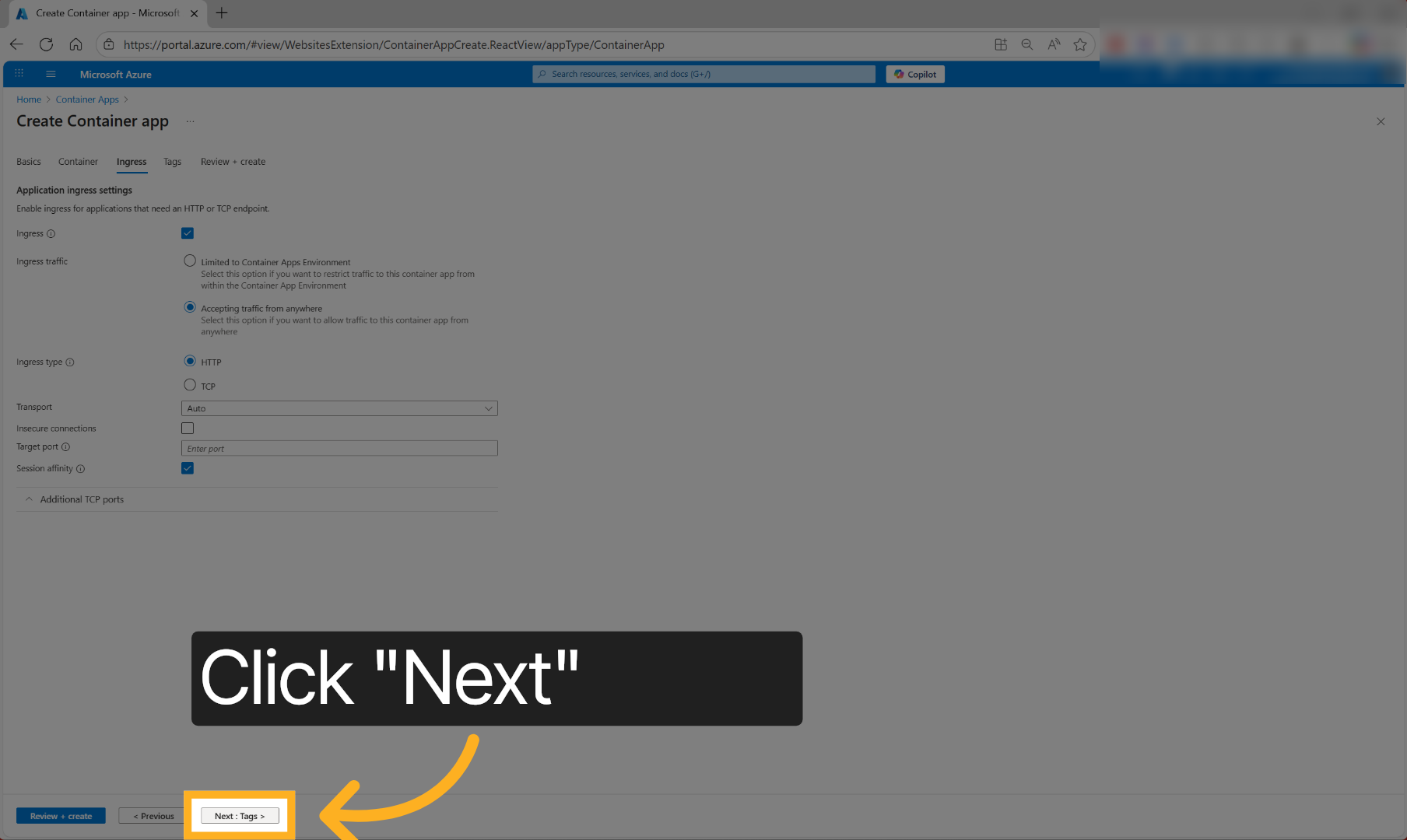
Click ‘Next ‘ to review your configuration before deployment.
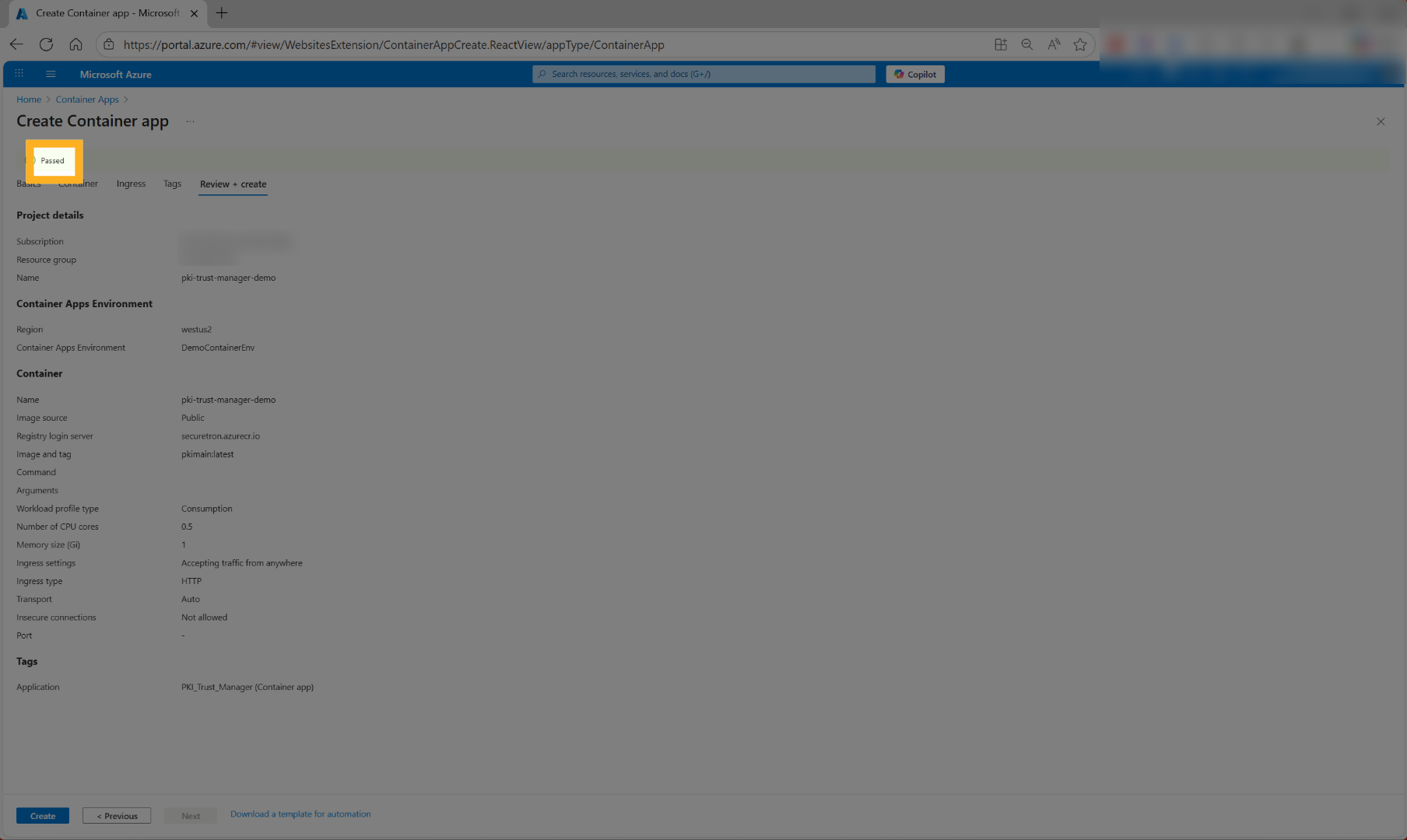
The container settings will be verified and “Passed” if no issues are found
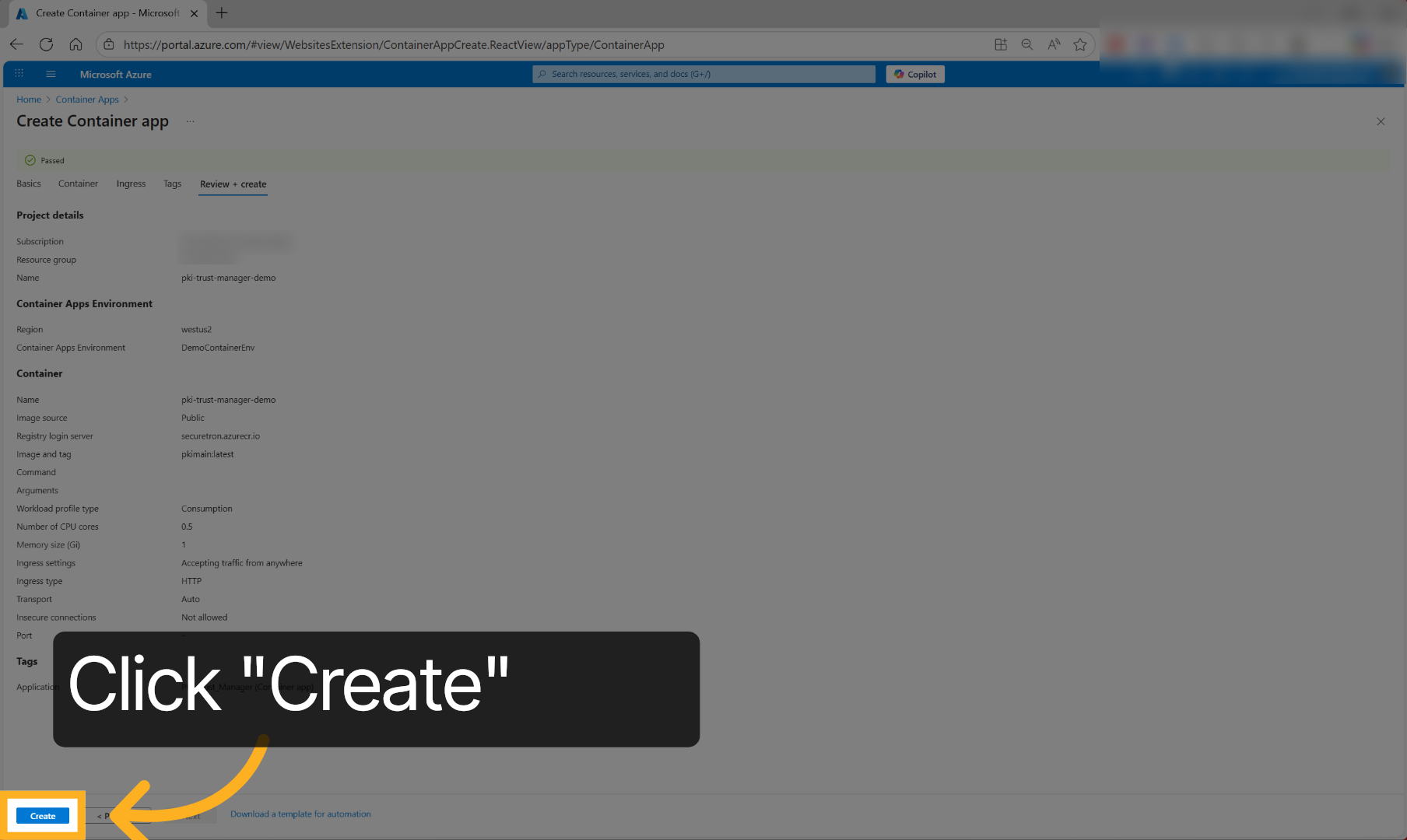
Click ‘Create’ to initiate the deployment of your PKI Trust Manager container app.
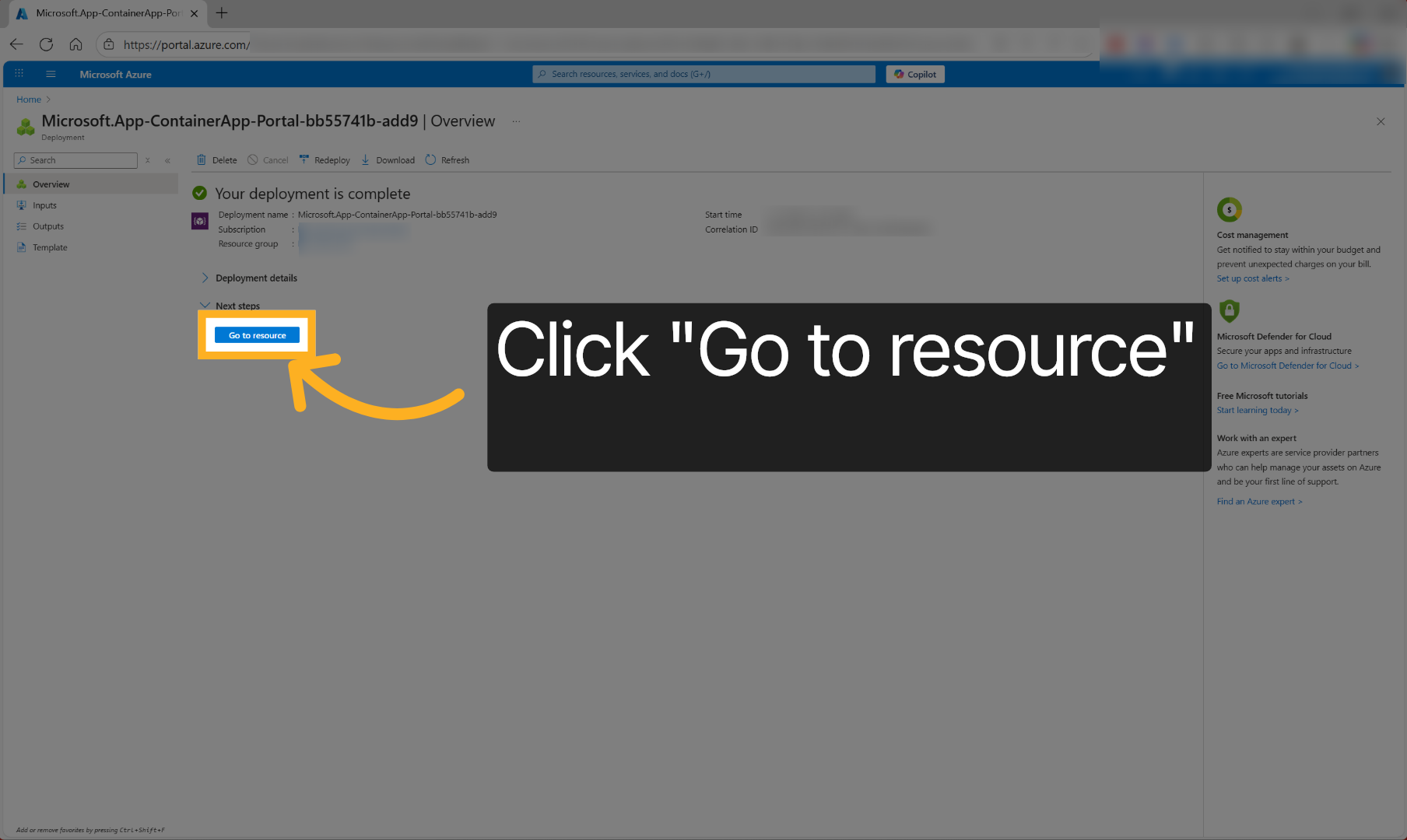
You should see that the Deployment of the Container App is completed successfully
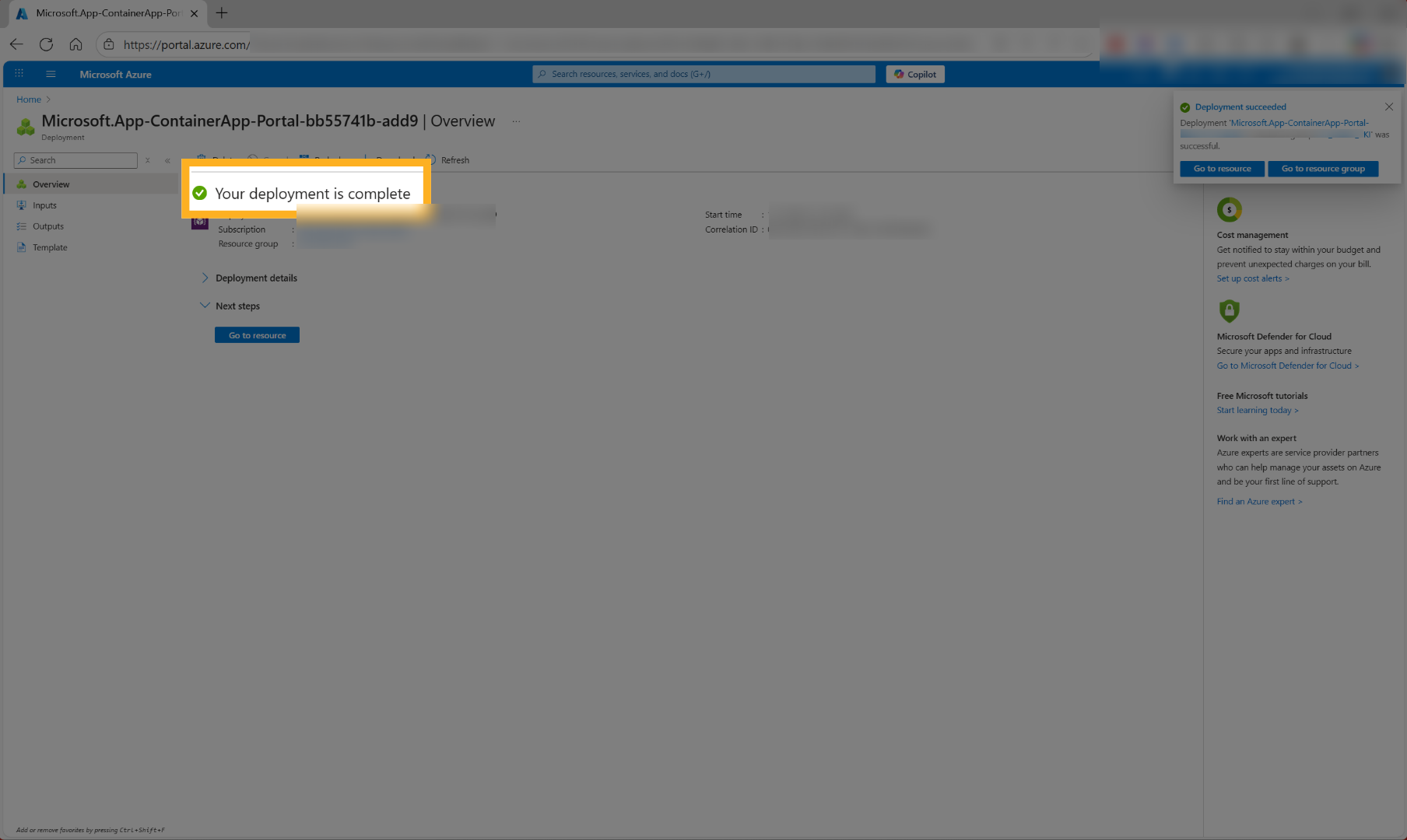
Click ‘Go to resource’ to access the deployed container app’s resource page.
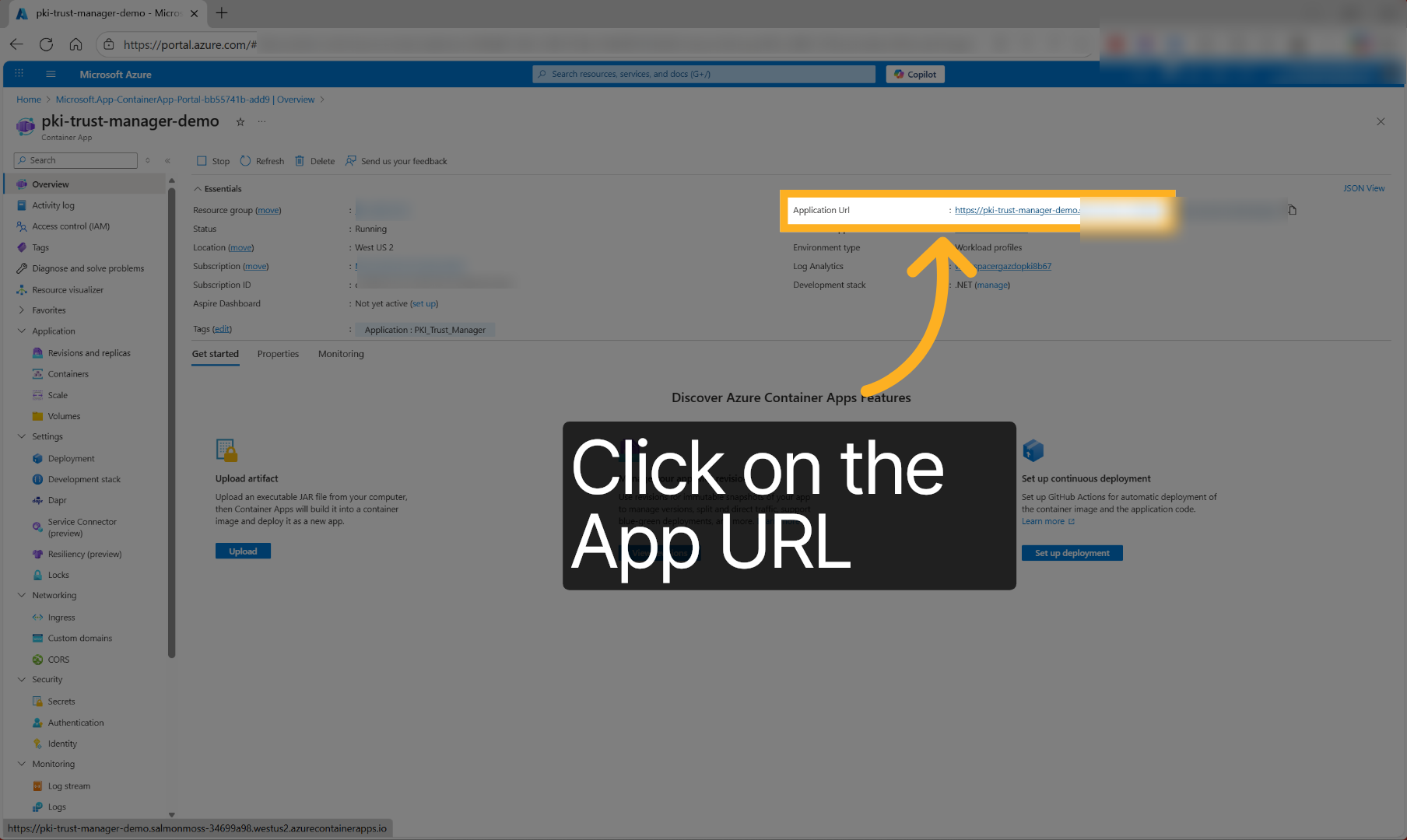
Click the Application URL to open the pki trust manager, web application in your browser.
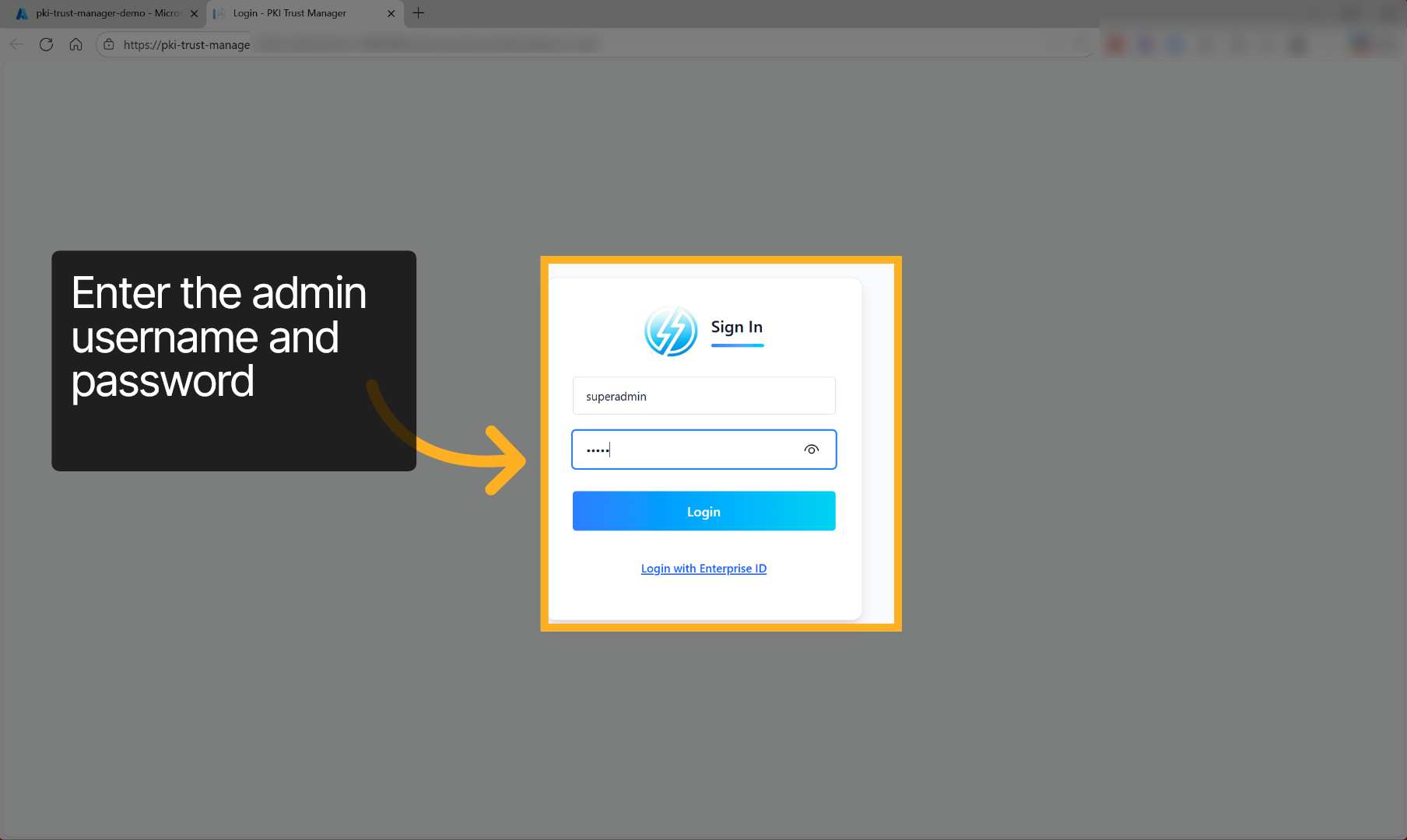
Enter your username and password as defined in the environment variable to log into the pki trust Manager application and click login
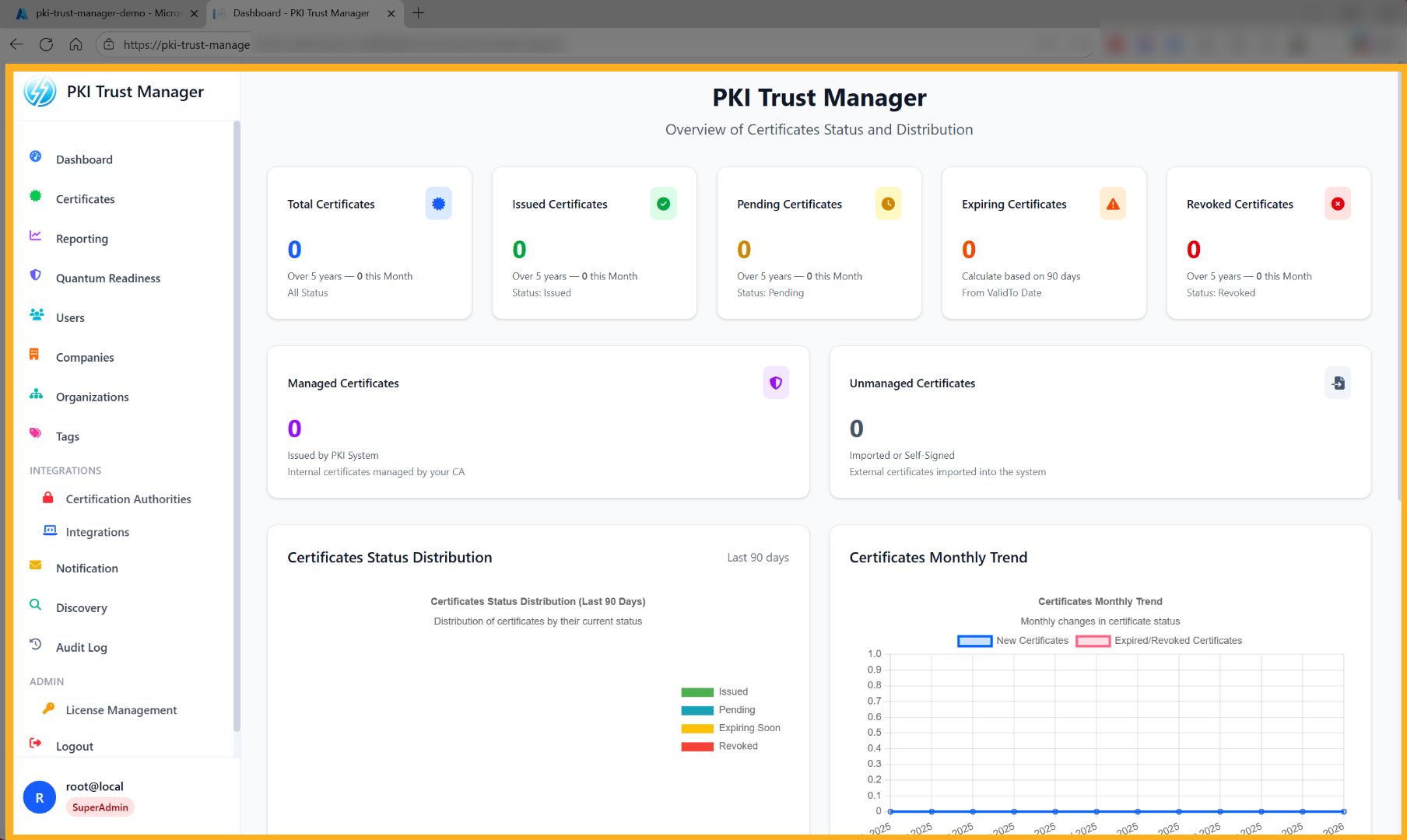
You will see the PKI Trust Manager Main Dashboard. Congratulations!, You have successfully deployed the PKI Trust Manager to Azure.
Thank you for using the Next Generation of Certificate Management System by Securetron – PKI Trust Manager. For more information, support, and additional tools, please visit our website.