
Integrate Intune with PKI Trust Manager to issue Certificates
This tutorial guides you through fully integrating PKI Trust Manager and Intune to issue certificates to users or devices. The PKI Trust Manager’s Intune Integration service should be used instead of Microsoft Network Device Enrollment Service. You will learn how to navigate the interface and configure necessary certificate templates for successful setup.
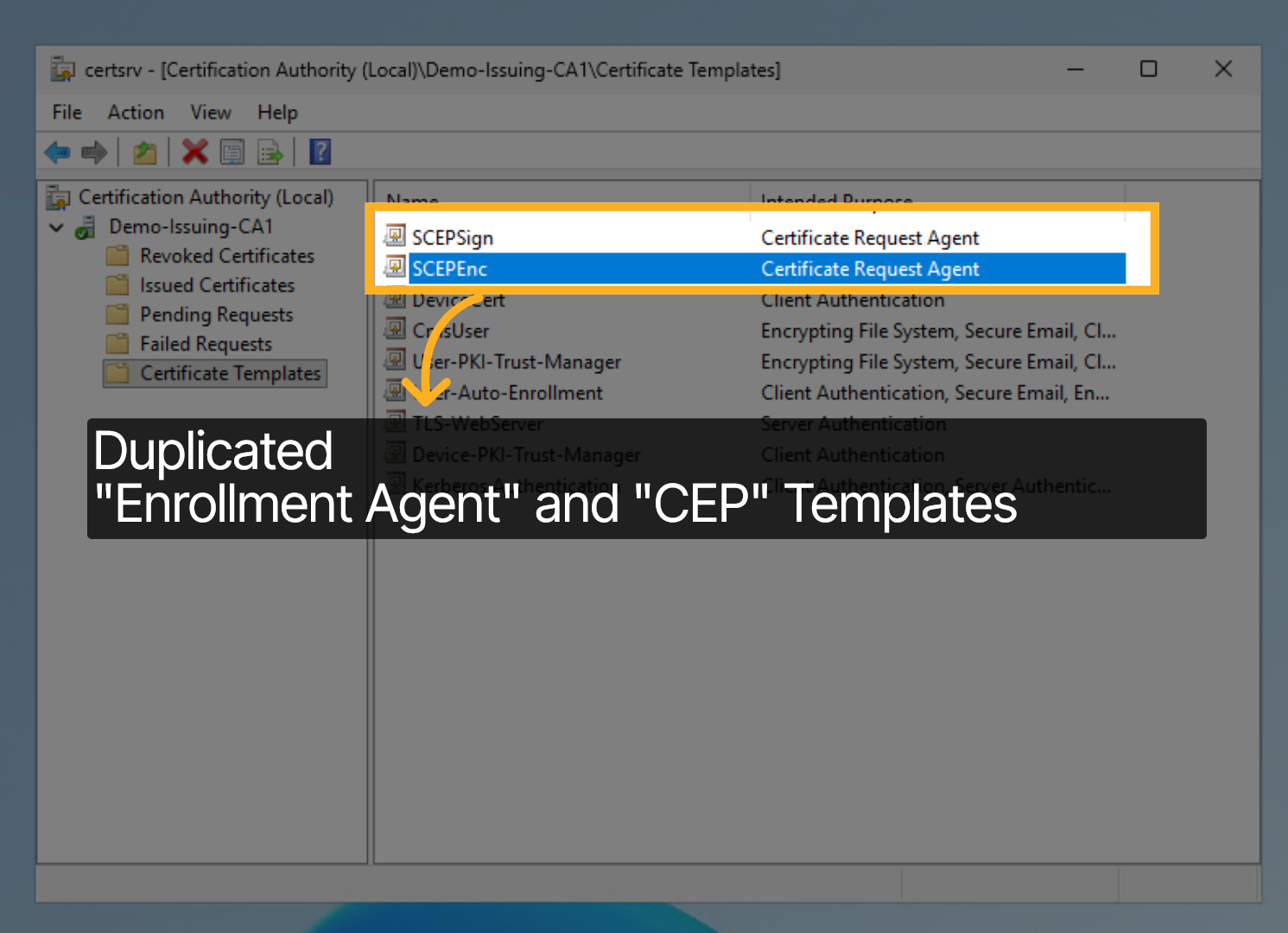
Let us begin at the ISSUING Certification Authority that has been previously integrated with PKI Trust Manager using the CA Proxy Gateway. We will Duplicate the “Enrollment Agent” and “CEP” Templates while granting the CA Proxy Gateway Service account Read and Enroll Permissions. In our demo the duplicated templates are named: SCEP-Sign and SCEP-ENC
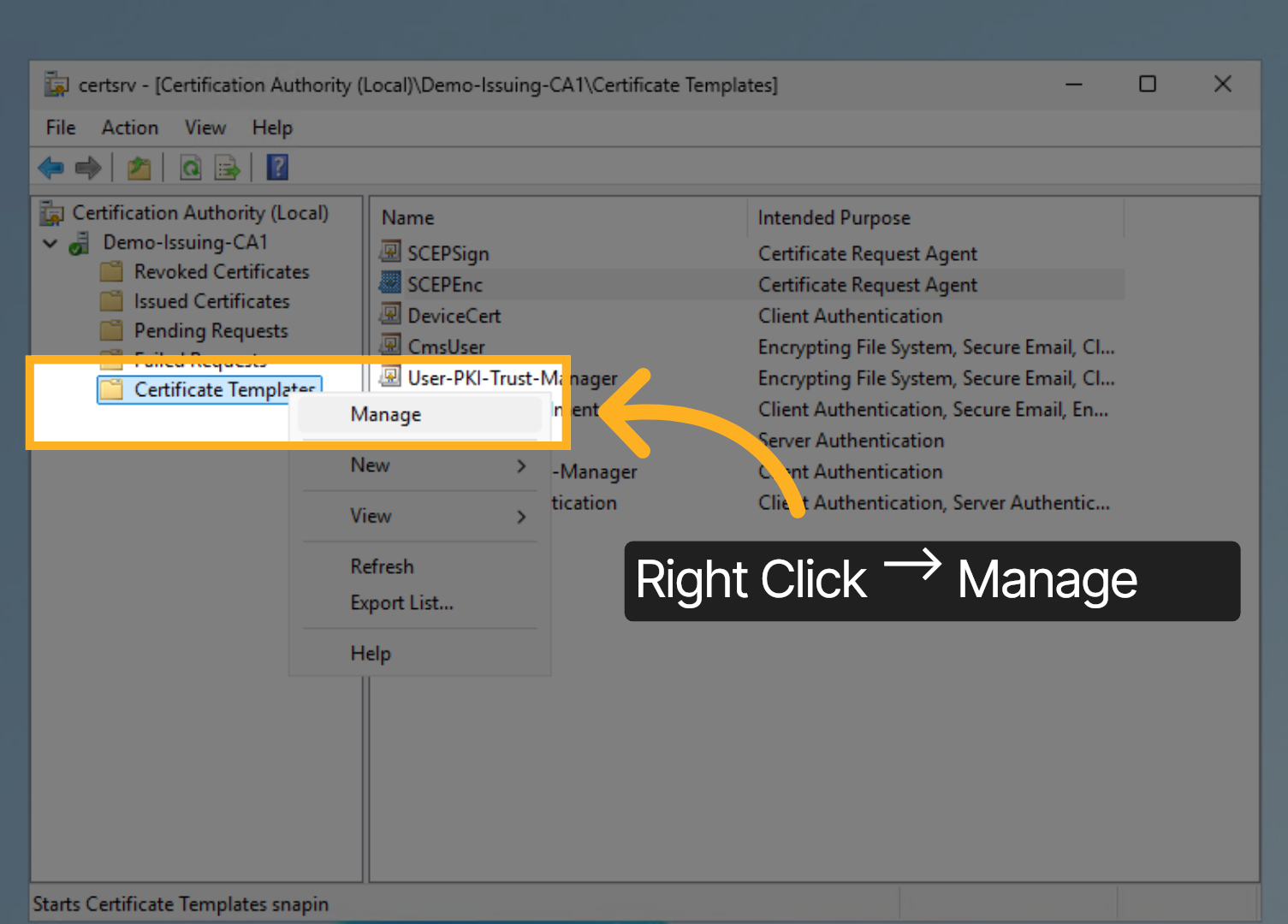
Let us take a closer look. Right Click on Certificate Templates and then click on Manage.
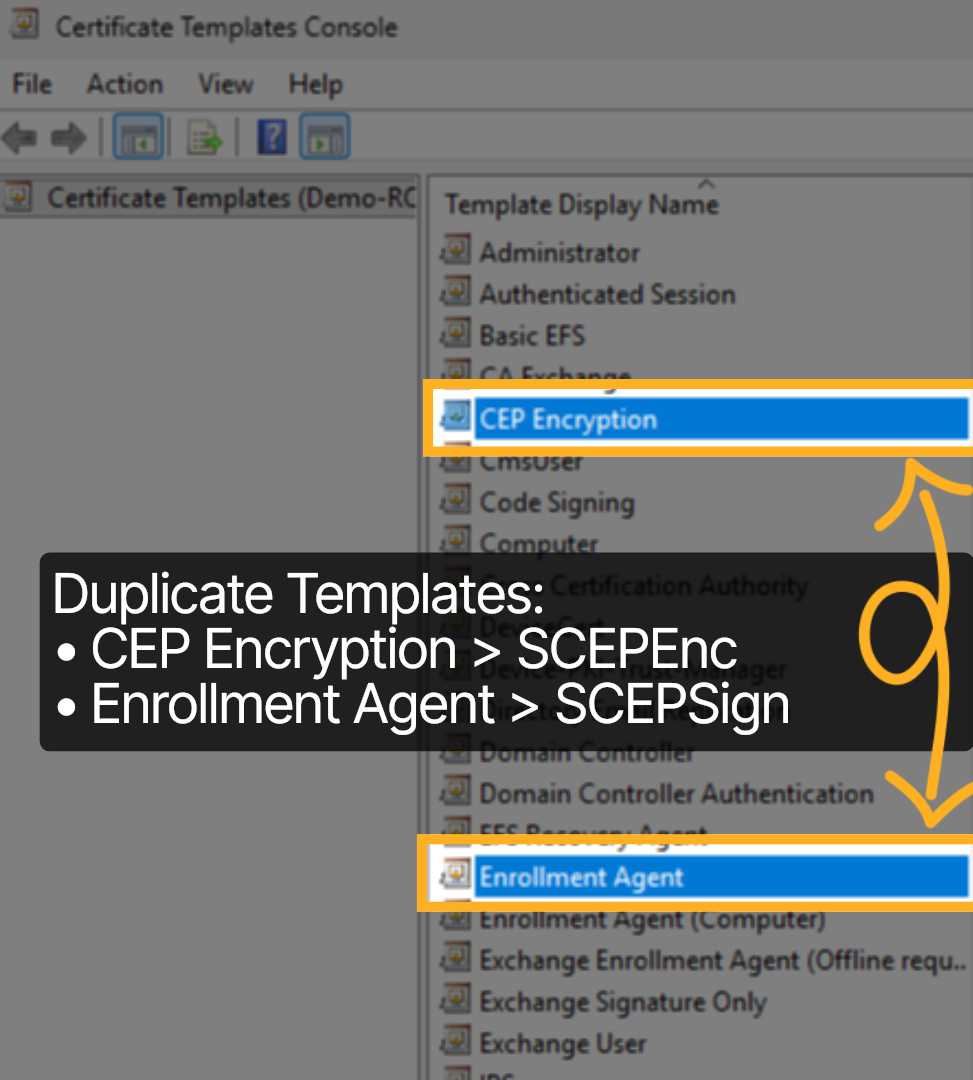
Duplicate the CEP Encryption Template as well as the Enrollment Agent Template and name them SCEP-ENC and SCEP-Sign respectively
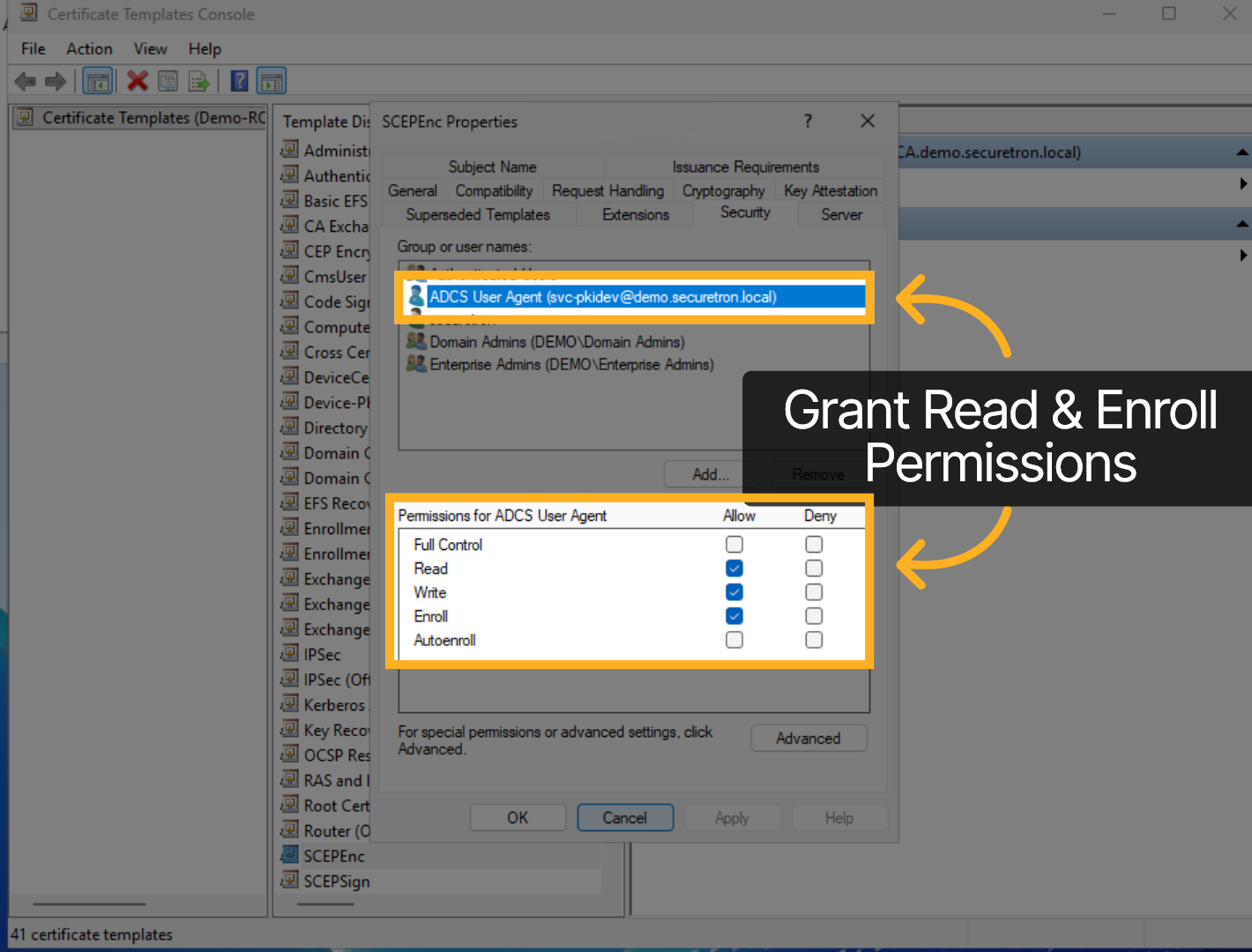
Ensure that the both duplicated templates grant the PKI Trust Manager CA Proxy Gateway service account Read and Enroll Permissions.
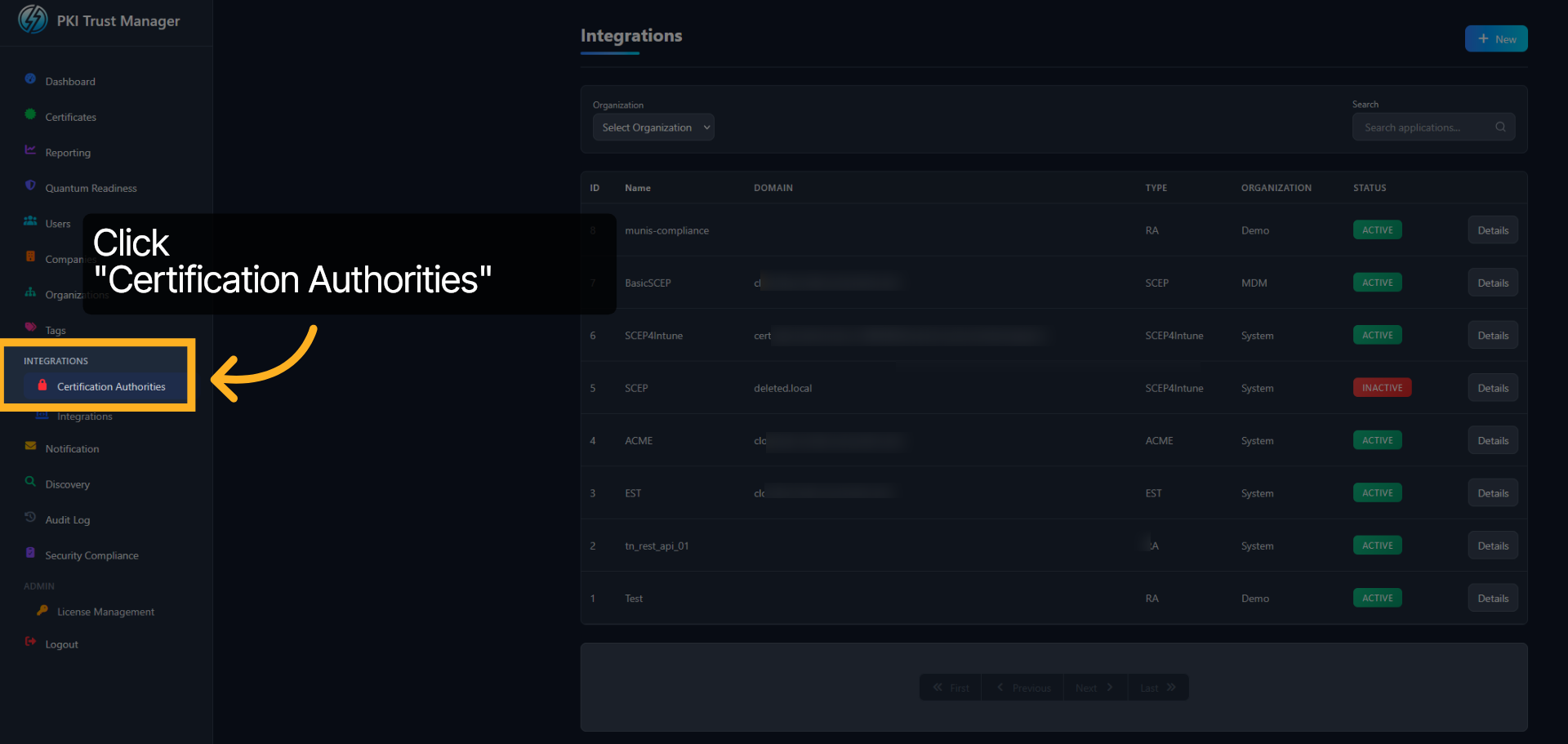
Now, over on the PKI Trust Manager Web Admin, Click on Certification Authorities.
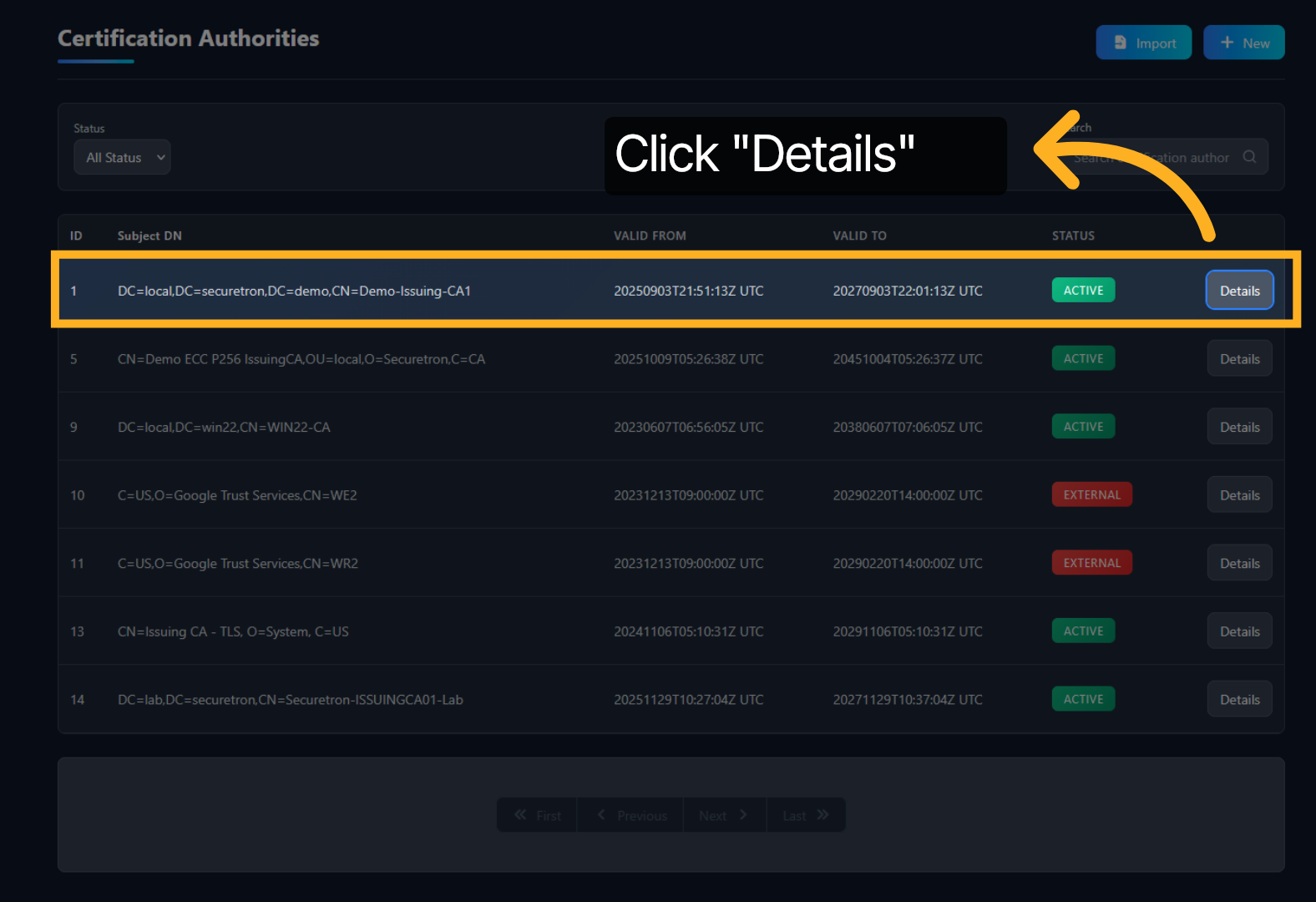
Click Details to access the Certification Authority which will be used for SCEP.
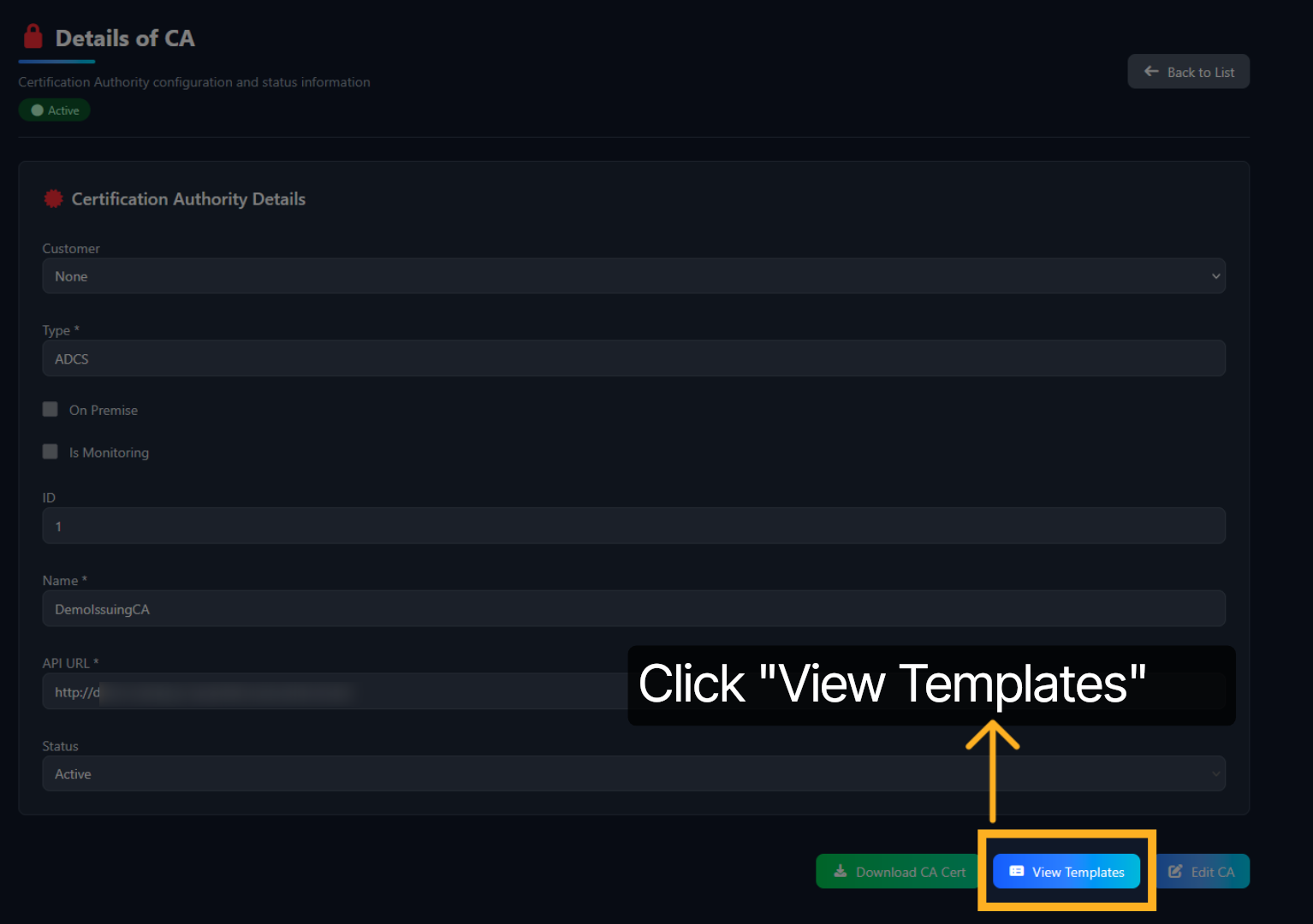
Click View Templates to see the available certificate templates for configuration.
As seen here, We have already published the SCEP-ENC and SCEP-Sign templates on the PKI Trust Manager as well. Proceed by clicking on the “NEW” button on the top-right while we proceed to show the details of how the new template should be configured.
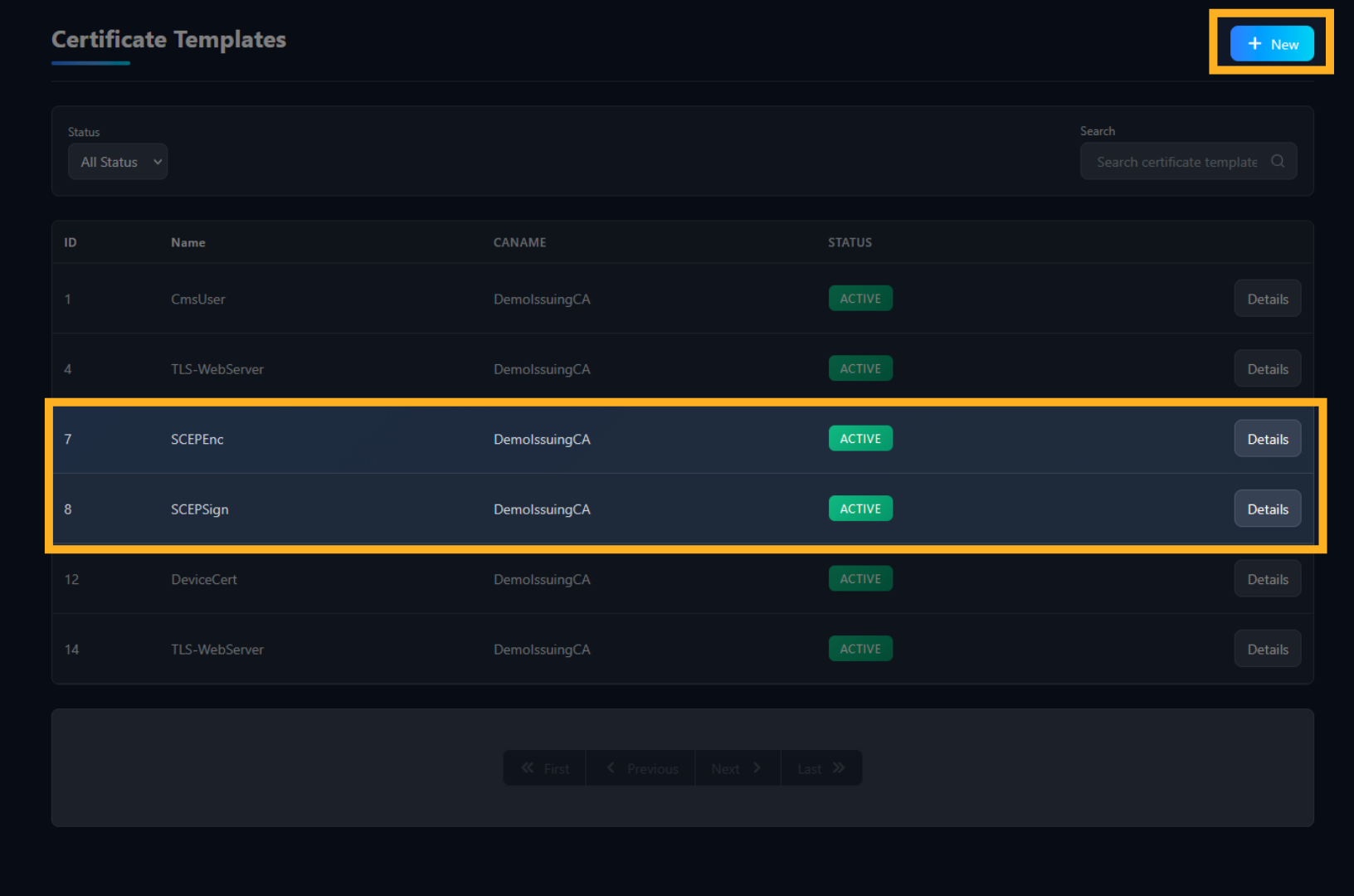
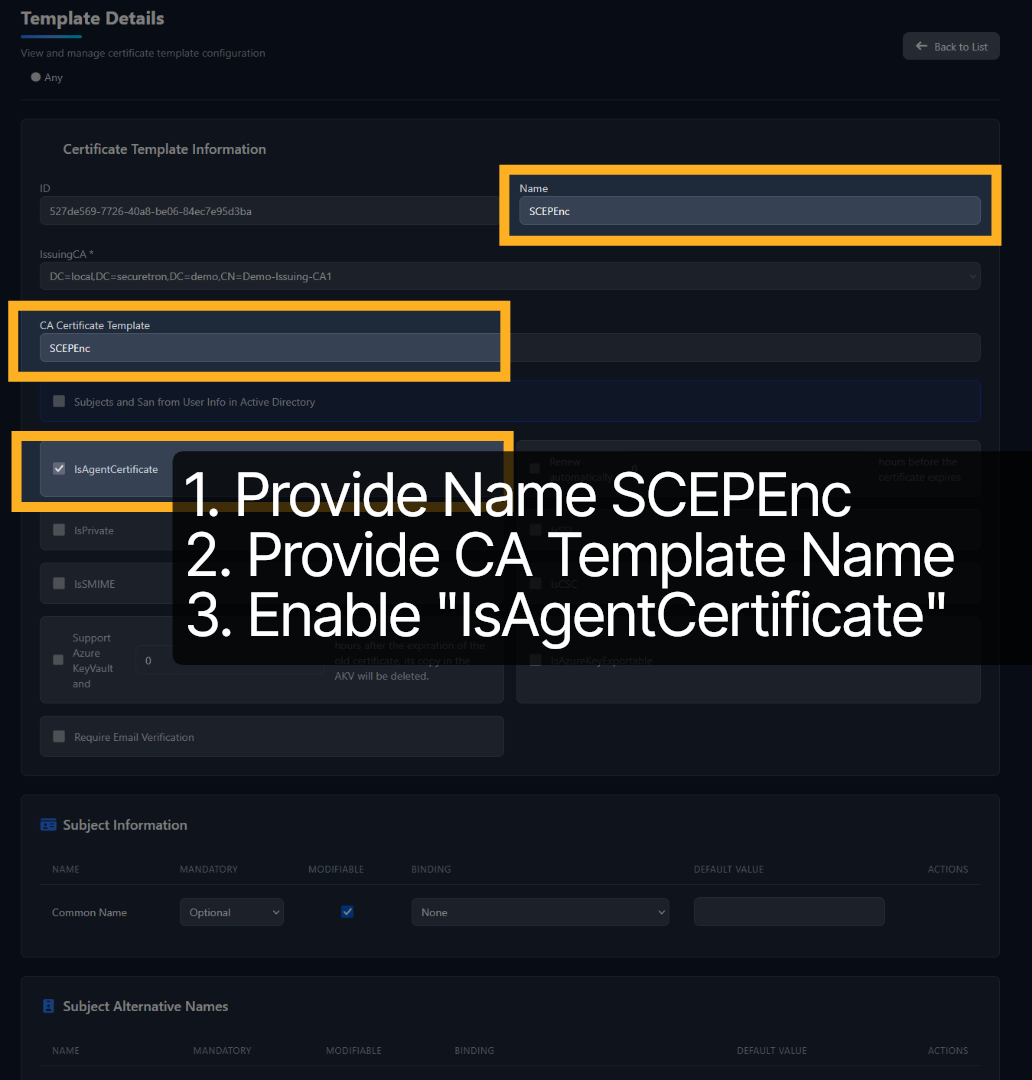
There are three things that need to be configured for SCEP-ENC. 1st is the name of the template that will be displayed on PKI Trust Manager 2nd is the name of the template that we configured on the Certification Authority called SCEP-ENC and 3rd is enabling is Agent Certificate as shown in the screen capture here. Save the template after entering these details.
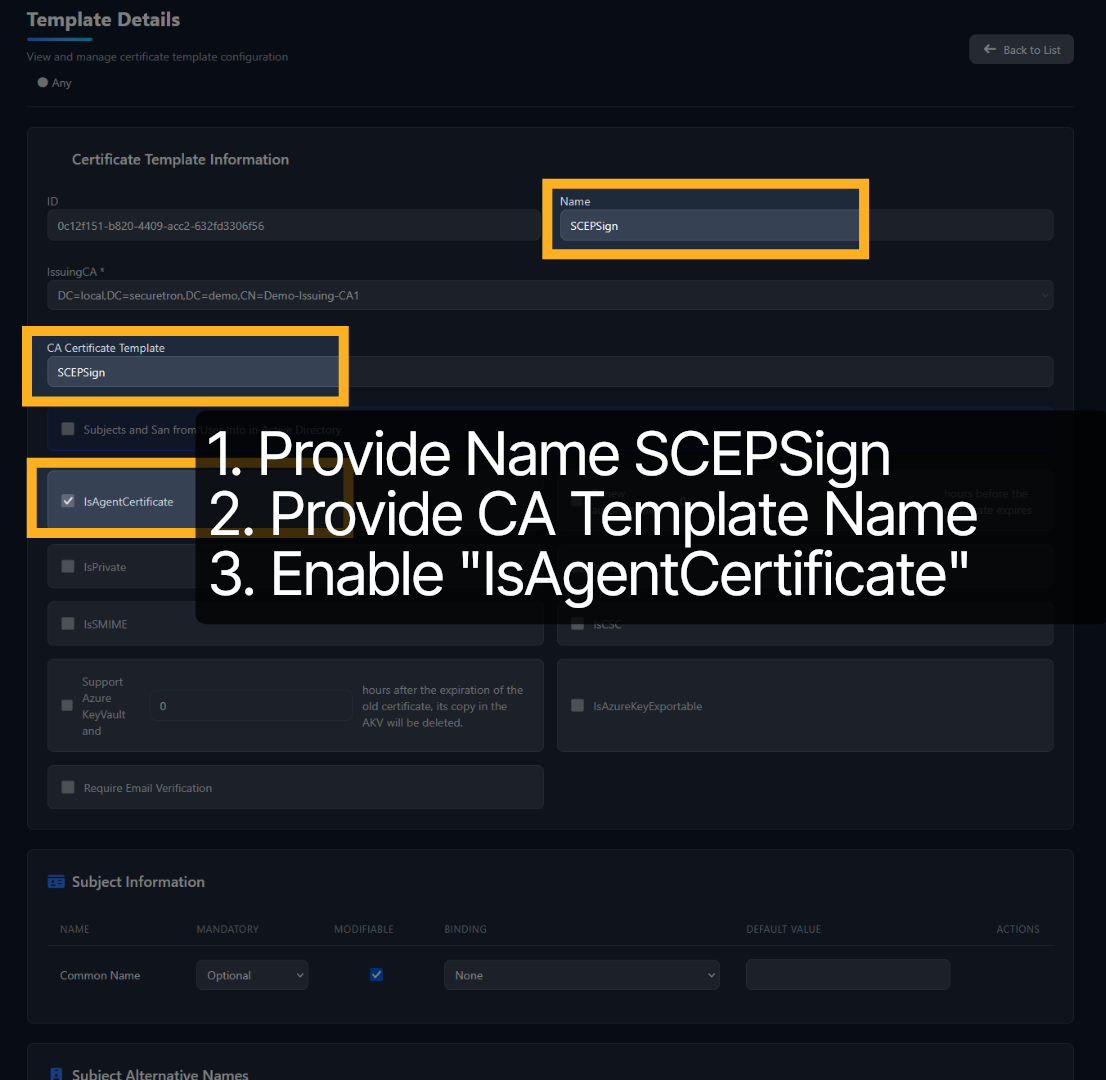
For SCEP-Sign there are also three things that need to be configured. 1st is the name of the template that will be displayed on PKI Trust Manager 2nd is the name of the template that we configured on the Certification Authority called SCEP-Sign and 3rd is enabling is Agent Certificate as shown in the screen capture here.
Once the corresponding Enrollment Agent and CEP templates have been provisioned, we are ready to integrate PKI Trust Manager with Intune. Head over to the Integrations page and click the “NEW” button
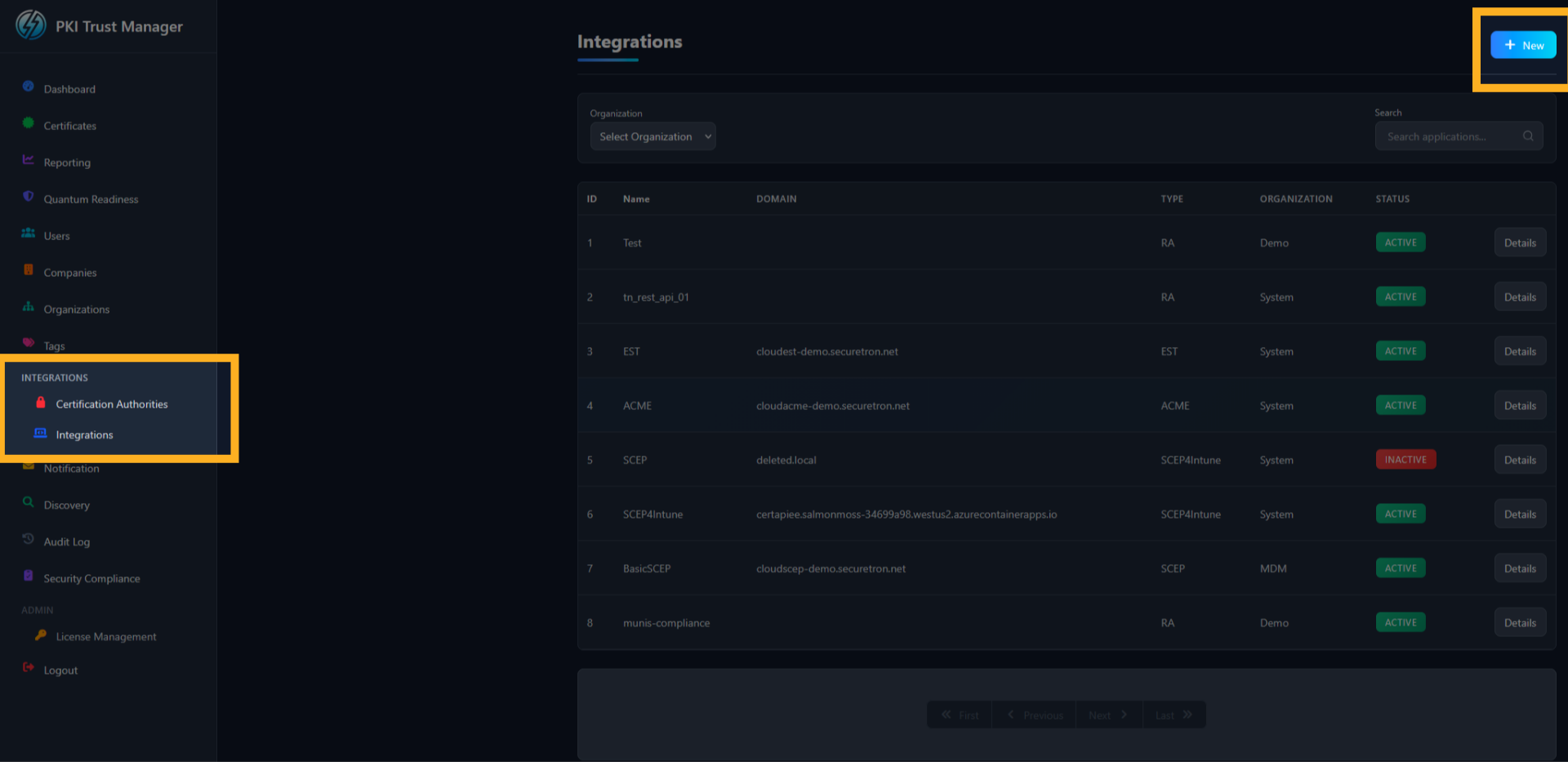
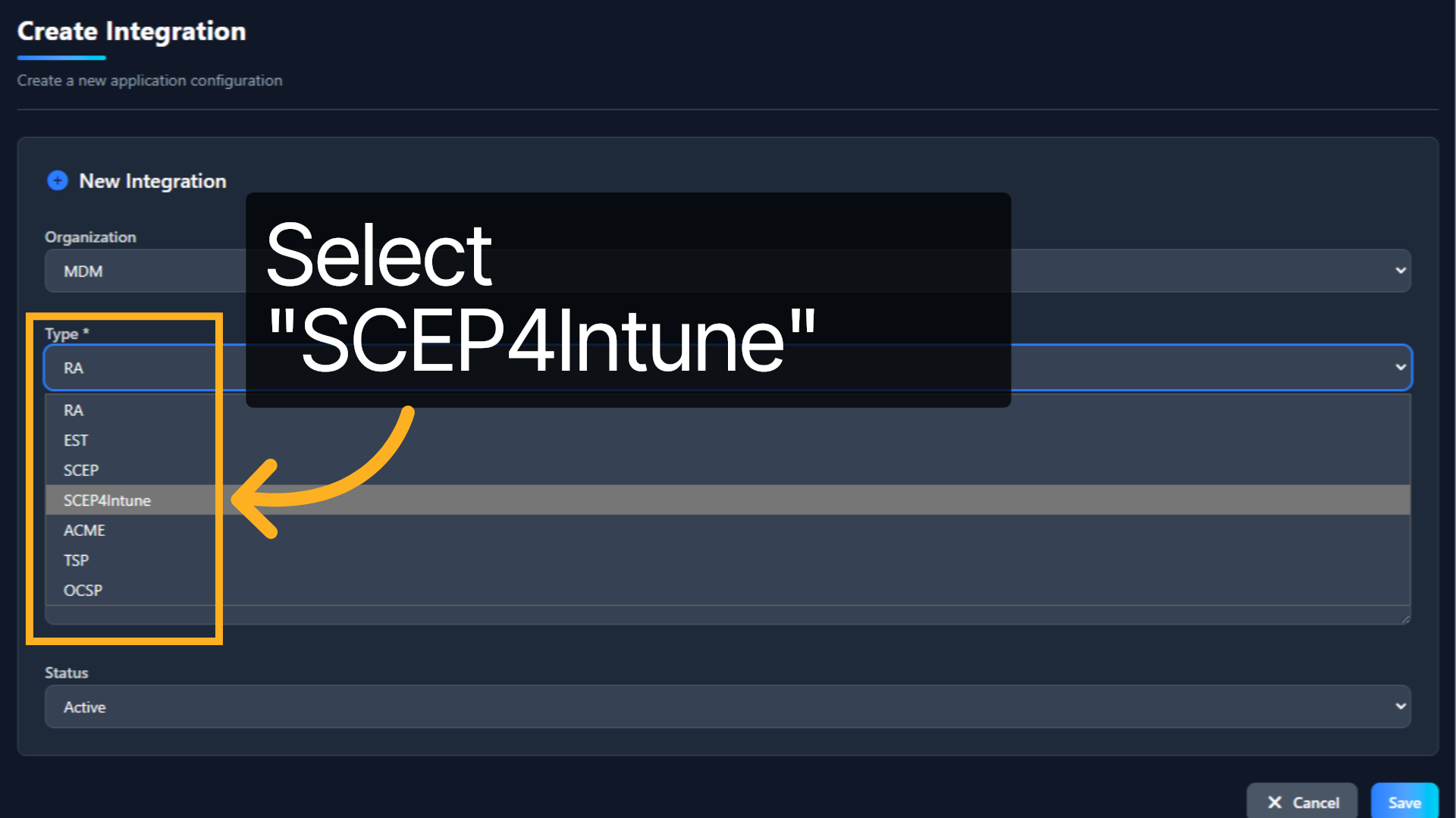
In the new integration form, select the appropriate Organization. By default, it is the System Organization. In the Type dropdown menu – select SCEP4Intune
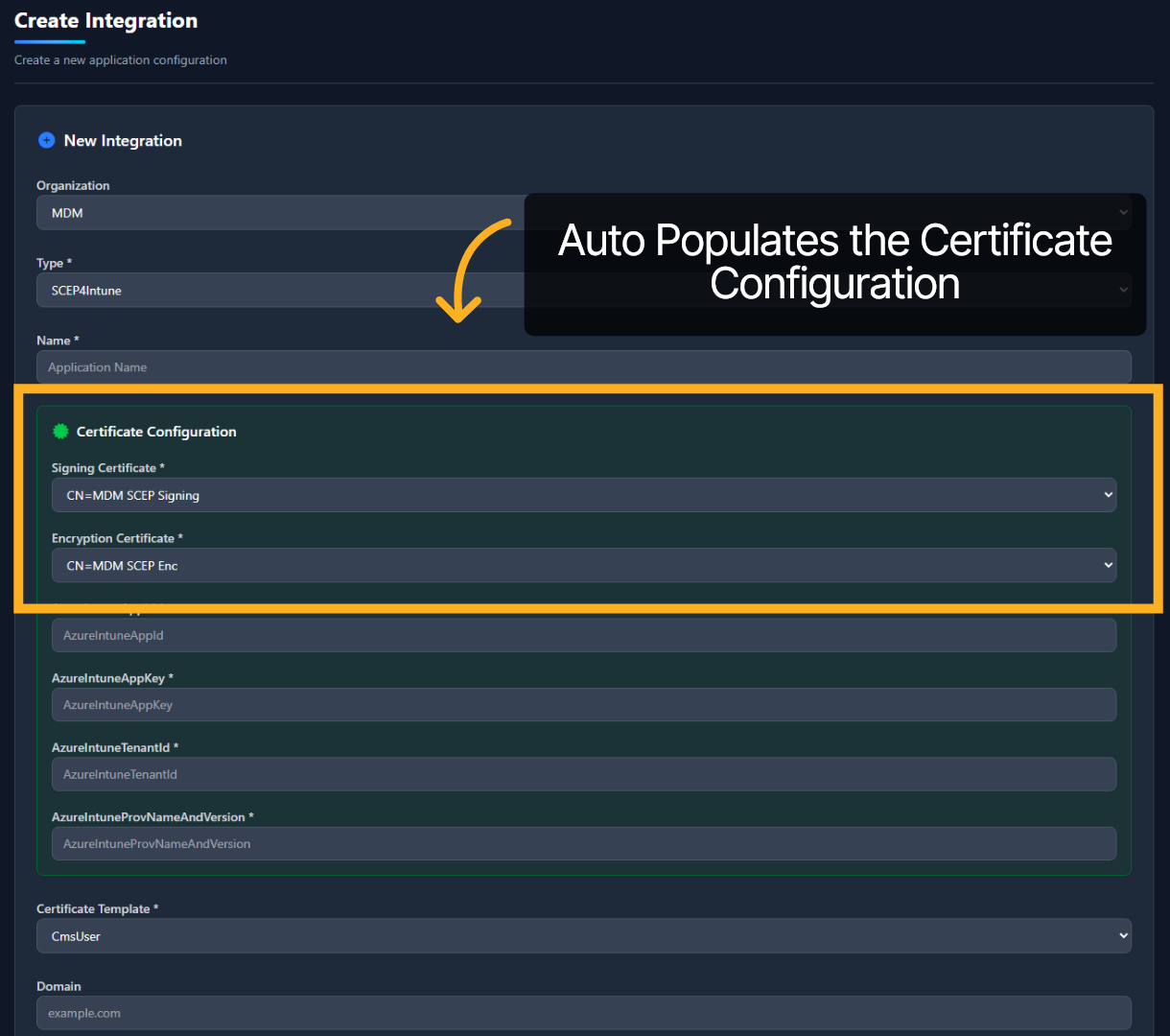
Once SCEP For Intu is selected from the dropdown, the Certificate Configuration should automatically populate. If it does not, ensure that the Certification Authority and its templates are attached to the Organization that was selected above.
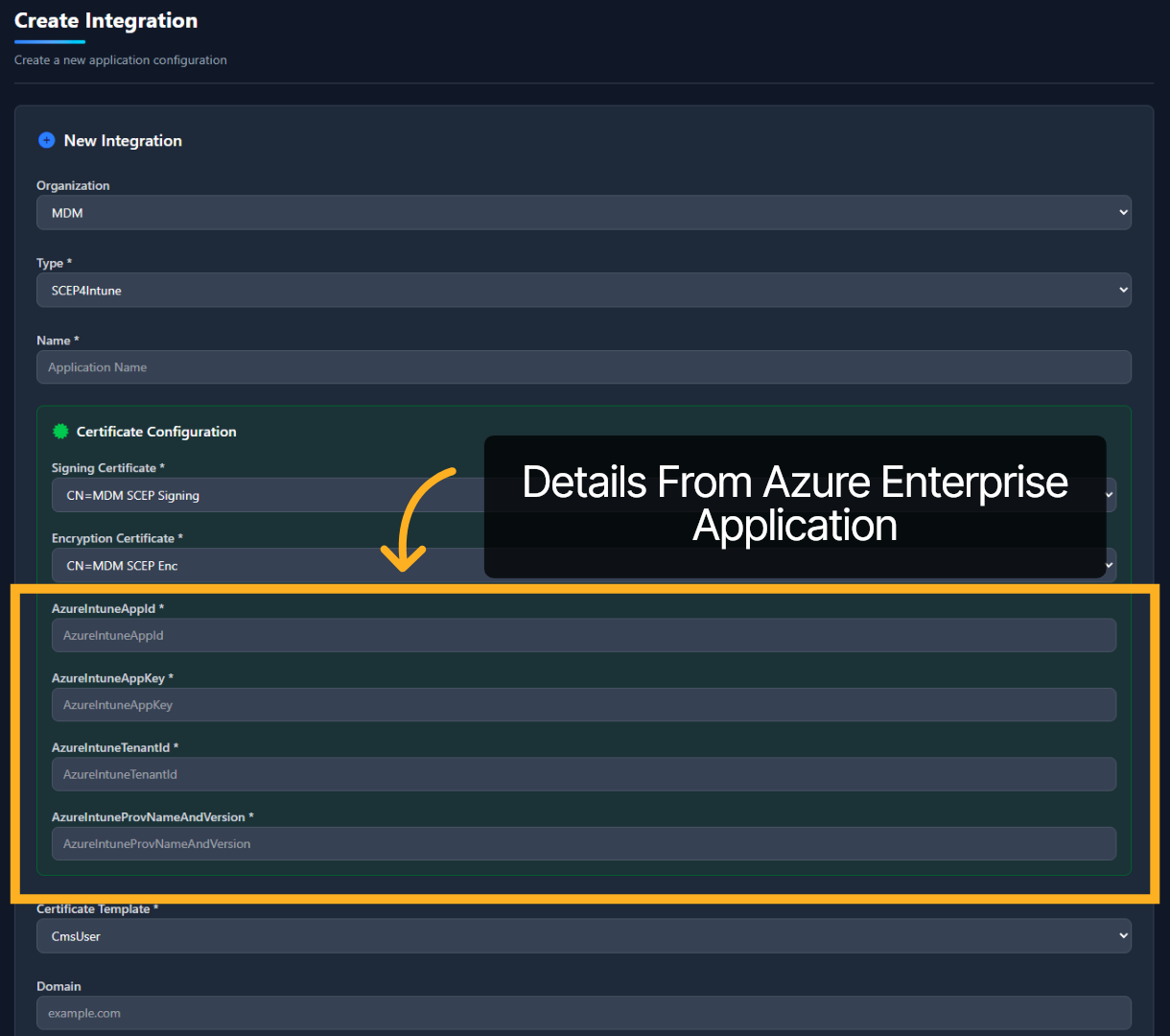
The next four fields require information from an Application Registered in Azure specifically for PKI Trust Manager and Intune.
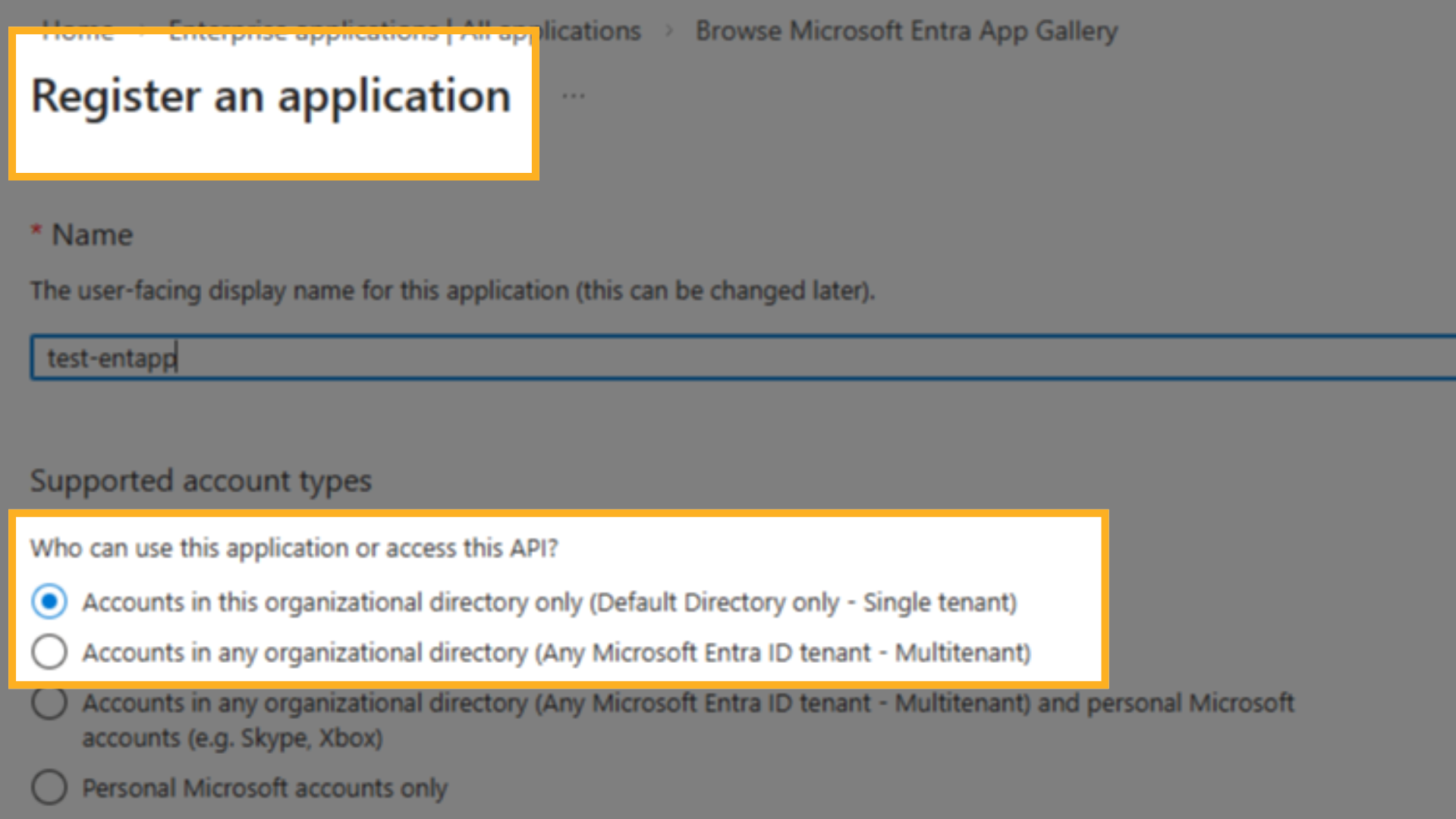
Head over to Azure and Go to “App Registration” to register an application. Provide a name for the Application. and then Select “Accounts on this organization directory only”.
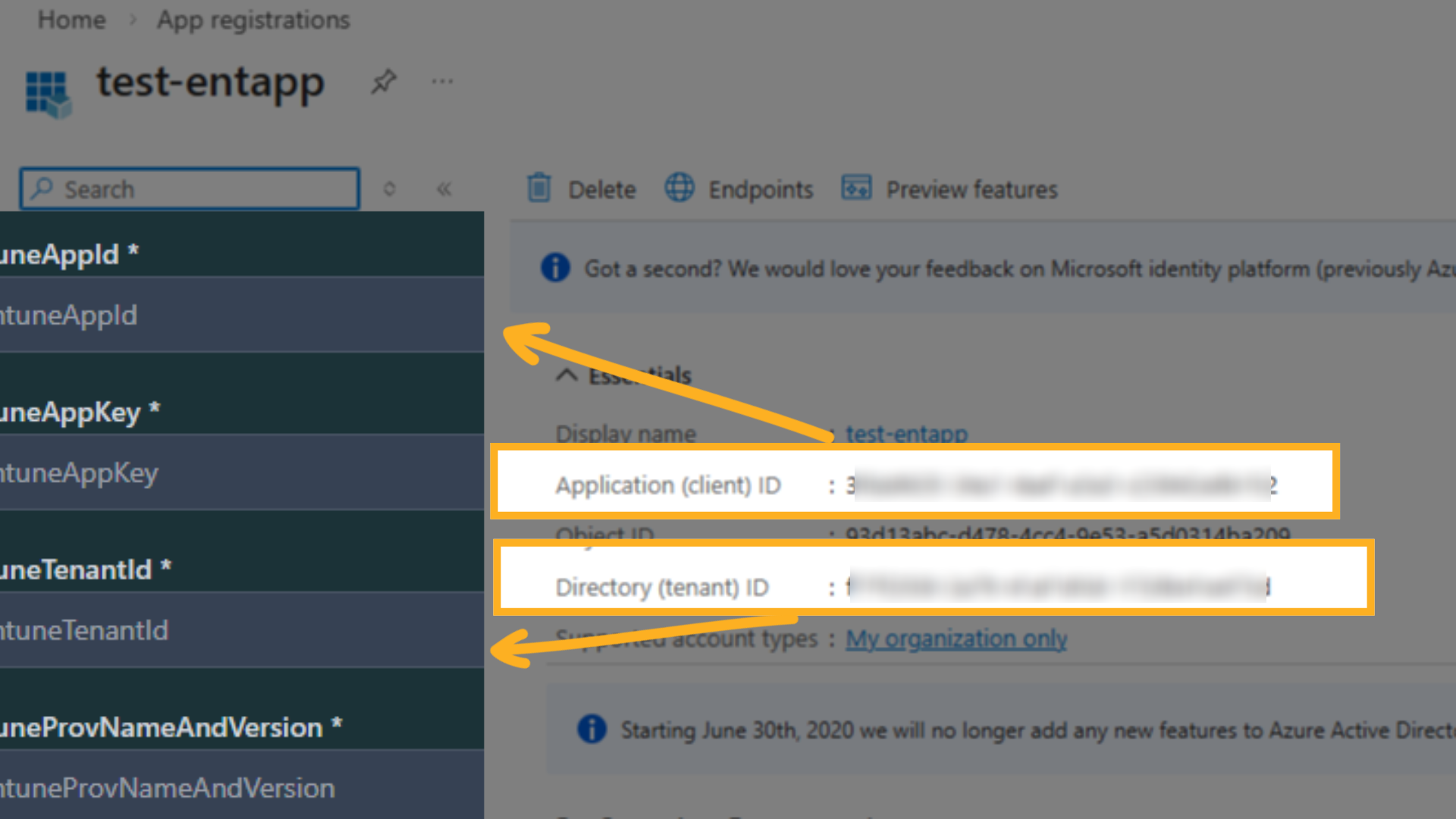
Copy over the Application Client ID AND Directory tenant ID to PKI Trust Manager Scep4Intune configuration.
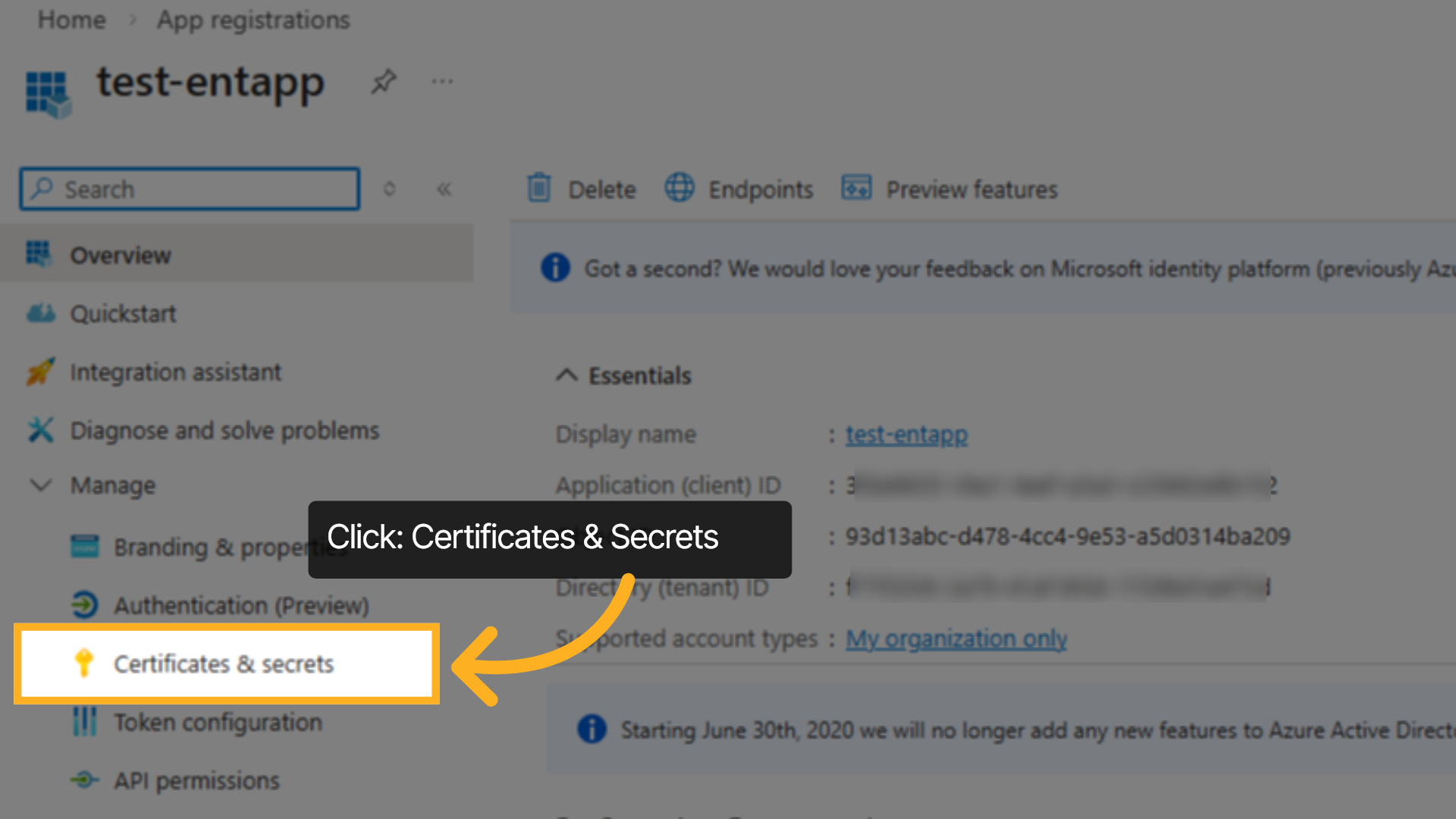
Next, on the left navigation bar – click on Certificates and secret
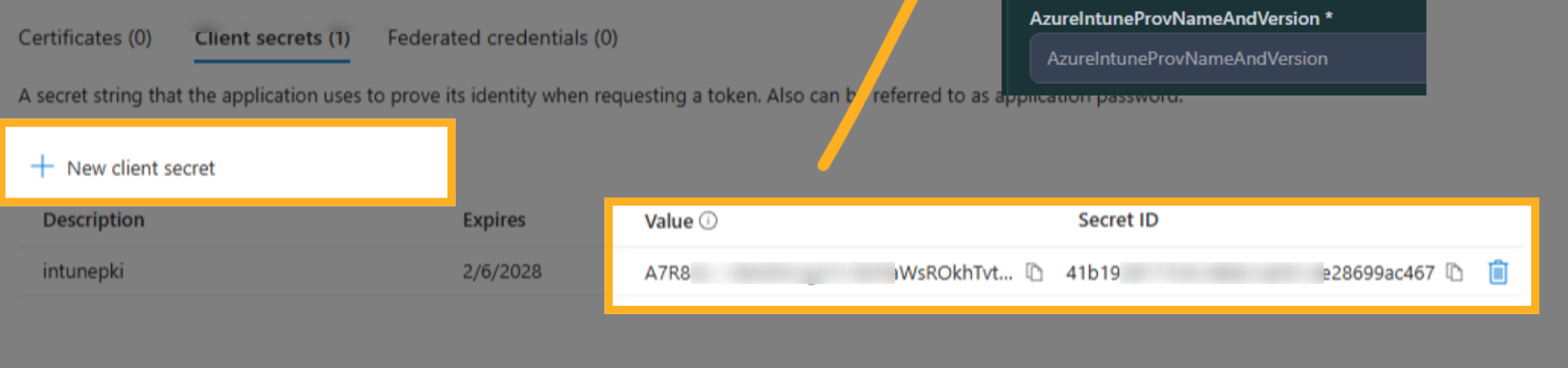
Click on “New Client Secret” to provision a New Secret. Then subsequently, copy the Value of the newly created Secret to PKI Trust Manager under Azure Intune App Key field
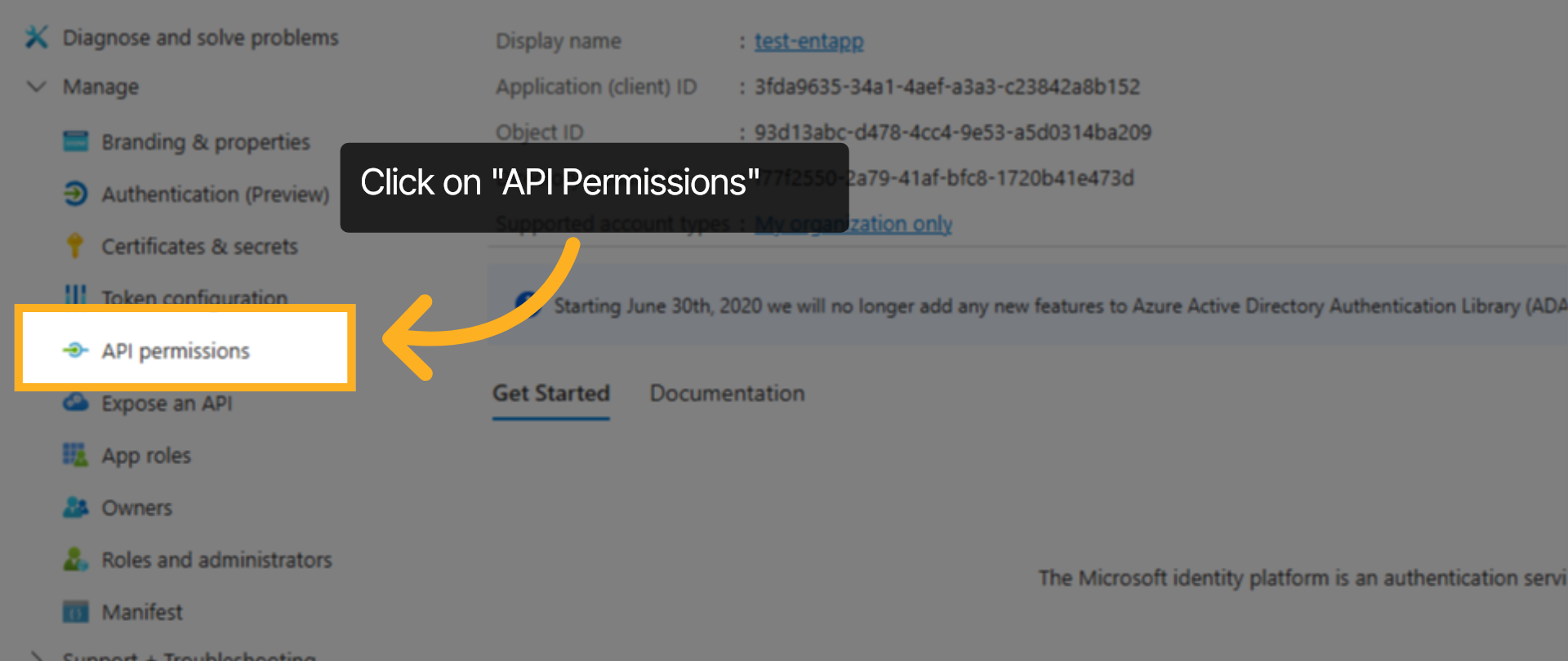
Finally, we will need to provide the Registered App appropriate permissions. Navigate to API Permissions.
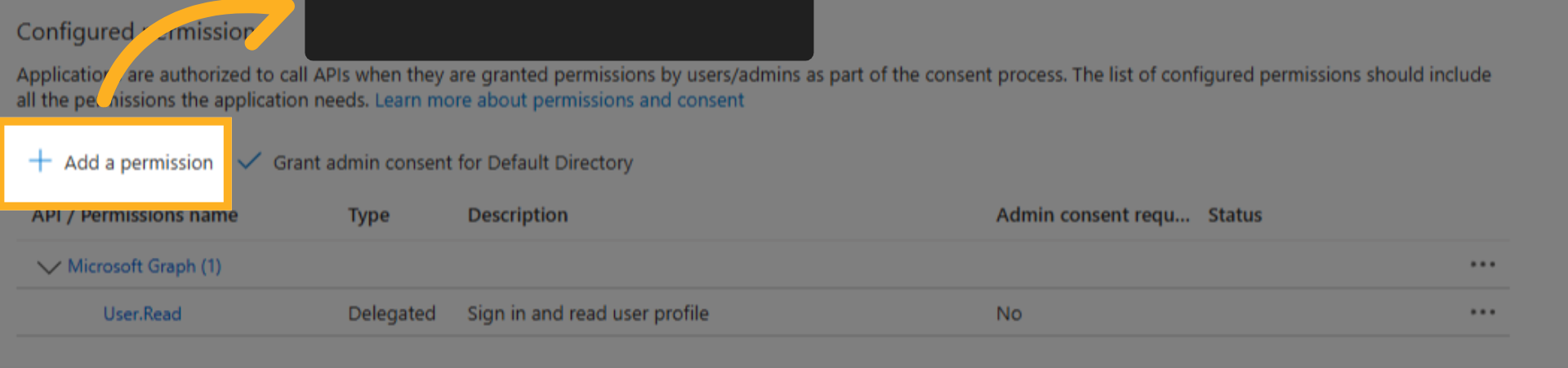
Then click on “Add a permission”. This should open a window with further options.
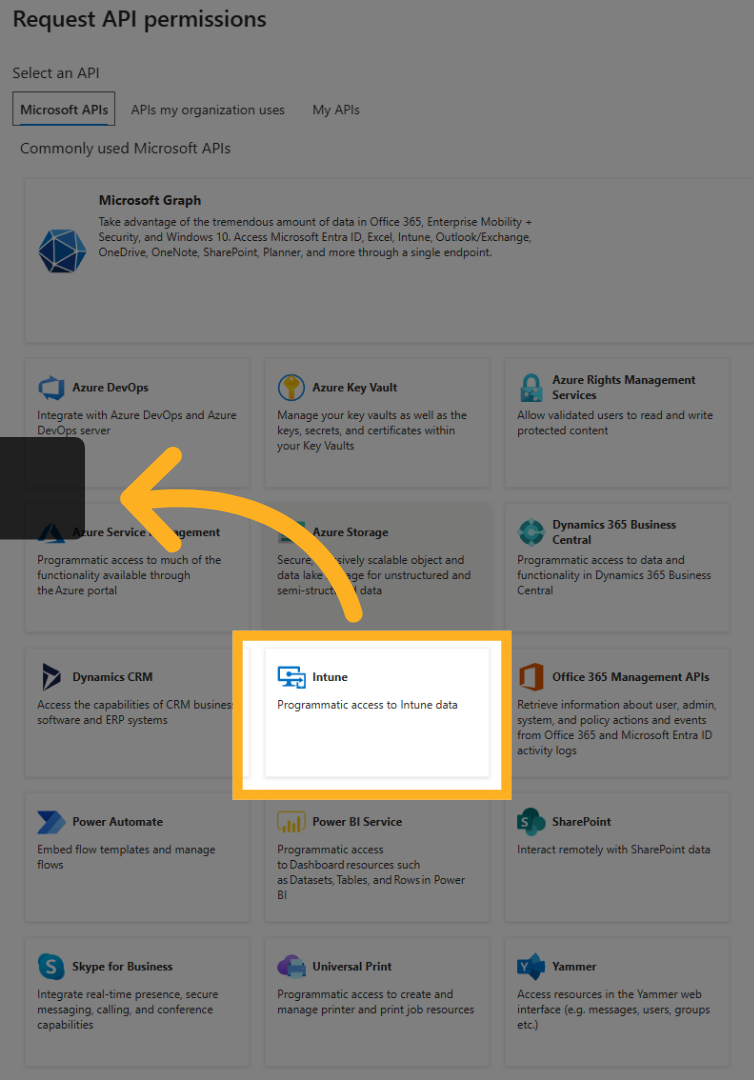
Click on Intune box in this window
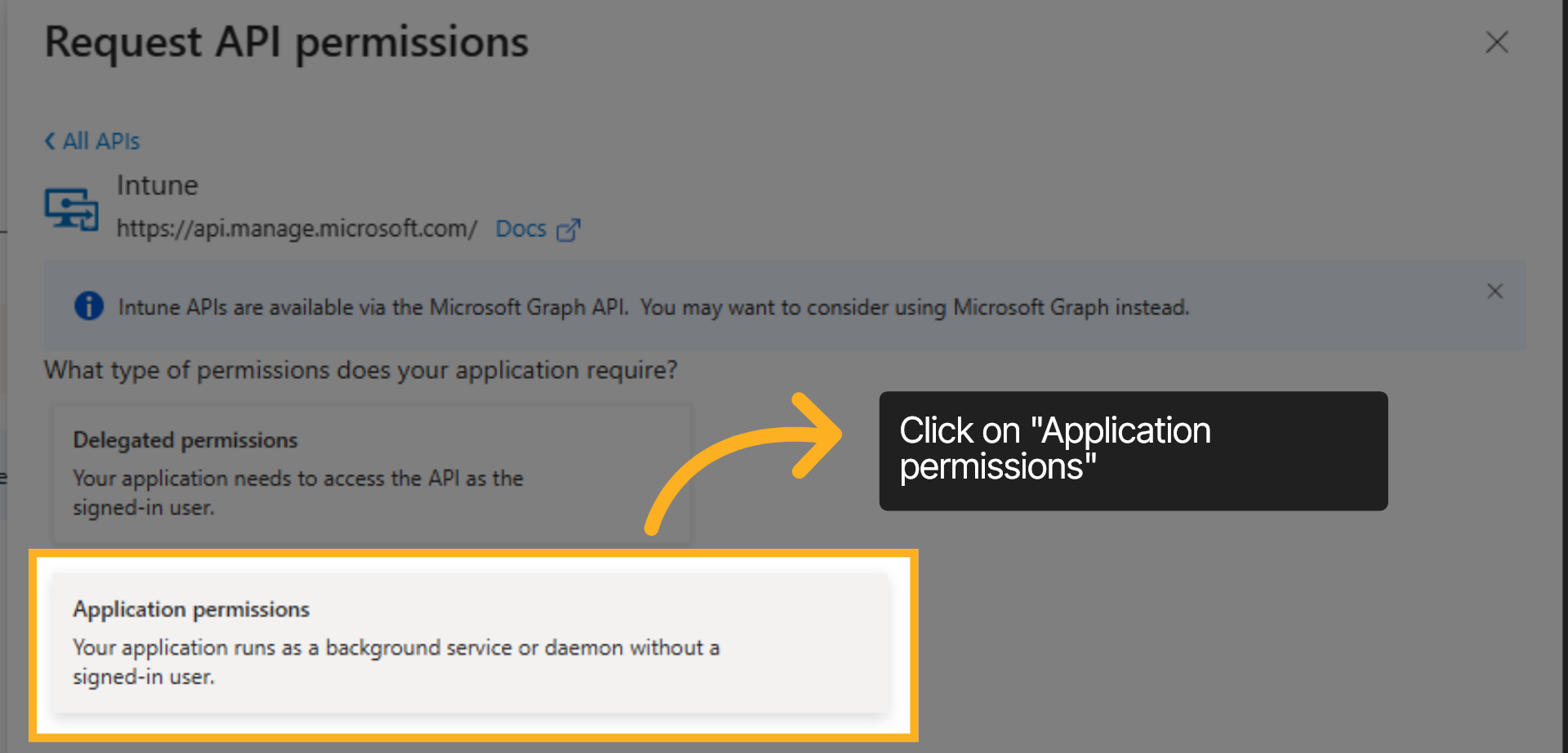
Now, click on “Application permissions” to proceed
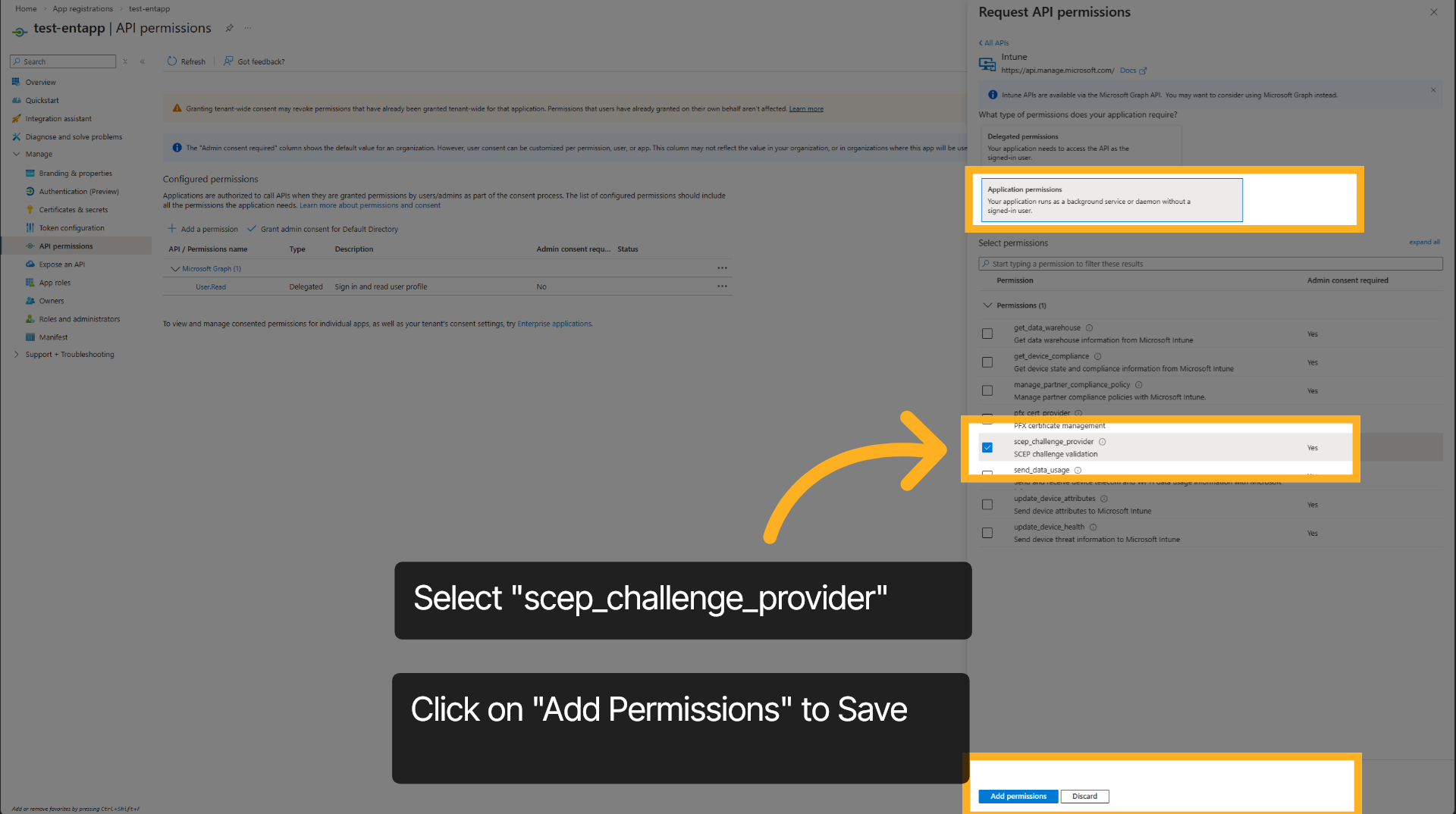
inally, select SCEP Challenge Provider OR SCEP Challenge Validation as shown here. Save the permissions
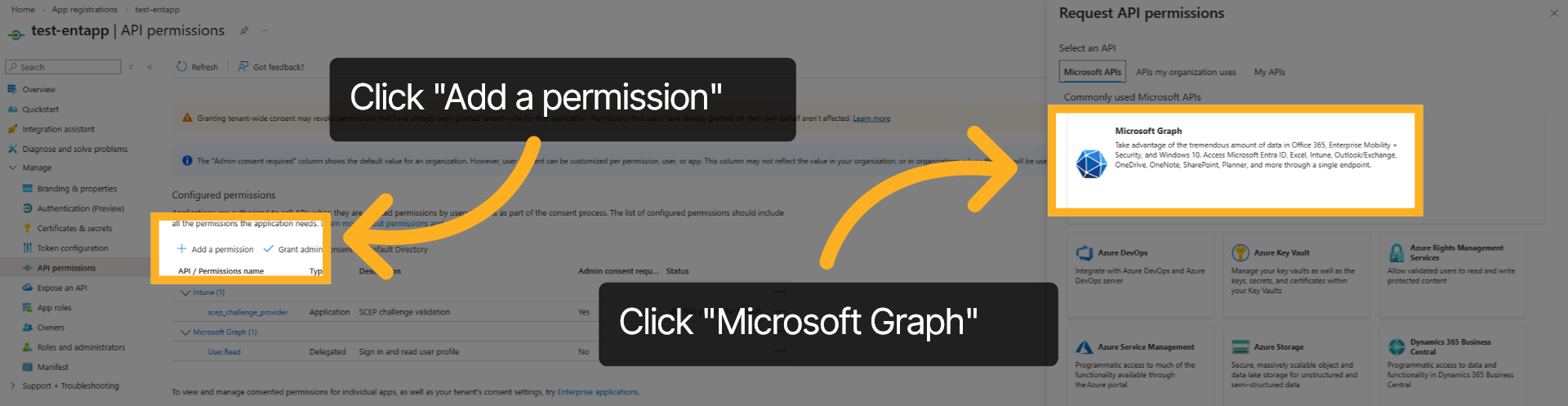
Let’s repeat and add the appropriate Microsoft Graph Permissions to this newly registered application. Click on “Add a permission” followed by “Microsoft Graph” as shown here
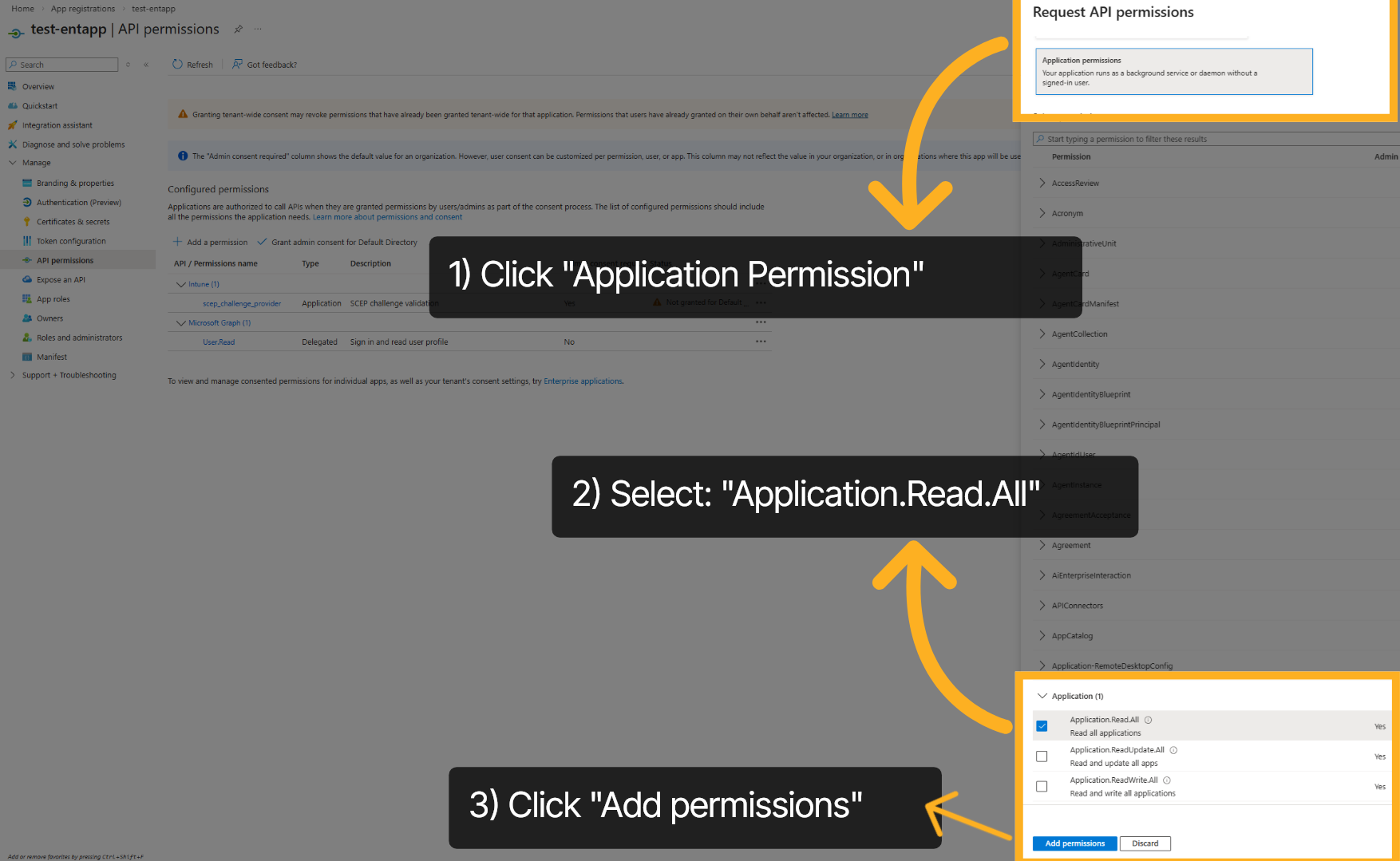
Then select “Application permission”. This will provide list of permissions that can be granted. Expand the Application drawer and subsequently select “Application Read All”
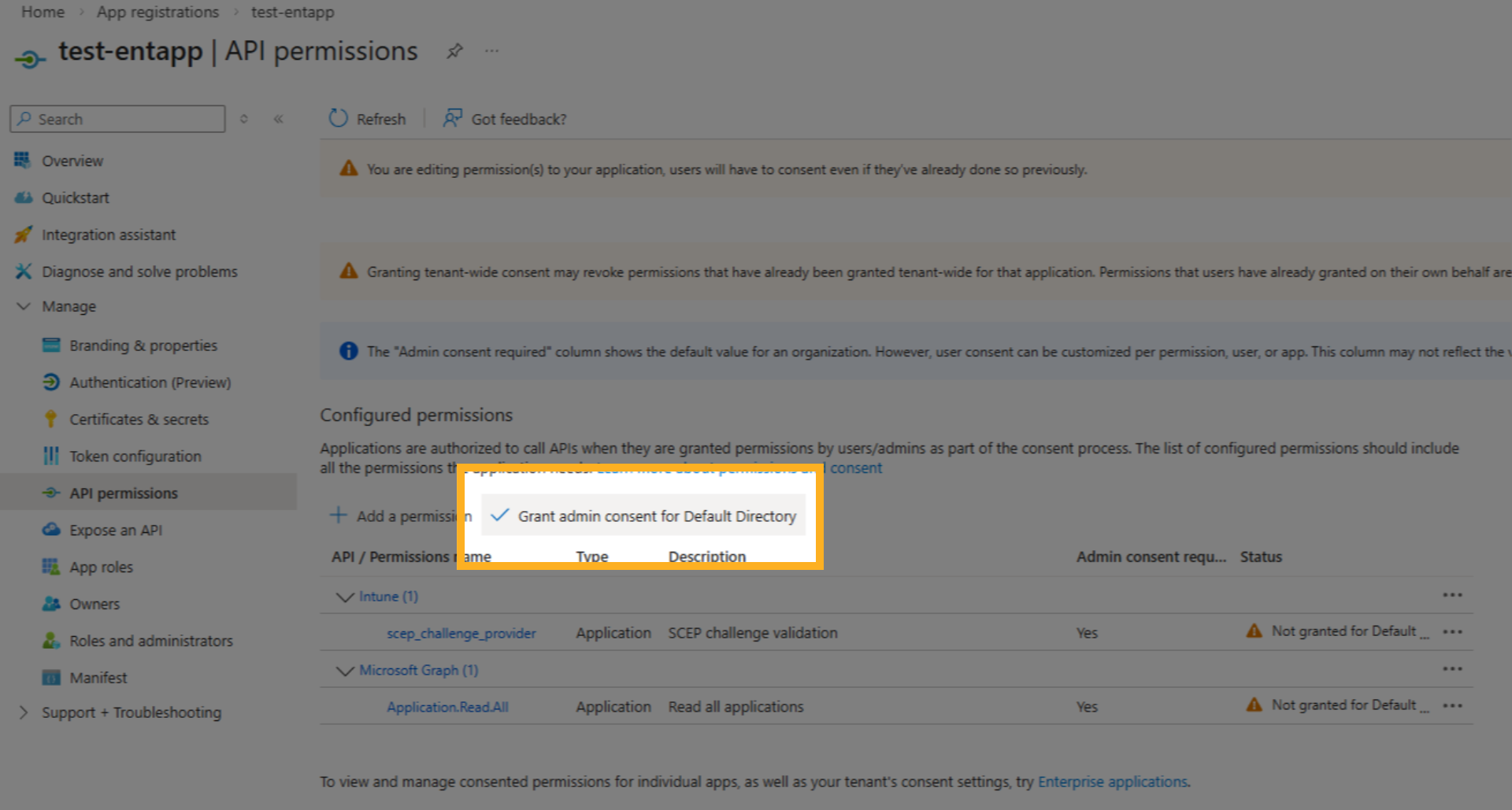
The last step here is to “Grant admin Consent”. This is required for the permissions to work correctly.
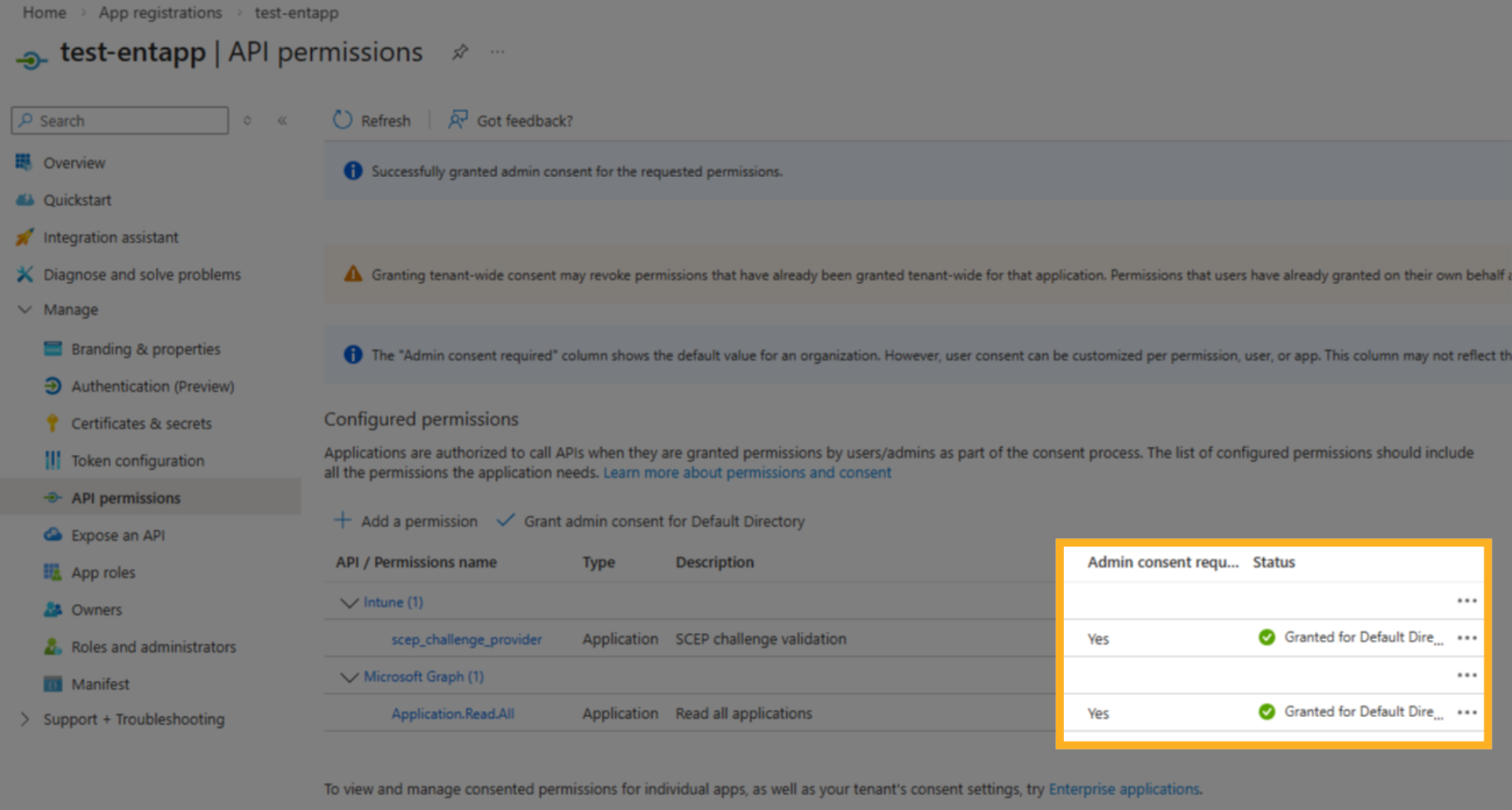
Once “admin consent” has been granted, you should see the status turn gree
This completes the Azure App registration. Next, we will complete the configuration on the PKI Trust Manager.
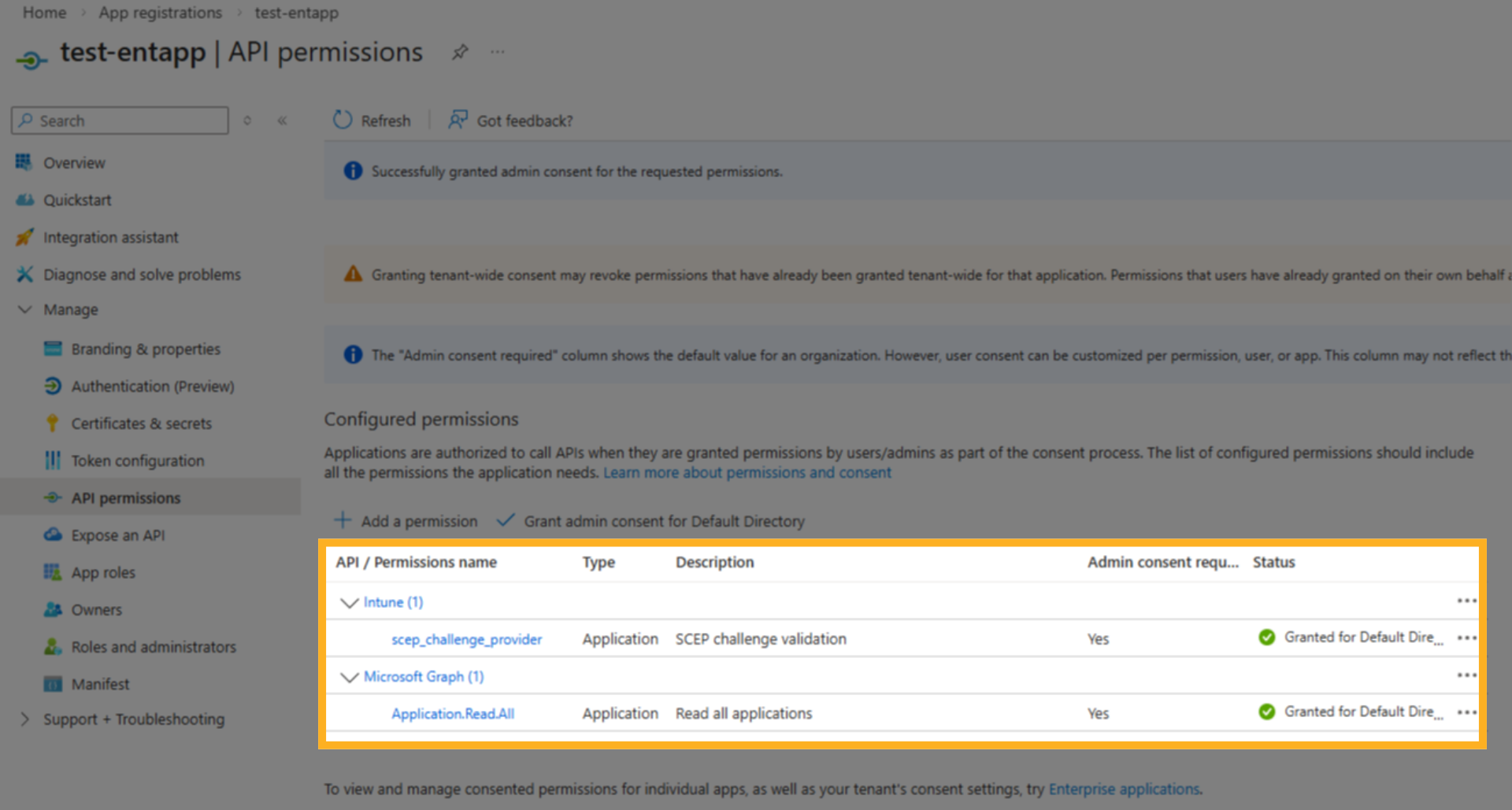
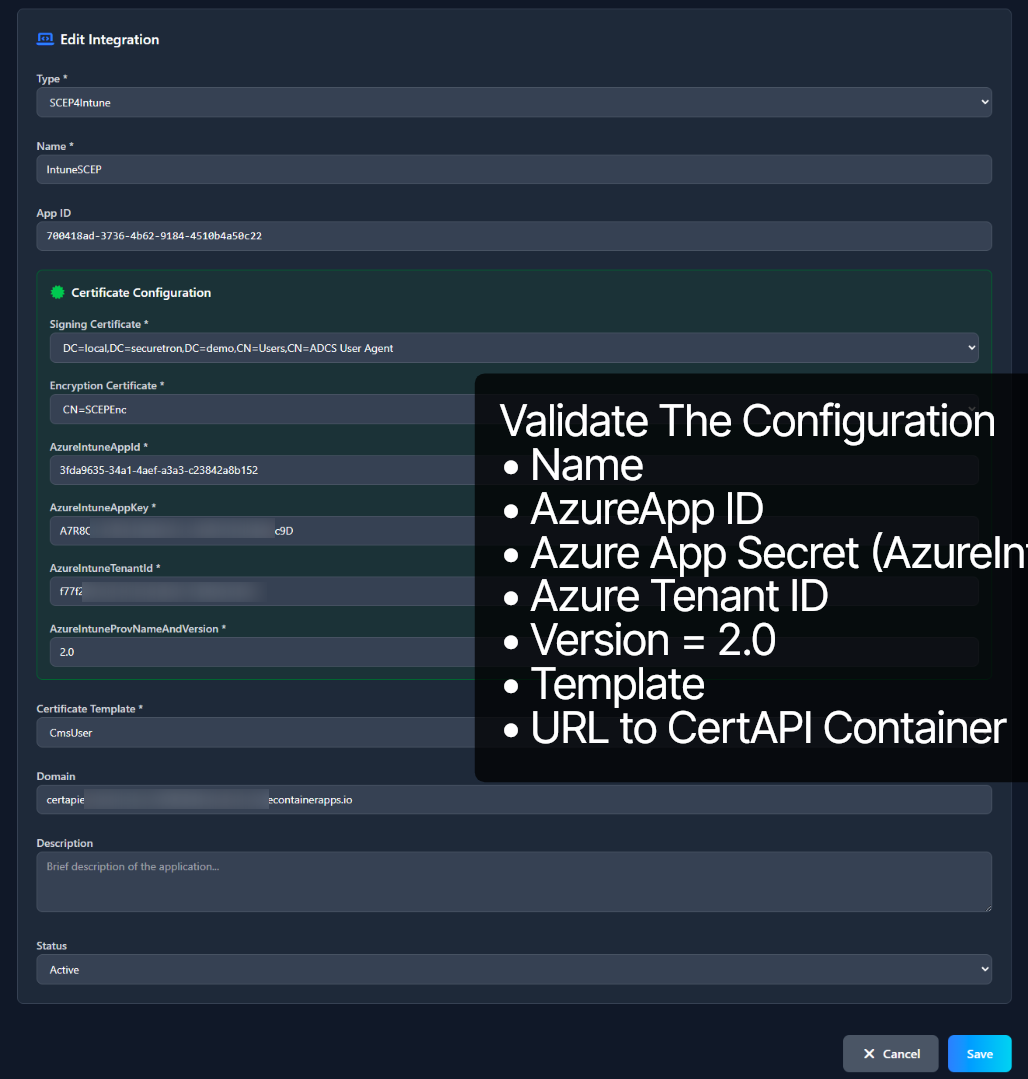
Populate the fields corresponding to the values from Azure Application for PKI Trust Manager and Intune integration. Let’s validate them
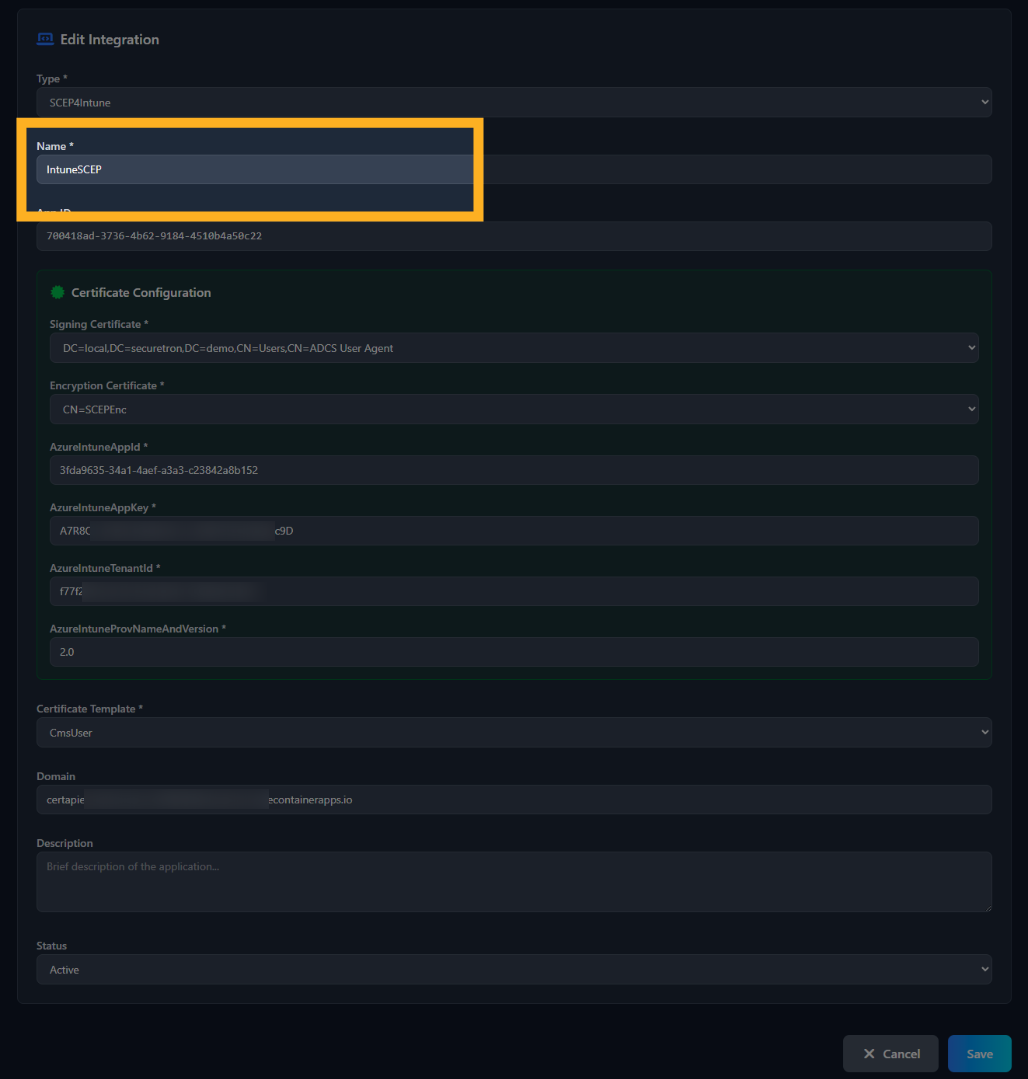
Provide a Name for the app.
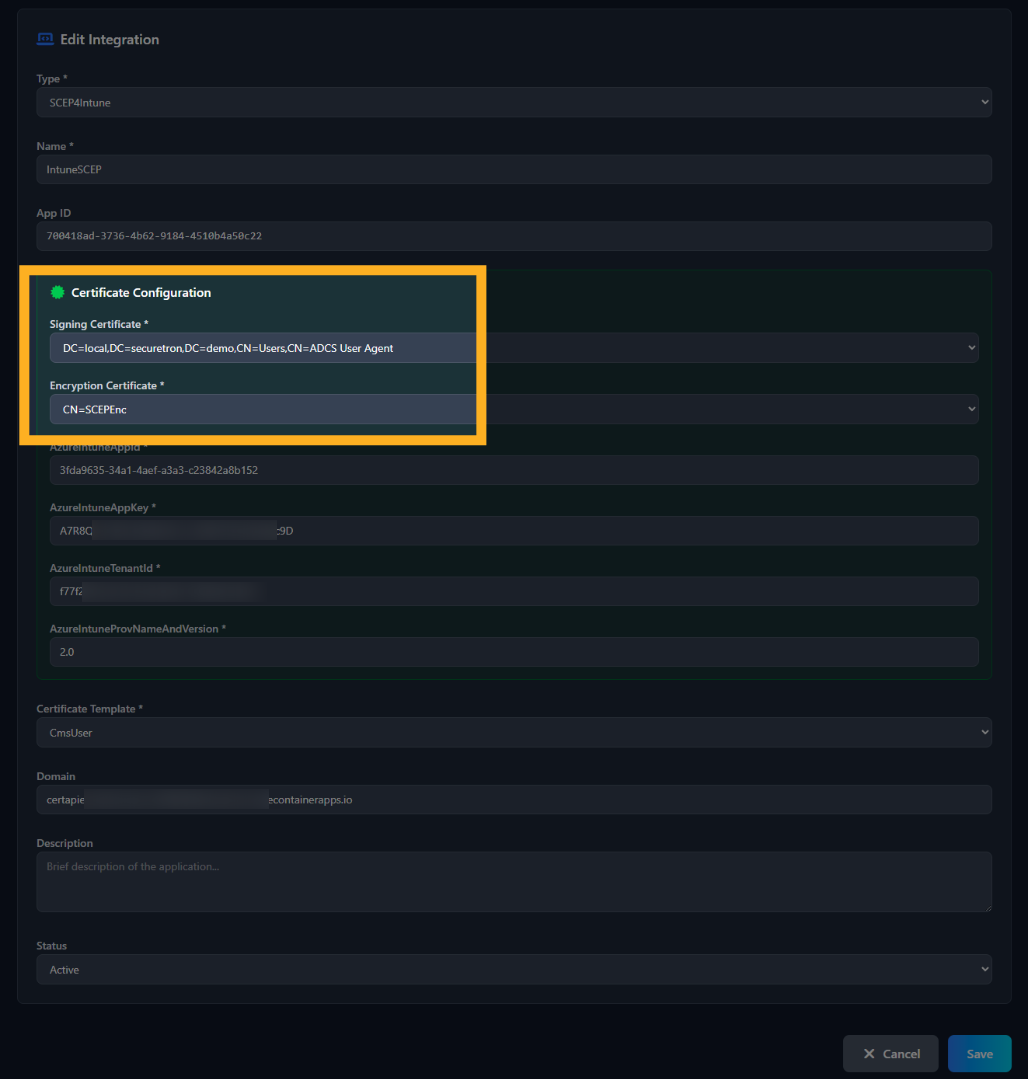
The Signing Certificate and Encryption Certificate should be auto-populate
The Azure App ID corresponds to the Application-ID of the Registered Azure App
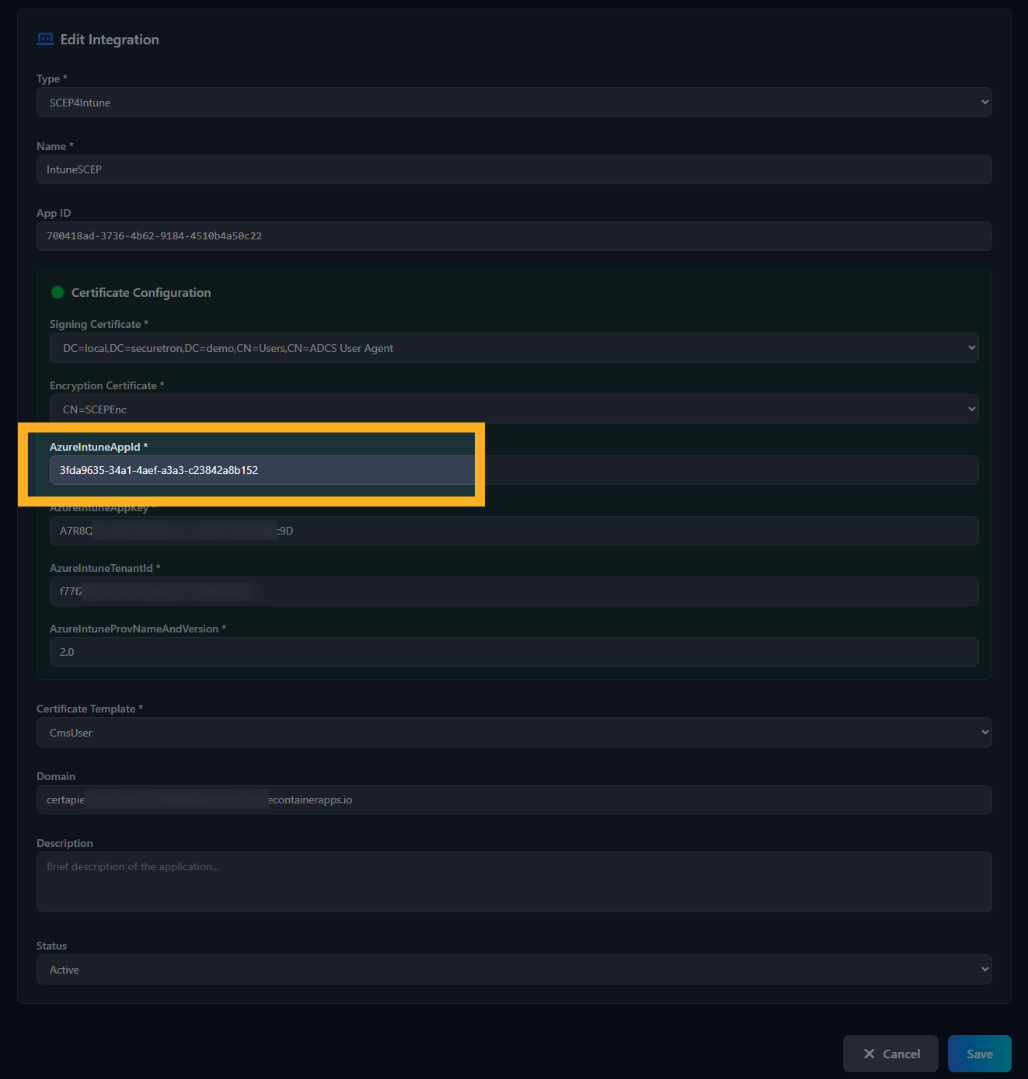
The Azure Intune App Key corresponds to the Secret Value of the registered Azure App
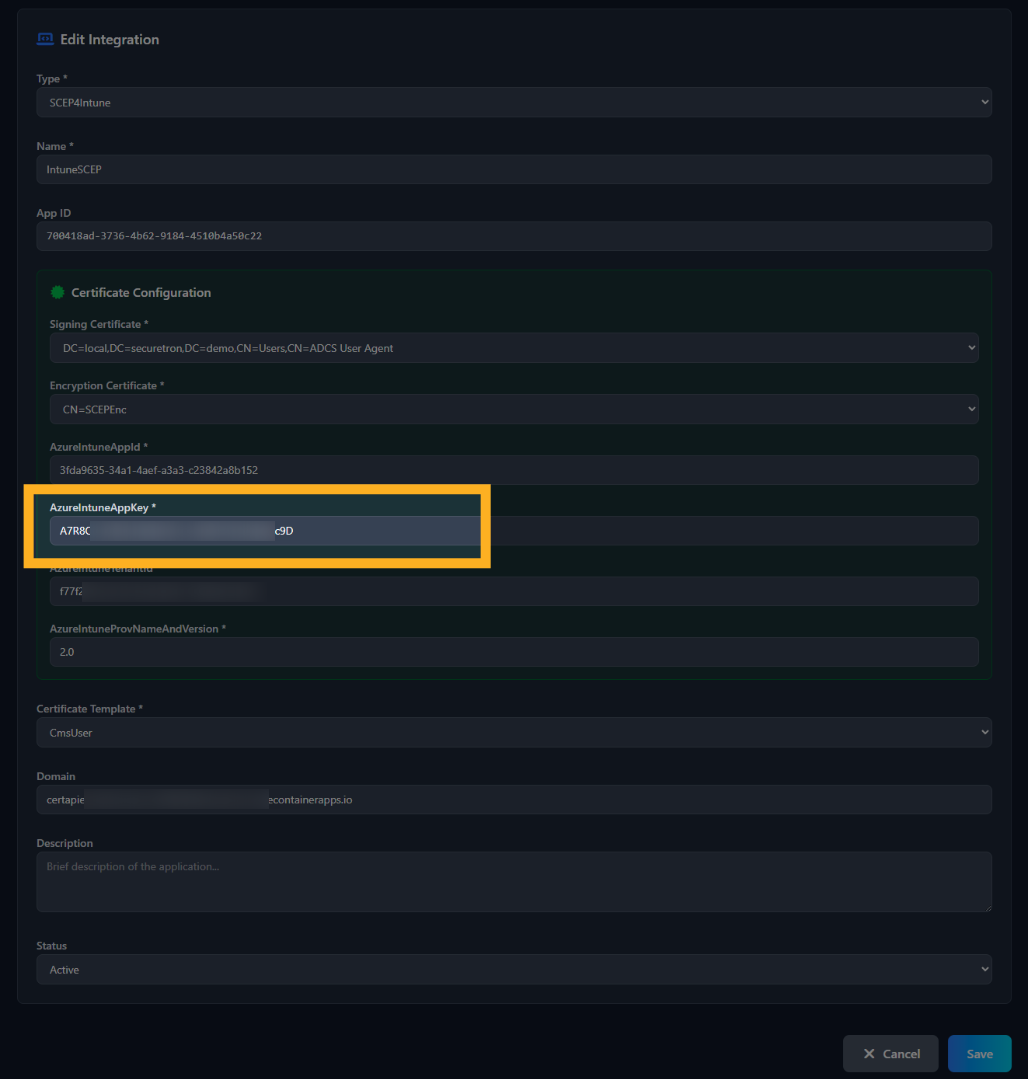
The Azure Intune Tenant ID corresponds to the Azure Tenant ID
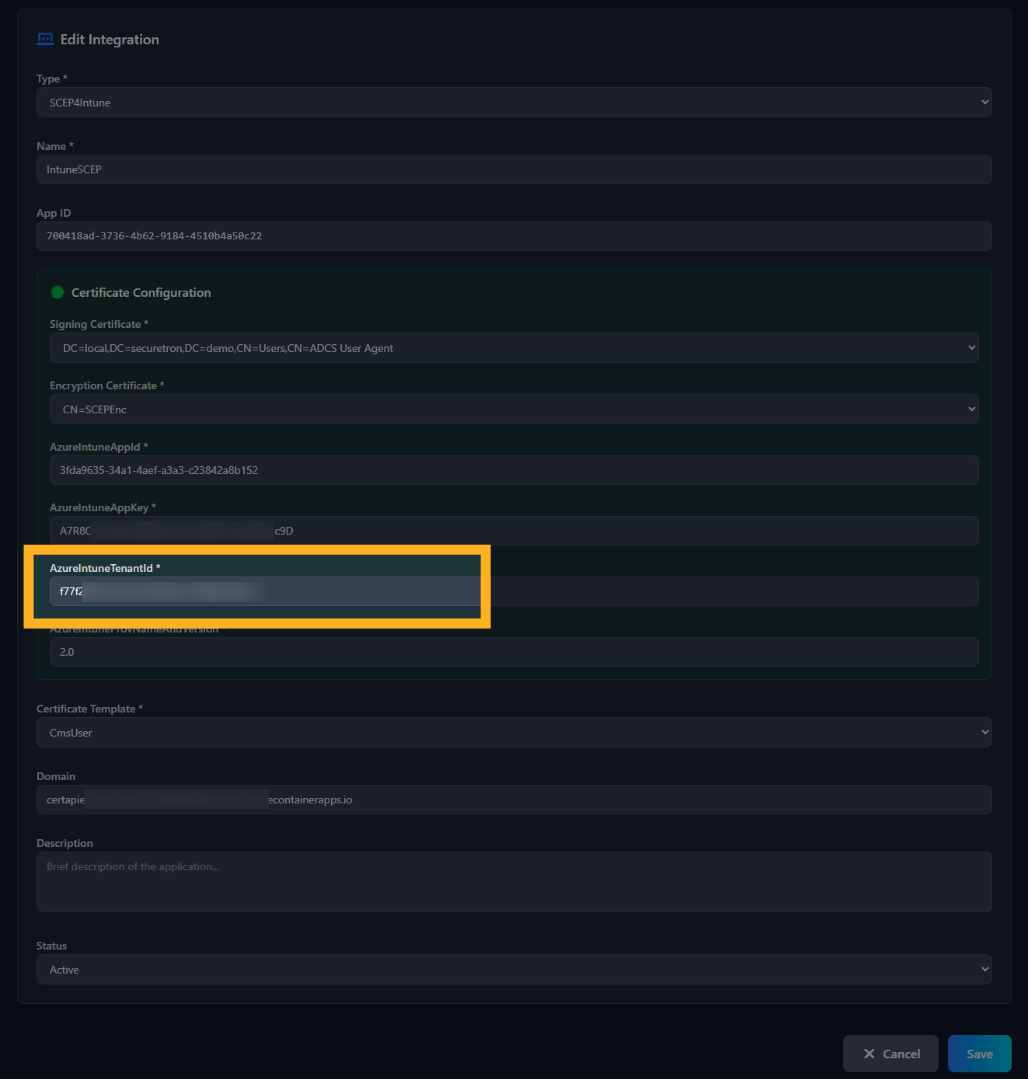
The Azure Intune Provisioning Name and Version should be set to 2.0
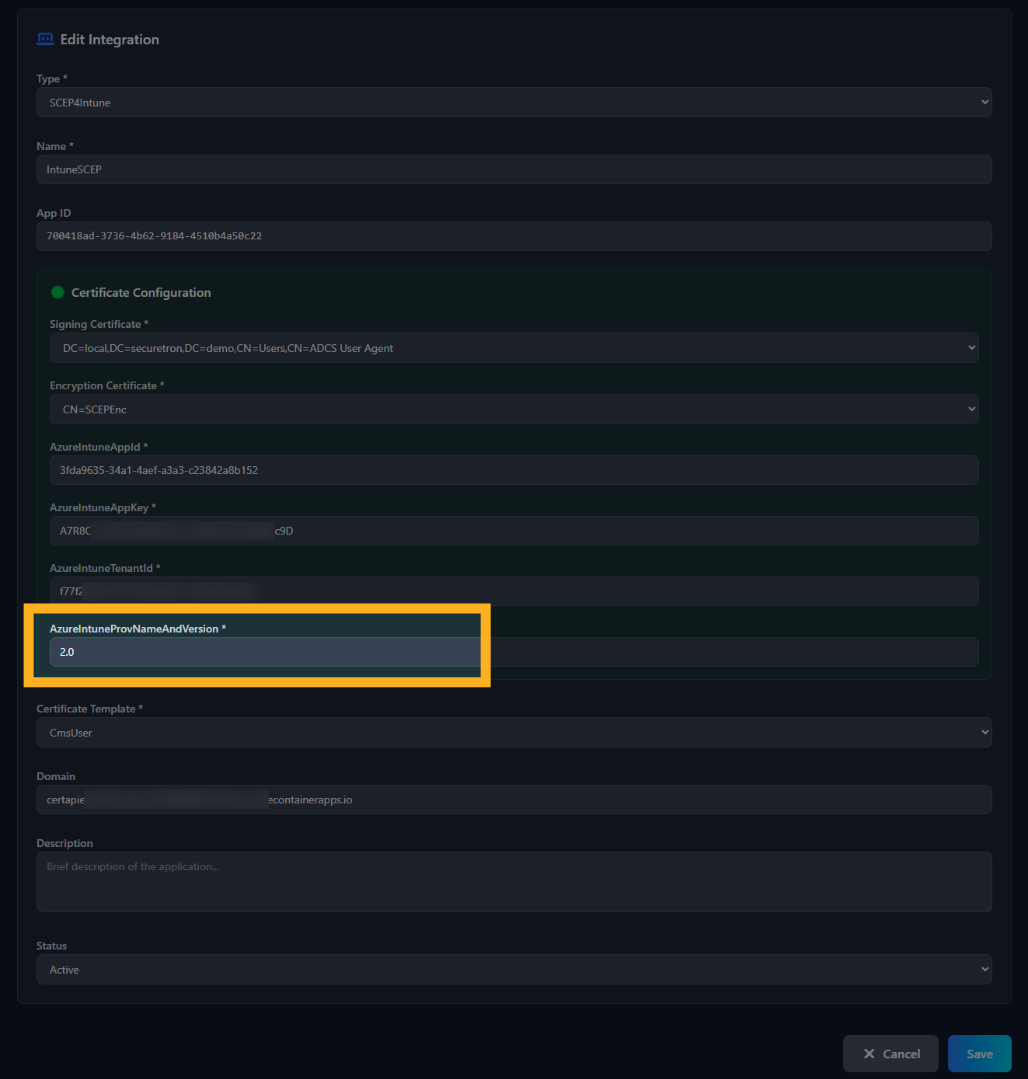
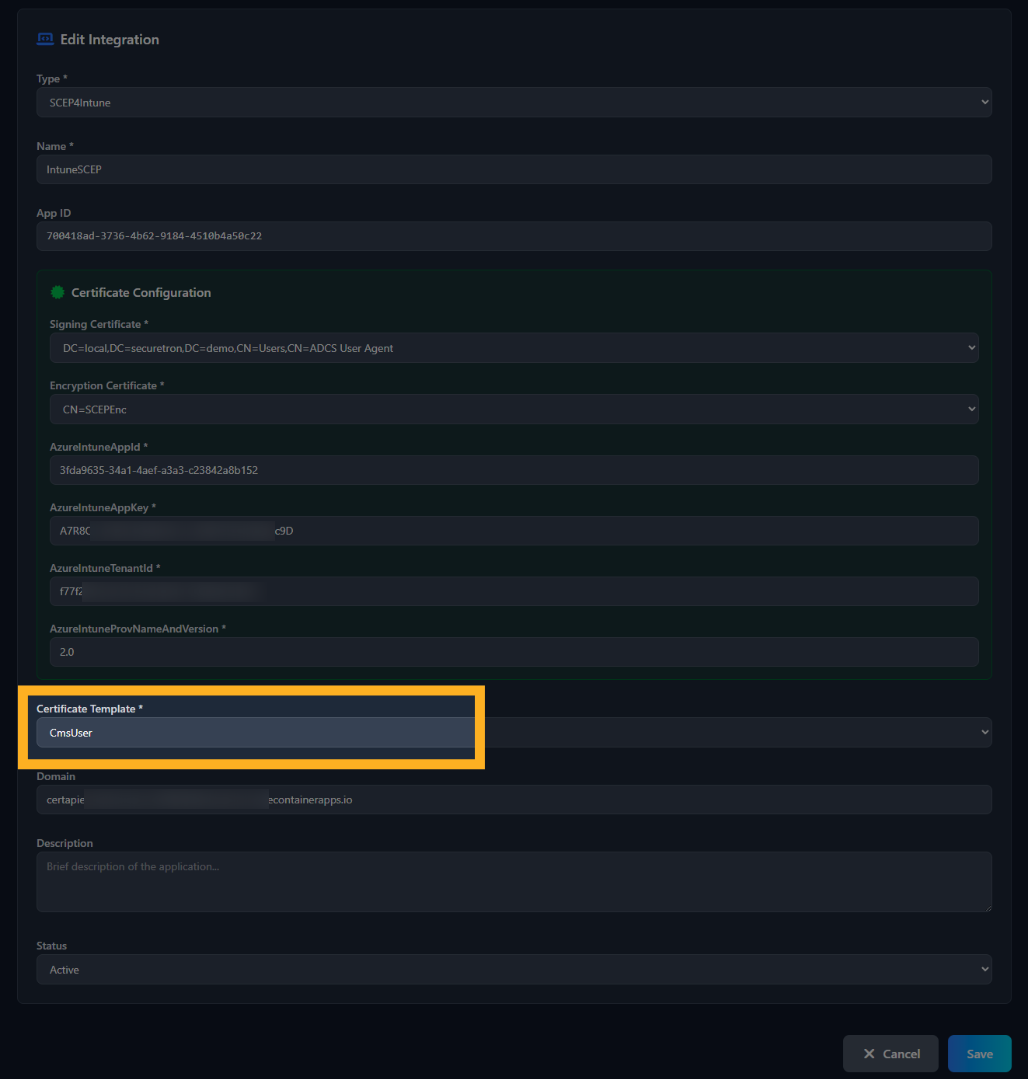
Select a Template that will be used to issue Certificates through Intune Integration
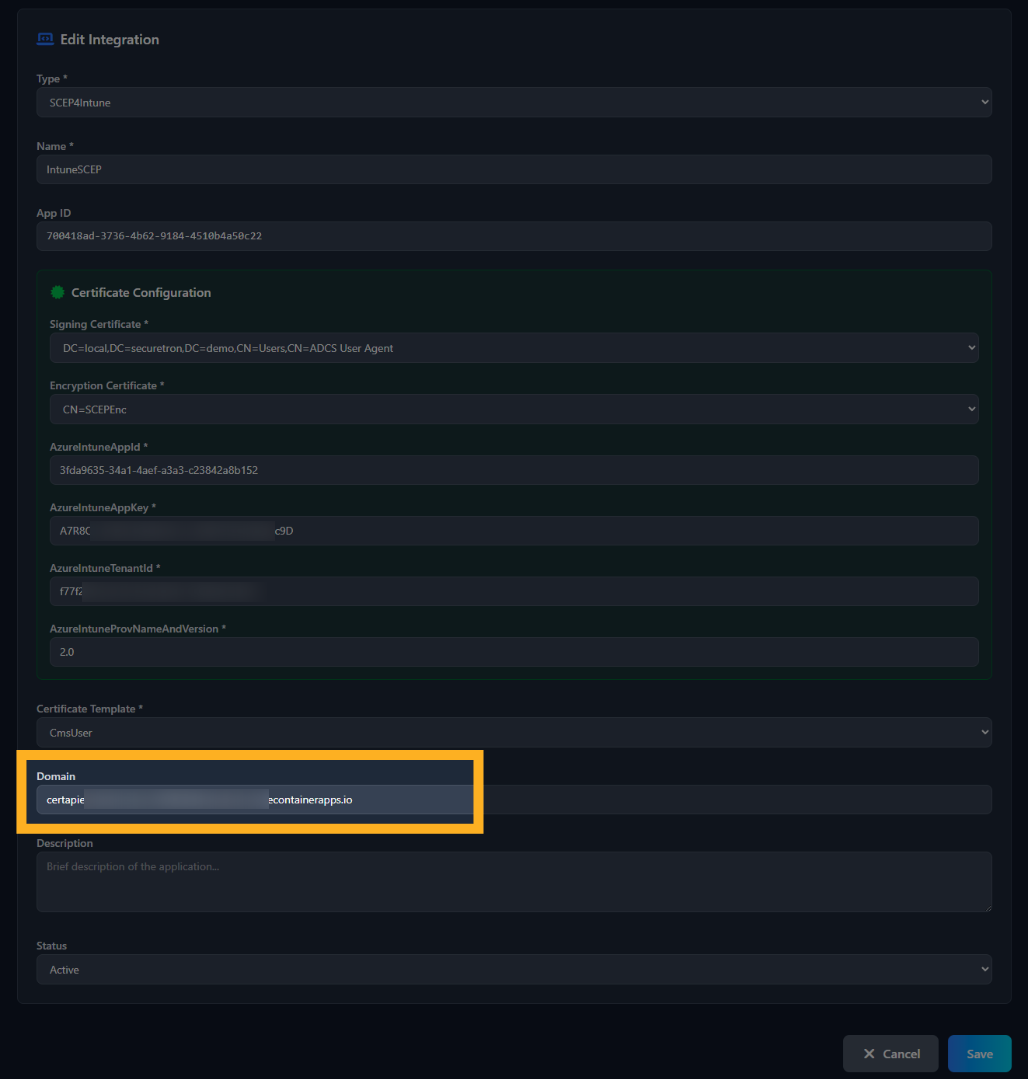
Enter the URL of the PKI Trust CERT API Container Service
Now, that we have validate the configuration – let’s save to publish the SCEP4Intune Service and have it enabled. In the next video we will cover the steps on Intune Admin Console to integrate with PKI Trust Manager Platform.

Let’s complete the setup by setting up Intune side of the configuration. Head over to the Intune Admin center.
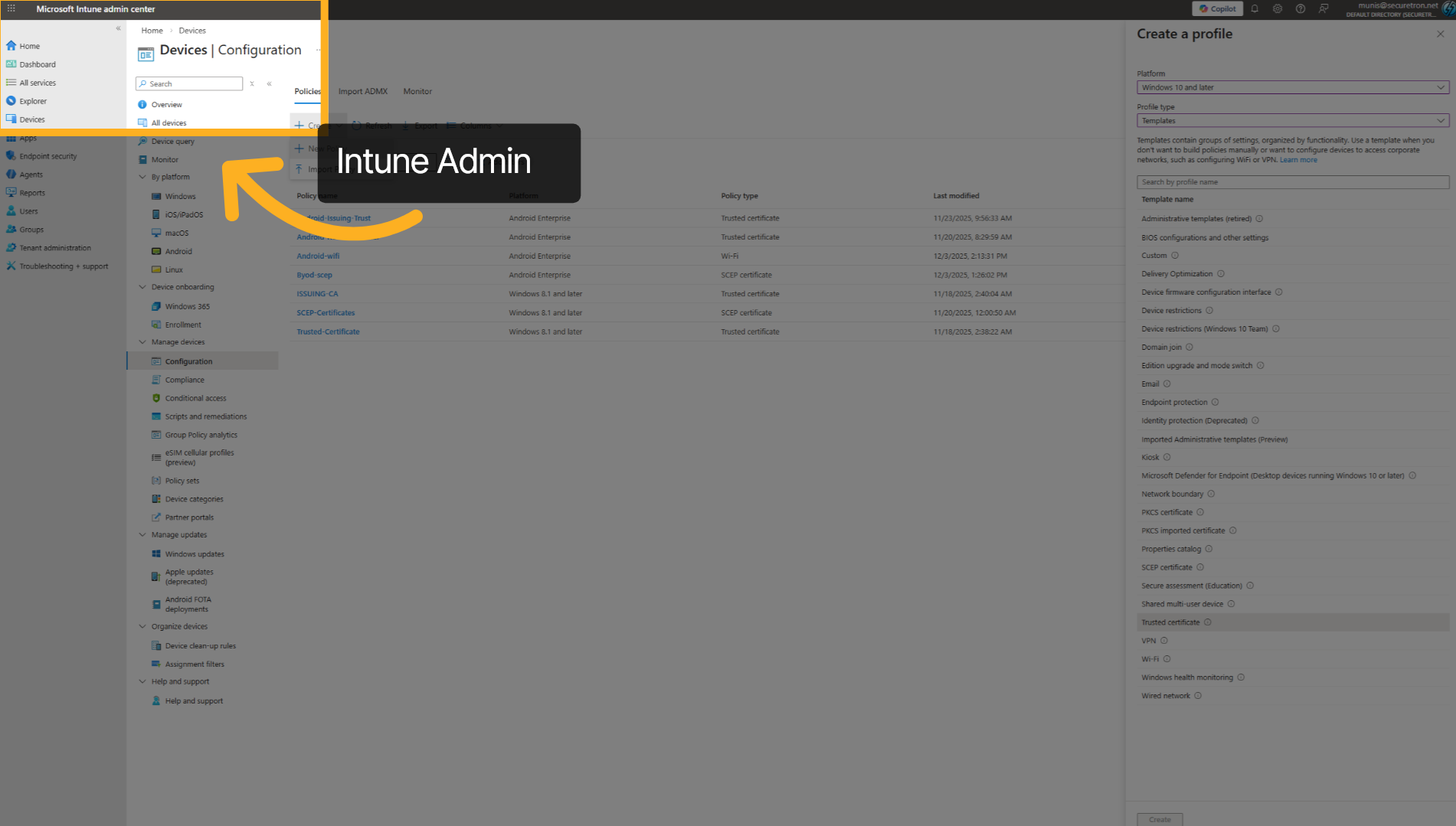
Click on “Devices” from the left navigation bar and then access the Devices Configuration as shown here
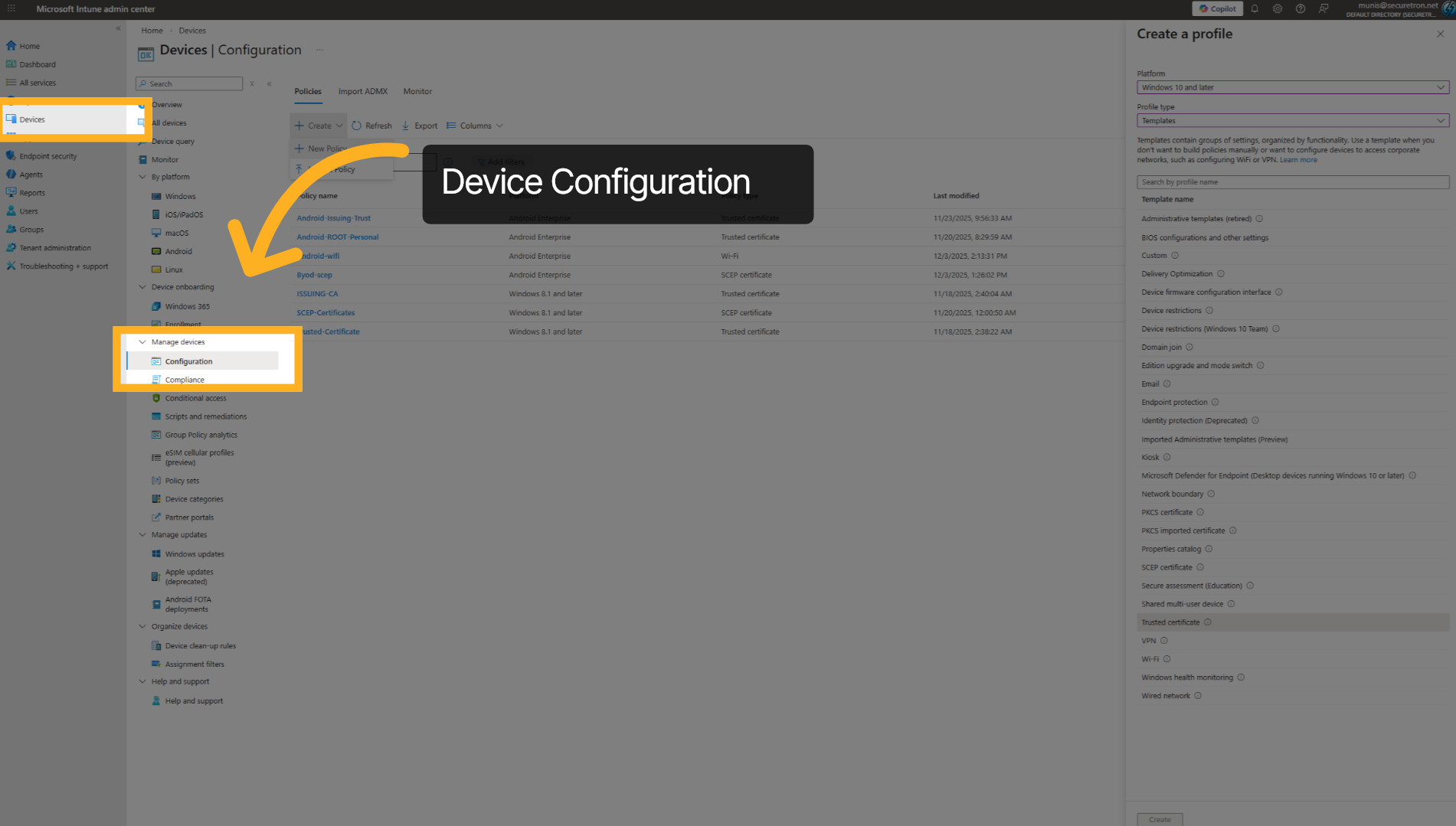
Create a new Policy
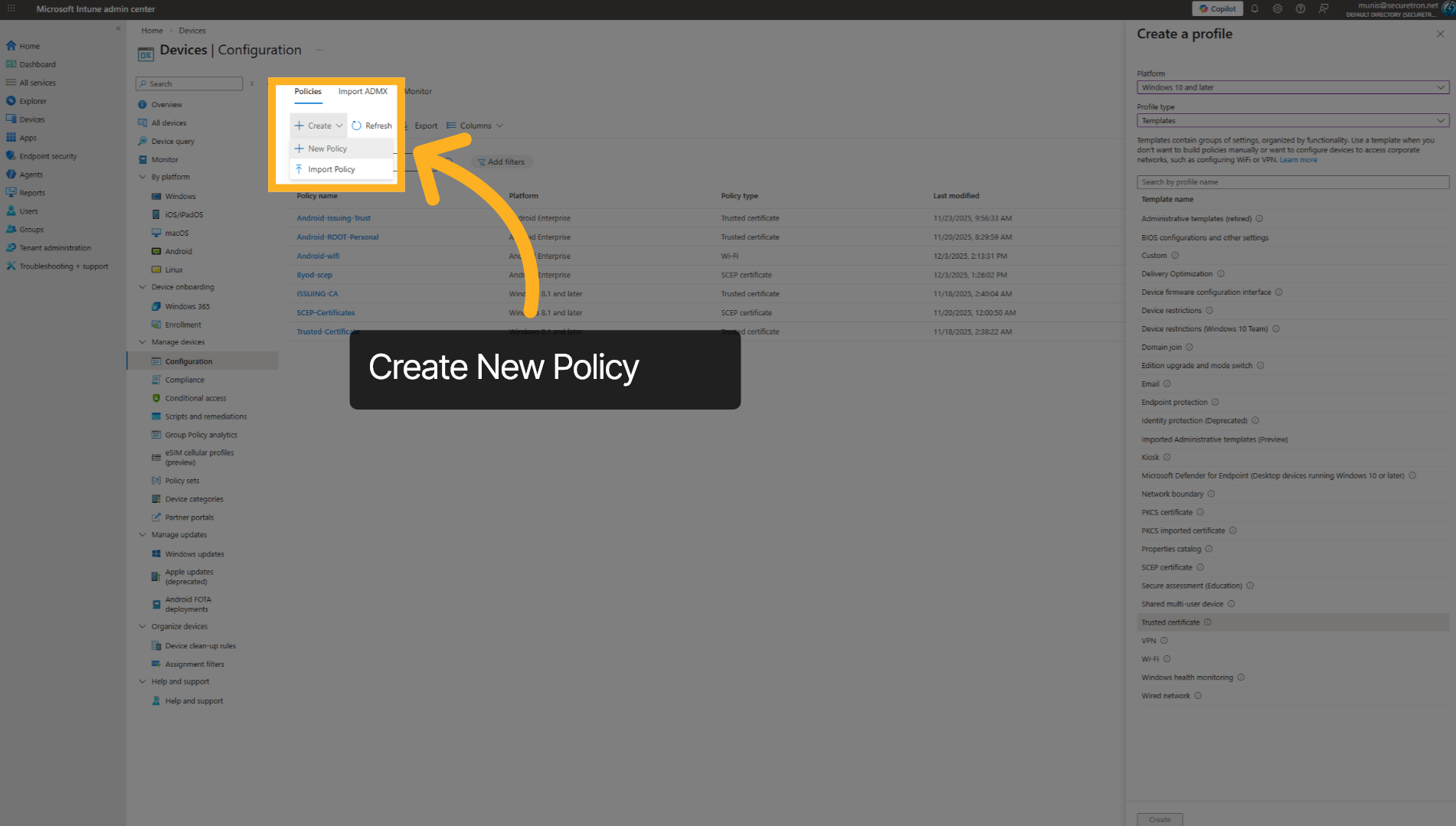
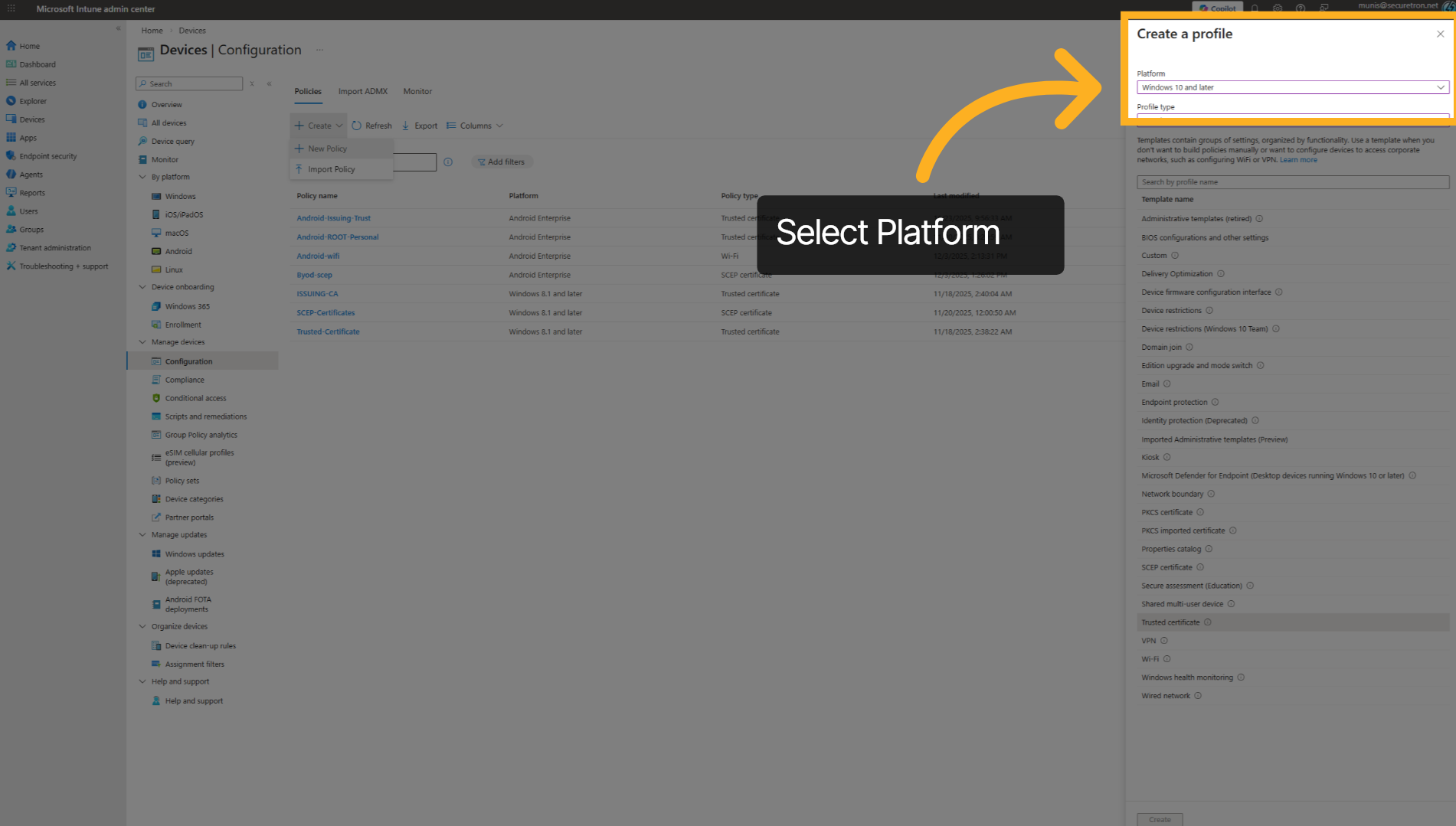
Choose a platform where you want this configuration applied. You can enroll certificates to any platform support via intune including Windows, Android, and iOS
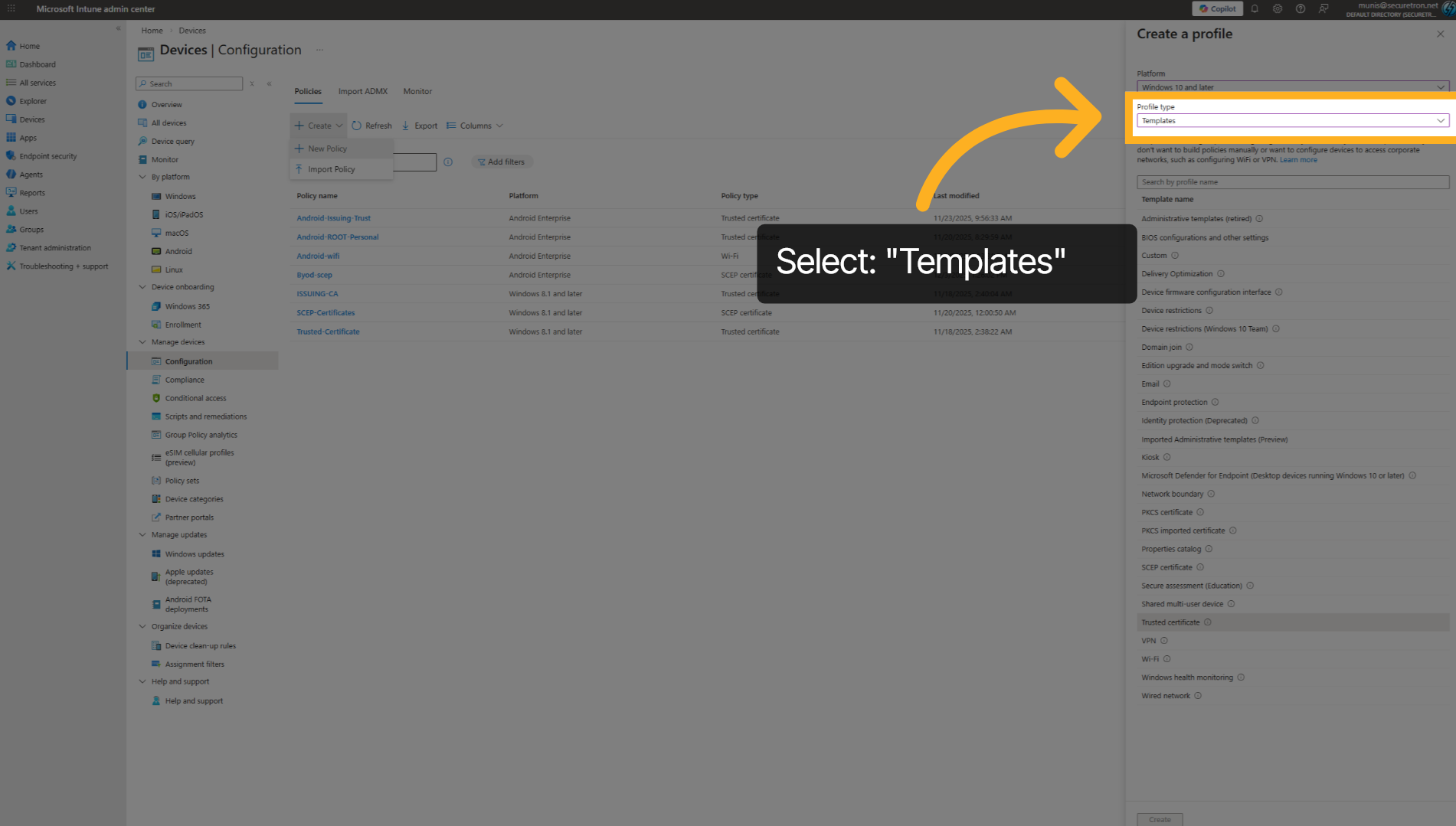
Next, select Templates from the available Profile type
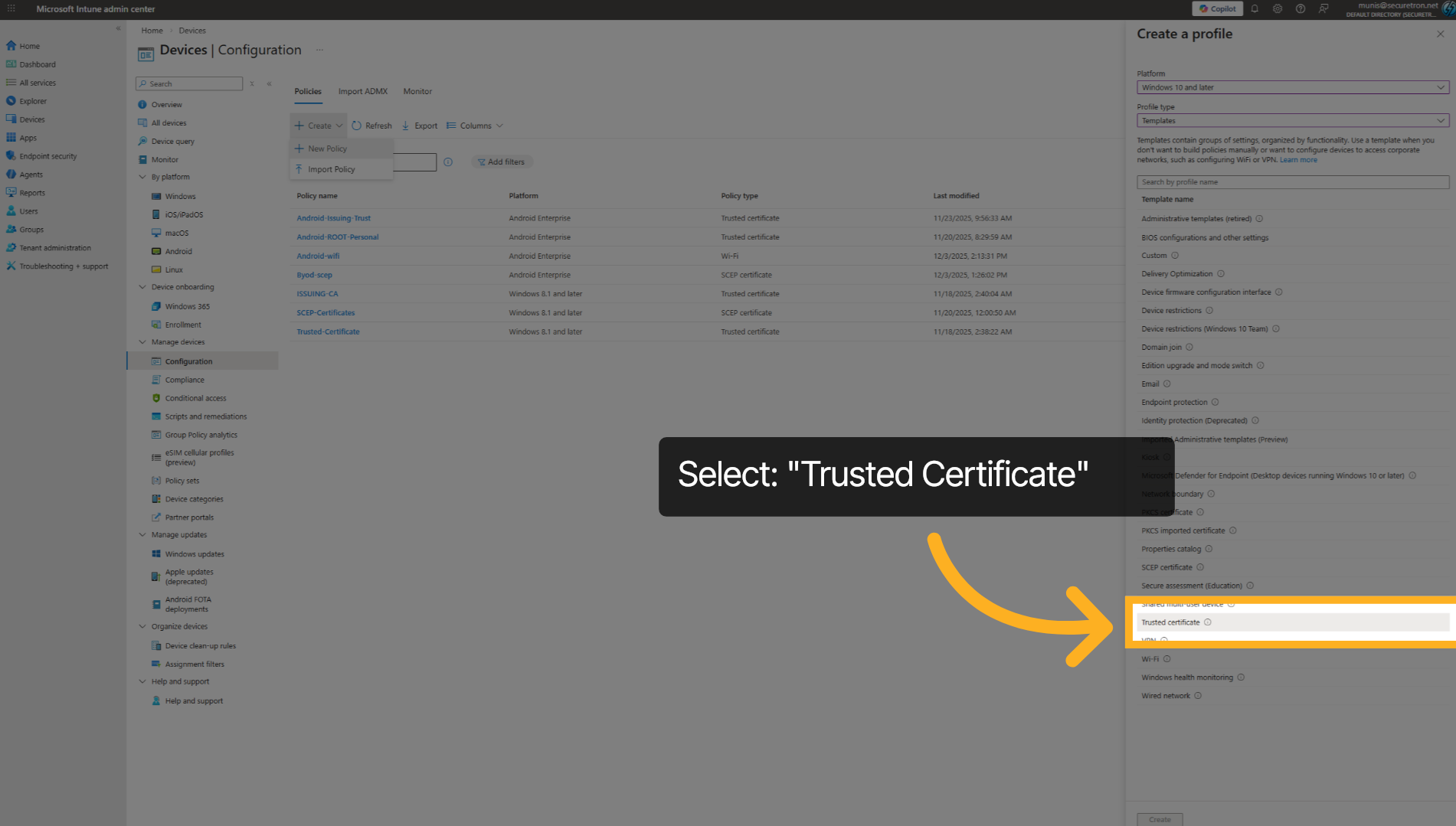
Now select the Trusted Certificate from the list of templates available.
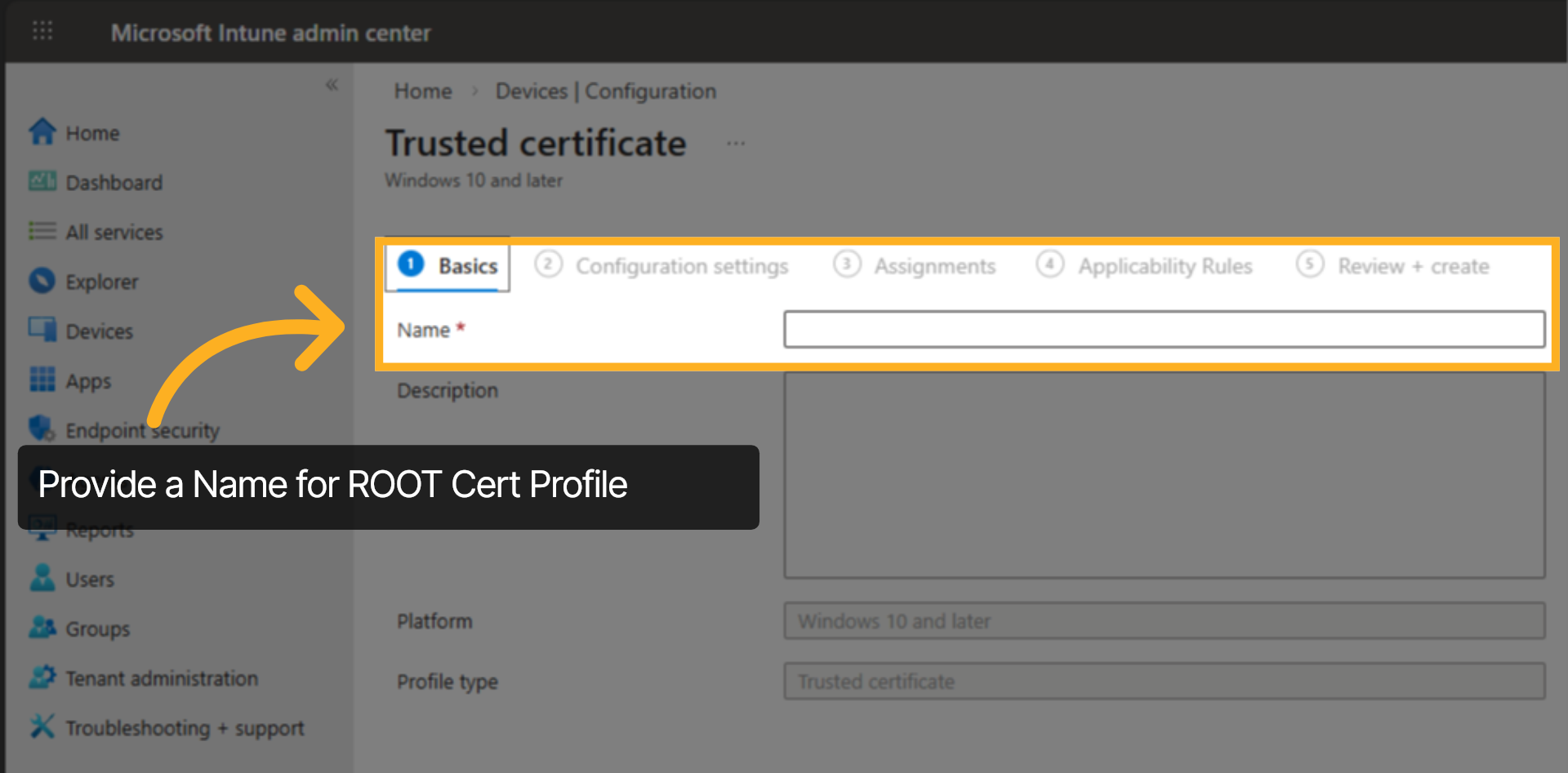
Begin by giving the configuration profile a name
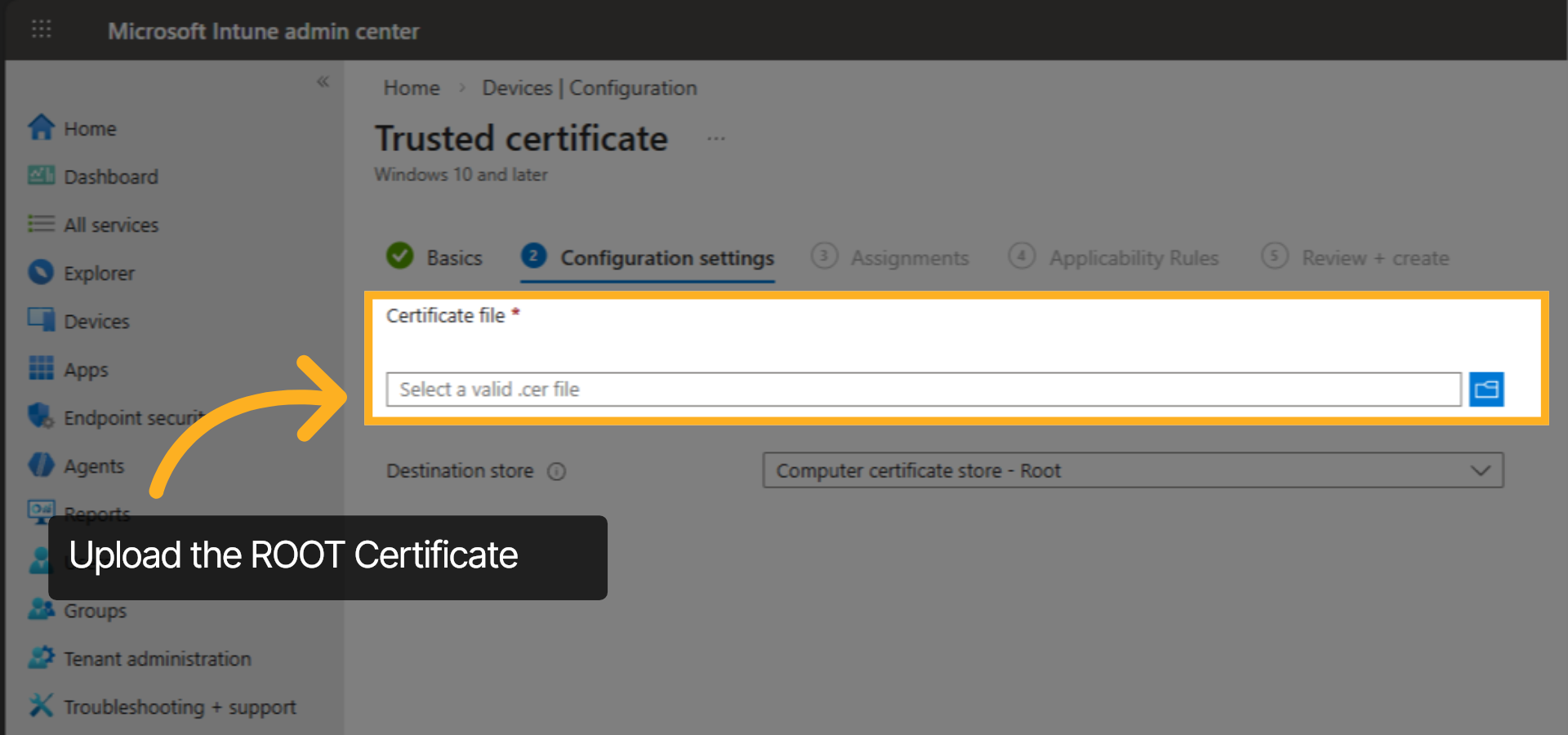
Next, Upload the Root certificate file. This will be required to build the Certification Authority Chain and ensure that any certificates issued to the devices is trusted.
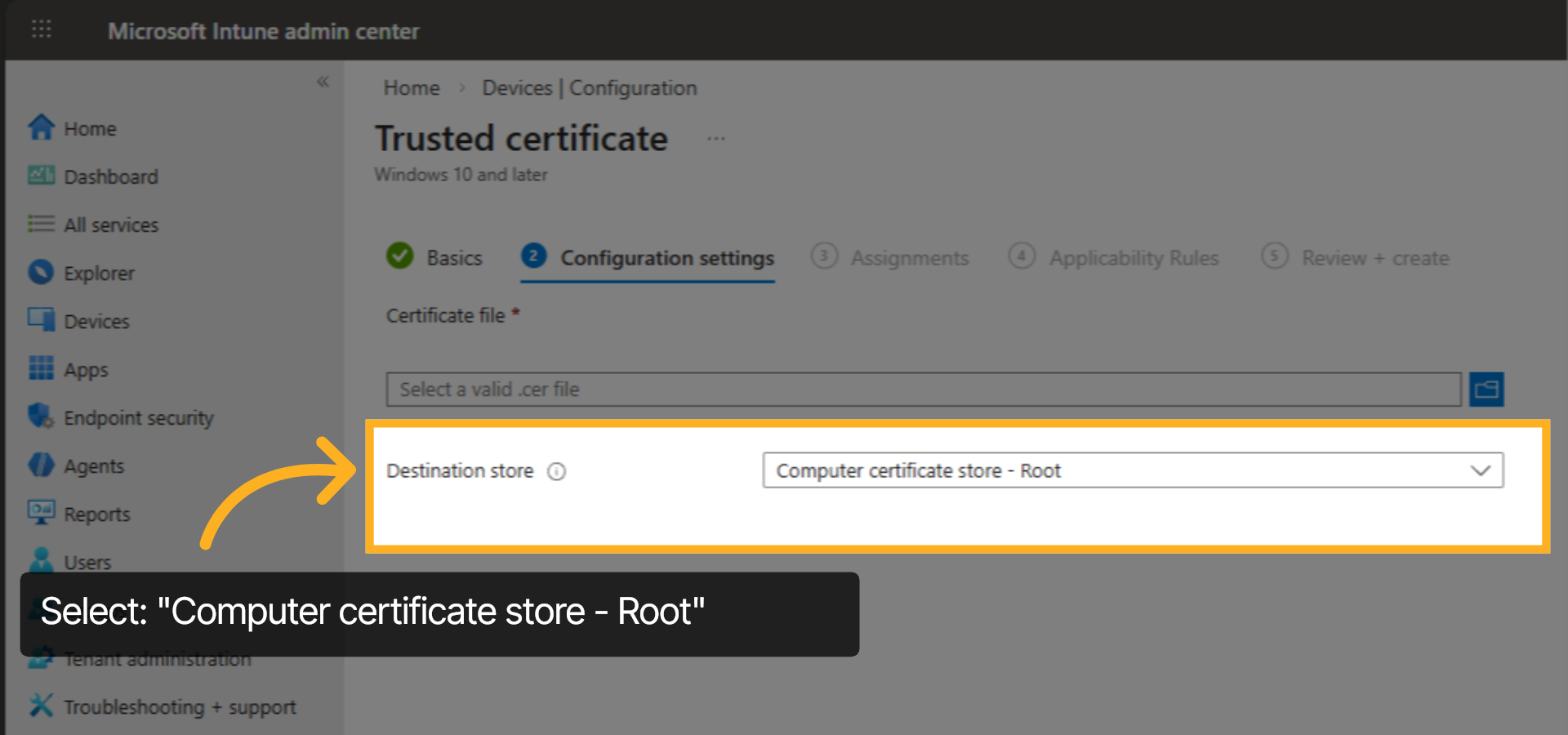
Next, Ensure that the destination store is set as Computer Certificate Store – Root
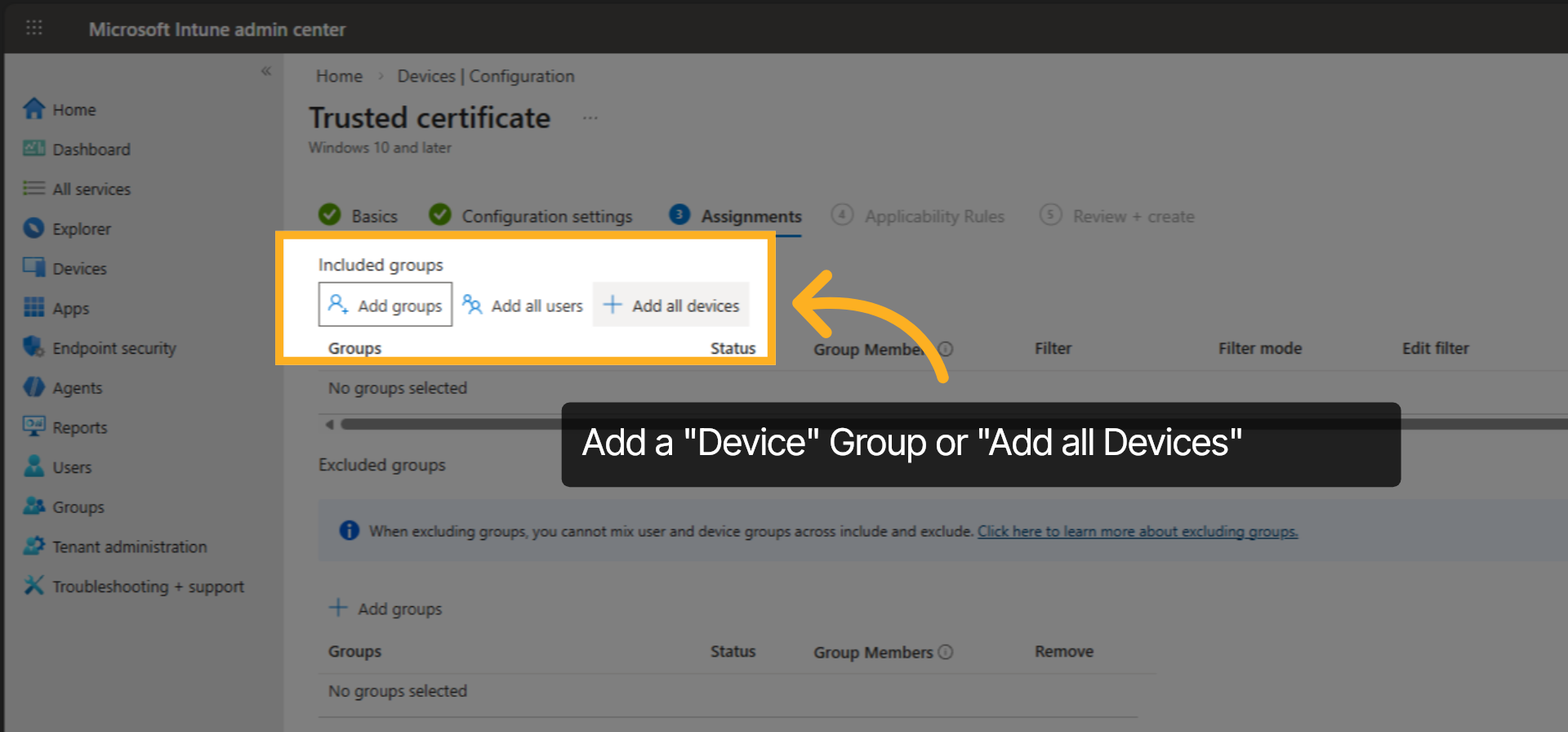
Add a group containing the in-scope devices or apply this configuration to all the devices by selecting “Add all devices”. Finish creating this configuration.
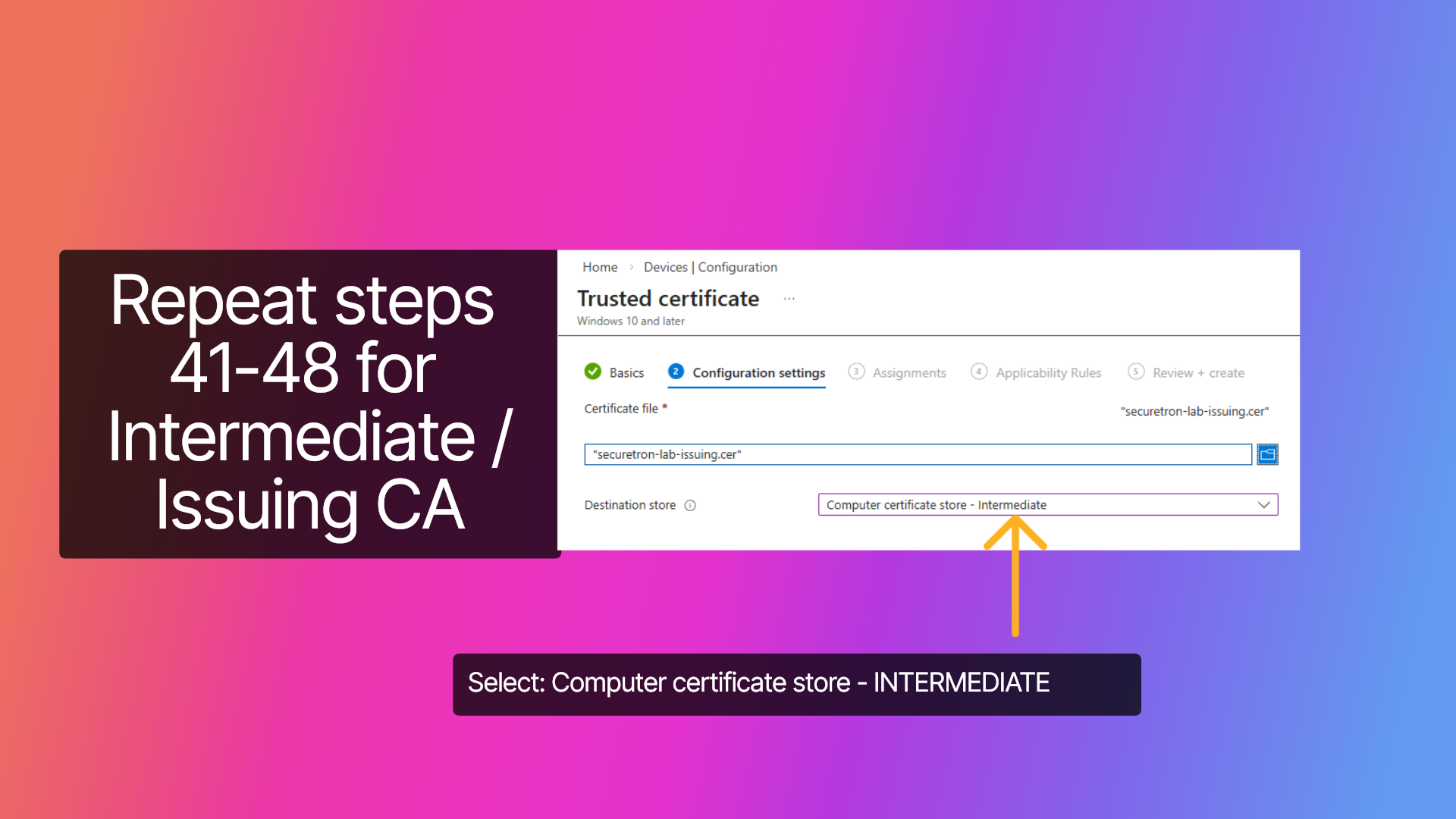
Now that we have completed provisioning the configuration for Trusted ROOT Certificate, repeat the steps for Intermediate Certification Authority that will be issuing certificates. Ensure that for this profile to set Destination Store to Computer Certificate store – Intermediate.
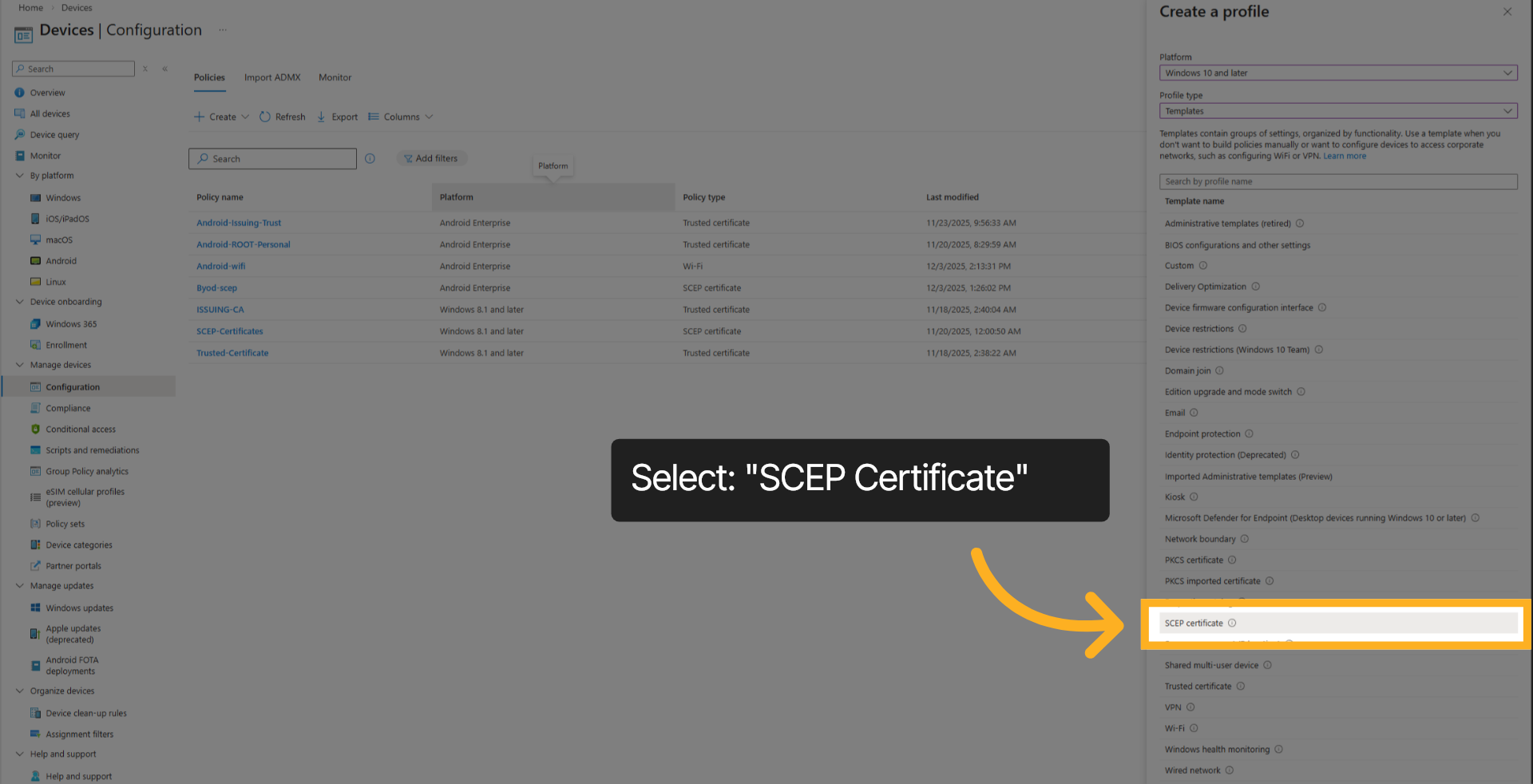
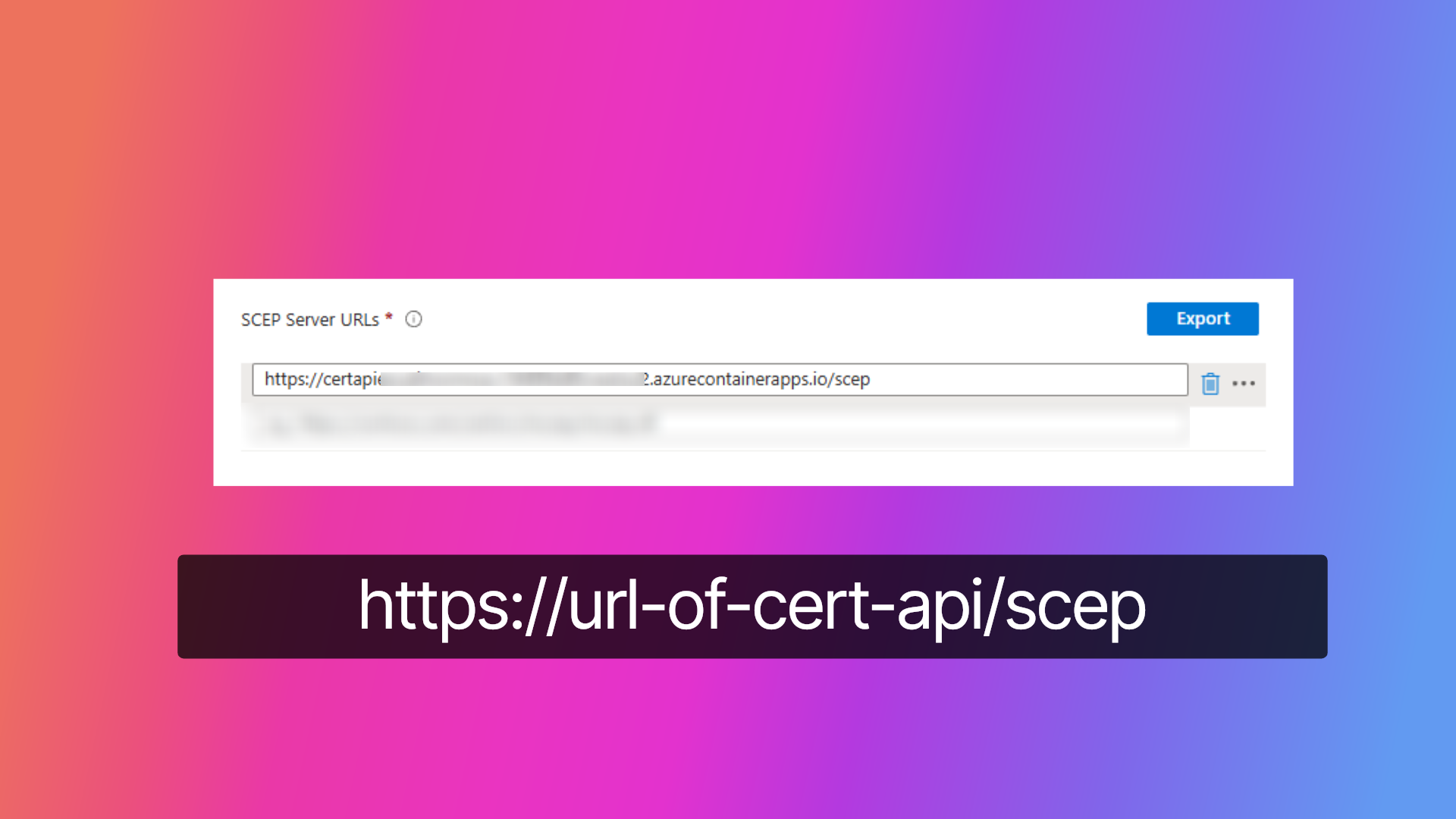
As the final step, we will be provisioning the SCEP Certificate Profile. This profile will use the PKI Trust Cert API URL previously configured to request certificates and enroll devices
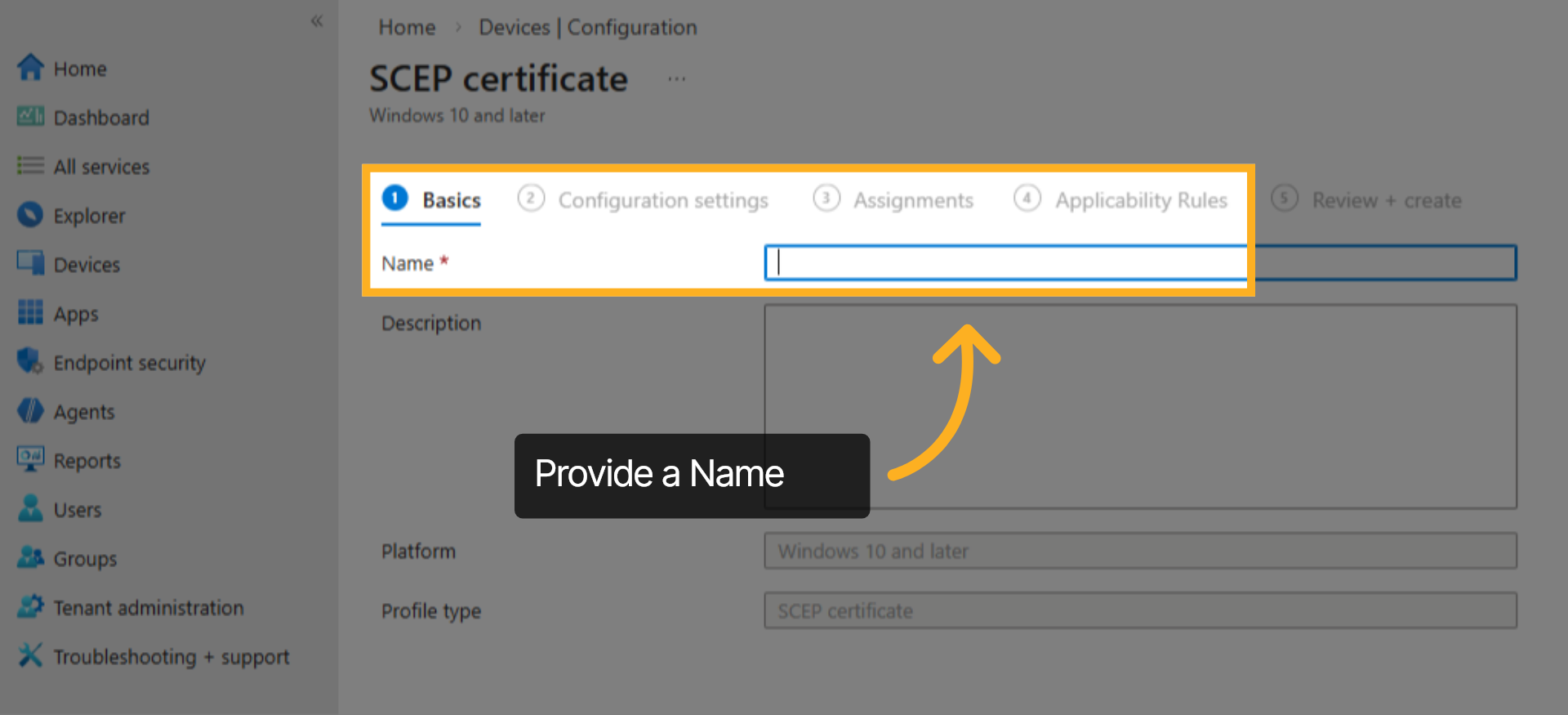
Provide a name for the SCEP Profile used to provision user or device certificates to endpoints
Select the type of Certificate that will be issued. This should be the same that has been configured on PKI Trust Manager
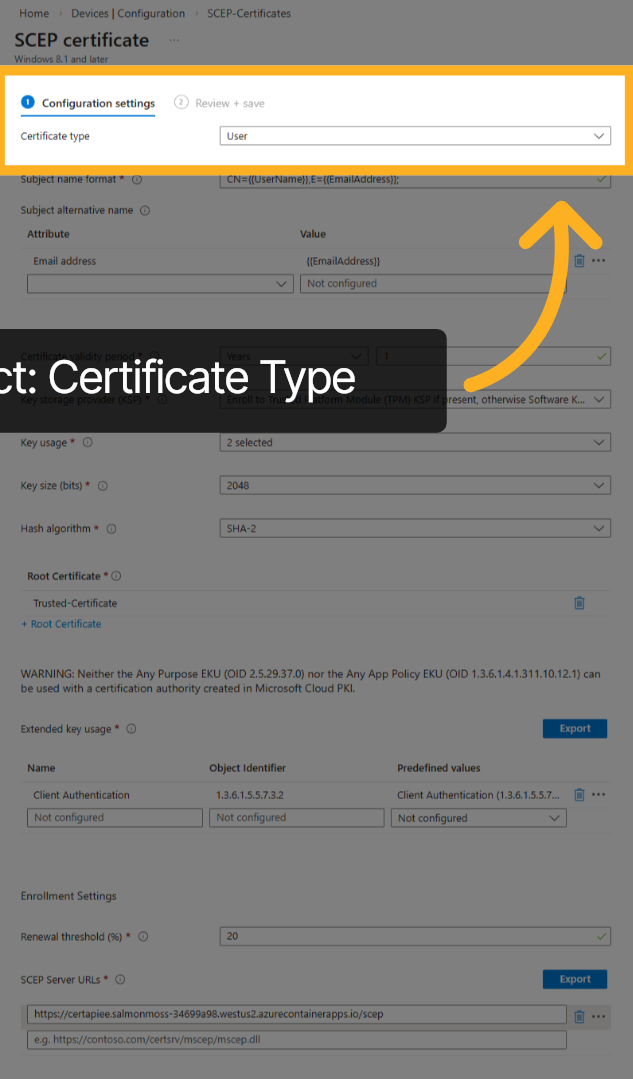
Provide a Subject name that will be used for certificates that are issued. You may use the default settings here
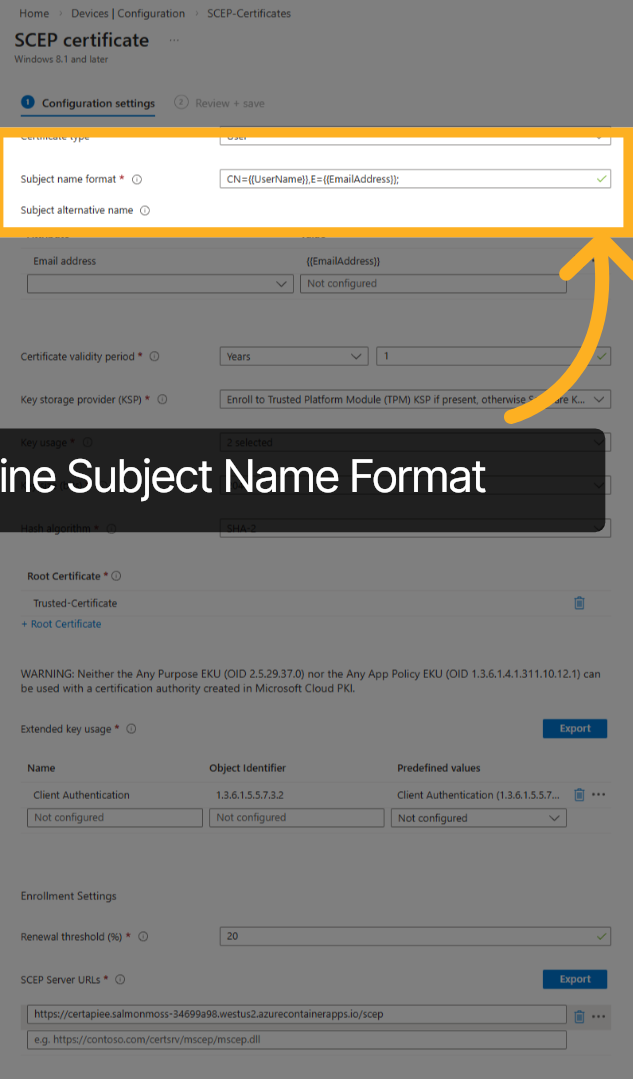
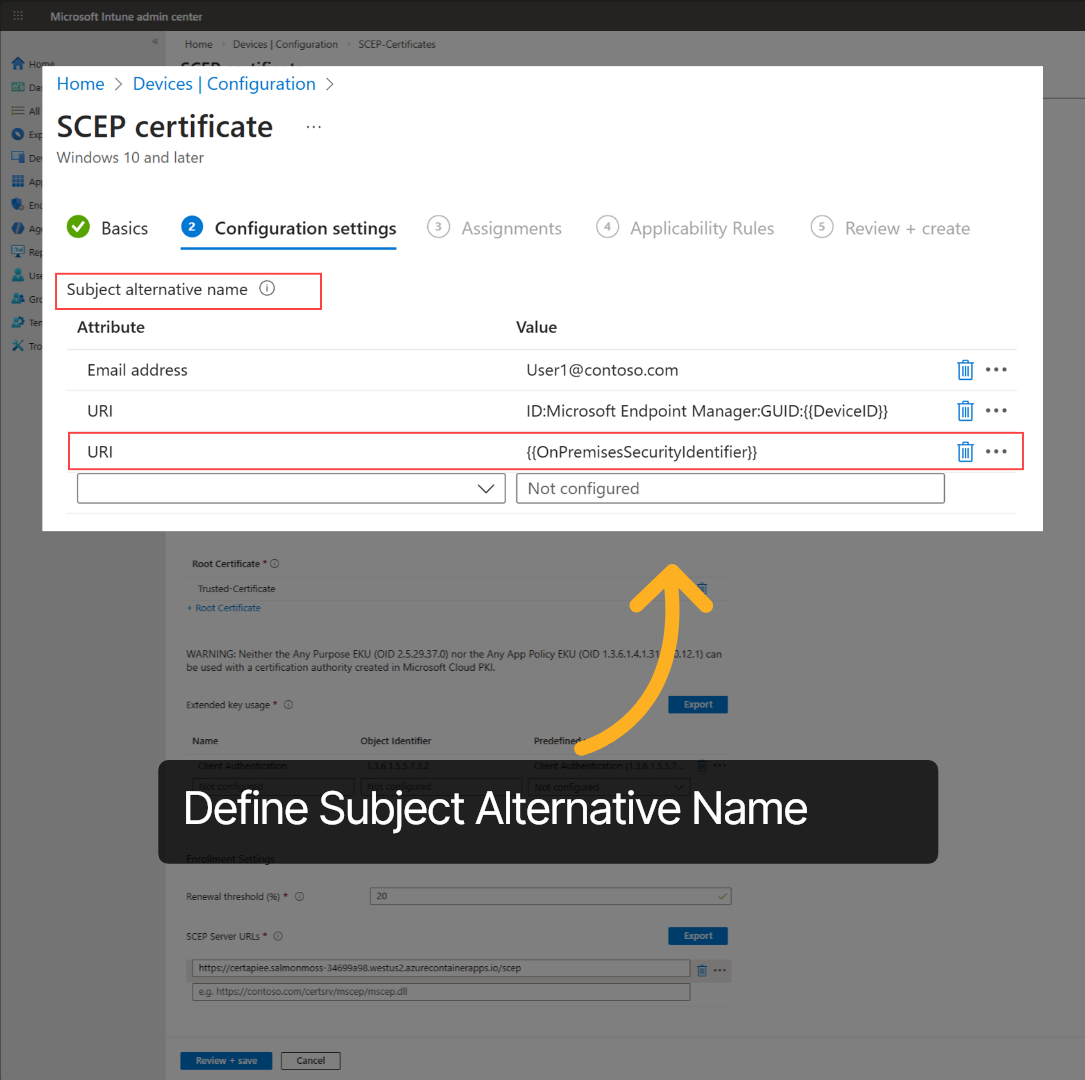
The Subject alternative name should be configured. In addition to email or hostname, you will need to set URI to On premises Security Identifier. This is required for Strong Certificate Mapping.
At the bottom of the configuration, The SCEP Server URL should be as shown where it begins with https and ends with forward slash SCEP
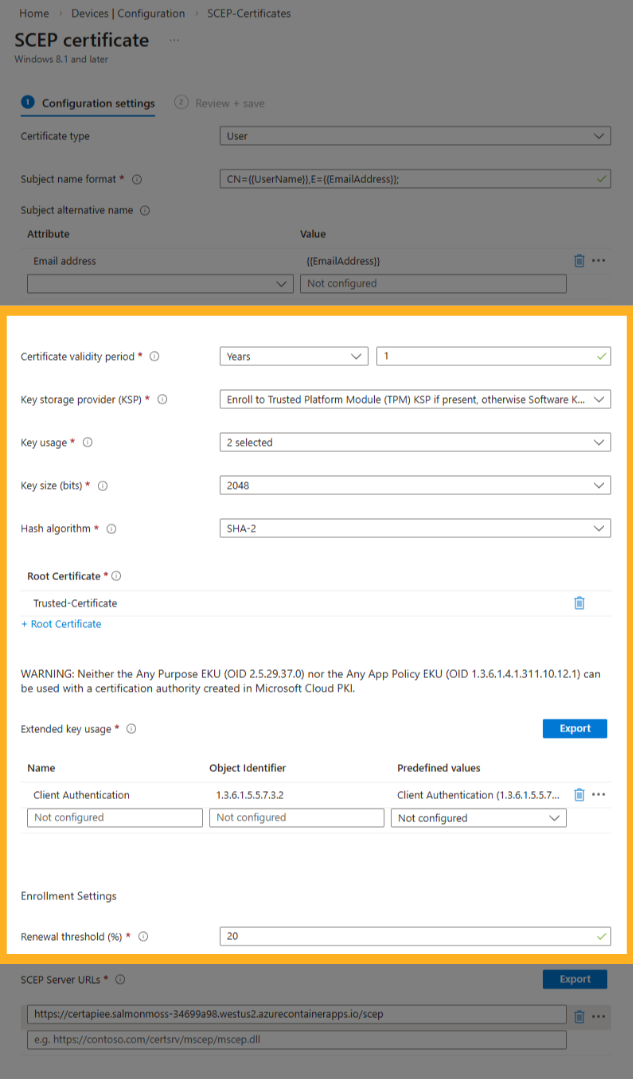
Complete rest of the configuration as shown or as required by your organization Certificate Policy including adding the previously provisioned ROOT Certificate Profile.
Congratulations!, You have successfully enabled the SCEP4Intune Service in the PKI Trust Manager by configuring the necessary certificate templates and settings as well as configuring Intune to fully integrate with PKI Trust Manager. This completes the setup of integrating Intune and successfully issuing Certificates to devices. If you require more information, please refer to the documentation or contact support