
Issue Certificate using PKI Trust Manager Web Interface

This tutorial guides you through issuing a certificate using the PKI Trust Manager. You will learn how to navigate the interface and complete all necessary steps to successfully issue a certificate.
The certificates can be issued and managed via various channels in PKI Trust Manager including automation, API interfaces and integrations with services. In this video we will walkthrough on how to issue a certificate manually

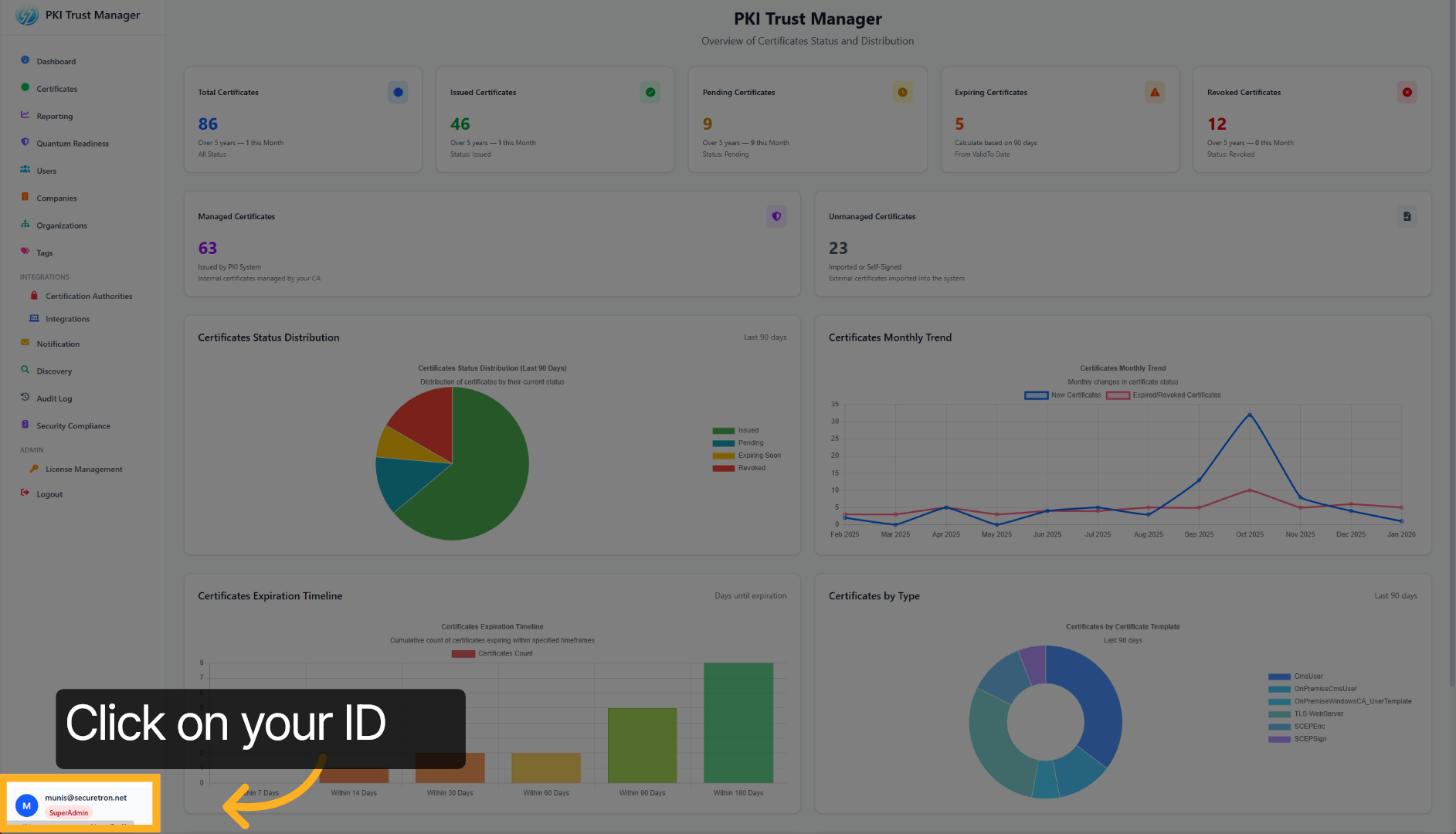
The Certificates are tied to the identity of the PKI Admin. To Issue a Certificate – Click on your Identity
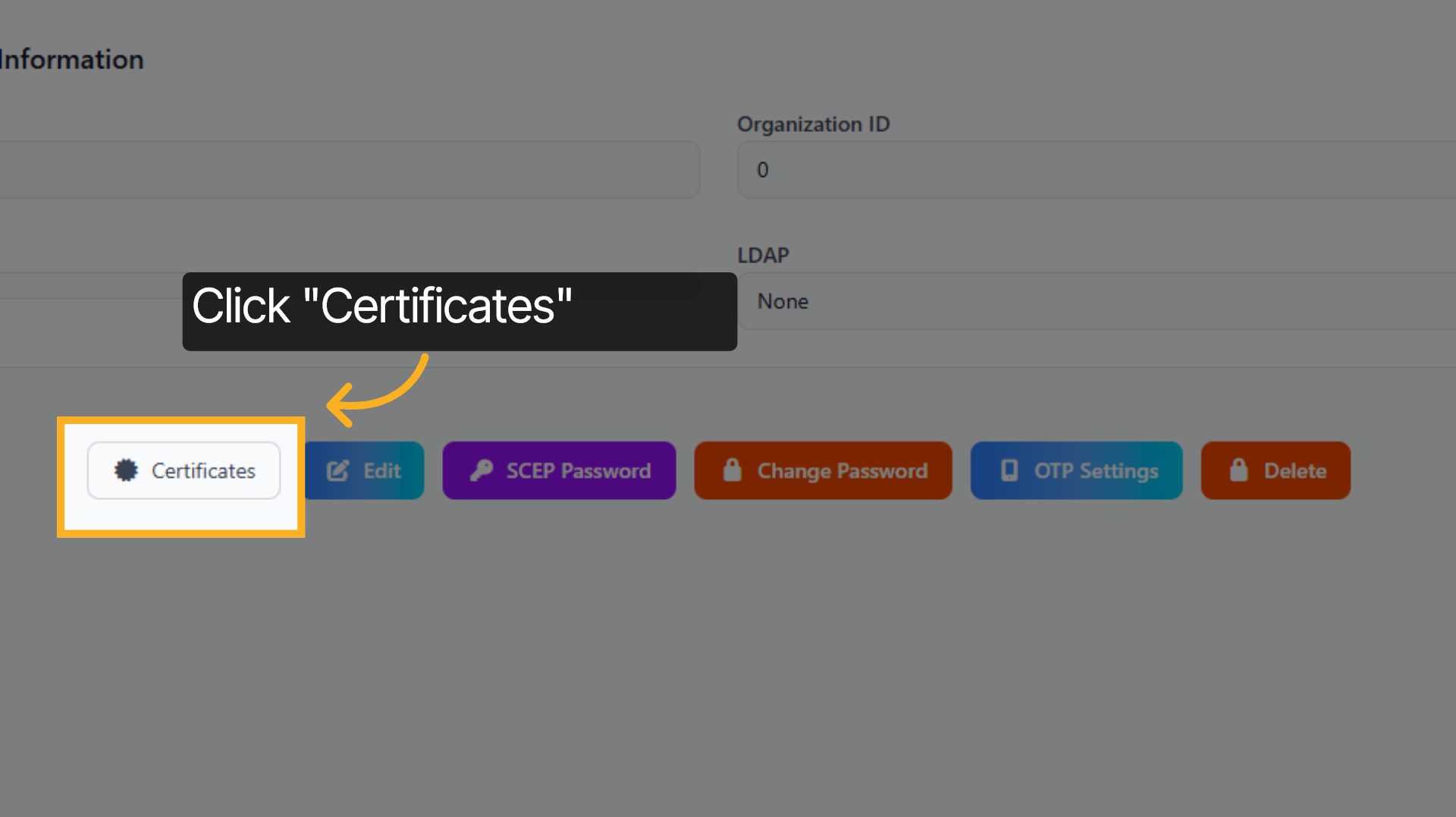
Click the Certificates tab to access certificate management options.
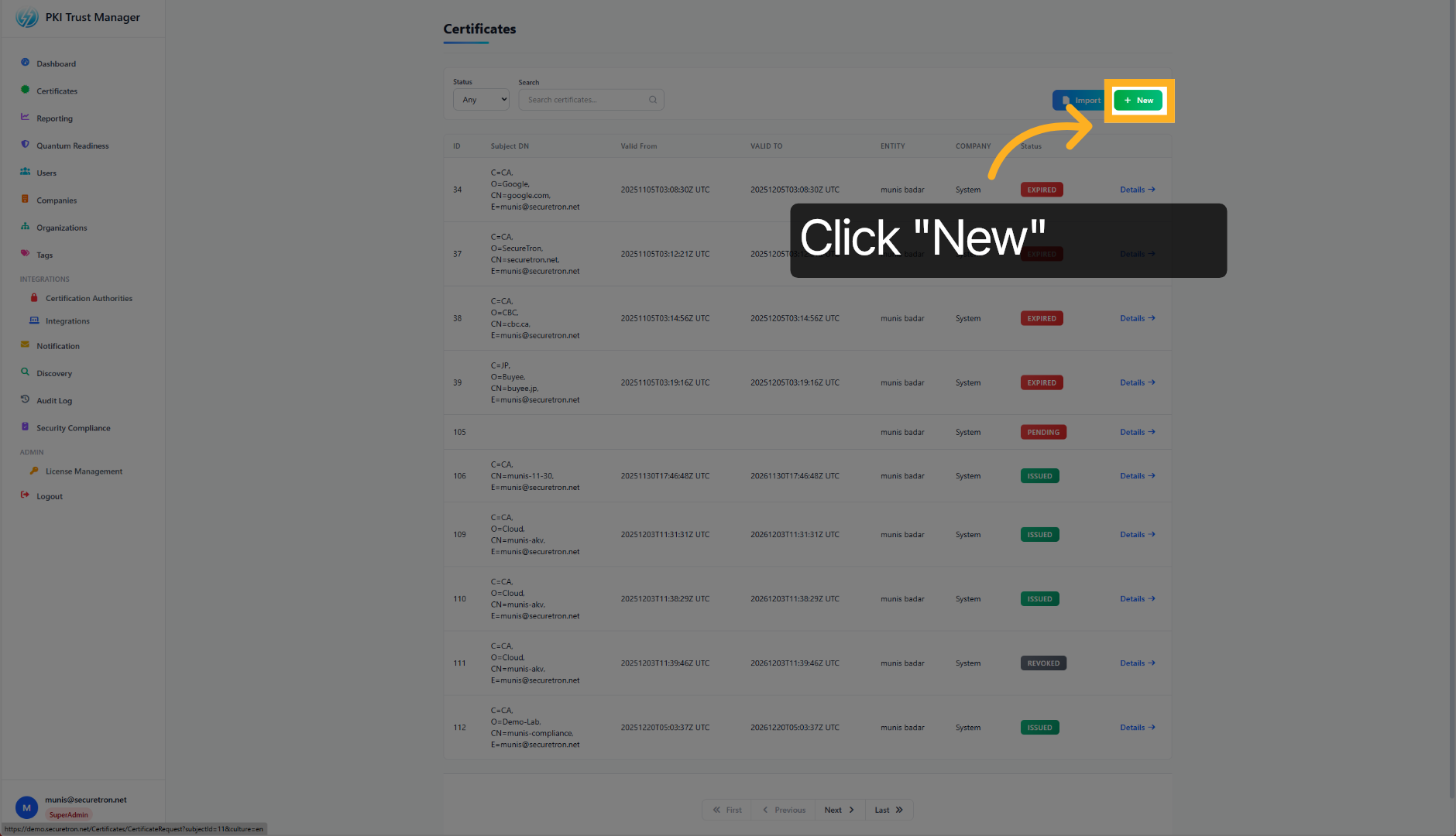
Click the New button to start creating a new certificate.
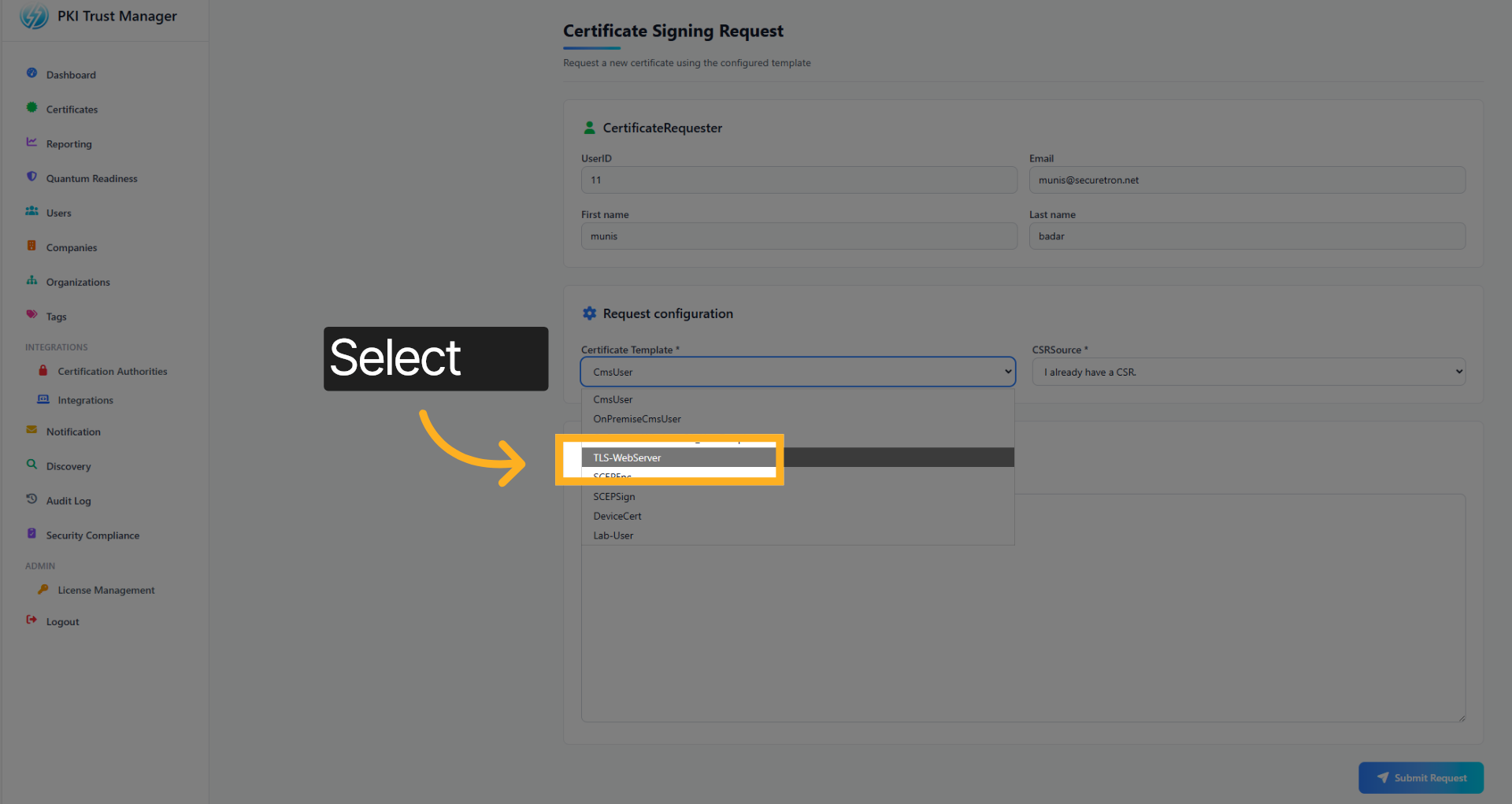
Select the Template that will be used to issue a new certificate. These are the templates that the PKI Admin has published and made available through the integrations of the Certification Authorities
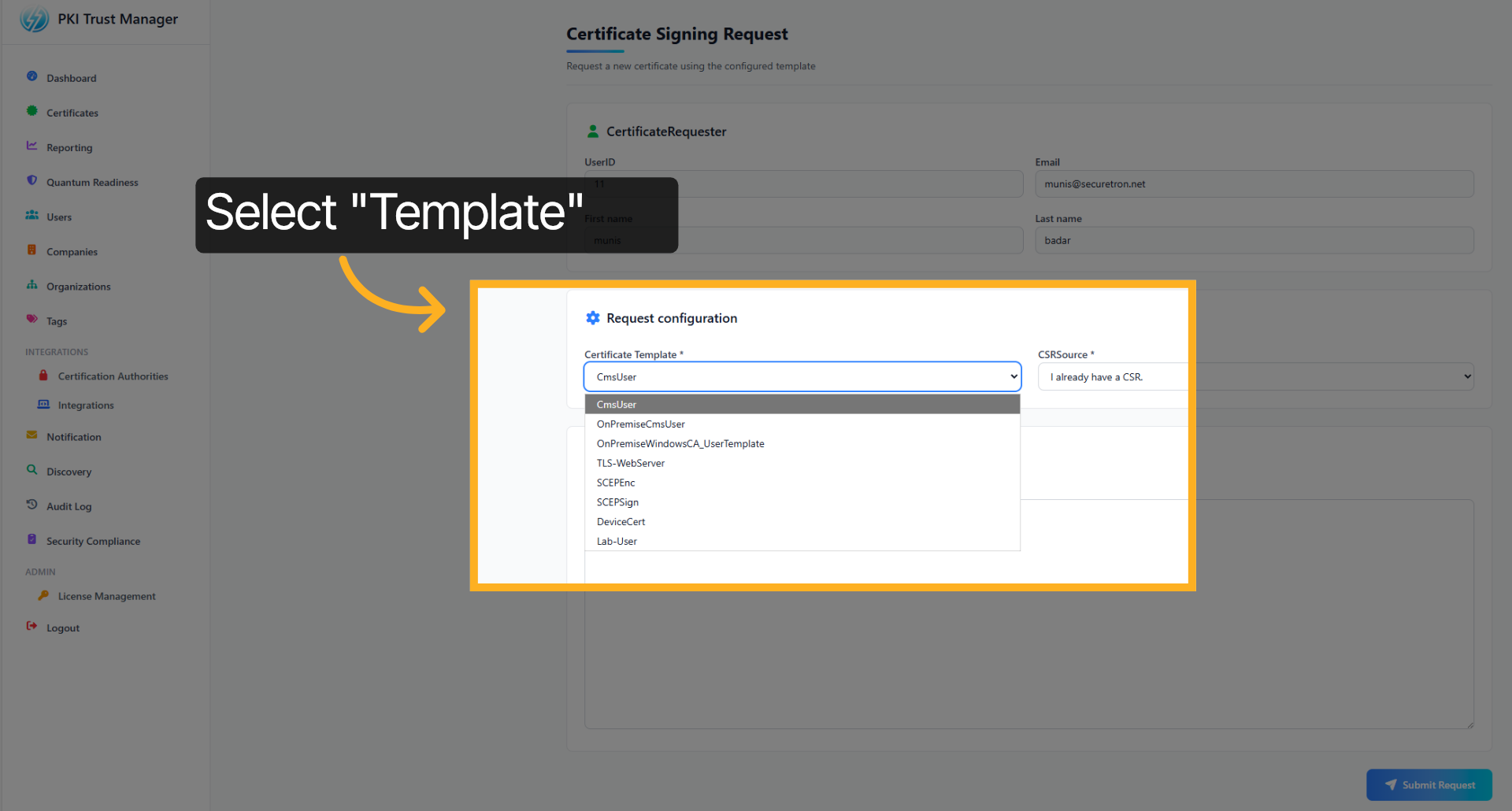
For this demonstration, we will be using the TLS Web Server template to issue a TLS Certificate that can be tied to a internal web-application
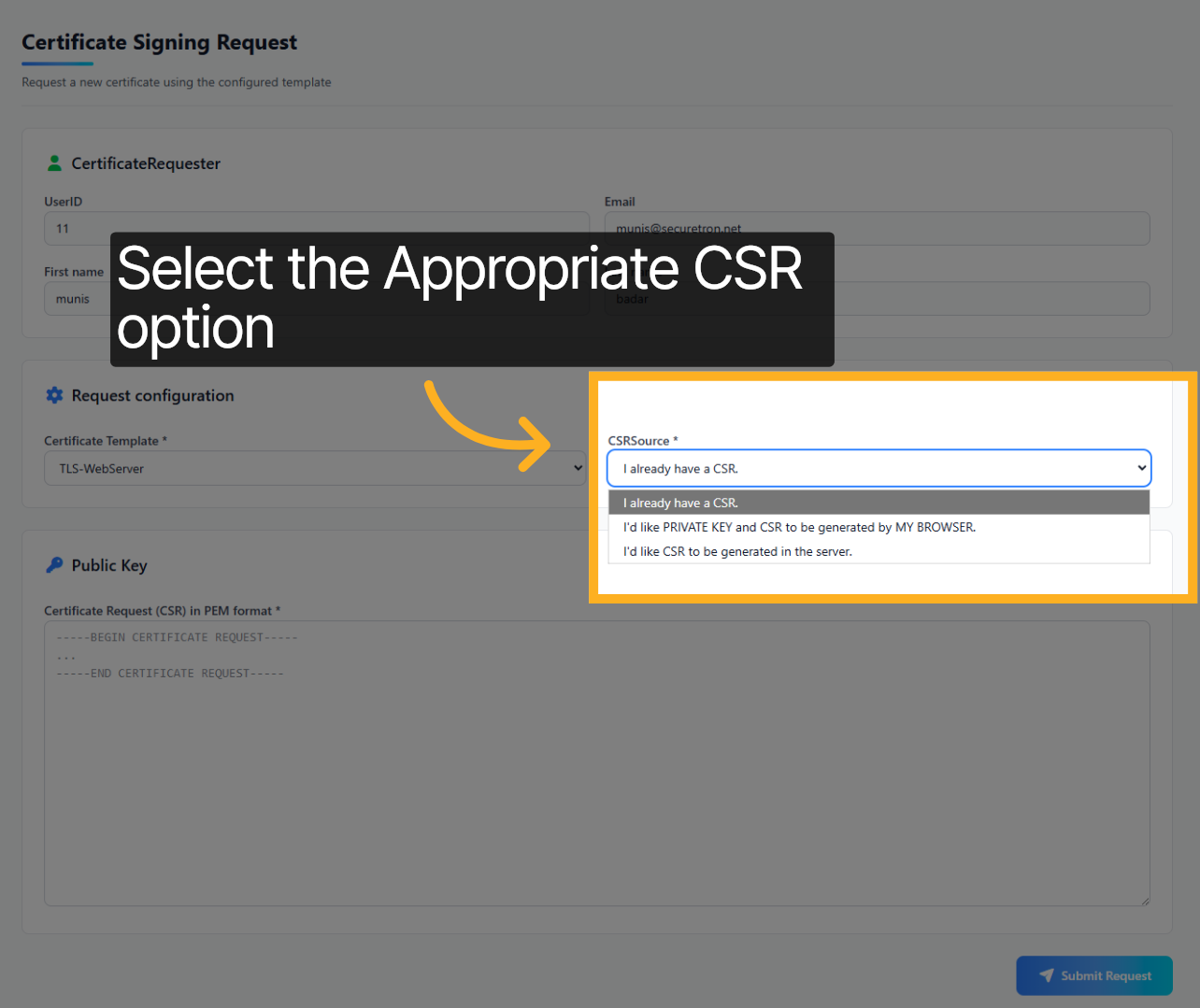
Next we will select the CSR Option. There are three choices. First, if you already have the CSR; second, that you would like to generate the CSR in your browser; and finally, the third option is to generate the CSR on the Server side.
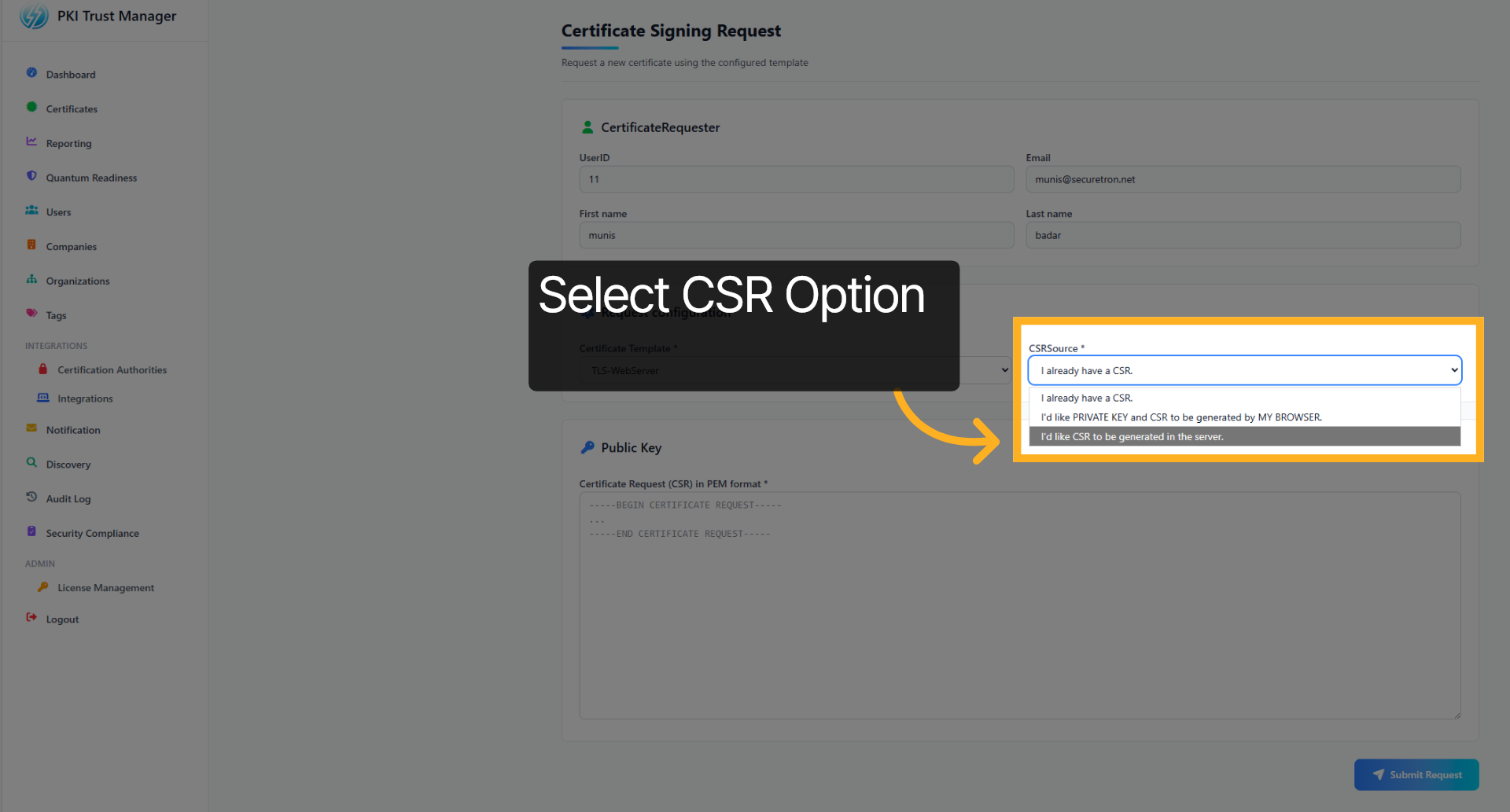
We will select the “Server Side” option to generate the CSR
Next, we want to fill out the details required to generate a CSR. These fields have been either made mandatory or optional by the PKI Admin when through the Template.
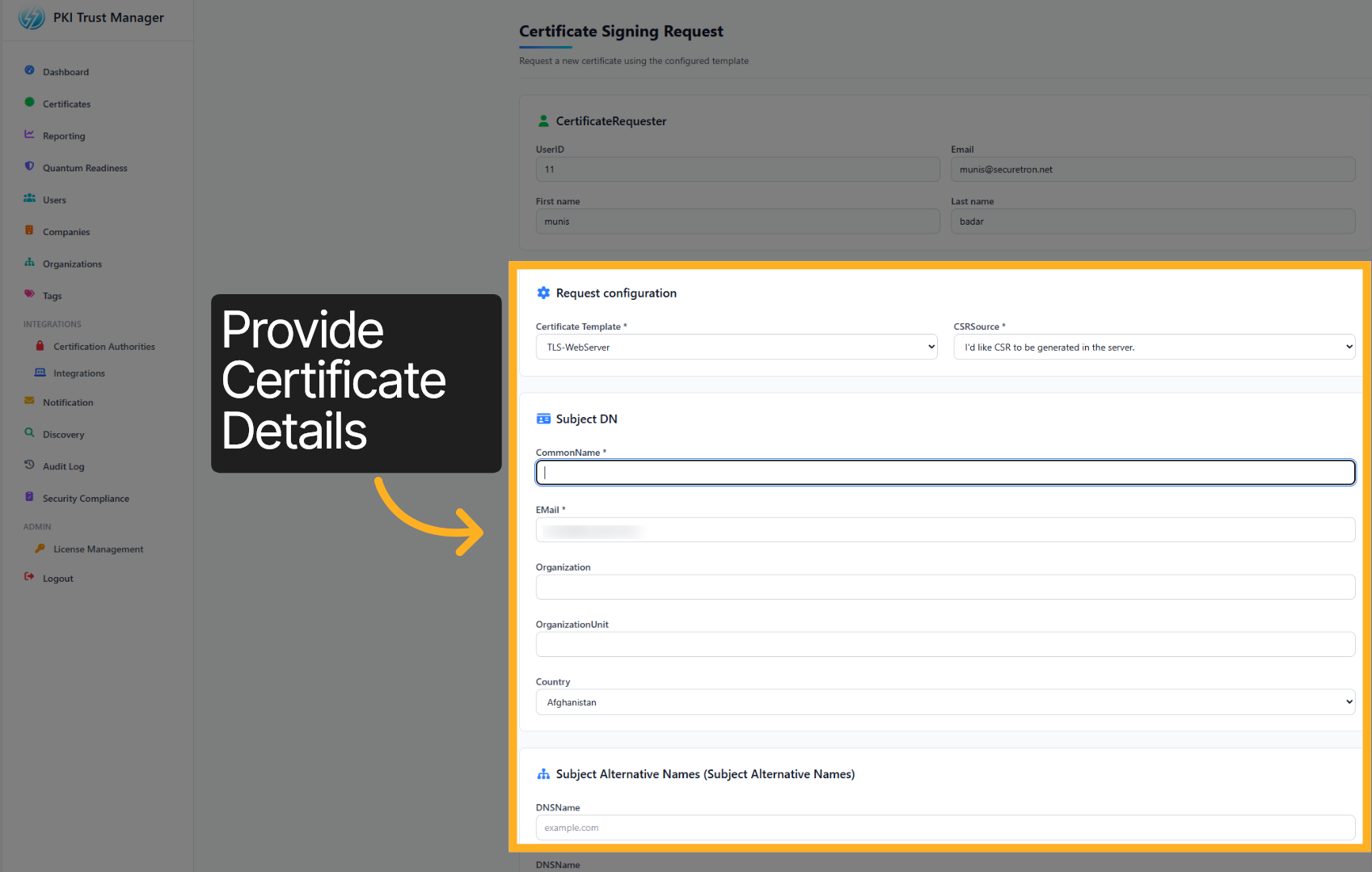
Enter your application name or DNS Name to identify the certificate’s purpose.
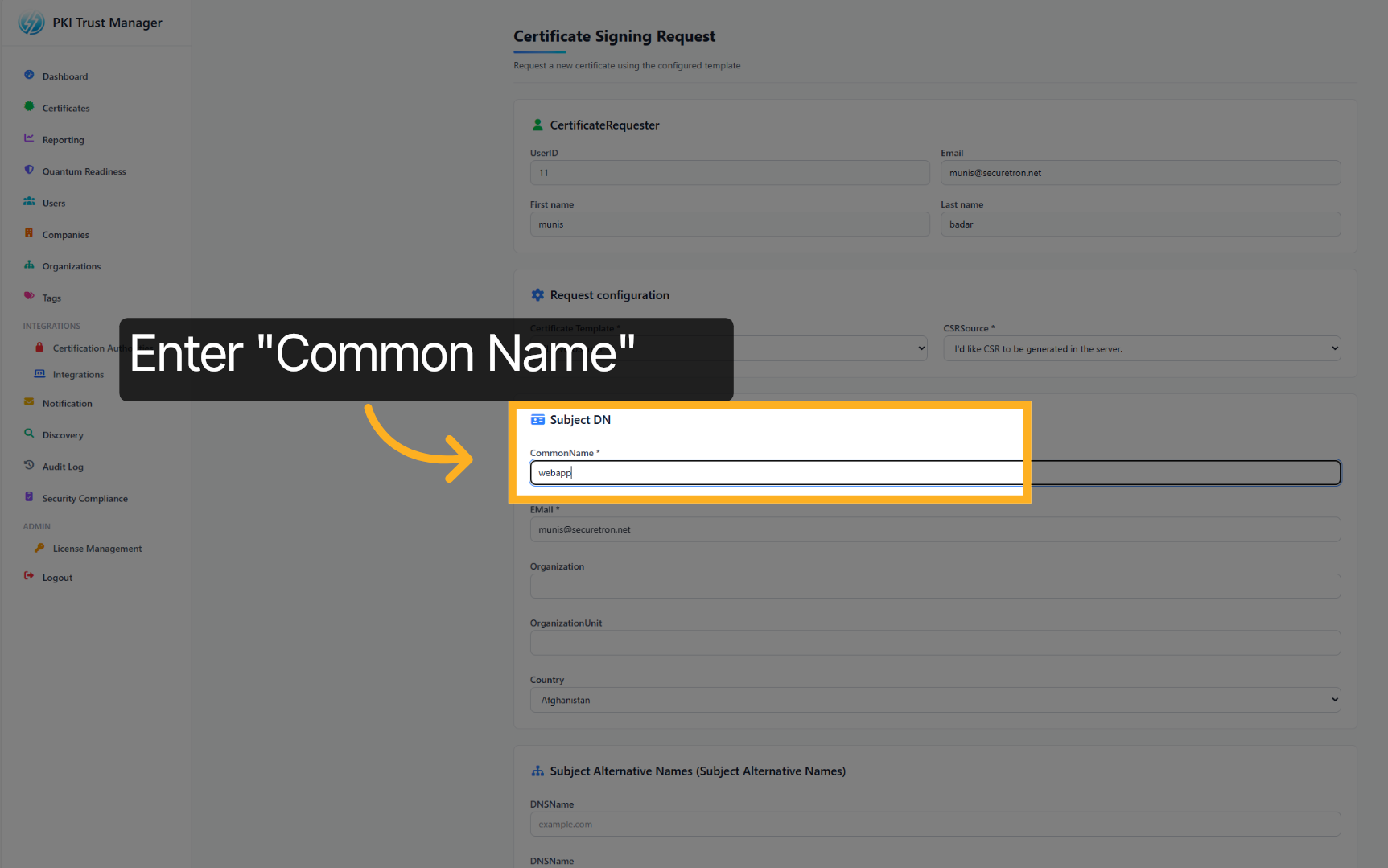
Enter your email address associated with the certificate requestor. This typically should be a distribution list.
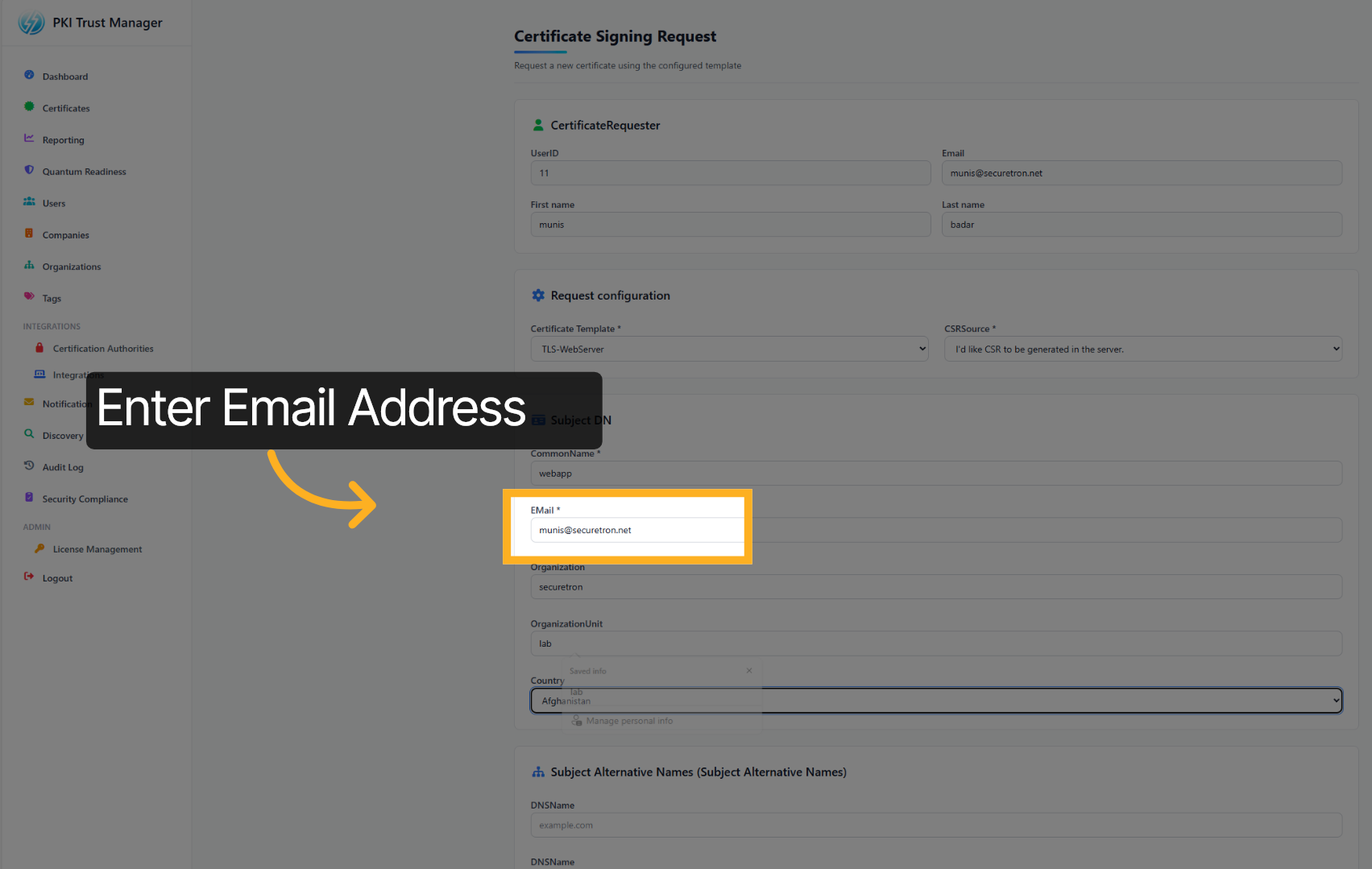
Enter your organization or department name to which the certificate belongs to
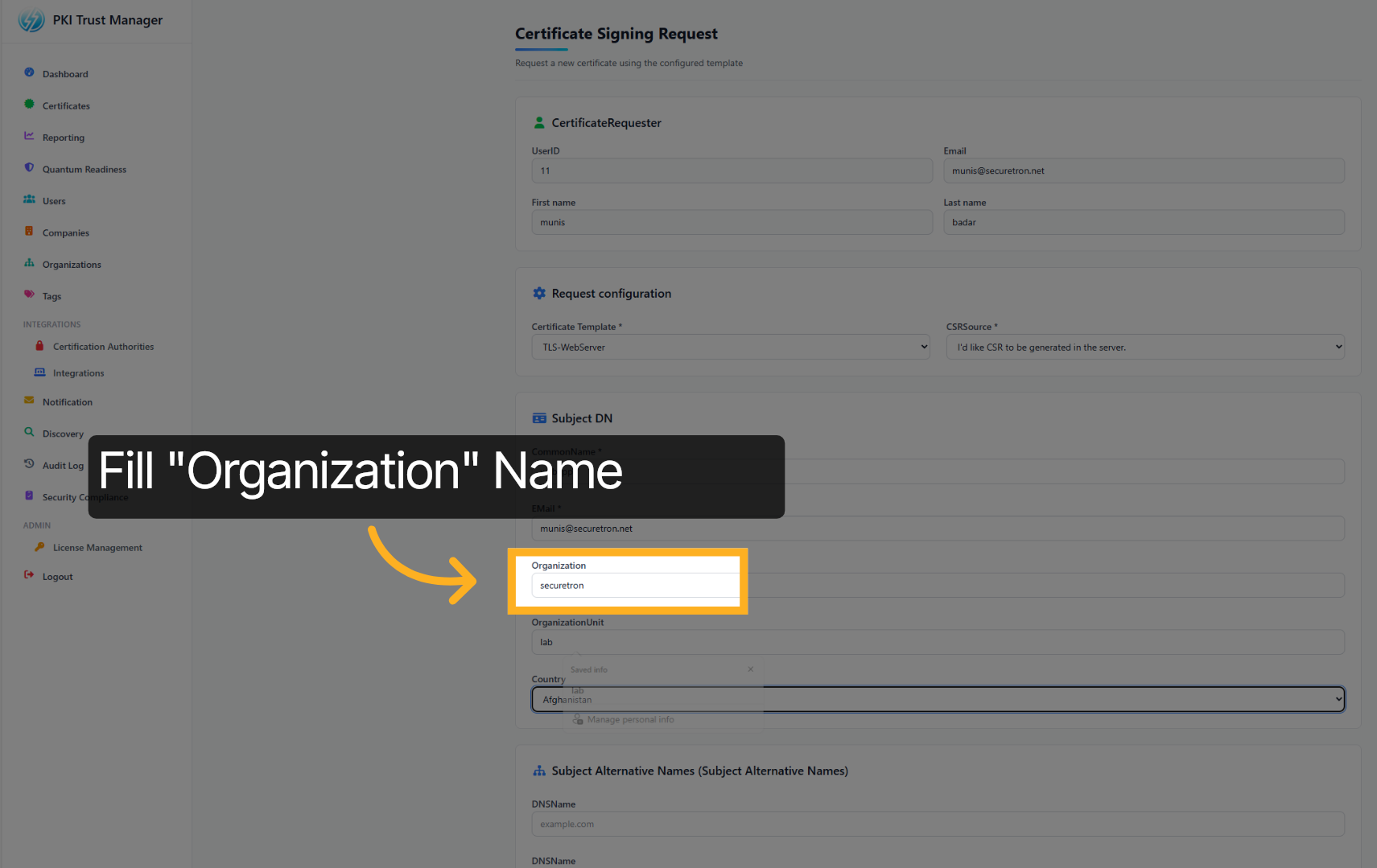
Select the appropriate country from the list.
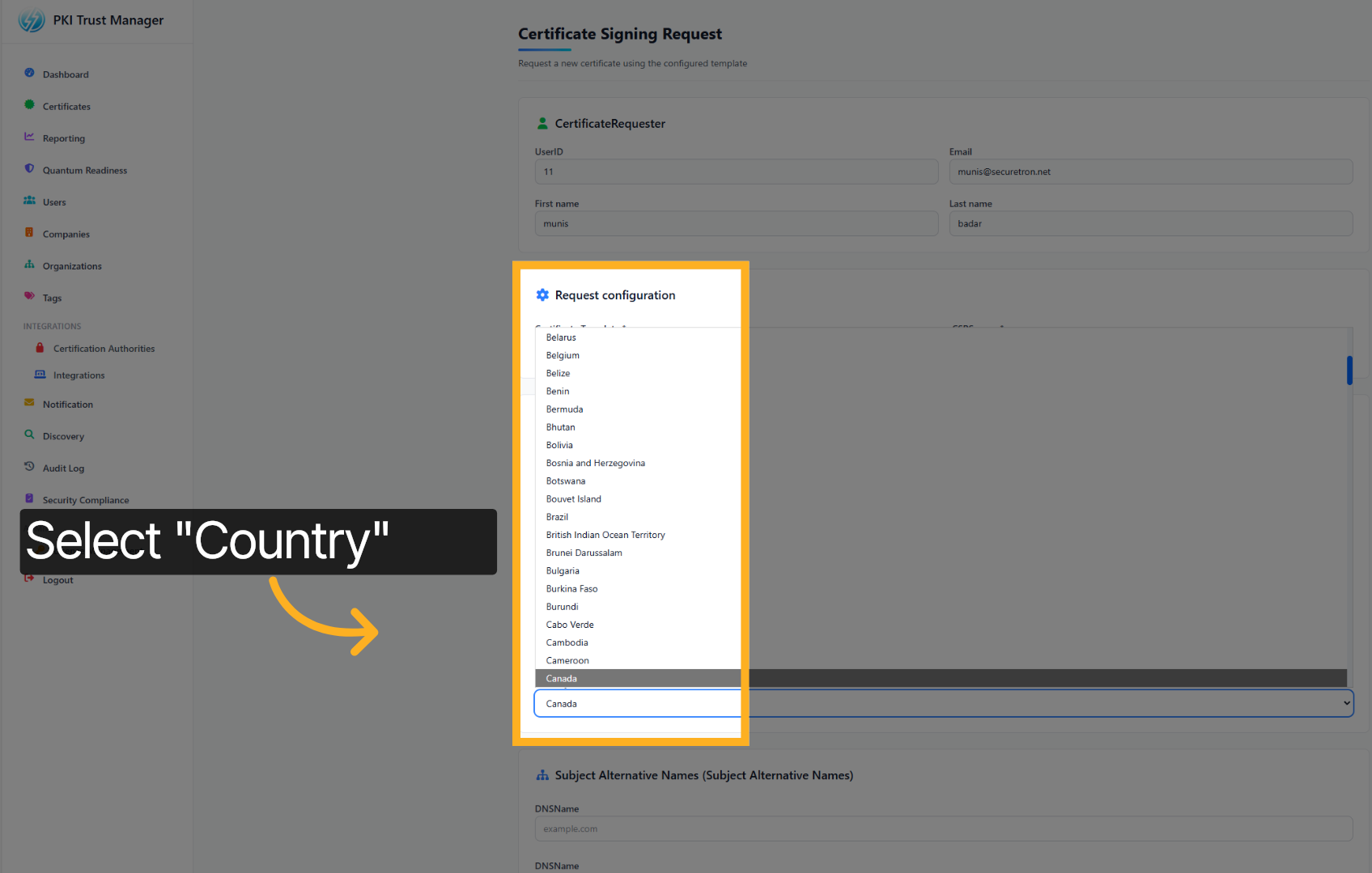
Select the domain name associated with the certificate. These might be aliases used to access the application. They are commonly known as DNS Alias or Subject Alternative Names. If you do not have one – then re-enter the common name here.
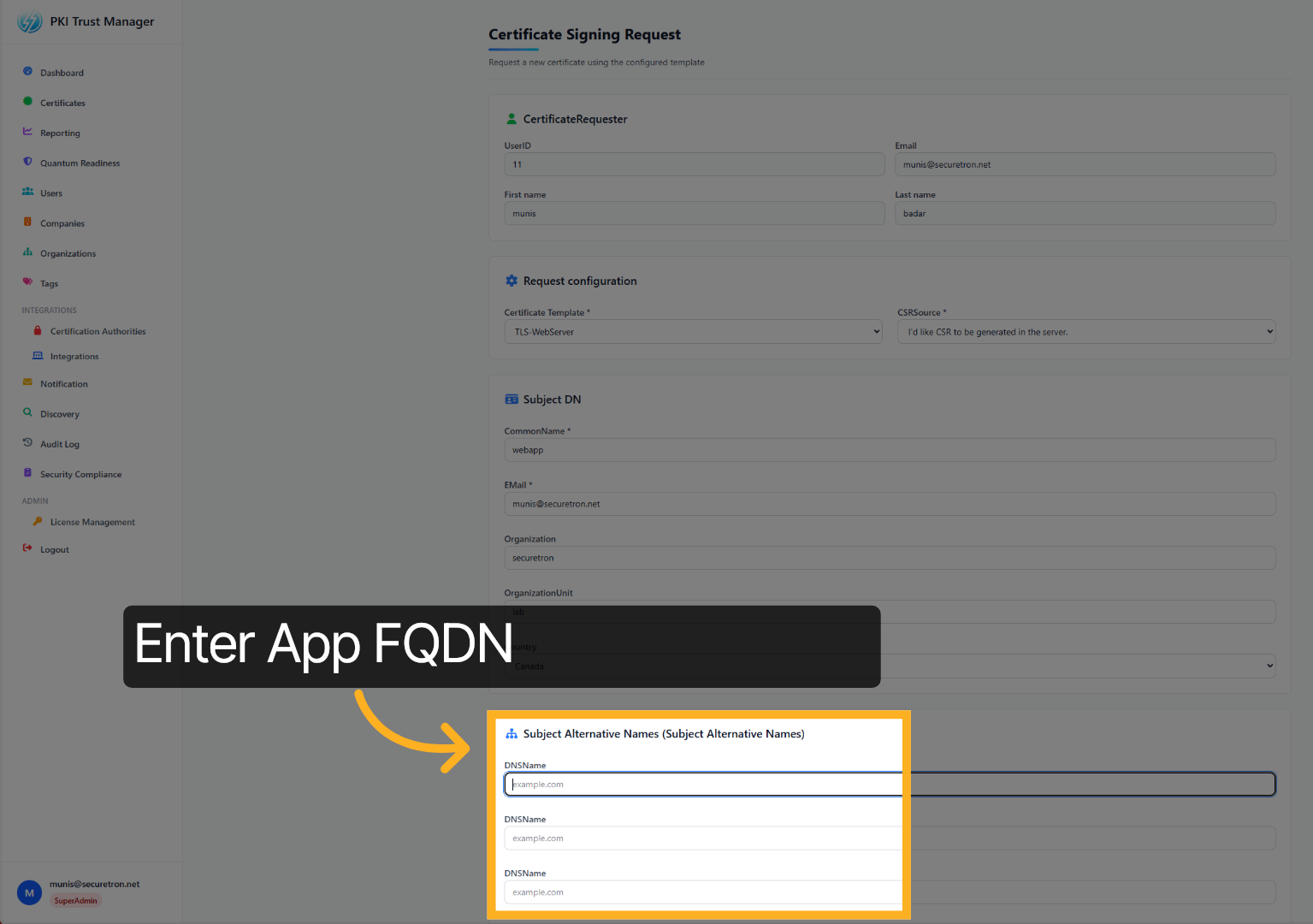
Select the Key algorithm and size
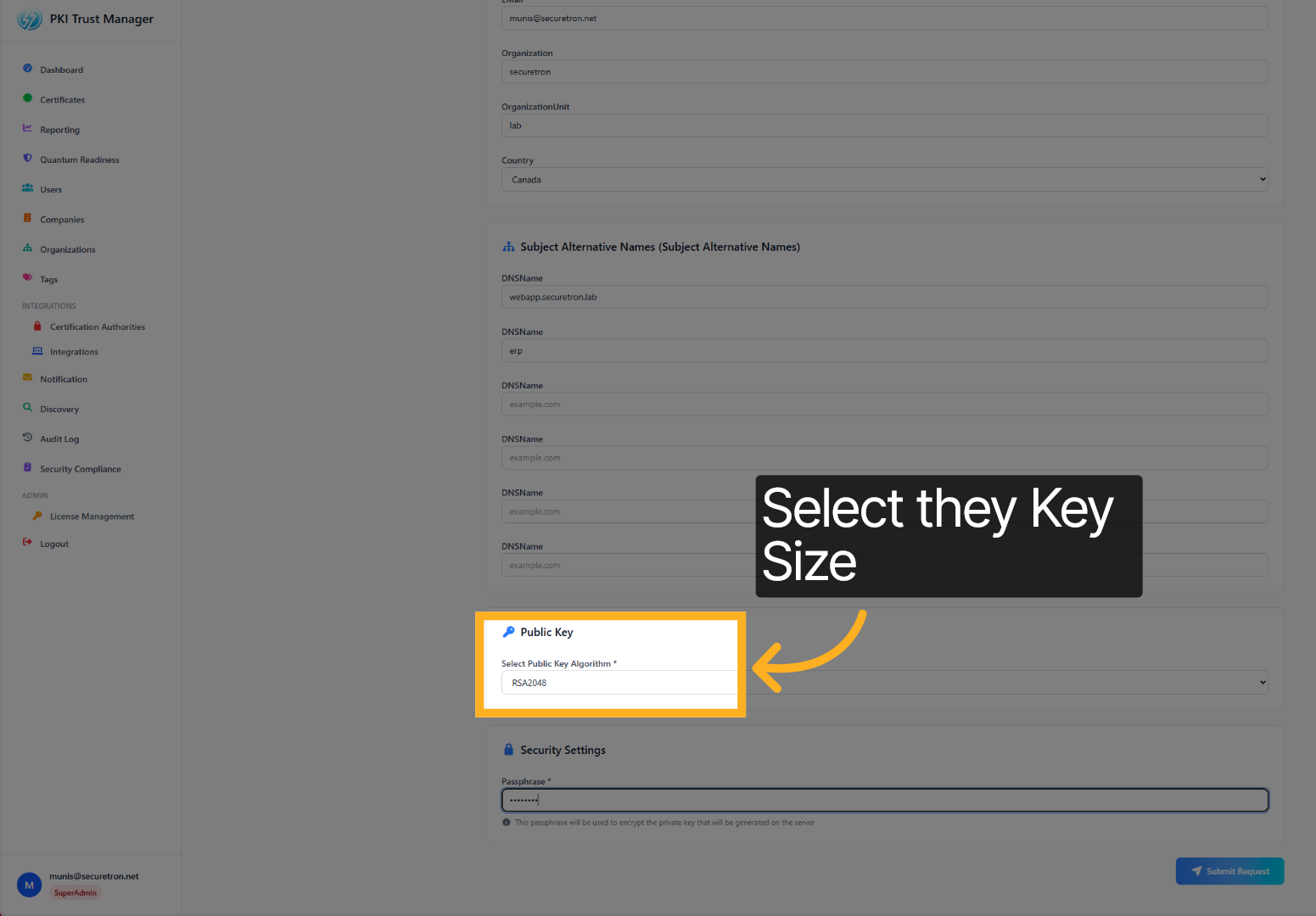
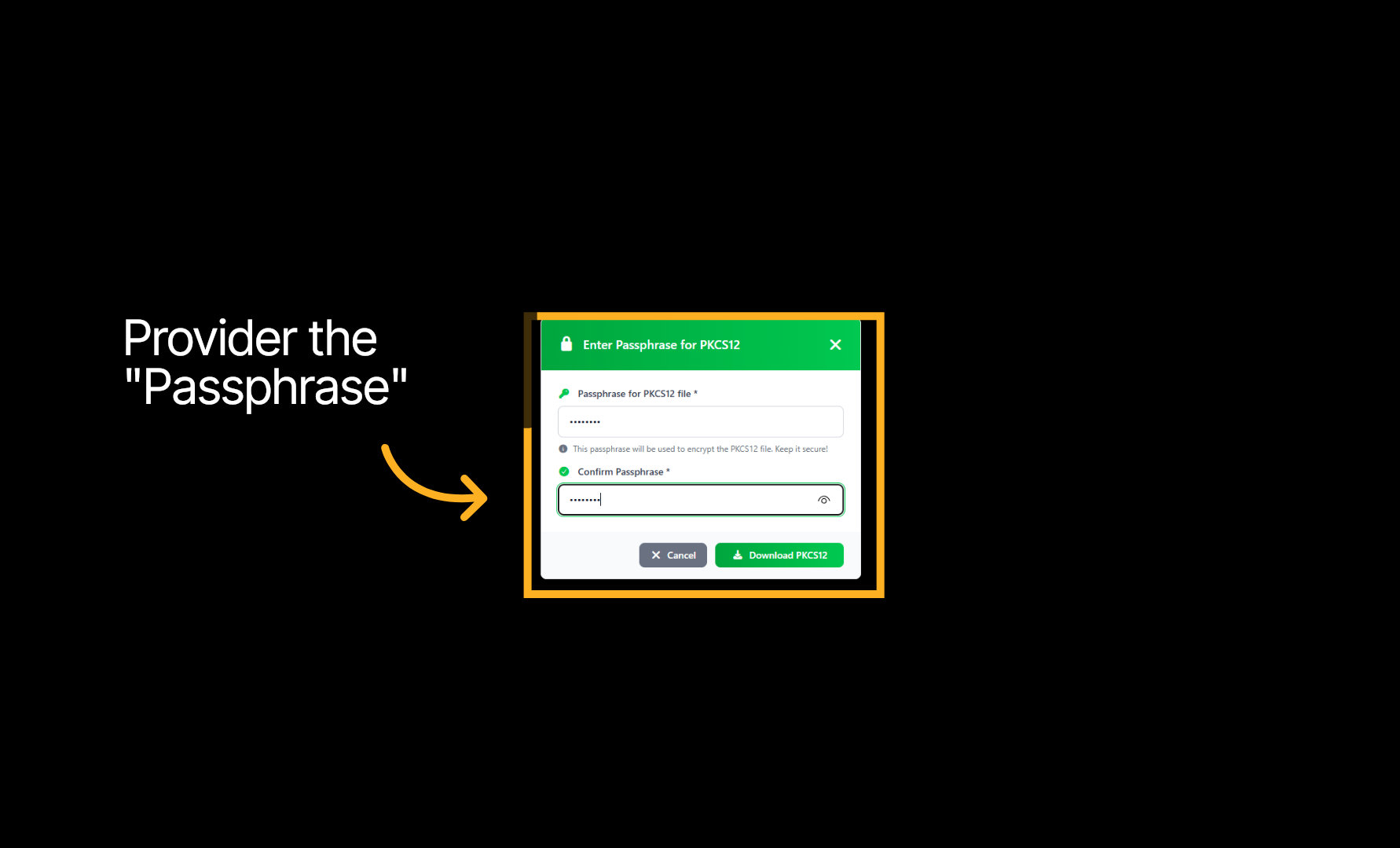
To protect the Private key, provide a pass phrase. This passphrase will be used to download as well as import it on the application server.
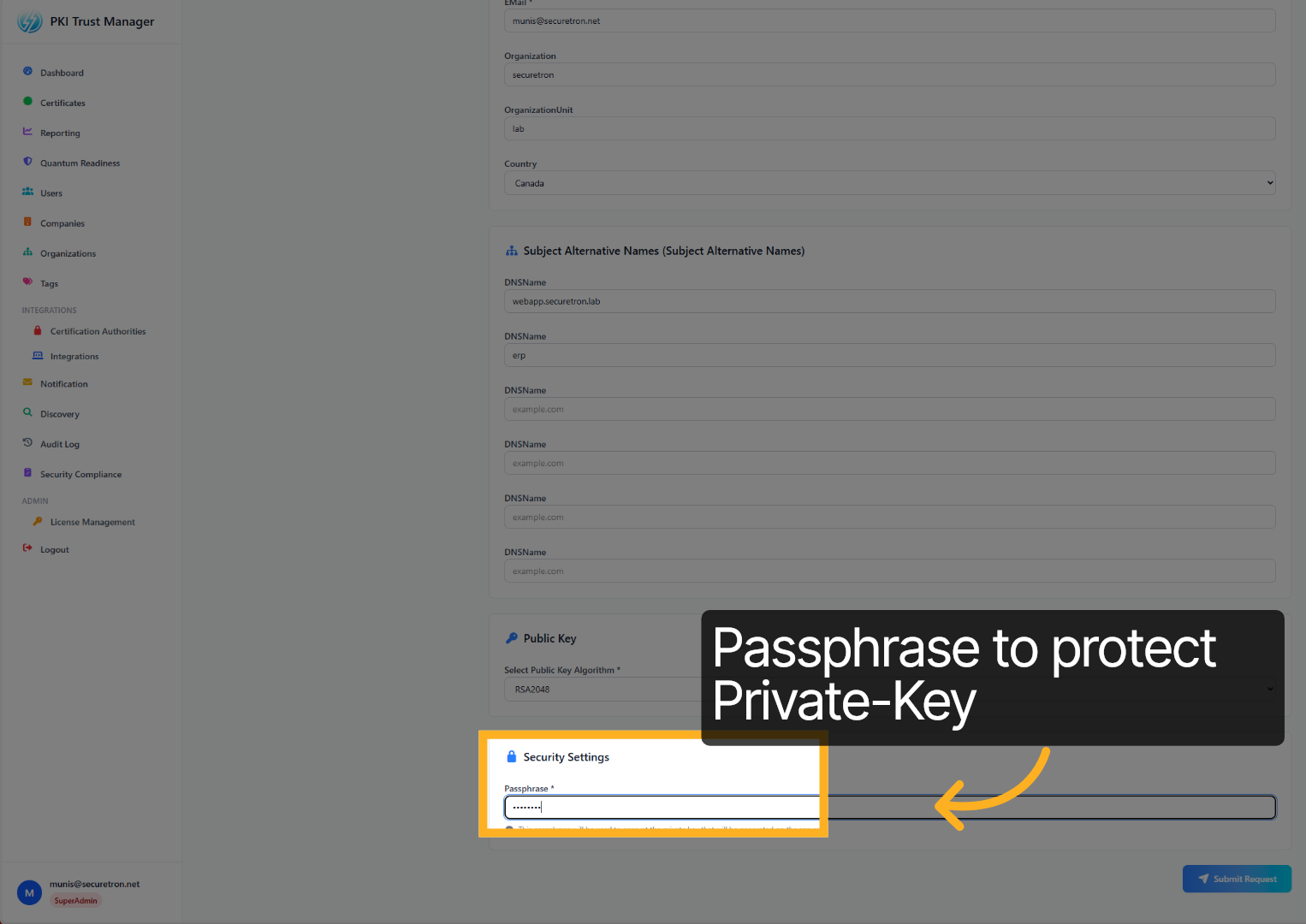
Click Submit Request to send your certificate signing request.
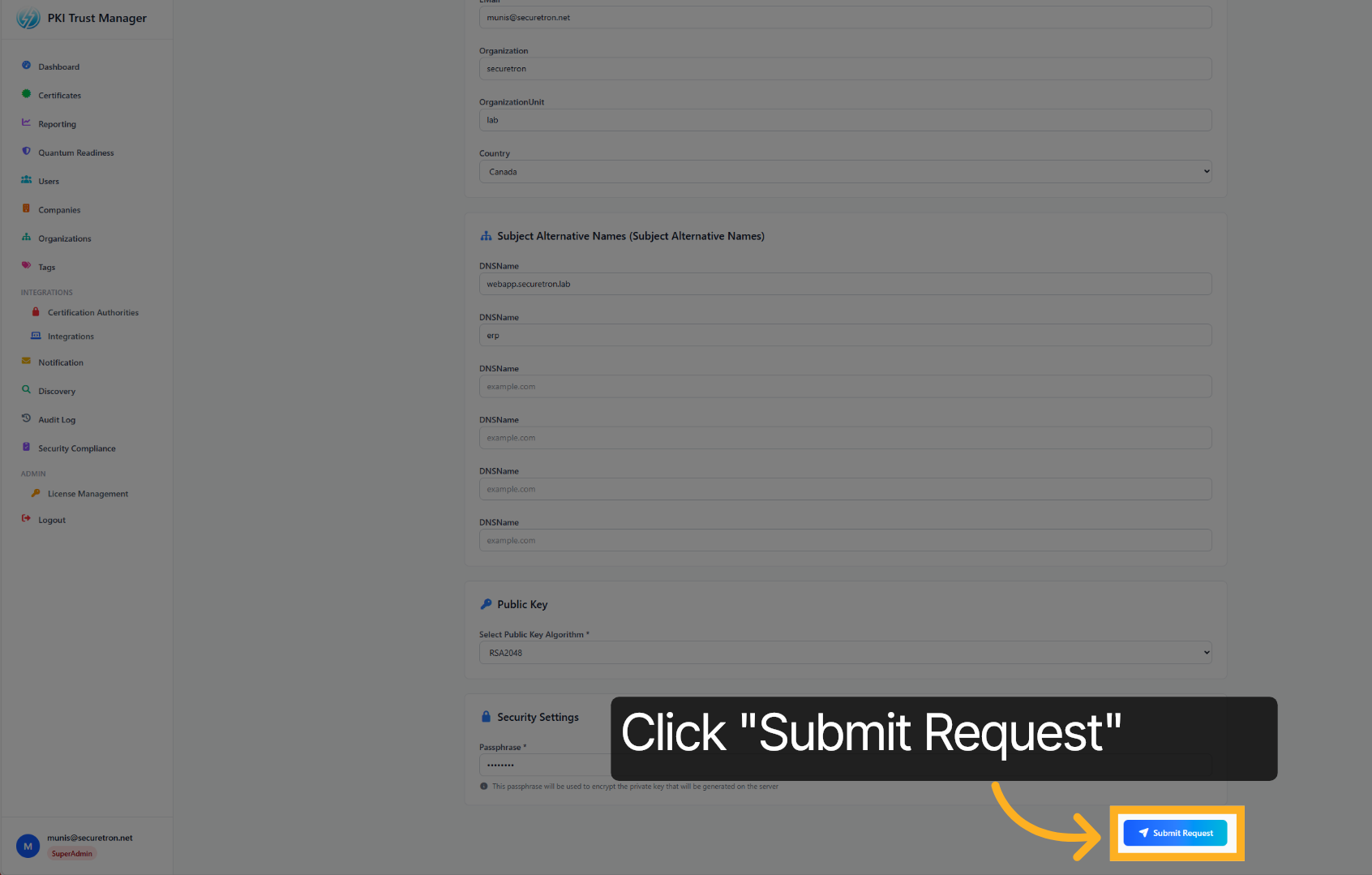
The Certificate details will show the status as “ISSUED” if successful.
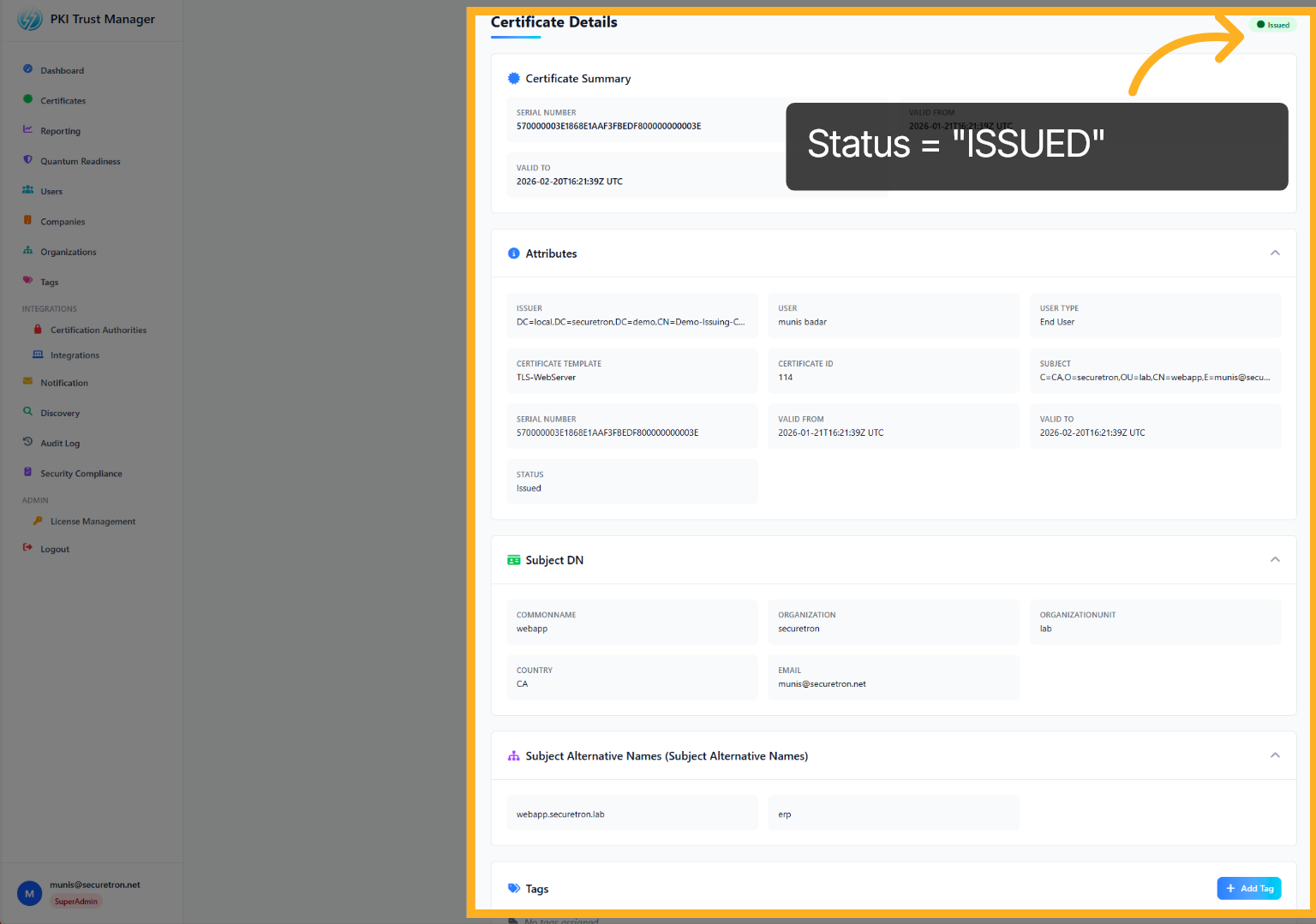
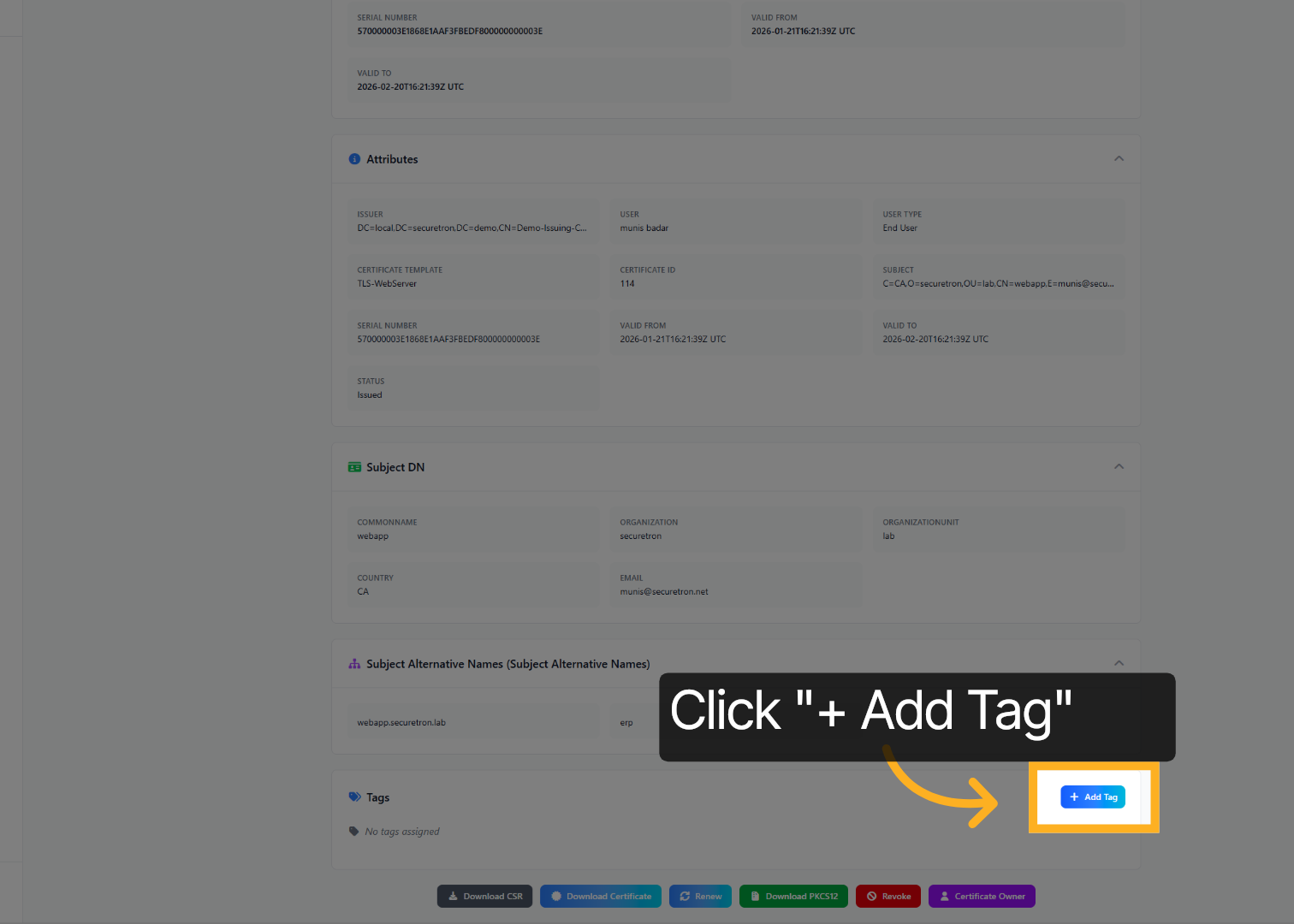
It is best practice to add further metadata to the certificates. You can do this by adding tags to the certificates. You can add multiple tags to the certificates. Let us add a tag to this newly issued certificate. Click on Add Tag, which is located at the bottom of the screen in the tags section
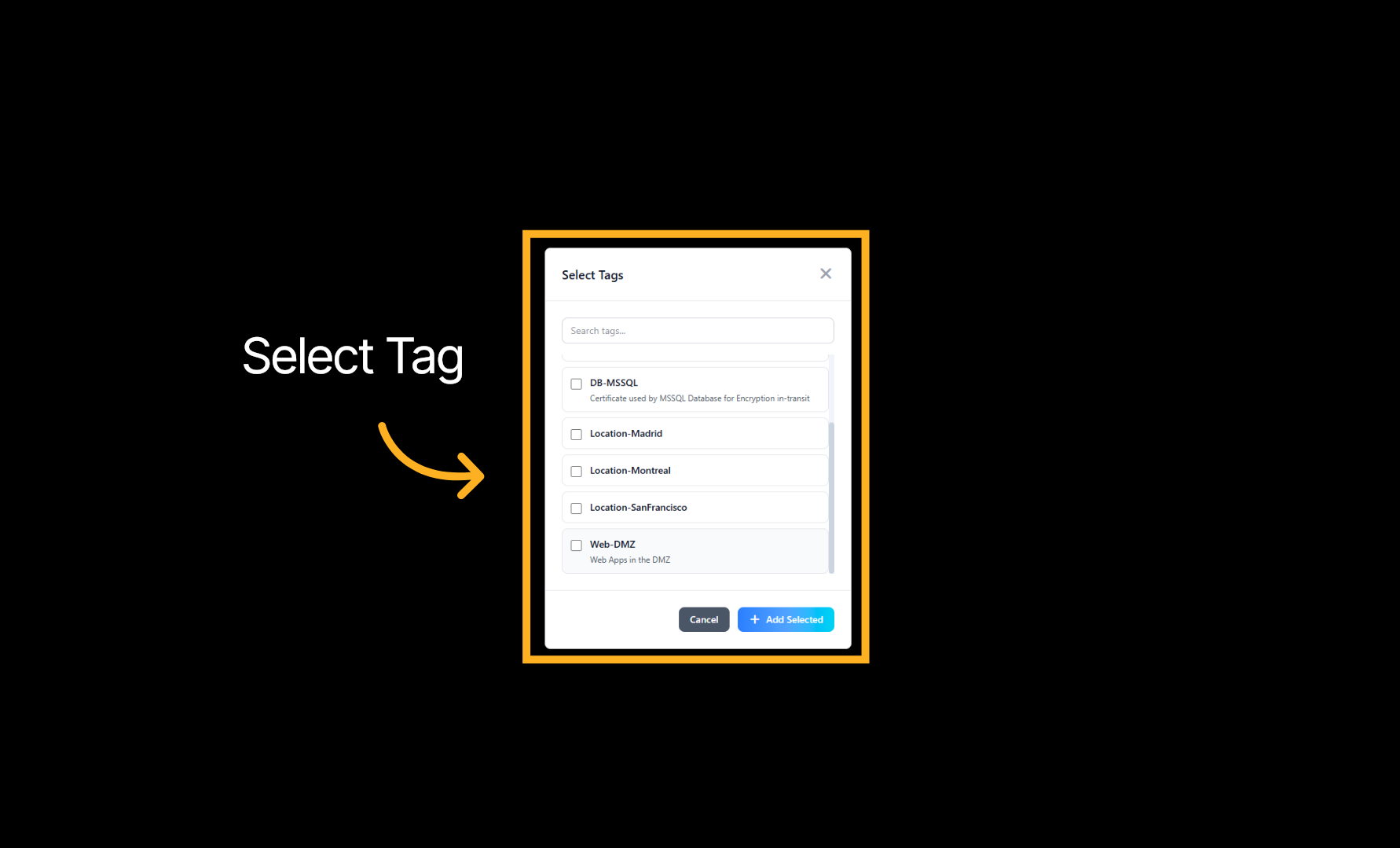
hoose a tag for the certificate.
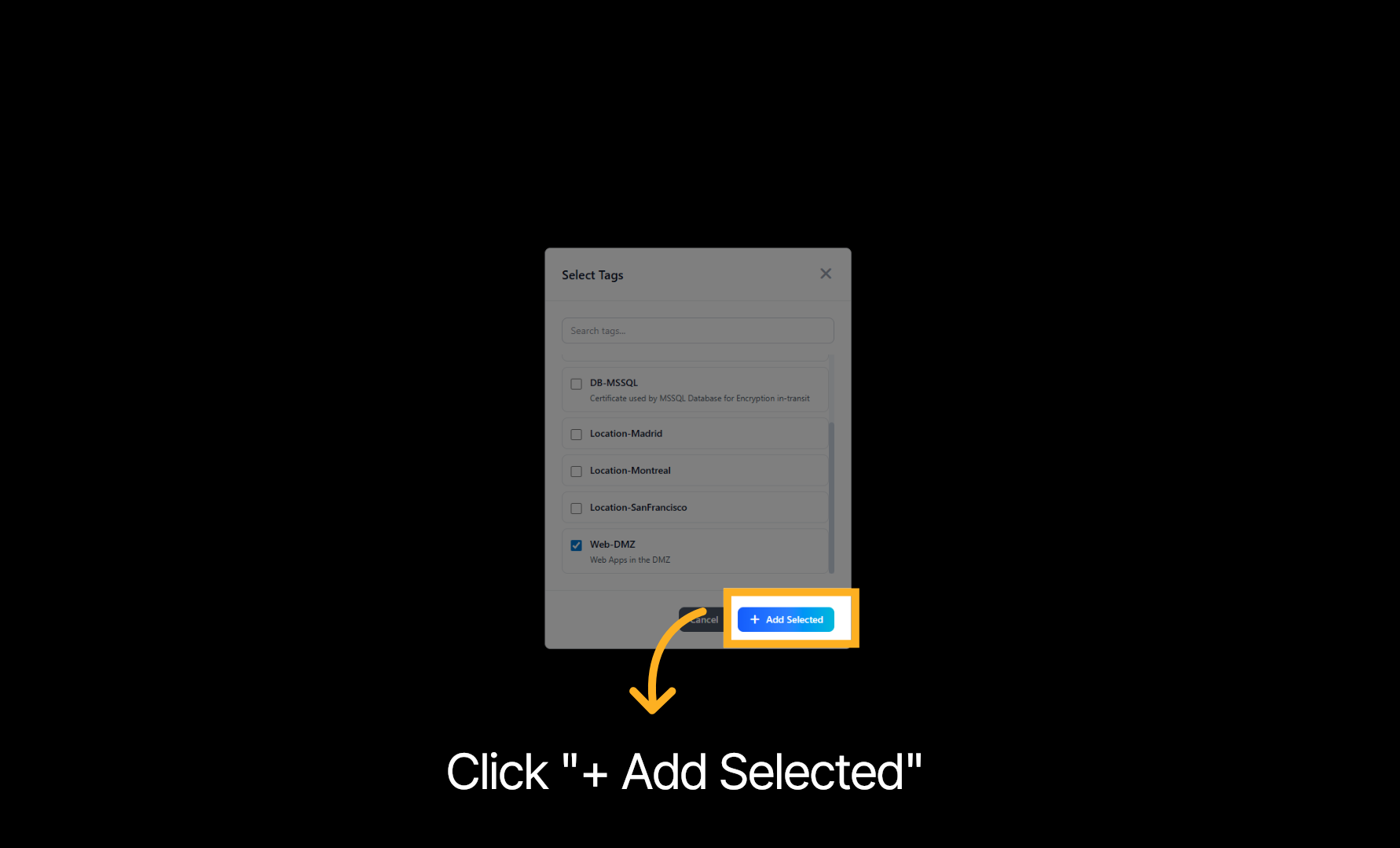
Click Add Selected to apply the chosen tags to the certificate.
The tag has been successfully assigned to the certificate.
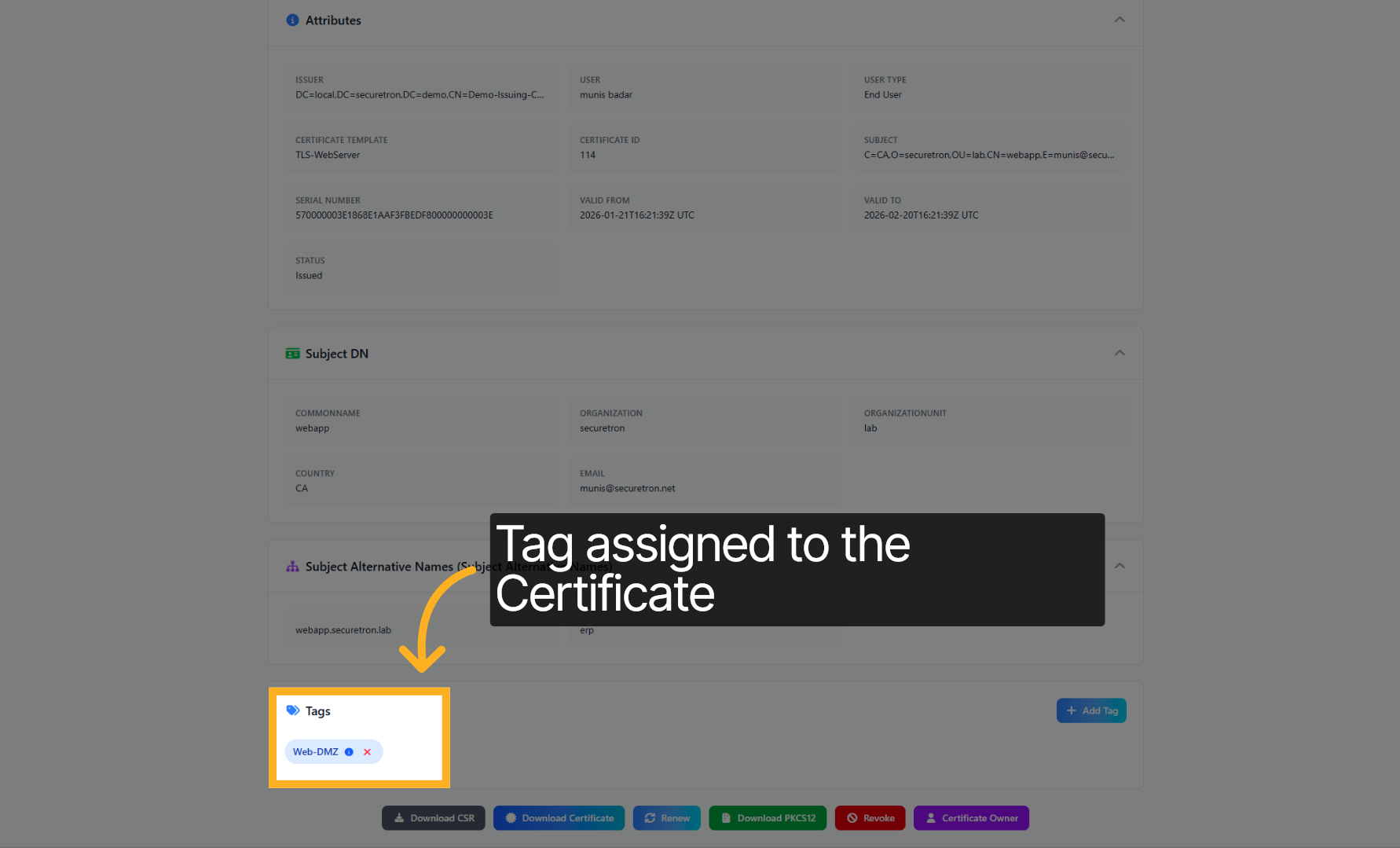
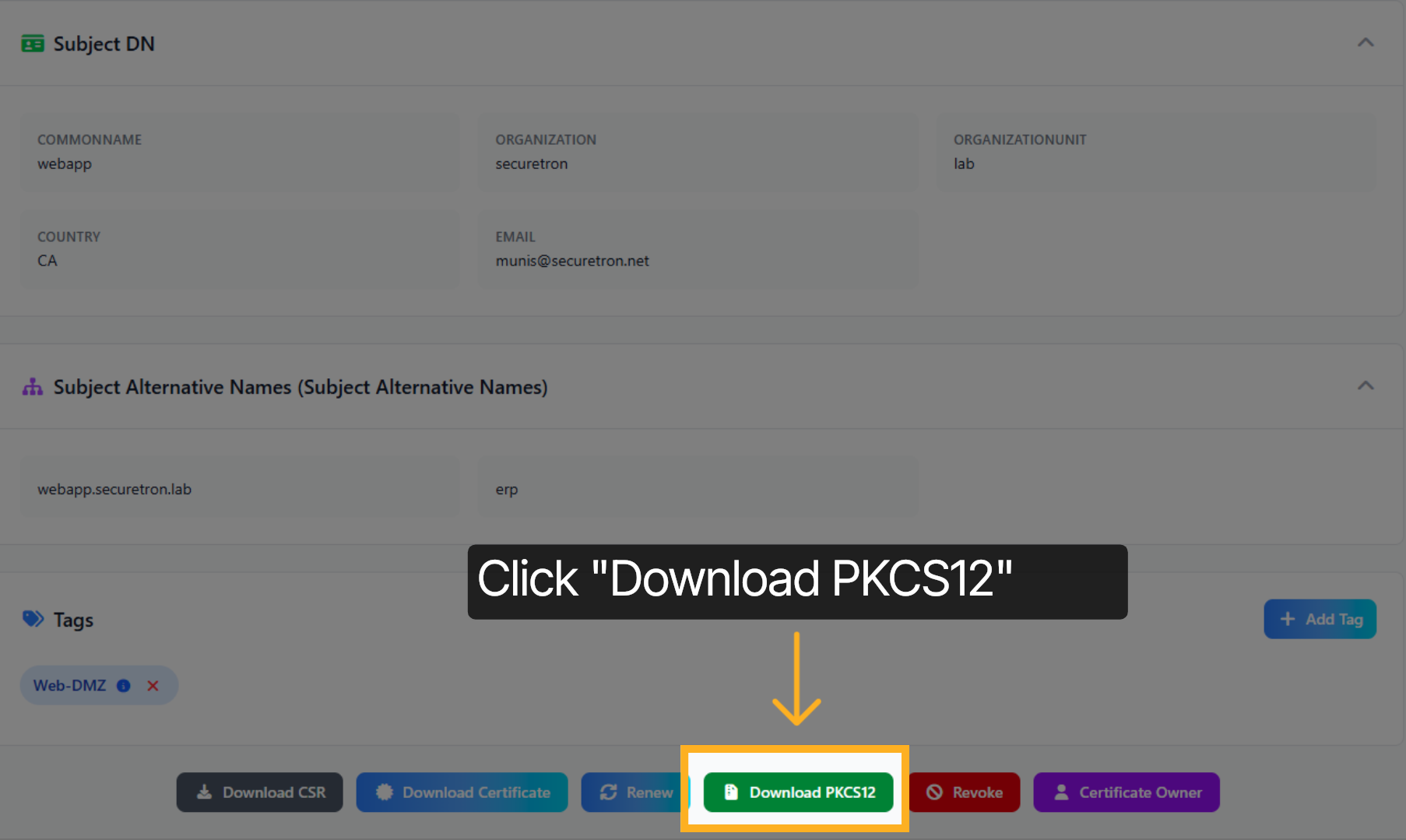
Next, let us download the certificate including the private key. Click Download PKCS12 to obtain the certificate in PKCS12 format.
Enter your passphrase to secure the PKCS12 certificate file.
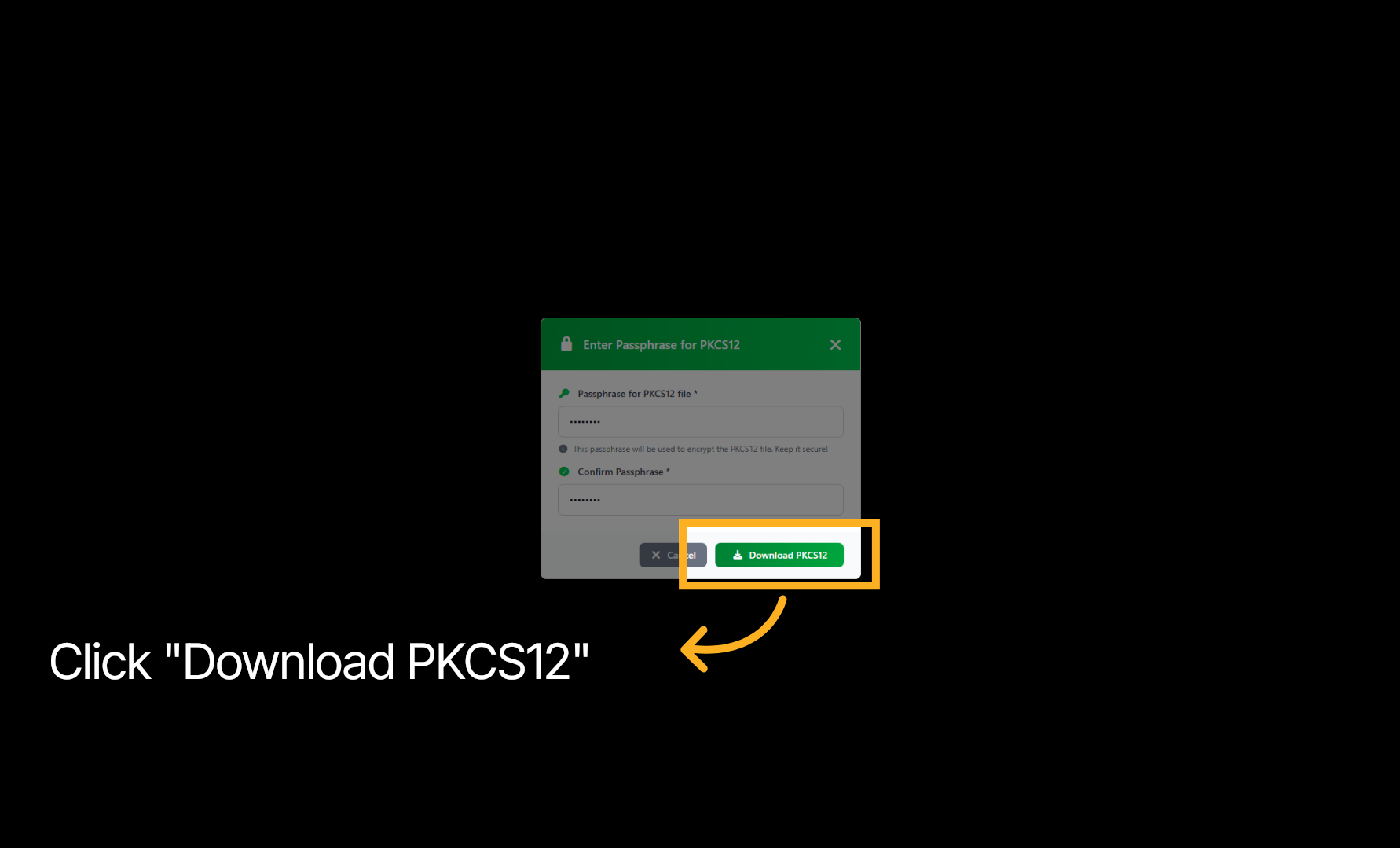
Click Download PKCS12 to finalize saving the certificate file.
Congratulations!You have successfully issued a certificate using the PKI Trust Manager by completing all necessary configuration and download steps. For further management, consider exploring certificate renewal and revocation processes. Additionally, visit our website or contact support if you require further assistance.